- Multiple casting options let you connect your Meta (Oculus) Quest 2 to TV, PC, or phone using Chromecast, phone mirroring, PC browser casting, or devices like Roku, Fire TV, and Apple TV
- Network quality is critical so use the same Wi-Fi on all devices, prefer 5 GHz, and keep the headset close to the router to reduce lag
- Choose the right method for your device with direct Chromecast casting being fastest, phone mirroring the most compatible, and PC HDMI the best for low-latency or professional streaming
If you own an Oculus (Meta Quest) headset, you’ve probably wanted to share your VR experience on a bigger screen. Whether it’s to let friends watch your gameplay, train a group, or simply make VR more social, connecting your Oculus to a TV is straightforward—if you know the right method for your devices.
This detailed guide covers every working method for Oculus casting, including how to connect Oculus to TV, Meta Quest casting, how to connect Meta Quest 2 to TV, and how to cast Oculus Quest 2 to TV. You’ll also learn troubleshooting steps, pro tips from real VR setup experience, and alternatives when your TV doesn’t support direct casting.
Why Oculus Casting Matters
Oculus casting lets you mirror the headset view to a TV, monitor, or other display in real time. This is especially useful for:
- Entertainment – Friends and family can watch what’s happening in VR.
- Training – Instructors can guide learners by seeing exactly what they see.
- Demos – Businesses can showcase VR applications to a group.
- Recording – Stream or record gameplay for content creation.
Without casting, VR is a solitary experience. With casting, it becomes a shared one.
Before You Start: Requirements for Smooth Oculus Cast
For Oculus casting to work without lag or dropouts, ensure you have:
- A stable Wi-Fi network – Ideally 5 GHz for faster, more stable video transfer.
- All devices on the same network – The Oculus headset, TV, and phone (if used) must connect to the same router.
- Updated software – Keep your Meta Quest headset firmware and TV firmware up to date.
- Compatible hardware – A Chromecast-enabled TV, streaming device, or alternative setup method.
How to Connect Oculus Quest 2 to TV, Phone, or PC – Complete Casting Guide
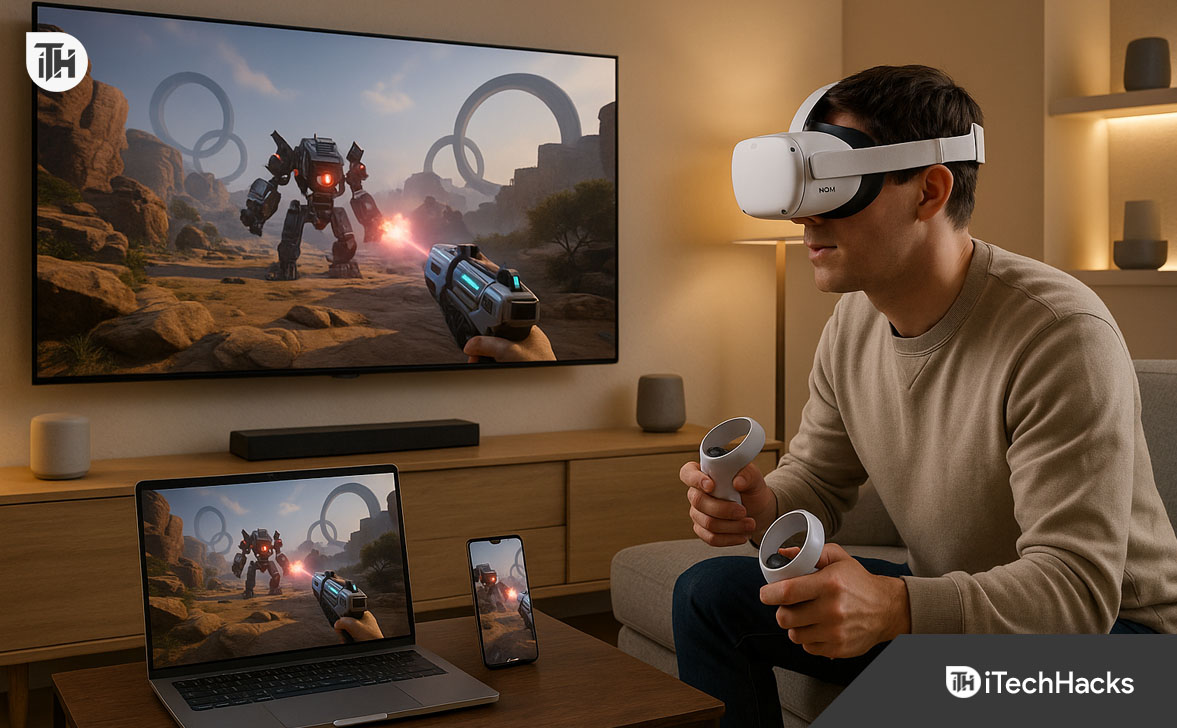
Direct Oculus Casting to a Chromecast TV
If your TV has Chromecast built-in or you use a Chromecast dongle, this is the fastest and cleanest answer to how to connect Oculus to TV. With this setup, the headset sends video straight to the TV with no phone or PC in between, making it ideal for parties, training sessions, or quick demos.
Step-by-Step Instructions:
- Turn on your Chromecast-enabled TV and confirm it’s connected to Wi-Fi.
- Put on your Oculus (Meta Quest) headset and press the Meta button.
- Select the Share (Camera icon) from the menu.
- Choose Cast and wait for your TV to appear in the list.
- Select your TV and press Next.
- A small red dot in the headset view means your oculus cast is live.
Pro Tips:
- Use a 5 GHz Wi-Fi connection for smooth meta quest casting.
- Restart both devices if the TV doesn’t show in the list.
Cast Oculus to Phone, Then Mirror to TV
This is my go-to recommendation for homes asking how to connect Meta Quest 2 to TV when the television isn’t Chromecast-ready — such as Roku, Fire TV, or older smart TVs. You simply send the Oculus view to your phone, then mirror that to the TV.
Step-by-Step Instructions:
- Install the Meta Quest app on your phone and log in with your Meta account.
- In the headset: Share → Cast → Select Meta Quest App → Next.
- Accept the casting request on your phone.
- Mirror your phone’s screen to the TV:
- Android: Use Cast/Screen Share.
- iPhone: Use AirPlay.
Pro Tips:
- Keep phone and TV on the same Wi-Fi network.
- This method is also one of the easiest solutions for how to cast Oculus Quest 2 to TV without extra devices.
Cast Oculus to a Computer, Then Output to TV
If you want to record, stream, or present VR content, casting to a computer first is perfect. It’s a strong option for anyone searching how to connect VR to TV while also capturing high-quality footage.
Step-by-Step Instructions:
- On your PC, open Chrome or Edge and sign in to your Meta account.
- In the headset: Share → Cast → Select Computer.
- Once the VR view appears in your browser, send your PC’s display to the TV via HDMI or wireless display.
Pro Tips:
- HDMI offers the lowest latency.
- Close unused tabs and apps for smoother oculus casting performance.
Oculus Casting to Fire TV or Fire Stick
If you own an Amazon Fire TV device and want meta quest casting without buying Chromecast, this method works well by using a receiver app.
Step-by-Step Instructions:
- On Fire TV, install “AirScreen” or a similar casting receiver app.
- Open the app and follow on-screen setup.
- In the headset: Share → Cast → Select your Fire TV device.
Pro Tips:
- Use Ethernet if possible for stable video.
- Restart the receiver app if the headset can’t detect your Fire TV.
Cast Oculus to Roku TV
Since Roku TVs don’t support Chromecast, you’ll use the phone-mirroring bridge from Method 2. This is one of the easiest workarounds for how to connect Oculus to TV on Roku models.
Step-by-Step Instructions:
- Cast your headset to the Meta Quest app on your phone.
- Enable Screen Mirroring on your Roku TV.
- Mirror your phone’s screen to the Roku via Android Cast or iPhone AirPlay.
Pro Tips:
- Keep all devices on the same Wi-Fi network.
- Use AirPlay for smoother playback on newer Roku models.
Oculus Casting to Apple TV
For Apple households, this is the cleanest method for how to cast Oculus Quest 2 to TV. The iPhone/iPad acts as a bridge, then sends the VR feed to the Apple TV via AirPlay.
Step-by-Step Instructions:
- Cast the headset view to your iPhone/iPad with the Meta Quest app.
- Open Control Center → Screen Mirroring → Select your Apple TV.
Pro Tips:
- A wired USB-C or Lightning to HDMI adapter gives you lag-free output.
- Ensure AirPlay is enabled on the Apple TV before starting.
How to Stop Oculus Casting
Once you’ve finished showing your VR session on the TV, it’s important to stop the oculus cast to save battery and reduce network usage. The process is quick and works the same for meta quest casting whether you’re connected to a Chromecast, phone, or PC.
In your headset, press the Meta (Oculus) button.
- Open the Share (Camera) menu.
- Select Cast.
- Choose Stop Casting.
- Stopping from the Meta Quest App:
- On your phone, open the Meta Quest app.
- Tap the casting indicator at the top of the screen.
- Select Stop Casting.
Pro Tips:
- Stopping casting can help reduce headset heat buildup.
- Always stop casting before turning off your TV or router to avoid stuck connections.
- If the cast session doesn’t stop immediately, restart the headset to clear it.
Best Practices for Smooth Meta Quest Casting
If you want how to cast Oculus Quest 2 to TV to work every time:
- Use the shortest possible distance between router, TV, and headset.
- Keep your Meta Quest headset and all devices updated.
- Avoid public or hotel Wi-Fi — network restrictions can block casting.
- Stop casting when done to save battery and improve performance.
FAQs
1. Can I connect Oculus to any smart TV?
Not all smart TVs support direct oculus casting. Some require Chromecast or a phone/PC as an intermediate device.
2. How do I connect Meta Quest 2 to TV without Chromecast?
Use phone mirroring (Android Cast or iPhone AirPlay) or cast to a PC, then connect the PC to the TV via HDMI.
3. Does casting reduce VR performance?
A little. High-demand games may see a slight frame drop when using meta quest casting, especially on weaker Wi-Fi.
4. Can I cast Oculus Quest 2 to TV with a cable?
Yes. Cast to your phone and use a USB-C or Lightning to HDMI adapter to connect the phone to the TV.
5. How do I stop Oculus casting?
In your headset, go to Share > Cast > Stop Casting, or stop it from the Meta Quest mobile app.
Conclusion
Learning how to connect Oculus to TV unlocks a more social and interactive VR experience. Whether you use meta quest casting directly to a Chromecast TV, mirror through your phone, connect via PC, or use streaming devices like Fire TV or Apple TV, there’s a method to fit every setup.
If your goal is speed, direct oculus casting to a Chromecast is the easiest. For flexibility, phone mirroring is the most compatible. And if you need the highest quality or lowest delay, PC HDMI output is unbeatable.
Whichever method you choose, keeping devices updated, using a 5 GHz network, and following the troubleshooting tips above will make sure how to cast Oculus Quest 2 to TV is smooth every time.
ALSO READ: