

- Microsoft Teams often auto-logs using cached credentials or linked Windows accounts, clearing those manually is necessary.
- Editing the registry and disconnecting old work accounts can stop persistent login attempts with outdated accounts.
- On Windows 11 24H2 and newer, use the built-in Teams reset feature or create a fresh user profile for a clean setup.
Microsoft Teams is deeply integrated into Windows 11 and Windows 10 environments, especially when you’re using Azure AD, Microsoft 365, or personal Microsoft accounts. But one of the most persistent and frustrating issues users face, particularly in 2026, is that Microsoft Teams keeps asking you to sign in using an outdated account or automatically tries to use your PC login account even if it’s no longer valid.
If you’re stuck in a login loop or can’t login to Teams because it keeps defaulting to a previous account, this guide is for you. We’ll go over all working fixes tested across corporate environments and individual systems, including Windows 11 24H2 builds, Teams Classic, and the new Teams 2.0 client.
Why Does Teams Keep Asking to Sign In with an Old Account?
This typically happens due to one or more of the following:
- Cached credentials stored in the Windows Credential Manager
- Microsoft Teams app is still tied to the work/school Azure AD account that has been removed or expired
- The Windows user account (especially if linked to a Microsoft ID) is still connected to Teams
- Incorrect registry entries or residual config files in %appdata%
- Cloud services like WebAccountManager are syncing the wrong credentials across apps.
Microsoft Teams Log In Problem: How to Remove Old Account Credentials
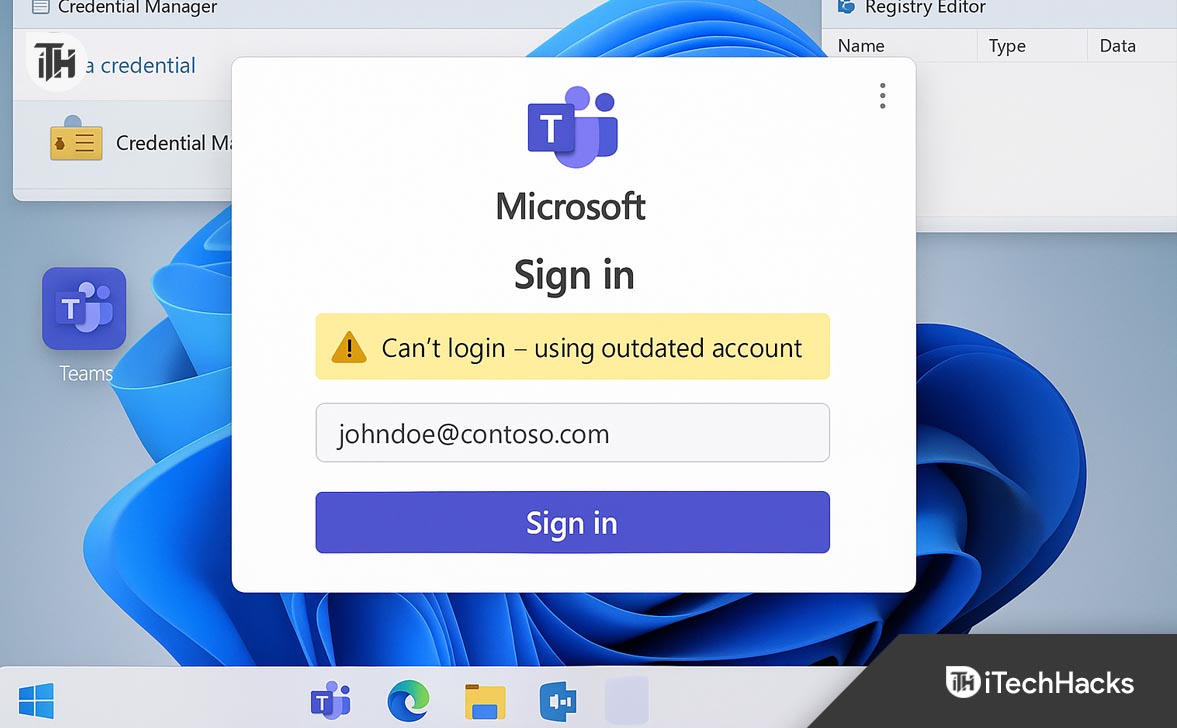
Sign Out of Teams and Remove Saved Credentials
When Microsoft Teams keeps asking you to sign in using old credentials, it’s usually due to cached passwords or Windows Credential Manager entries.
-
Sign Out of Teams
-
Open Microsoft Teams.
-
Click your profile icon in the top-right corner.
-
Select Sign Out.
-
-
Close Teams Fully
-
In the system tray (bottom-right), right-click on the Teams icon and choose Quit.
-
-
Open Credential Manager
- Press
Windows + Sand typeCredential Manager. - Click Windows Credentials.
- Locate and remove any entries related to:
msteams_MicrosoftOffice16_Data:ADALSSO_POP_Device- Any entry containing your old account email address
Restart Teams
-
-
Open Teams again and enter the correct credentials when prompted.
-
This fix often resolves issues where Microsoft Teams log in defaults to an outdated or inactive account.
Delete Teams Cache and App Data
Reinstalling Teams does not automatically clear cache files or configuration folders. These leftover files often cause Teams to keep logging into the wrong account.
-
Close Teams Completely
-
Make sure Teams is fully closed from the taskbar/system tray.
-
-
Open File Explorer and Navigate to the Cache Directory
-
Type the following path into the address bar: appdata%\Microsoft\Teams
-
-
Delete the Following Folders:
Cacheblob_storagedatabasesGPUCacheIndexedDBLocal Storagetmp
For New Teams 2.0 Clients
- Navigate to: localappdata%\Packages\MSTeams_8wekyb3d8bbwe
- Delete the
LocalCacheandTempStatefolders.
Restart Microsoft Teams
- After clearing the cache, launch Teams and sign in with the correct account.
This method helps users who can’t login to Teams because the app keeps using old data stored locally.
Remove Work or School Accounts from Windows Settings
If your PC is still connected to a work or school Microsoft account, Teams will often attempt to log in automatically using that account, even if it is no longer active.
-
Open Windows Settings
-
Press
Windows + Ito open the Settings panel.
-
-
Go to Accounts > Access Work or School
-
Check for any connected accounts (especially work or school accounts).
-
Click on any old or unused account and choose Disconnect.
-
-
Go to Accounts > Email & Accounts
-
Under Accounts used by other apps, remove any old Microsoft accounts.
-
-
Restart Your Computer
By removing unused accounts, Teams will no longer auto-select them during Microsoft Teams login.
Use Registry Editor to Disable Auto Sign-In Behavior
Teams can automatically log in using the account linked to your Windows profile. You can disable this behavior by modifying registry values.
Open Registry Editor
- Press
Windows + R, typeregedit, and press Enter.
Navigate to the Teams Registry Key
- Go to: HKEY_CURRENT_USER\Software\Microsoft\Office\Teams
- If the key does not exist, create it manually.
Create or Modify the Following Value:
- Right-click → New → DWORD (32-bit) Value
- Name it: AutoStartTeams
- Set its value to
0.
Navigate to Another Key:
Create These DWORD Entries:
EnableADAL→ set to1DisableADALatopWAMOverride→ set to1
Close Registry Editor and Restart Your PC
This disables automatic login using your Windows account and allows manual Microsoft Teams log in.
Reset the Teams App (Windows 11 24H2+)
Windows 11 now includes built-in tools to reset app data, including Microsoft Teams.
Open Settings
- Press
Windows + I.
Go to Apps > Installed Apps
- Scroll or search for Microsoft Teams.
Click the Three Dots Next to Teams
- Select Advanced Options.
Terminate the App
- Click Terminate to stop all background processes.
Click Reset
- Then click Reset. This deletes all data, including login cache, and forces a clean start.
This method is particularly effective on newer devices running Windows 11 24H2 or later where the classic uninstall method does not fully wipe Teams.
Sign In Using Teams Web Version
If you temporarily can’t login to Teams on the desktop, the browser version is a quick workaround.
- Open your browser (Edge or Chrome).
- Go to: https://teams.microsoft.com
- Enter your preferred Microsoft account credentials.
- Use the web version or install it as a PWA (Progressive Web App) for full functionality.
This method does not fix the desktop issue, but lets you continue using Teams while troubleshooting.
Run Microsoft Support and Recovery Assistant (SaRA)
Microsoft provides a dedicated troubleshooting tool for login issues with Office apps, including Teams.
- Download the Microsoft Support and Recovery Assistant (SaRA) from Microsoft’s official site.
- Launch the tool and choose: Office Apps > Teams > I’m having trouble signing in
- Let the tool run diagnostics and apply fixes.
This is especially helpful when Teams login errors are caused by corrupted authentication tokens or service sync failures.
Unregister Device from Azure AD (Work/Enterprise Accounts)
If your device was previously joined to an organization’s Azure Active Directory, Teams may try to use that account.
Open Command Prompt as Administrator
Press Windows + S, type cmd, right-click and select Run as Administrator.
Check Azure AD Join Status
Run: dsregcmd /status
Leave Azure AD
If your device is registered, run: dsregcmd /leave
Disconnect the Account
- Go to Settings > Accounts > Access work or school.
- Remove any organizational accounts.
Restart the System
This method is effective for enterprise users where Teams is forcing login with old device identities.
Create a New Local Windows User Account
If none of the above solutions resolve the issue, create a fresh user profile to isolate corrupted credentials.
- Go to Windows Settings > Accounts > Family & Other Users
- Click ‘Add Someone Else to This PC’
- Choose ‘I don’t have this person’s sign-in information.’
- Create a Local Account (not linked to Microsoft ID)
- Log into the new profile
- Download and set up Microsoft Teams
This method ensures a completely clean environment where Teams will not pull legacy account data.
Frequently Asked Questions (FAQs)
Why does Microsoft Teams keep asking me to sign in with my old account?
Teams stores account data across the registry, cache, and Windows credentials. If any of these still reference your old account, Teams will default to it at launch.
What if I can’t log in to Teams at all after removing old accounts?
Try using the web version temporarily, clear all app cache folders, and reset Teams through Windows Settings. You may also need to run the Microsoft SaRA tool for advanced fixes.
Does uninstalling Microsoft Teams remove account information?
No. Uninstalling Teams does not clear credential manager entries or cached data in %appdata%. You must manually remove those.
Can I use multiple accounts with Microsoft Teams on one device?
Yes, but not simultaneously in the same Teams client. Use web browsers or different Windows profiles to manage multiple accounts cleanly.
What if Teams keeps auto-logging in even after a clean install?
Check registry values and your linked Windows account under “Access work or school.” Use Method 3 and 4 to stop auto sign-ins.
Conclusion
If Microsoft Teams keeps asking you to sign in with an outdated or incorrect account, the issue usually lies with cached credentials, linked Windows accounts, or leftover configuration files. By following the steps above—clearing cache, removing saved credentials, adjusting registry settings, or resetting Teams—you can stop Teams from defaulting to the wrong profile and restore proper login functionality. Use the method that fits your setup, whether personal or enterprise.
ALSO READ:
- Teams Mic Not Working After 24H2 Update? Try These Working Fixes
- How to Use and Fix Microsoft Teams AI Meeting Notes
- Microsoft Teams Camera Not Working? Here’s How to Fix It Fast
- How to Mark a Message as Important in Teams
- How to Fix Microsoft Teams Error Tag 657rx in Windows 11/10
- Top 8 Ways to Keep Microsoft Teams Status Green All the Time




