- Most Microsoft Teams camera issues are caused by incorrect permissions or the wrong camera being selected in Teams settings.
- Apps like Zoom or OBS and antivirus webcam protection often block Teams from accessing the camera. Close these apps and whitelist Teams in your security settings.
- Clearing the Teams cache, updating camera drivers, or checking group policies can resolve deeper system-level issues that prevent Teams from detecting your camera.
When Microsoft Teams fails to detect your webcam, it can completely derail important meetings or presentations. Over the past year, we’ve dealt with dozens of cases where the Teams camera not working error cost users their productivity. In 2025, with hybrid work being the norm, having a fully functional camera setup for Teams is non-negotiable.
Whether you’re using the latest Windows 11 update or macOS Sonoma, this guide covers the real working solutions, not outdated fixes from years ago. If your camera is not working on Teams, this step-by-step troubleshooting process will help.
Common Signs Your Camera Isn’t Working in Teams
Before jumping to solutions, confirm the problem. Typical symptoms include:
- Camera feed is black or frozen in Microsoft Teams.
- You see “We couldn’t use your camera” message.
- Other apps like Zoom work, but Teams camera not working.
- External webcam is connected, but Teams still defaults to the laptop camera.
- Camera light turns on, but no video appears.
If any of these apply, you’re dealing with a Teams-side configuration or permission issue — not necessarily a hardware failure.
How to Fix Microsoft Teams Camera Not Working on Windows & Mac
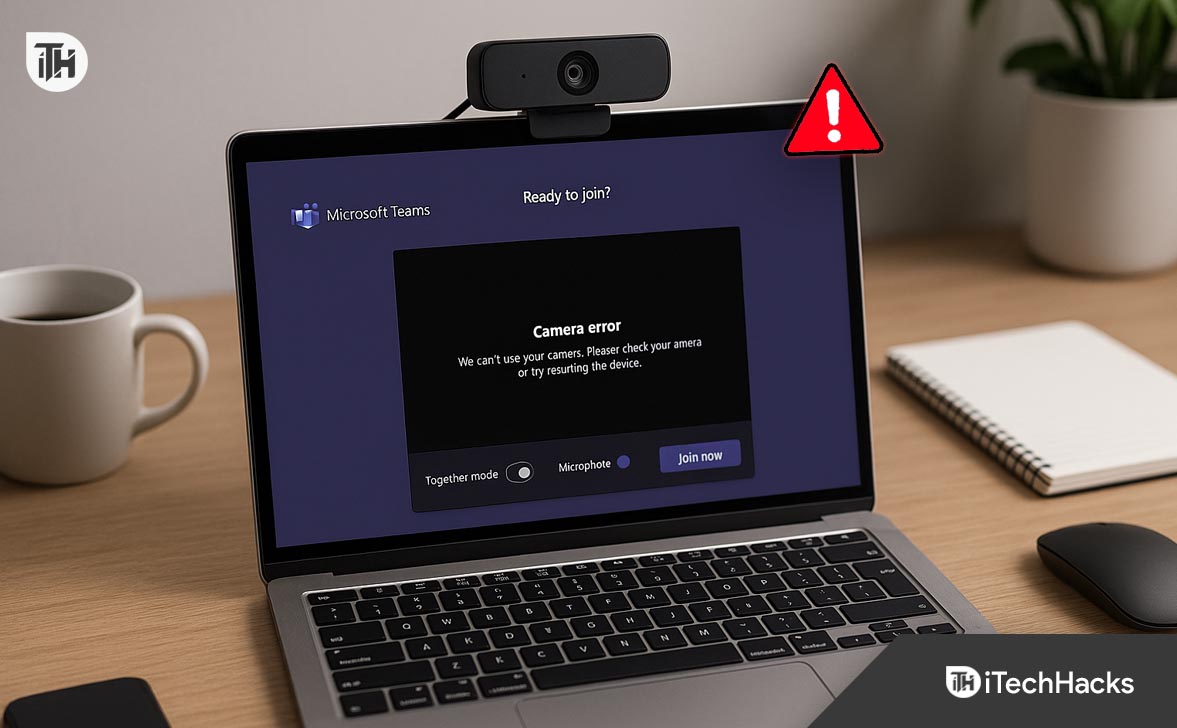
If your Microsoft Teams camera is not working, it can prevent you from participating in meetings, interviews, and presentations. This guide covers all tested methods to fix camera not working on Teams across Windows 11, macOS Sonoma, and browser-based Teams.
Check if the Camera Works in Other Apps
Before blaming Microsoft Teams, first verify if the camera itself is functioning.
- On Windows 11, open the Camera app.
- On macOS Sonoma, use FaceTime or Photo Booth.
- Optionally, use a browser-based webcam test tool to confirm.
If your webcam fails in all apps, this points to a hardware or driver issue, not Teams-specific. But if your webcam works in other apps and still the Teams camera is not working, the issue is software-related.
Restart Microsoft Teams and Your Device
If the camera is not working in Teams, the issue may be temporary. Background services in Teams often freeze or block device access.
On Windows:
- Click the ^ arrow in the system tray.
- Right-click the Teams icon > Select Quit.
- Restart your PC.
On Mac:
- Use Cmd + Q to quit Microsoft Teams completely.
- Reboot your Mac.
After reboot, reopen Microsoft Teams and test the camera.
Allow Camera Access in Windows or macOS Settings
A very common reason for the Microsoft Teams camera not working problem is blocked privacy access. Microsoft Teams must have explicit permission to use your camera.
On Windows 11:
- Go to Settings > Privacy & security > Camera.
- Turn Camera access ON.
- Under Let apps access your camera, enable the toggle.
- Scroll and ensure Microsoft Teams is toggled ON.
On macOS Sonoma:
- Go to System Settings > Privacy & Security > Camera.
- Make sure Microsoft Teams is listed and checked.
- If not listed, launch Teams and allow the permission when prompted.
If permissions are denied, Teams will not access the webcam, resulting in the camera not working in Teams issue.
Select the Correct Camera in Teams Settings
Even when multiple webcams are connected (e.g., laptop camera and USB webcam), Teams may use the wrong one by default.
- Open Microsoft Teams.
- Click your profile icon > Go to Settings.
- Select the Devices tab.
- Under Camera, choose the correct camera from the dropdown list.
- Use the Preview window to check if it’s working.
If your camera is not working on Teams, switching to the correct device here often solves the issue.
Update or Reinstall the Camera Driver (Windows Only)
Outdated or corrupted camera drivers are a major cause of Teams camera not working issues.
- Right-click Start > Open Device Manager.
- Expand Cameras or Imaging Devices.
- Right-click your camera > Select Update Driver.
- Choose Search automatically for drivers.
If no updates are found, go to your laptop or webcam manufacturer’s support website and download the latest driver.
In some cases, uninstalling and reinstalling the driver helps:
- Right-click your camera > Select Uninstall device.
- Reboot your PC.
- Windows will reinstall the driver automatically.
Clear Microsoft Teams Cache Files
Corrupted cache files often cause camera not working in Teams problems. Clearing the cache forces Teams to reload fresh settings and device configurations.
On Windows:
- Quit Microsoft Teams completely.
- Press Win + R and enter: appdata%\Microsoft\Teams
- Delete all files and folders inside this directory.
- Reopen Microsoft Teams.
On macOS:
- Close Teams.
- Open Finder > Press Command + Shift + G.
- Enter: ~/Library/Application Support/Microsoft/Teams
- Delete all contents in this folder.
This does not delete your login or chat history. It only removes corrupted session files.
Disable Other Applications Using the Camera
If another app (Zoom, Skype, OBS, Discord) is already using the webcam, Teams won’t be able to access it. This leads to the common Teams camera not working behavior — a blank or frozen feed.
- Close all other video apps before opening Teams.
- Disable virtual camera software (e.g., OBS Virtual Camera, Snap Camera).
- Restart Microsoft Teams after closing conflicting apps.
Disable Antivirus Webcam Protection (If Enabled)
Some antivirus or security tools include webcam protection that blocks Microsoft Teams from accessing your camera.
- Open your antivirus software (e.g., Norton, Bitdefender, McAfee).
- Locate Webcam Protection, Privacy Shield, or similar settings.
- Either disable camera blocking entirely or whitelist Microsoft Teams.
If your camera is not working in Teams but works elsewhere, check antivirus settings immediately — it’s a common block.
Run Teams as Administrator (Windows Fix)
In some configurations, Teams needs elevated permission to access system devices like cameras.
- Close Teams.
- Right-click the Teams shortcut on desktop or Start Menu.
- Click Run as administrator.
- Test the camera again in a meeting.
This method is especially effective when using Teams in work environments where strict group policies are applied.
Use Teams Web App as a Backup
If the desktop version of Teams continues to malfunction, use the web app temporarily.
- Go to https://teams.microsoft.com.
- Log in with your Microsoft account.
- Use Google Chrome or Microsoft Edge (recommended).
- Allow camera access in the browser popup.
This web-based workaround is helpful when you don’t have time to reinstall Teams.
Reinstall Microsoft Teams
If cache clearing and driver updates don’t help, a clean reinstall of Microsoft Teams is often the fix.
- Open Settings > Apps > Installed Apps.
- Find Microsoft Teams > Click Uninstall.
- Download the latest installer from the official Microsoft website.
- Reinstall and sign in again.
macOS:
-
Drag Microsoft Teams from Applications to Trash.
-
Empty the Trash.
-
Download and install the latest Teams version from Microsoft.
Reinstalling often resolves deeply embedded bugs that cause the Teams camera not working issue to persist.
Check Group Policy or Registry Settings (Advanced)
Some Windows machines — especially in corporate environments — may have camera access disabled via Group Policy or Registry.
Group Policy (Windows Pro or Enterprise):
- Press Win + R > Type
gpedit.mscand press Enter. - Go to: Computer Configuration > Administrative Templates > Windows Components > Camera
- Double-click Allow Use of Camera > Set to Enabled.
- Apply and restart your PC.
Registry Editor:
- Press Win + R > Type
regeditand press Enter. - Navigate to: HKEY_LOCAL_MACHINE\SOFTWARE\Microsoft\Windows\CurrentVersion\CapabilityAccessManager\ConsentStore\webcam
- Look for a value named Value or ValueName.
- Set it to
Allow.
Caution: Editing the registry can break your system. Always create a backup before making changes.
Contact Your IT Department (If Using Managed Devices)
On work-issued laptops managed via Intune or Azure AD, camera access may be restricted by your organization.
- You see a message like “Camera access is restricted by your organization.”
- Teams has no camera option even though your webcam is functional.
- Your system administrator has disabled permissions via Endpoint Protection.
In such cases, only your IT department can resolve the restriction.
Why Is My Camera Not Working on Teams Even After All This?
If you’ve tried everything above and camera is not working in Teams, here are three final checks:
- Check for hardware failure — try a different webcam or external USB camera.
- Test in a new user profile — create a new Windows/Mac user and test Teams.
- Rollback recent Windows/macOS updates — occasionally, updates break device compatibility.
Frequently Asked Questions (FAQs)
Why is my camera not working on Teams but works in Zoom?
Teams may not have camera permission or is selecting the wrong device. Zoom often uses its own engine, so one can work even if the other doesn’t.
My camera light turns on, but the Teams screen is black. Why?
This usually means Teams has access, but the video feed isn’t being processed. Try clearing the cache, disabling GPU acceleration, or reinstalling.
How do I fix Teams camera not working on Mac?
Go to System Settings > Privacy > Camera and make sure Teams is allowed. Also, close conflicting apps like FaceTime or OBS. Reinstall if needed.
Can Teams use virtual camera apps like OBS?
Yes, but they must be selected as the default camera in Teams settings. If OBS is misconfigured, it may prevent the feed from showing.
My webcam works after restart but stops mid-meeting — what causes this?
Auto-sleep USB settings, conflicting apps running in background, or low memory can cause Teams to lose webcam access. Disable power saving for USB ports.
Conclusion
In 2025, dealing with a Microsoft Teams camera not working issue can still be frustrating — especially when the cause isn’t obvious. But by following these tested solutions, you’ll be able to pinpoint whether it’s a permissions issue, driver problem, software conflict, or hardware failure.
If your camera is not working on Teams, always start with permissions and device selection, then move to drivers and cache clearing. In corporate setups, policy restrictions are often the silent culprit.
ALSO READ:
- How to Mark a Message as Important in Teams
- How to Fix Microsoft Teams Error Tag 657rx in Windows 11/10
- How to Migrate Chats from Skype to Teams
- Top 8 Ways to Keep Microsoft Teams Status Green All the Time
- How To Fix Microsoft Teams Error CAA20003 Or CAA2000C
- How to Blur and Enable Background Effects on Microsoft Teams