- WhatsApp's chat transfer feature allows you to move chats directly to a new phone without using cloud backups, but it may get stuck if the phones don't connect properly. Issues like Wi-Fi problems, outdated versions, or using different phone numbers can cause connection failures.
- To fix these issues, ensure both phones are up-to-date, connected on the same Wi-Fi network, and have the necessary app permissions. Disabling VPNs and keeping both phones unlocked can also help in resolving the transfer problems.
- If transferring chats between different platforms like Android to iPhone, follow the specific migration process carefully. Always back up your chats before attempting transfers, and verify that all data has moved successfully to prevent data loss.
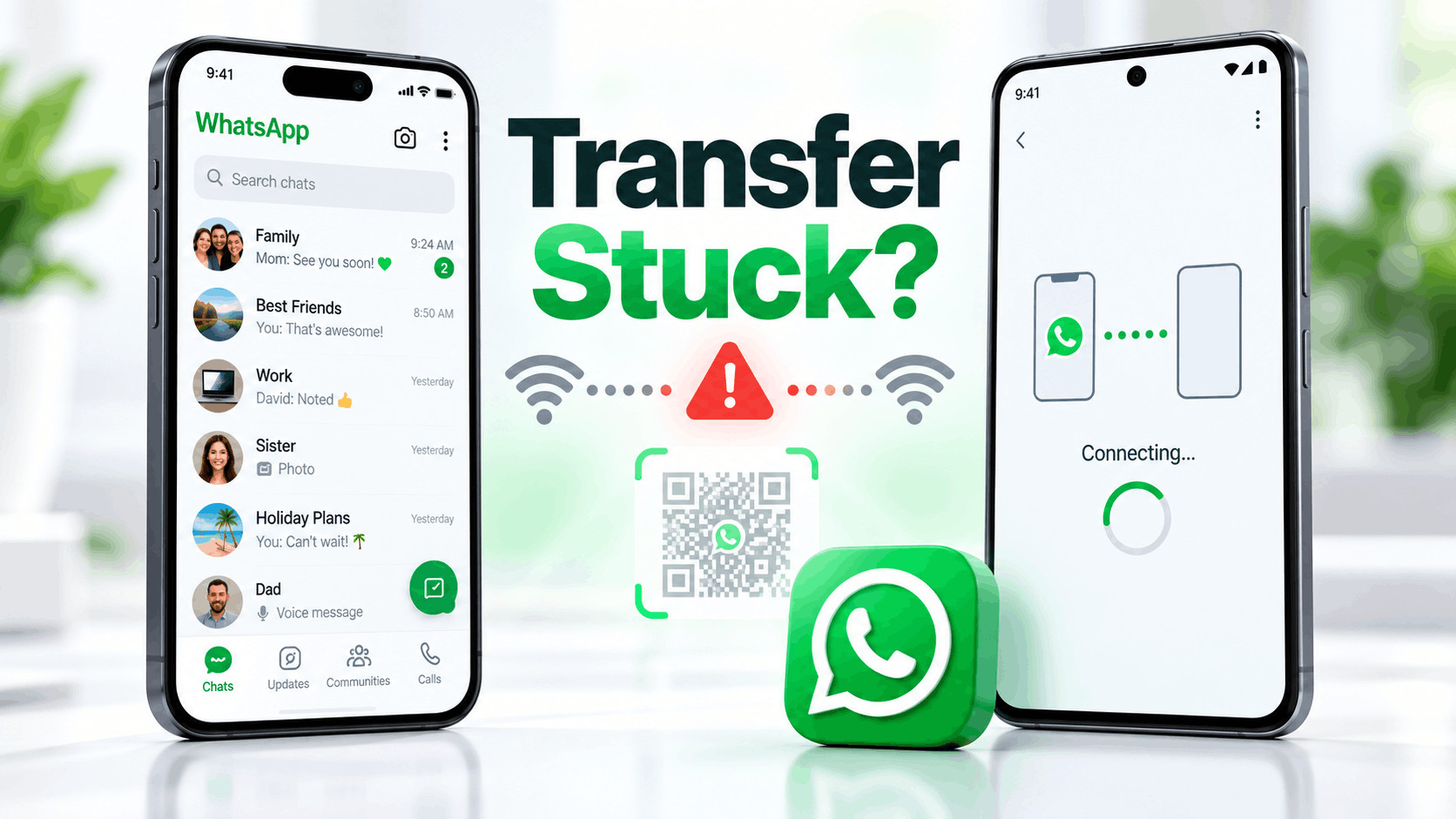
WhatsApp’s direct chat transfer feature makes moving conversations from an old phone to a new one much easier because you can transfer messages and media without waiting for a large cloud backup to upload and restore. However, the process does not always work smoothly. One of the most common problems is WhatsApp chat transfer getting stuck on “Connecting”, failing to detect the old phone, or refusing to move past the QR code screen.
This usually happens because the two phones cannot establish the local connection WhatsApp needs for the transfer. Wi-Fi problems, missing permissions, outdated WhatsApp versions, VPNs, incorrect phone numbers, or prematurely activating WhatsApp on the new phone can all interfere with the process.
If your WhatsApp chat transfer is stuck on Connecting or your new phone is not detecting the old phone, work through the fixes below in order. Most transfer problems can be solved without deleting your chats or relying on third-party transfer software.
Why Is WhatsApp Chat Transfer Stuck on Connecting?
WhatsApp can transfer chat history directly between compatible phones by establishing a secure local connection. The old phone normally scans a QR code displayed on the new phone, after which WhatsApp prepares and sends your chats and media.
If the phones cannot communicate properly, the transfer may remain on “Connecting,” repeatedly search for the old device, or return to the QR code screen.
Common causes include:
- The phones are connected to different Wi-Fi networks.
- WhatsApp does not have Local Network, Nearby Devices, camera, or related permissions.
- One phone is using a VPN, Private DNS service, firewall, or network-filtering app.
- WhatsApp is outdated on one of the phones.
- The new phone was already fully activated with WhatsApp before transferring the old chat history.
- The phone number on the new device does not match the WhatsApp account on the old device.
- Battery optimization is preventing WhatsApp from remaining active.
- The phones lock or WhatsApp is moved into the background during the transfer.
- There is insufficient storage space on the new device.
- You are switching between Android and iPhone and using the wrong migration method.
Before Troubleshooting WhatsApp Chat Transfer
Do not uninstall WhatsApp or factory reset the old phone while your important chats exist only on that device. Until you have confirmed that everything transferred successfully, treat the old phone as your primary copy of the chat history.
Before trying the fixes below, make sure both phones are charged or connected to power. Keep them physically close together and leave both screens unlocked while testing the transfer.
It is also worth creating a recent Google Account or iCloud WhatsApp backup when possible. A backup gives you another recovery option if direct phone-to-phone transfer continues to fail.
1. Update WhatsApp on Both Phones
Start with the simplest fix. The chat migration system can change between WhatsApp releases, and running substantially different versions on the two devices may cause pairing or transfer problems.
On Android
- Open the Google Play Store.
- Search for WhatsApp Messenger.
- Tap Update if an update is available.
On iPhone
- Open the App Store.
- Search for WhatsApp Messenger.
- Tap Update if shown.
After updating, restart both phones before beginning another transfer attempt. Restarting clears temporary background processes and network states that may have been left behind by the failed transfer.
2. Put Both Phones on the Same Wi-Fi Network
If WhatsApp chat transfer is stuck on “Connecting,” the network should be one of the first things you check. Direct transfer relies heavily on communication between the two devices.
Connect both phones to the same stable Wi-Fi network whenever the migration method requires it. Avoid having one phone on your main router and the other connected to a guest network or Wi-Fi extender that isolates devices.
You can also try:
- Turning Wi-Fi off and back on.
- Forgetting the Wi-Fi network and reconnecting.
- Moving closer to the router.
- Restarting the router.
- Temporarily disabling mobile data so the phone does not switch connections.
Some routers have features such as AP isolation or client isolation that prevent Wi-Fi devices from communicating directly with one another. If the transfer works on another Wi-Fi network but not your home network, the router configuration may be responsible.
3. Disable VPN, Private DNS, and Network Filtering
VPN apps are a surprisingly common reason for WhatsApp chat transfer failing to detect the other phone. A VPN changes how network traffic is routed and may prevent WhatsApp from discovering another device locally.
Temporarily disable:
- VPN apps.
- Private DNS services.
- Ad-blocking VPNs.
- Firewall apps.
- Antivirus network protection.
- DNS filtering tools.
On Android, you can usually check Private DNS under Settings > Network & Internet > Private DNS, although the location varies between manufacturers.
Once the transfer is finished, you can safely turn your VPN or DNS settings back on.
4. Allow WhatsApp Local Network Permission on iPhone
If an iPhone is involved and WhatsApp cannot detect the other phone, check its Local Network permission. iOS requires apps to receive permission before communicating with other devices on the local network.
Open:
Settings > Privacy & Security > Local Network
Make sure WhatsApp is enabled.
If WhatsApp previously displayed a request to access devices on your local network and you selected “Don’t Allow,” the transfer can fail even though normal messages and internet access continue working.
After enabling the permission, completely close WhatsApp on both phones and start the transfer again.
5. Check Android Nearby Devices and Camera Permissions
Android versions and manufacturer interfaces differ, but WhatsApp may require nearby-device and camera access during pairing and QR-based transfer.
Open:
Settings > Apps > WhatsApp > Permissions
Allow relevant permissions such as:
- Nearby devices.
- Camera.
- Photos and videos.
- Files or media access where applicable.
The exact permission names depend on your Android version. Samsung, Google Pixel, Xiaomi, OnePlus, Motorola, and other manufacturers may organize these settings differently.
The camera permission is especially important because the old phone normally needs to scan the QR code generated by WhatsApp on the new device.
6. Restart the WhatsApp Chat Transfer From the Beginning
If the transfer has remained on “Connecting” for several minutes without any progress, repeatedly waiting is unlikely to fix the session. Cancel it and establish a fresh connection.
On the old phone, open WhatsApp and go to:
Settings > Chats > Transfer chats
Follow the instructions again and scan the QR code displayed on the new phone.
Keep WhatsApp open on both devices during the process. Do not switch to Instagram, Chrome, YouTube, the camera app, or another application while the transfer is running.
7. Keep Both Phones Unlocked and Close Together
During WhatsApp chat transfer, keep the two phones close together, preferably on a desk next to each other. Avoid locking either device until WhatsApp reports that the transfer has completed.
Also temporarily increase the screen timeout if your phone automatically locks after 30 seconds or one minute.
On Android, you can usually change this under:
Settings > Display > Screen timeout
On iPhone, go to:
Settings > Display & Brightness > Auto-Lock
This helps prevent operating-system power management from interrupting WhatsApp while it is establishing or maintaining the transfer connection.
8. Make Sure You Are Using the Same Phone Number
WhatsApp chat migration is tied to your account and phone number. If you are simultaneously moving to a new phone and changing your phone number, do not simply register the new number on the new device and expect the old chats to appear.
If you want to change numbers, use WhatsApp’s Change Number feature on the old phone first. Once WhatsApp associates your existing account and chats with the new number, you can move to the new device.
Registering an unrelated number directly on the new phone can prevent WhatsApp from identifying the existing chat history correctly.
9. Check Free Storage on the New Phone
A transfer may connect successfully and then appear frozen if the destination phone does not have enough available storage for your WhatsApp database and media.
If WhatsApp occupies 18 GB on your old phone but the new phone only has 8 GB free, the migration obviously cannot complete successfully.
Try to keep significantly more free space than the current size of your WhatsApp data. You can check WhatsApp storage usage from:
WhatsApp > Settings > Storage and data > Manage storage
Delete unnecessary downloads, duplicate videos, offline movies, unused apps, or other large files from the new phone before trying the transfer again.
10. Turn Off Battery Saver and Battery Optimization
Android battery optimization can restrict WhatsApp when the operating system thinks it is consuming too many resources. This can interrupt a large local data transfer.
Temporarily turn off Battery Saver or Power Saving Mode on both phones.
On some Android devices, you can also open:
Settings > Apps > WhatsApp > Battery
Then select an option such as Unrestricted or Allow background activity until the transfer is complete.
You can restore your normal battery settings afterwards.
11. Fix WhatsApp QR Code Not Scanning or Detecting the Old Phone
Sometimes the problem happens before “Connecting” appears because the old phone cannot correctly scan the QR code on the new phone.
Try these steps:
- Increase the new phone’s screen brightness.
- Clean the old phone’s camera lens.
- Hold the camera steady instead of placing it extremely close to the QR code.
- Make sure WhatsApp has camera permission.
- Regenerate the QR code by restarting the transfer.
- Remove anything obscuring the screen, including heavily damaged screen protectors.
Do not scan the WhatsApp transfer QR code using the regular phone camera or a third-party QR scanner unless the instructions specifically tell you to. Use the scanner opened from within WhatsApp on the old phone.
12. Clear WhatsApp Cache on Android
If you are transferring between Android phones and the pairing screen continues failing, corrupted temporary WhatsApp files may be responsible.
Open:
Settings > Apps > WhatsApp > Storage & cache > Clear cache
Restart the phone and try again.
Do not select Clear storage or Clear data on the old phone unless you already have a confirmed backup. Clearing WhatsApp application data can remove the locally stored account state and potentially put your chat history at risk.
13. If You Are Moving From Android to iPhone
Android-to-iPhone migration works differently from a standard Android-to-Android WhatsApp chat transfer. You should use Apple’s Move to iOS migration process rather than trying to perform the normal WhatsApp QR transfer after setting up the iPhone.
For this method:
- Use the latest WhatsApp version.
- Install Move to iOS on the Android phone.
- Use the same WhatsApp phone number.
- Connect both devices to power.
- Use the same Wi-Fi network, or follow the provided hotspot connection process.
- The destination iPhone must generally be new or factory reset for the migration process.
During Move to iOS setup, select WhatsApp when asked which data should be transferred. After the migration finishes, install WhatsApp on the iPhone, verify the same phone number, and follow the import prompt.
If WhatsApp was already activated and used on the iPhone before the migration, you cannot simply merge the old Android history with the new iPhone conversations.
14. If You Are Moving From iPhone to Android
iPhone-to-Android migration also uses a different setup workflow from same-platform transfers. Depending on the Android phone, migration may be handled during Android device setup using Google’s migration system or the manufacturer’s supported tool.
For example, supported Samsung migrations may involve Samsung Smart Switch during initial device setup.
Make sure:
- The destination Android phone meets WhatsApp’s migration requirements.
- The Android device is new or reset when required by the migration flow.
- The latest WhatsApp version is installed.
- Both phones are charged.
- The same phone number is used.
- You follow the QR or cable instructions shown during Android setup.
Do not start using WhatsApp extensively on the Android phone before transferring if preserving your iPhone chat history is important. Old and newly created histories generally cannot simply be combined later.
15. Use Google Account or iCloud Backup as a Fallback
If direct WhatsApp chat transfer continues to get stuck on Connecting, cloud backup may be the easiest alternative when moving between phones on the same platform.
Android
On the old Android phone, open:
WhatsApp > Settings > Chats > Chat backup
Create a fresh Google Account backup. On the new Android phone, sign in with the appropriate Google Account, install WhatsApp, verify the same phone number, and restore the detected backup.
iPhone
On the old iPhone, open:
WhatsApp > Settings > Chats > Chat Backup
Create an iCloud backup. On the new iPhone, use the appropriate Apple Account, verify the same WhatsApp number, and choose Restore Chat History when prompted.
Remember that only messages included in the most recent successful backup can be restored. Messages created after that backup may not appear.
What Not to Do When WhatsApp Transfer Is Not Working
When important conversations are involved, avoid making aggressive changes merely because the transfer failed once or twice.
- Do not factory reset the old phone.
- Do not clear WhatsApp storage on the old phone.
- Do not delete WhatsApp until you have a verified backup.
- Do not erase your old chats immediately after seeing the new WhatsApp home screen.
- Do not rely on unofficial WhatsApp migration programs when an official transfer method is available.
After the migration completes, open several old conversations and verify photos, videos, documents, group chats, and older messages before wiping or selling the previous phone.
Common WhatsApp Chat Transfer Problems and Fixes
WhatsApp Keeps Saying “Connecting” Forever
Restart both phones, connect them to the same reliable Wi-Fi network, disable VPNs and battery savers, confirm the required permissions, and restart the transfer completely. Leaving a broken transfer session running for an extended period usually does not repair the underlying connection.
New Phone Cannot Detect Old Phone
Make sure WhatsApp is updated on both devices and that the required Local Network or Nearby Devices permissions are enabled. Keep the phones close together and disable network-filtering software temporarily.
QR Code Scans but Nothing Happens
Cancel the transfer, restart WhatsApp on both devices, generate a fresh QR code, and scan it again. A previously generated transfer session may have expired or failed to establish correctly.
Transfer Stops at a Certain Percentage
Check the new phone’s available storage and keep both devices unlocked and connected to power. Network interruptions, storage shortages, or aggressive power management can cause large transfers to stall partway through.
WhatsApp Chats Are Missing After Transfer
Do not erase the old phone yet. Check whether the transfer actually reported completion and confirm the date of your most recent backup. If the missing conversations still exist on the old device, preserve that device until you have successfully migrated or backed them up.
Frequently Asked Questions
Why is WhatsApp chat transfer stuck on Connecting?
The most common causes are network communication problems, missing permissions, VPNs, outdated WhatsApp versions, battery restrictions, mismatched phone numbers, or an incorrectly started migration process.
Do both phones need to be connected to Wi-Fi?
For many WhatsApp migration workflows, both phones need a stable local connection. Cross-platform transfer procedures may specifically require the same Wi-Fi network or a temporary hotspot connection. Follow the connection instructions shown during your particular transfer method.
Can I transfer WhatsApp chats without Google Drive or iCloud?
Yes. WhatsApp supports direct phone-to-phone transfer in supported same-platform situations, allowing chats to move locally rather than being downloaded from a cloud backup.
Can I transfer WhatsApp chats after setting up my new phone?
For some same-platform transfers this may still be possible, but cross-platform migrations often need to happen during the initial device setup. Android-to-iPhone and some iPhone-to-Android migration methods may require the destination phone to be new or factory reset.
Can I merge the chats already on my new phone with my old WhatsApp chats?
Generally, you should not assume WhatsApp can merge two separate chat histories. If preserving old conversations matters, complete the migration before you begin using WhatsApp extensively on the new device.
Should I uninstall WhatsApp if transfer is stuck?
Not from the old phone unless you have confirmed that your chats are safely backed up. Restarting the app or phone is safer than uninstalling WhatsApp when the old device contains your only copy of important conversations.
How long should WhatsApp chat transfer take?
The time depends largely on the size of your chat database and media library. A small account may transfer quickly, while tens of gigabytes of photos and videos can take considerably longer. However, if WhatsApp remains only on “Connecting” without beginning the transfer, that usually points to a pairing problem rather than a large chat history.
Will deleting WhatsApp from my old phone delete my chats?
Potentially, yes, especially if you do not have a usable backup. Keep WhatsApp and its data on the old device until you have verified that the new phone contains everything you need.
Final Thoughts
If WhatsApp chat transfer is stuck on “Connecting” or not detecting your old phone, focus first on the connection between the devices. Update WhatsApp, connect the phones correctly, disable VPNs, grant Local Network or Nearby Devices permissions, keep both phones unlocked, and restart the transfer from the beginning.
Also make sure you are using the correct migration method. Android-to-Android and iPhone-to-iPhone transfers are different from Android-to-iPhone or iPhone-to-Android migrations, which may need to be completed during the initial setup of the new phone.
Most importantly, do not wipe, reset, or remove WhatsApp from your old phone until you have opened the transferred chats on the new device and confirmed that your important conversations and media are actually there. Keeping the old device intact gives you the safest fallback if the WhatsApp transfer fails again.