- "Do Not Disturb" is a helpful feature for not getting distracted, but it can be frustrating if you miss important calls because it stays on. This guide shows you how to turn it off quickly on iPhone, Android, Mac, and Windows to ensure you receive notifications again.
- For iPhones, check the "Focus" settings in the Control Center or ask Siri to turn off "Focus" mode. If it keeps turning back on, look for automatic schedules in the settings and turn them off. Similarly, Android users can swipe down for quick settings and tap the "Do Not Disturb" icon to disable it.
“Do Not Disturb” is a great feature for getting a good night’s sleep, but it is annoying when you miss important calls because it won’t turn off.
Maybe you toggled it on by accident, or maybe your phone turned it on automatically without asking you. Either way, you are now staring at a silent phone, wondering why you aren’t getting any notifications.
If you are frustrated and asking, “how do i turn off do not disturb,” this guide is for you. Whether you are using an iPhone, Android, Mac, or Windows PC, we will show you exactly how to get your notifications back in just a few seconds.
How to Turn Off Do Not Disturb on iPhone
For iPhone users, the confusion usually starts with a name change. In recent years, Apple rebranded “Do Not Disturb” as “Focus.”
You might be looking for a simple moon icon, but instead, you see buttons labeled “Work,” “Personal,” or “Sleep.” These are all just different versions of Do Not Disturb. If any of them are on, your phone is silent.
Here is how to turn them off and ensure they stay off.
Method 1: The Control Center Method (The Fast Way)
This is the quickest way to fix the problem if you catch it in the moment. You don’t need to dig through deep settings menus for this.
- Unlock your iPhone.
- Open the Control Center:
- For Face ID iPhones (iPhone X and newer): Place your finger on the battery icon in the top-right corner of the screen and swipe down.
- For Home Button iPhones (iPhone SE, iPhone 8): Place your finger at the very bottom edge of the screen and swipe up.
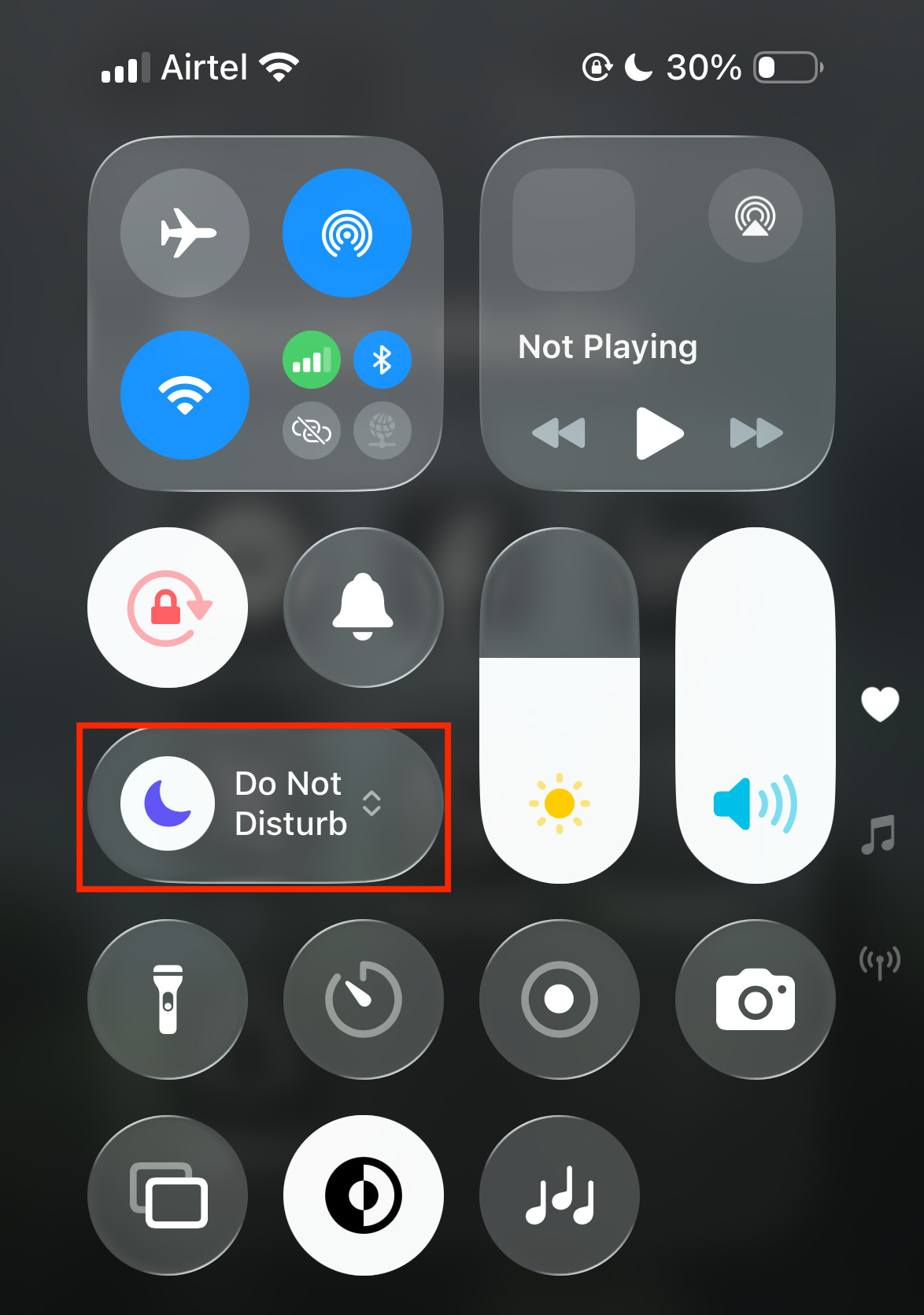
- Find the Focus Button:
- Look for the Focus button pill.
- If it is White (and says something like Do Not Disturb or Sleep), it is ON.

- If it is See-through/Gray, it is OFF.
- Tap the Icon:
- Tap the circular icon (the moon, bed, or person symbol) inside that button.
- The button should turn dark gray immediately. You should also see the little icon disappear from your status bar at the top of the screen.
Method 2: With Siri
You can command Siri to turn off the DND. Simply say ‘Hey Siri, turn off DND‘ and this will turn off the DND mode on your iPhone/iPad. If this command didn’t work, then say ‘Hey Siri, turn off focus mode‘. If there’s any other focus mode turned on instead of DND, then this command will turn it off.
Why Does It Keep Turning Itself On?
This is the number one reason iPhone users search for “how do i turn off do not disturb.” You turn it off manually, but the next night (or even the next hour), it turns itself back on.
This happens because you have an automated schedule running in the background.
Check for Hidden Schedules:
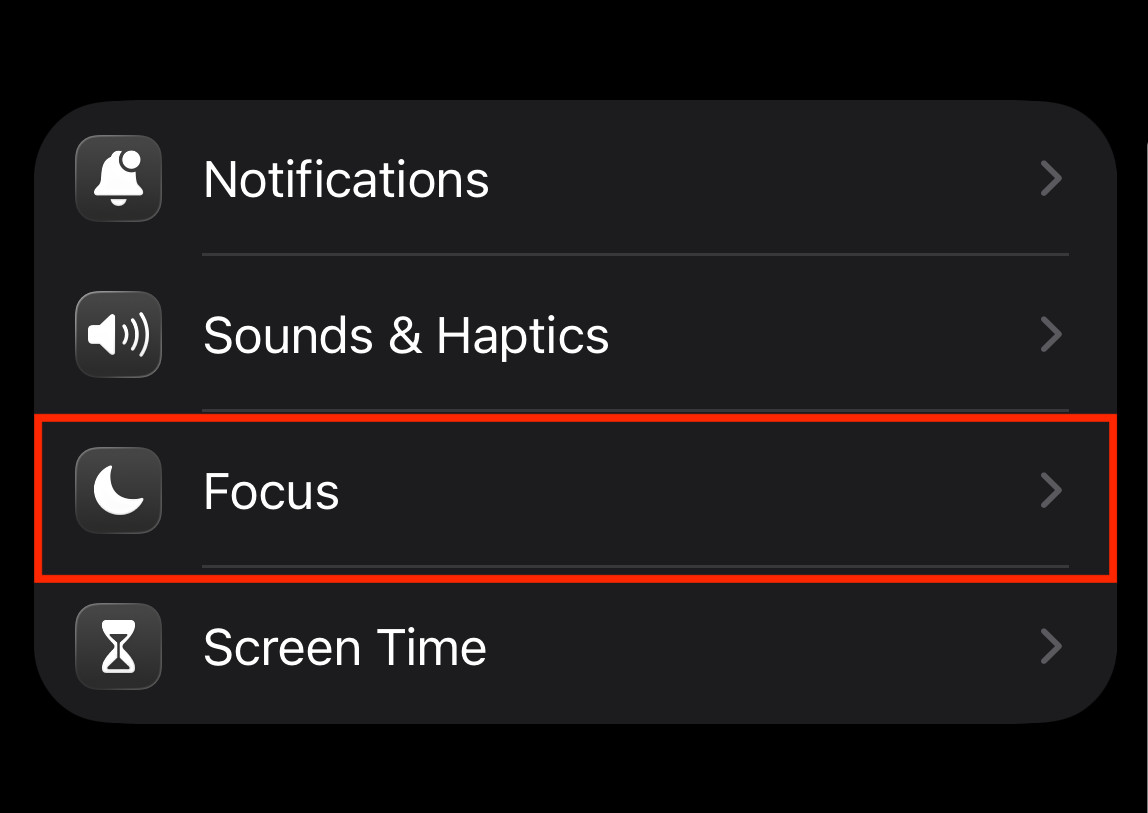
- Go to Settings > Focus.

- Now, tap on Do Not Disturb.

- Scroll down to the section called Set a Schedule.

- Do you see a time listed there? (e.g., “Every day: 10:00 PM to 7:00 AM”).
- If you see one, your phone is programmed to silence itself at that time, no matter what.
- Tap on that schedule and select Delete a Schedule or toggle it off to stop this from happening.

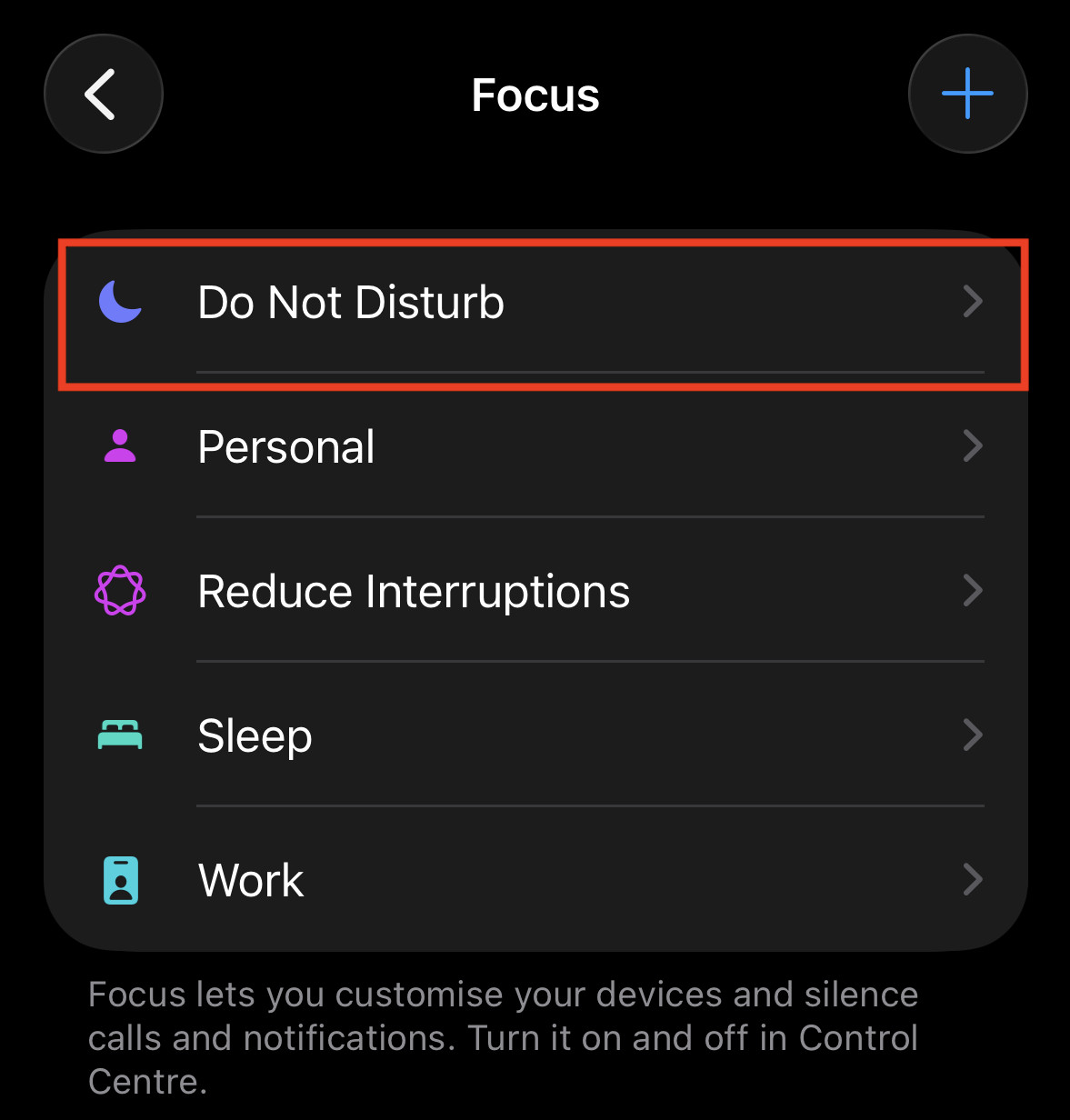
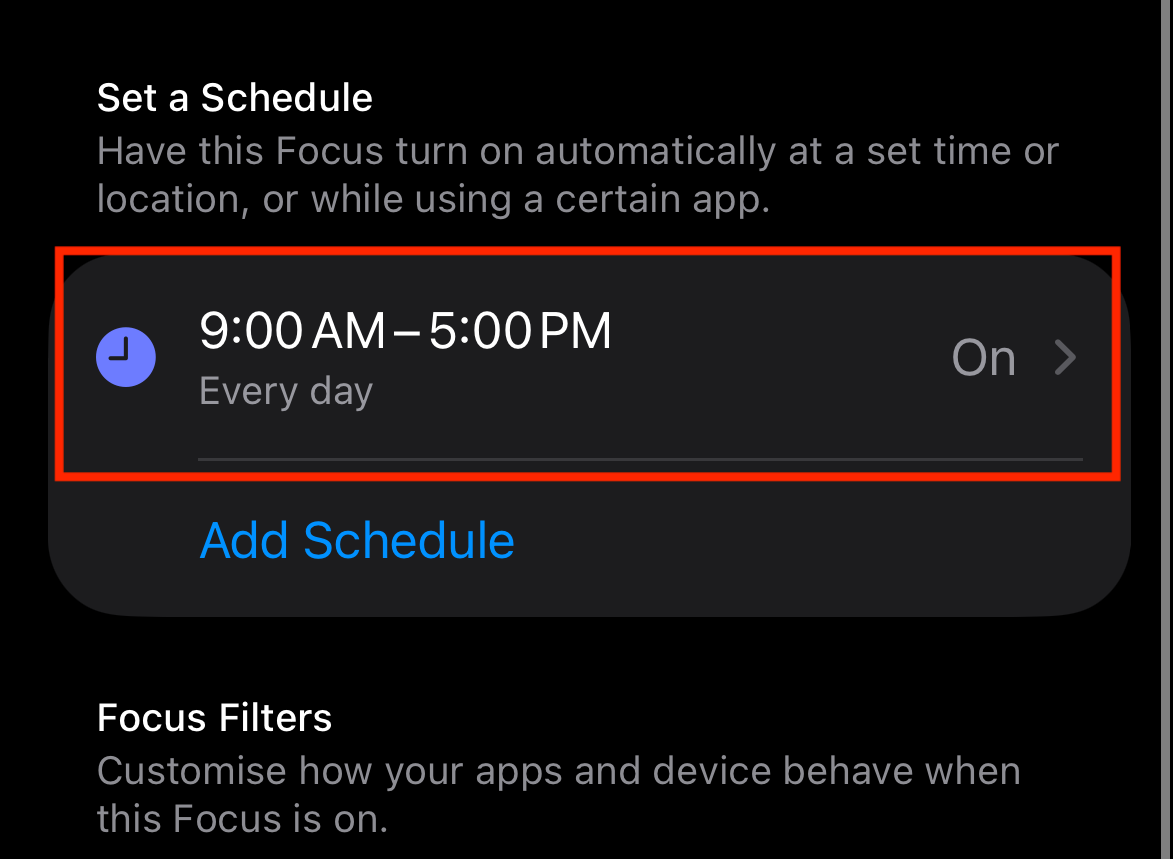
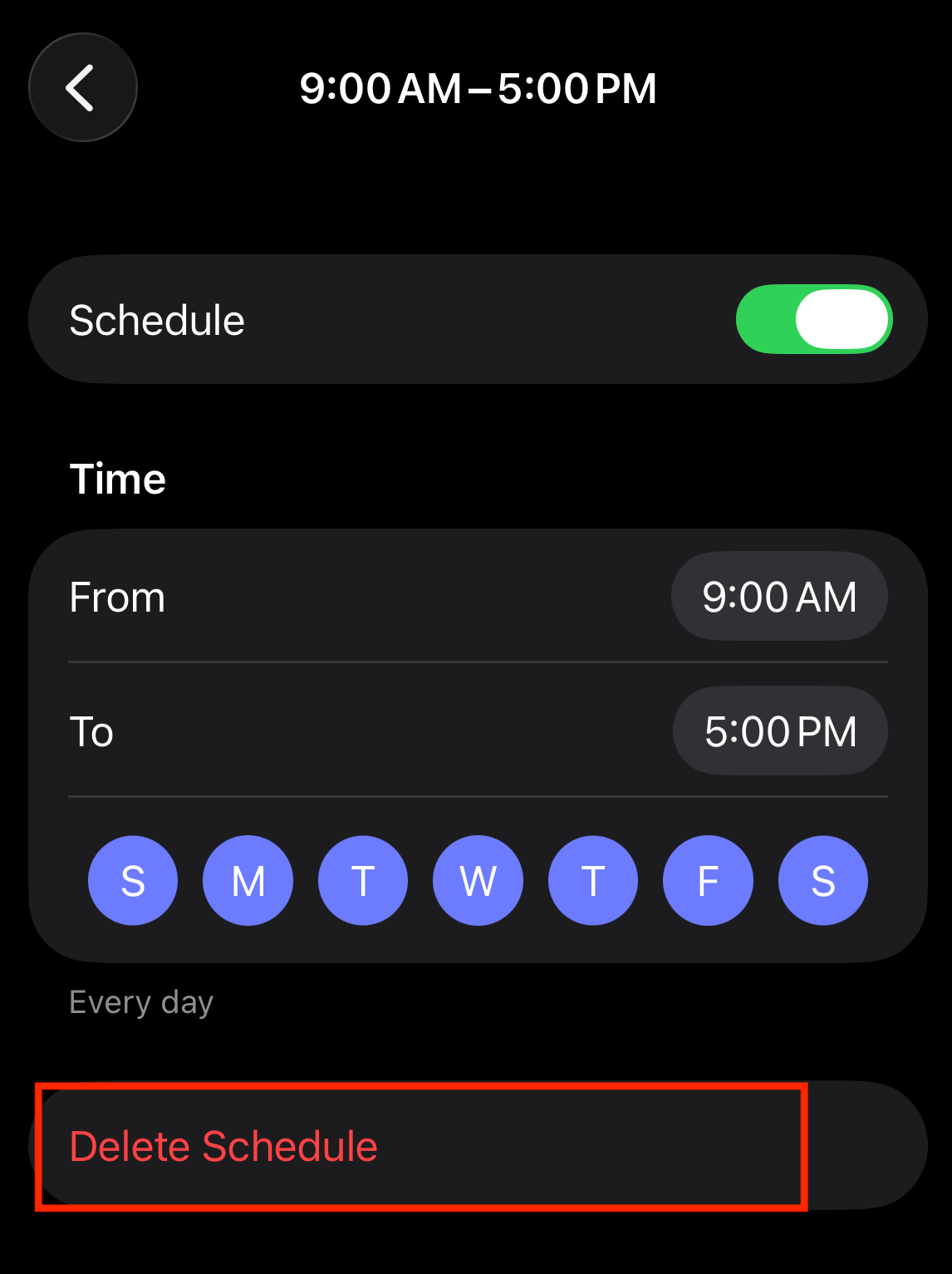
Tip: Do the same for other focus modes including Personal, Reduce Interruptions, Sleep, Work, and any other custom focus modes you have enabled on your device.
2. Turning Off Do Not Disturb on Android
Android phones are a bit more varied than iPhones. A Samsung Galaxy looks different from a Google Pixel or a Motorola. However, the logic is almost always the same.
Method 1: Using Quick Settings (The “Swipe Down” Trick)
Just like the iPhone, Android has a shortcut panel for easy access.
- Wake up your phone.
- Swipe down from the very top of the screen.
- Tip: On many phones, you need to swipe down twice to expand the full grid of icons.
- Look for the Icon:
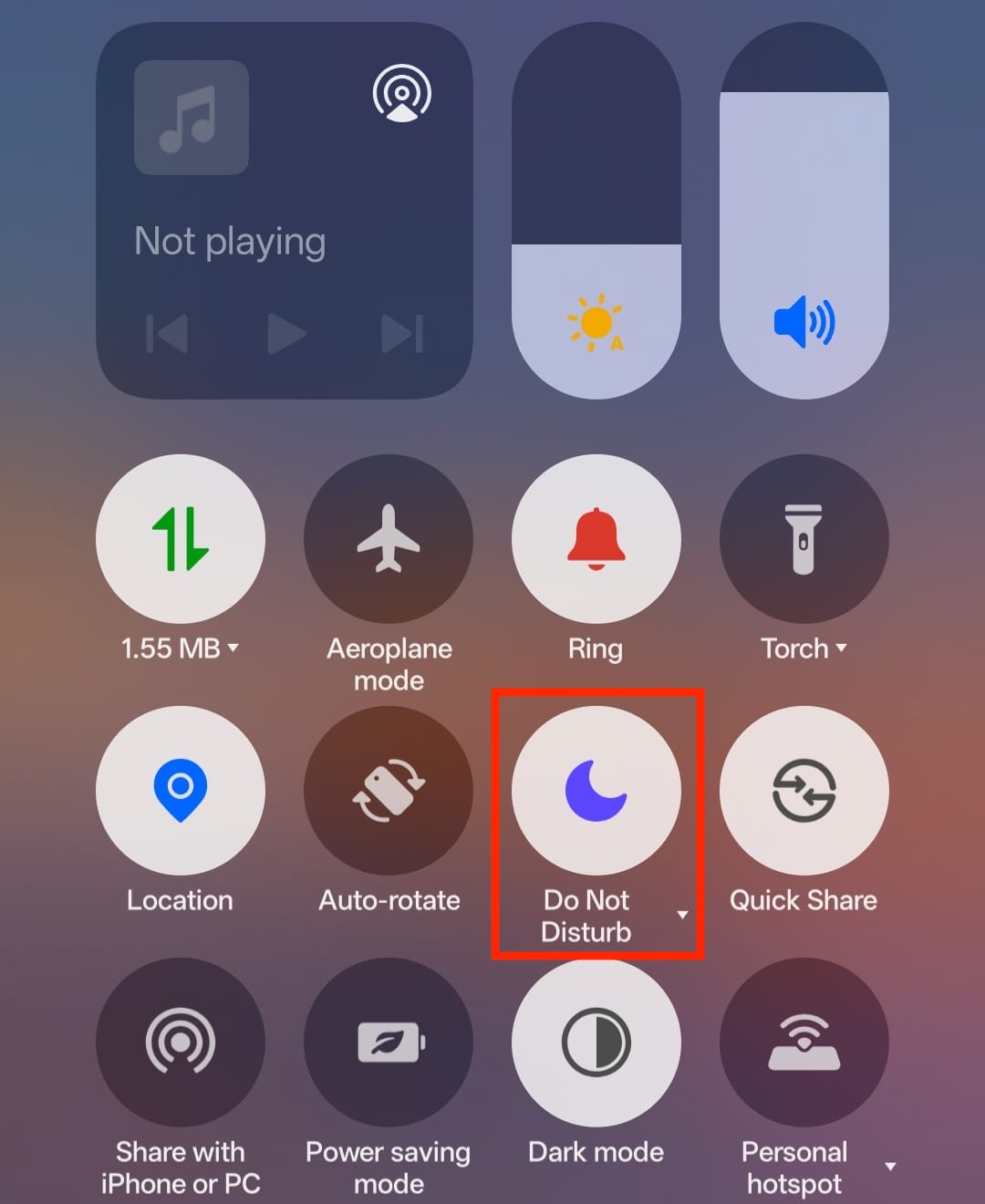
- You are looking for a circle with a horizontal line in the middle (like a “Do Not Enter” traffic sign) or a crescent moon icon.
- It will be labeled Do Not Disturb.

- Tap it:
- If the icon is highlighted (usually blue or your system’s accent color), it is ON.
- Tap it once to turn it gray. Your notifications will start coming through immediately.
Specific Steps for Samsung Galaxy Phones (One UI)
Samsung hides the settings slightly deeper than other Androids.
- Open Settings (the gear icon).
- Tap Notifications.
- Tap Do Not Disturb.
- Toggle the switch at the very top to Off.
The “Duration” Issue:
Samsung allows you to set DND for a specific duration, like “For 1 hour” or “Until I leave my house.” Sometimes, people accidentally set it to “Until I turn it off,” which leaves it on forever. Always check this setting if you find DND getting stuck.
Specific Steps for Google Pixel / Motorola / Stock Android
- Open Settings.
- Tap Sound & vibration.
- Tap Do Not Disturb.
- Tap the big button that says Turn off now.
Why Does My Android Go Silent Automatically?
Android phones are smart. Sometimes too smart. They have powerful sensors that try to guess what you are doing. If your phone is silencing itself, it is likely one of these three culprits:
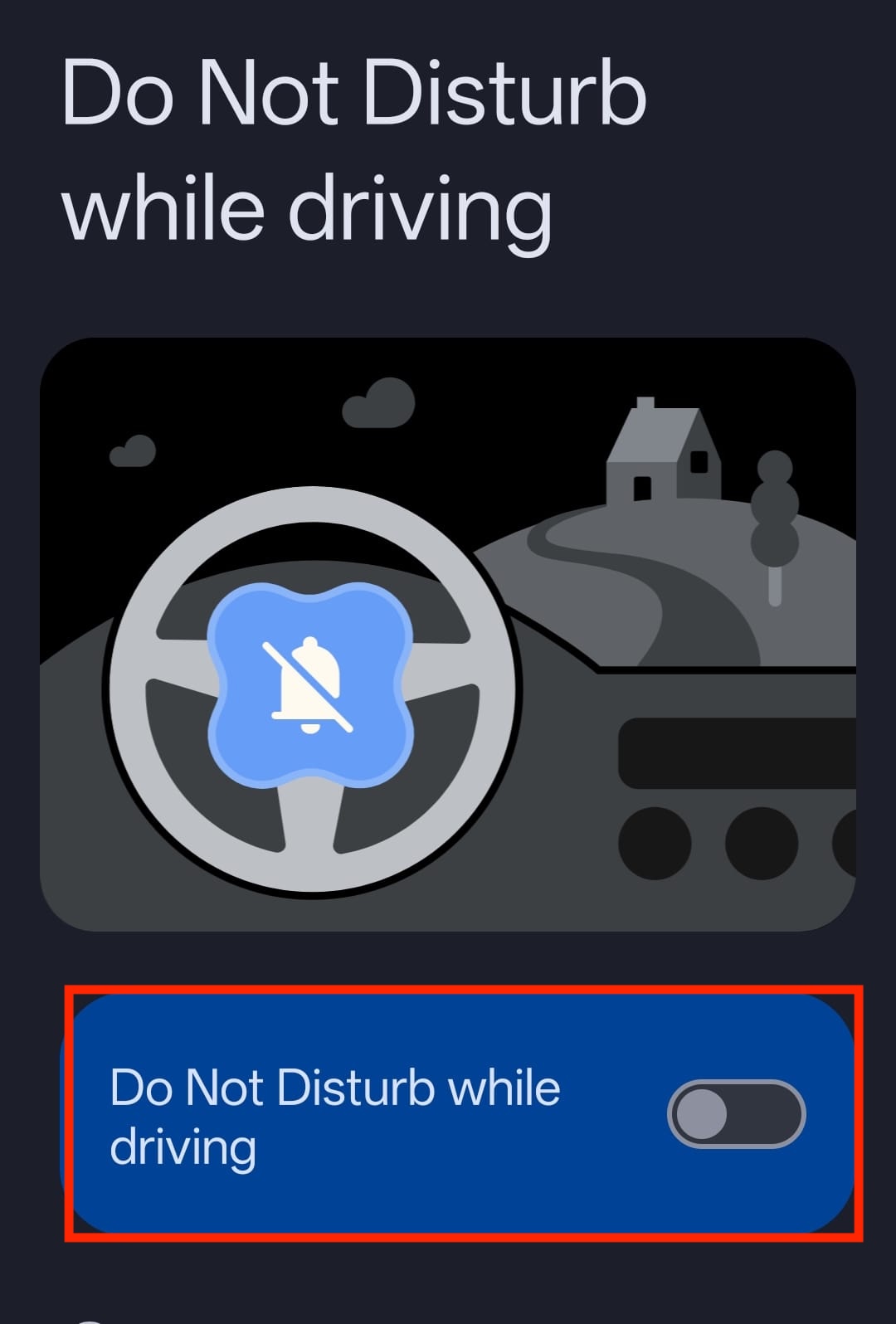
1. Driving Mode
Google can detect when you are moving at highway speeds. It automatically turns on DND to prevent you from texting and driving.
- How to stop it: Go to Settings > Google > All Services > Silence Notifications While Driving and toggle it off.

2. Flip to Shhh
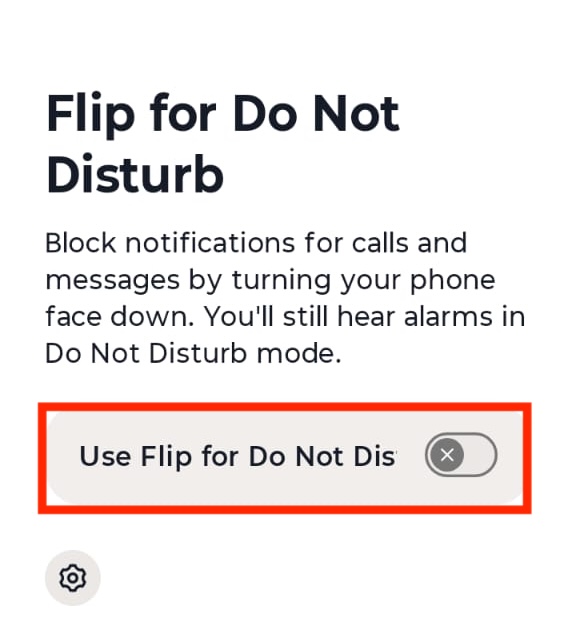
Many Pixel and Motorola phones have a gesture called “Flip to Shhh” or maybe some other name. If you place your phone face-down on a table, it automatically enters Do Not Disturb.
- How to stop it: Go to Settings > System > Gestures > Flip for Do Not Disturb and turn it off.

3. Gaming Mode
If you play games like Candy Crush, PUBG, or Call of Duty, your phone likely has a “Game Launcher” or “Game Booster.” This software blocks calls automatically when a game is open so you don’t get interrupted. You usually have to open the specific Game Launcher app to change this setting.
3. Turning Off Do Not Disturb on Mac (macOS)
If you own both a Mac and an iPhone, you might have noticed something frustrating: You silence your phone for a meeting, walk over to your laptop, and realize your laptop is silent too.
This is a feature called “Share Across Devices,” and it causes a lot of confusion.
Method 1: The Control Center Method
On modern Macs (macOS Big Sur, Monterey, Ventura, Sonoma, Sequoia), the menu looks very similar to the iPhone.
- Look at the top-right corner of your screen menu bar.
- Click the Control Center icon. It looks like two little switches stacked on top of each other (usually right next to the clock).

- Click the Focus section (it usually has a moon icon).
- Click Do Not Disturb to toggle it off.

- Visual Check: The icon should go from colored/white to gray.


Pro Tip: If you want a super-fast shortcut, hold the Option key on your keyboard and click the date/time in the top right corner. This often toggles DND on or off instantly without opening any menus.
How to Stop Your iPhone from Silencing Your Mac
If you toggle DND off on your Mac, but it turns itself back on 5 minutes later, check your phone.
Apple links your devices via iCloud. If your iPhone enters “Work Focus,” it tells your Mac to enter “Work Focus” too. To stop this mirroring:
- On your Mac, go to System Settings > Focus.
- Look for the toggle that says Share across devices.

- Turn this OFF.
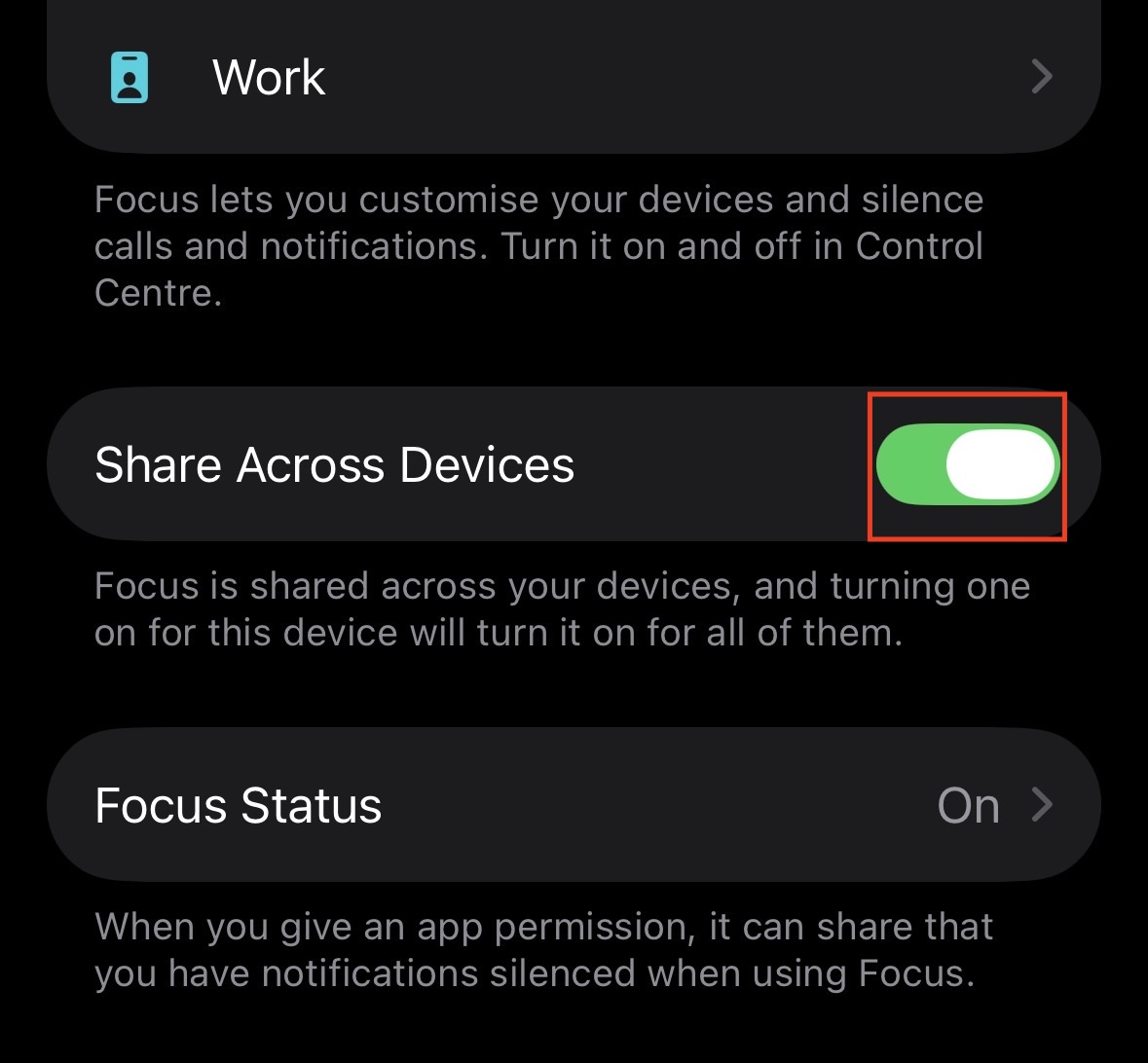
Now, your Mac acts independently. You can silence your phone for dinner but still receive Slack notifications and emails on your laptop.
4. Turning Off Do Not Disturb on Windows
Windows calls this feature different things depending on how old your computer is. In Windows 10, it was called “Focus Assist.” In Windows 11, it is called “Do Not Disturb.”
Windows 11 (The Modern Way)
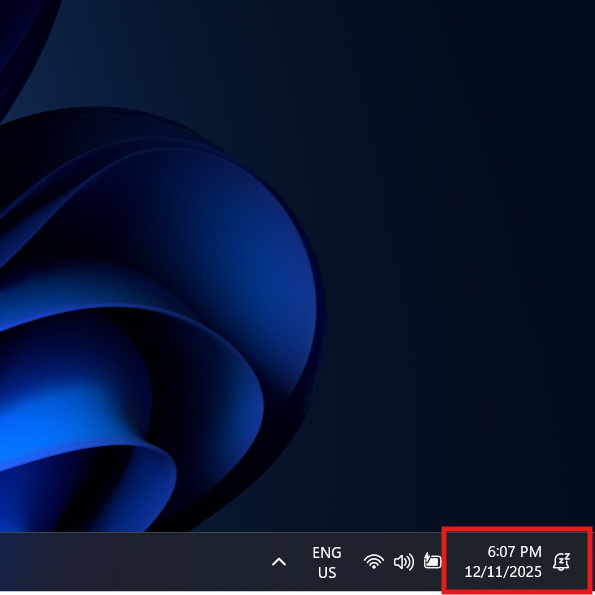
In Windows 11, the DND icon is hidden near the clock, and it is very easy to miss if you don’t know where to look.
- Click the Date/Time: Click the far bottom-right corner of your taskbar where the time and date are displayed. This opens the Notification Center and Calendar.

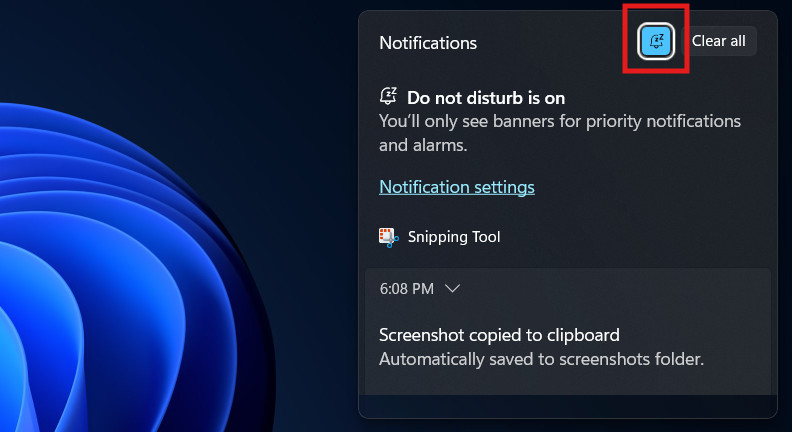
- Look for the Bell: In the top right corner of this panel, you will see a little Bell Icon.
- If the bell is colored and has a “Zzz” icon or a line through it, DND is ON.

- Click the bell to turn it OFF.
- If the bell is colored and has a “Zzz” icon or a line through it, DND is ON.
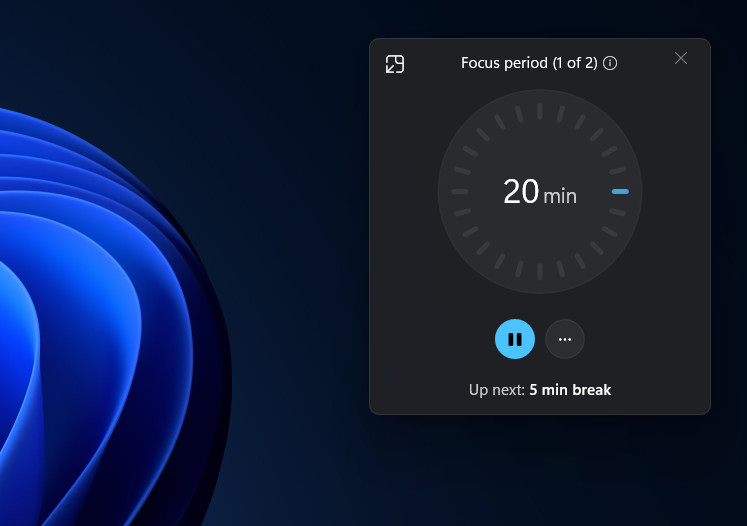
- Check Focus Sessions:
- Windows 11 also has a productivity timer called “Focus Sessions.” If you started a timer in the Clock app to focus on work, DND will stay on until the timer runs out.

- You can click the “Stop” square on the Focus timer box to end the session early.
- Windows 11 also has a productivity timer called “Focus Sessions.” If you started a timer in the Clock app to focus on work, DND will stay on until the timer runs out.
Windows 10 (Focus Assist)
If you are still on Windows 10, you won’t see a bell. You are looking for the “Action Center.”
- Click the Speech Bubble: Look in the absolute bottom-right corner of your screen (to the right of the clock). Click the icon that looks like a squared speech bubble.
- Expand the Toggles: If you only see 4 icons, click the text that says “Expand” to see the full grid.
- Find Focus Assist: Look for a tile labeled Focus Assist (it usually has a moon icon).
- This button is a cycle. You might have to click it a few times.
- “Priority Only” = On.
- “Alarms Only” = On.
- “Off” = Off. (Make sure it is gray).
Why Does Windows Silence Itself?
Windows tries to be helpful when you are doing specific tasks, often assuming you don’t want to be bothered.
- Go to Settings > System > Focus Assist (or Notifications).
- Look at the Automatic Rules.
- Windows will automatically turn on DND in these situations:
- When I’m playing a game: (This is very common for gamers).
- When I’m duplicating my display: (For example, when you plug in a projector for a presentation, Windows silences notifications so your audience doesn’t see your emails).
- During these times: (Check if a schedule is set).
If you want your notifications to pop up even while you are gaming or presenting, you must turn these automatic rules Off.
“I Turned It Off, But I’m Still Not Getting Calls!”
So, you have followed the steps above. You found the button. You toggled it off. You Googled “how do i turn off do not disturb” and followed the instructions perfectly.
But your phone is still silent.
If DND is definitely off, but you are still missing calls and texts, try checking these three “Silent Killers.”
1. The Physical Mute Switch (iPhone & OnePlus)
Check the side of your phone. This is the most common reason for “accidental silence.”
- iPhone: On the left side of the phone, above the volume buttons, is a physical switch. Simply press and hold the Action Button (or Alert Slider on iPhone 15 or previous versions) to unmute your device.
- OnePlus Androids: These phones have a specific “alert slider” on the side. Make sure it is slid all the way down to the “Ring” position.
2. “Unknown Callers” Filtering
Both iPhone and Android have a security feature designed to block spam calls. However, sometimes it is too aggressive and blocks your doctor, your delivery driver, or your distant relatives.
- iPhone: Go to Settings > Apps > Phone. Scroll down to Silence Unknown Callers. If this is set to Silence, anyone not in your contacts goes straight to voicemail without ringing. Select Never if you are missing important calls.

- Android: Go to the Phone app > Settings > Blocked numbers/Spam protection. Ensure “Filter spam calls” isn’t set to block all unknown numbers.

3. Bluetooth Hijacking
This happens more than you think. Your phone is ringing, but it is ringing on a Bluetooth device you aren’t wearing.
- Is your phone connected to your car in the driveway?
- Are your AirPods in your bag, but the case is open?
- Is it connected to a Bluetooth speaker in the other room?
To test this, turn off your Bluetooth entirely for a moment. Call your phone from another line. If it rings now, you know a rogue Bluetooth device was stealing your sound.
Conclusion
Technology is supposed to help us connect, but features like “Do Not Disturb” can sometimes make us feel disconnected from the world.
While DND is a powerful tool for getting a good night’s sleep or finishing a project without distractions, it is easy to get lost in the maze of schedules, automatic rules, and “Focus” modes. It can feel like your device has a mind of its own.
Hopefully, this guide has solved the mystery of your silent device. You can now put your phone down, confident that when someone tries to reach you, you will actually hear it.
ALSO READ:
- How to Fix Facebook App that Won’t Open, Doesn’t Work on Your iPhone
- How to Fix AirDrop Not Working On iPhone
- How to Fix Wireless Charging Not Working on iOS 26 iPhone
- Can’t Make Outgoing Calls After iOS 26 Update? Fix iPhone Call Failed Errors
- iOS 26 Fast Battery Drain on iPhone? How to Restore iPhone Battery Health


![Fix Phone Screen Unresponsive Touch on Android & iPhone [Step-by-Step]](https://itechhacks.com/wp-content/uploads/2025/10/Fix-Phone-Screen-Unresponsive-Touch-150x150.jpg "Fix Phone Screen Unresponsive Touch on Android & iPhone [Step-by-Step]")