

- The macOS Tahoe installation failure on Mac Studio M3 Ultra is caused by a confirmed ANE (Apple Neural Engine) driver validation bug in build 25A354. Until Apple releases a patched version (26.0.1 or 26.1), the safest solution is to stay on macOS Sequoia 15.7 and avoid forced upgrades.
With the official release of macOS Tahoe (version 26), Apple introduced one of its most ambitious macOS updates yet. Featuring the new Liquid Glass design, Apple Intelligence integration, and enhanced Spotlight, Tahoe is a must-have for users seeking modern AI features and improved performance.
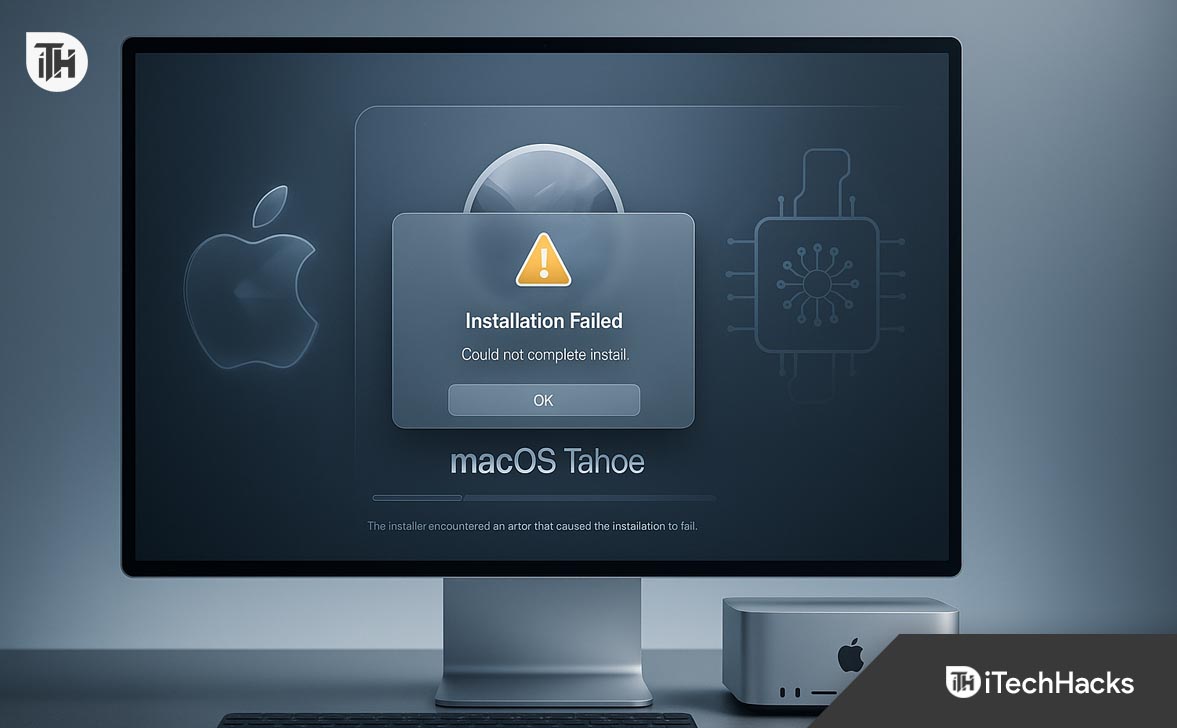
But thousands of Mac Studio M3 Ultra owners have hit a roadblock: macOS Tahoe won’t install or silently rolls back to macOS Sequoia 15.7 after reboot. Even after clean installs or USB installers, the issue persists. The cause isn’t user error—it’s a confirmed Apple-side bug in build 25A354, linked to ANE (Apple Neural Engine) driver validation.
This guide explains the root cause, shares working fixes and safe workarounds, and outlines exactly when to wait for Apple’s patched release to avoid bricking your system.
Understanding macOS Tahoe
macOS Tahoe (version 26) continues Apple’s yearly OS cadence and represents a major leap for Apple silicon:
- Liquid Glass UI: Modern translucent interface with dynamic depth.
- Apple Intelligence: Built-in generative AI tools integrated with Siri and apps.
- Unified Control Center: Simplified toggles and widgets.
- Enhanced File System: Faster APFS snapshots and Time Machine optimization.
- Security Updates: Stricter kernel validation and improved firmware protections.
Tahoe also marks the final macOS version to support Intel Macs, making it a pivotal release before Apple transitions to fully silicon-only support.
Why macOS Tahoe Won’t Install on Mac Studio M3 Ultra
Despite full compatibility on paper, many Mac Studio M3 Ultra users face failed installs. Let’s break down the root causes based on the latest reports.
1. ANE Driver Validation Bug (Confirmed Issue)
The Apple Neural Engine (ANE) on M3 Ultra fails a validation test during Tahoe’s installation. The installer runs, reboots, but then rolls back to macOS Sequoia.
Error seen in logs:
“ANEHWDevice::Failed to validate ANE register offset 0x5a8 … aborting install”
This failure triggers macOS’s rollback safety, preventing incomplete or unstable installs.
Source: Eclectic Light, MacRumors, AppleInsider (Sept 2025)
2. Build 25A354 Incompatibility
The issue is specific to the initial public build 25A354. Earlier beta/RC builds reportedly worked fine. Apple is expected to release a 26.0.1 or 26.1 update to fix this.
3. Upgrading from macOS Sequoia 15.7
Reports indicate the bug is most frequent when upgrading from 15.7. Some users on 15.6.1 managed to upgrade successfully, suggesting a firmware mismatch introduced in 15.7.
4. Clean Installs Don’t Guarantee Success
Even users who erased their drives and used a USB installer saw the rollback occur, meaning the issue is not tied to existing data but to Tahoe’s driver package.
Fix macOS Tahoe Installation Failed or Rolled Back on Mac Studio M3 Ultra
When macOS Tahoe won’t install on Mac Studio M3 Ultra, the cause lies in a confirmed driver validation bug in build 25A354, specifically affecting the Apple Neural Engine (ANE).
Step 1: Verify Your Current macOS Version and Firmware
Before attempting any fix, confirm your current environment:
-
Go to → System Settings → General → About → System Report.
-
Under Software, note your current macOS version (most users are on macOS Sequoia 15.7).
-
Under Hardware Overview, confirm Model Identifier is Mac14,12 or Mac14,13 (Mac Studio M3 Ultra variants).
-
Check firmware version — ensure all updates from Sequoia are applied.
-
Go to System Settings → General → Software Update.
-
Install any available “Device Firmware Update” or “macOS Sequoia Supplemental Update.”
-
Why this matters: Apple’s installer depends on firmware alignment. Outdated firmware can cause installer rollbacks even when hardware is supported.
Step 2: Back Up Your Entire System (Critical Step)
Before you make any major changes, back up your Mac:
-
Use Time Machine (connect an external drive → set up in System Settings).
-
Alternatively, clone your drive using Carbon Copy Cloner or SuperDuper!
Why this matters: If Tahoe installation fails or loops, you can restore to Sequoia without losing files or settings.
Step 3: Avoid Upgrading from macOS Sequoia 15.7 (Known Trigger)
Community and developer reports confirm that the rollback issue is most frequent when upgrading from Sequoia 15.7. If possible:
-
Restore to macOS Sequoia 15.6.1 using a Time Machine backup or Apple Configurator 2.
-
Once back on 15.6.1, attempt the macOS Tahoe upgrade again.
Why this works: macOS 15.6.1 uses slightly different firmware validation logic, which may bypass the ANE driver mismatch found in 15.7-based upgrades.
If you don’t have a 15.6.1 backup, proceed to the next step.
Step 4: Re-Download a Fresh Copy of macOS Tahoe Installer
Corrupt or outdated installers can cause unnecessary failures. Get a verified installer directly from Apple:
-
Open the Mac App Store → Search for macOS Tahoe → Click Get.
-
Alternatively, use Terminal to download via Apple’s softwareupdate tool:
-
Once downloaded, confirm version and build:
-
Navigate to:
/Applications/Install macOS Tahoe.app -
Right-click → Get Info → Ensure Version: 26.0 (Build 25A354)
-
-
Delete any older or third-party copies before proceeding.
Pro Tip: Avoid unofficial mirrors or beta archives—these often cause checksum mismatches and installer integrity errors.
Step 5: Create a Bootable USB Installer (Clean Install Attempt)
Sometimes, a clean boot installer bypasses in-place upgrade conflicts.
-
Insert a USB 3.0 flash drive (minimum 32GB).
-
Open Disk Utility → Select the USB → Click Erase
-
Format: APFS
-
Scheme: GUID Partition Map
-
Name: TahoeUSB
-
-
Use Terminal to create the bootable installer:
-
Wait for the confirmation:
“Install media now available on /Volumes/Install macOS Tahoe”
-
Reboot Mac → Hold Power button → Enter Startup Options → Choose the USB installer.
-
Optional (Clean Install):
-
In the installer menu, open Disk Utility
-
Select your internal drive → Erase → Format APFS, Scheme GUID
-
Proceed with Install macOS Tahoe
-
If the installation still reverts to Sequoia after reboot, it confirms the issue is firmware-level (ANE bug), not disk or installer corruption.
Step 6: Review Installer Logs for Confirmation
To be 100% sure it’s the ANE bug, open logs:
-
During installation, click Window → Installer Log.
-
Set filter to Show All Logs.
-
Search for:
-
ANEHWDevice::Failed to validate ANE register offset -
com.apple.driver.AppleNeuralEngine not found -
AbortInstall due to hardware mismatch
-
If these lines appear, the rollback is triggered by driver incompatibility, not a user error.
Step 7: Use Internet Recovery (To Restore or Test)
If your system gets stuck in an install loop:
-
Power off completely.
-
Hold Option + Command + R while powering on.
-
Wait for macOS Recovery to load from Apple servers.
-
Choose Reinstall macOS → It will install the latest stable version (likely Sequoia 15.7).
-
This ensures you’re back on a working OS until the fix releases.
Step 8: Wait for macOS Tahoe 26.0.1 or 26.1 Update
Apple is aware of the M3 Ultra ANE bug and is expected to ship a fixed build in October 2025:
-
Keep checking System Settings → General → Software Update.
-
Look for version 26.0.1 or 26.1 with patch notes mentioning “Improved support for Mac Studio (M3 Ultra).”
Recommendation: Until the patched build is available, do not force-install 25A354 repeatedly—it will always revert to Sequoia.
Step 9: Optional – Try Developer Beta (Advanced Users Only)
If you’re part of the Apple Developer Program and urgently need Tahoe for testing:
-
Enroll your Apple ID at developer.apple.com.
-
In System Settings → General → Software Update, enable macOS Developer Beta.
-
Download the latest Tahoe beta (26.1 beta) which may include ANE driver fixes.
Caution: Developer betas are not stable. Avoid installing them on production systems or machines used for critical work.
Step 10: Maintain Stability Until Fix Arrives
While waiting:
-
Keep macOS Sequoia 15.7 updated
-
Avoid beta firmware updates or NVRAM wipes
-
Ensure Time Machine backups are current
-
Monitor Apple Support Community & MacRumors for official patch confirmation.
FAQs
Q1. Why does macOS Tahoe fail only on Mac Studio M3 Ultra?
Because build 25A354 lacks proper ANE driver support for M3 Ultra hardware, the install fails validation and triggers rollback.
Q2. Can I force-install Tahoe using Terminal or Safe Mode?
No. The rollback is enforced at firmware level. Terminal commands won’t bypass the ANE validation failure.
Q3. Will a clean install fix the problem?
No. Clean installs from USB still fail due to missing drivers in the public build.
Q4. Should I wait or try a developer beta?
If your workflow is mission-critical, wait for 26.0.1 or 26.1. Beta builds may fix the bug but can introduce new instability.
Q5. When is Apple’s fix expected?
Apple hasn’t officially announced it, but 26.0.1 or 26.1 is expected in October 2025.
Conclusion
If macOS Tahoe won’t install on your Mac Studio M3 Ultra, the issue is not with your system—it’s a confirmed bug in build 25A354. The installer fails due to a Neural Engine validation error, triggering a silent rollback.
Until Apple releases 26.0.1 / 26.1 with proper ANE support, the safest approach is to remain on macOS Sequoia 15.7, ensure backups are current, and monitor Software Update for the fixed build.
Once the patch arrives, a straightforward upgrade should complete successfully—unlocking all of macOS Tahoe’s features without risk or rollback.
ALSO READ:
- iOS 26 Alarm Not Going Off? 15 Fixes That Actually Work in 2025
- Apple CarPlay Not Working After iOS 26? Fix Connectivity, Crashes & Pairing Issues Fast
- How to Fix iOS 26 Stuck on Black Screen: Step-by-Step Guide
- How to Fix Wireless Charging Not Working on iOS 26 iPhone
- Apple Intelligence Not Working iOS 26? Step-by-Step Fix
- How to Fix iOS 26 Brightness Issue on iPhone (2025 Fixes)







![Fix Phone Screen Unresponsive Touch on Android & iPhone [Step-by-Step]](https://itechhacks.com/wp-content/uploads/2025/10/Fix-Phone-Screen-Unresponsive-Touch-150x150.jpg "Fix Phone Screen Unresponsive Touch on Android & iPhone [Step-by-Step]")