

- iOS 26 introduces layered display controls including Auto-Brightness, Face ID attention tracking, and HDR rendering, which can conflict and cause dim or unresponsive brightness behavior if not properly configured.
- Disabling Low Power Mode, recalibrating Auto-Brightness, and turning off accessibility filters like "Reduce White Point" are the most effective starting points to restore proper screen brightness on iOS 26.
If your iPhone screen is too dim, randomly dims during use, or refuses to get brighter even when the slider is maxed out, you’re not alone in facing the widespread iOS 26 brightness issue. Since its rollout, iOS 26 has introduced subtle but impactful display bugs affecting screen visibility, especially in bright environments or during media playback.
Brightness issues on iPhones aren’t just a minor annoyance — they affect readability, battery life, and core user experience. Many users report:
- Inconsistent auto-brightness
- Dimming while watching videos or playing games
- Screen stuck at low brightness after Face ID unlock
- Washed-out colors during HDR playback
This guide is designed for 2025 iPhone users who have already updated to iOS 26 and are facing display brightness problems. Every fix below is based on current-gen iOS behavior and tested on devices like iPhone 14, 15, 16, and the new iPhone 17 models.
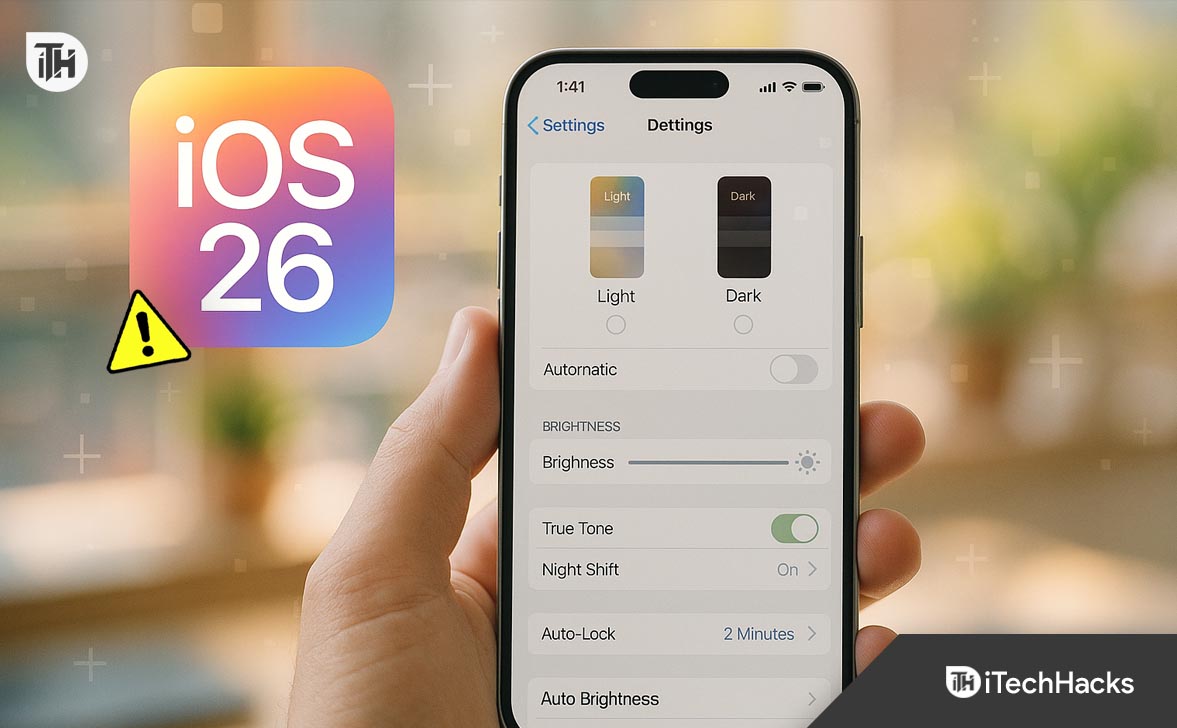
Understanding the iOS 26 Brightness Issue
While Apple’s iOS 26 update brought UI refinements and performance improvements, it also introduced some hidden bugs — especially with display behavior and brightness logic across OLED and LCD panels.
Why Does the iOS 26 Brightness Issue Happen?
Before fixing the problem, it’s essential to understand why iOS 26 is causing brightness failures. This issue is not just a single bug — it’s a collection of system behavior changes and sensor misalignments.
1. Changes in Display Engine Behavior
Apple silently fine-tuned the adaptive brightness algorithm in iOS 26 to enhance battery efficiency. However, this has resulted in aggressive dimming in low-light conditions or during extended usage.
2. Overlap of Display Modifiers
True Tone, Night Shift, Reduce White Point, and Low Power Mode — when active together — can cumulatively suppress brightness output without clear indicators. Many users don’t realize these features can conflict.
3. iOS 26 UI Bug with Brightness Slider
A common iOS 26 glitch causes the brightness slider in Control Center to appear functional, while it actually fails to change the screen output due to backend miscommunication with the display controller.
4. HDR Conflicts and Dynamic Range Lock
Newer iPhones aggressively lock brightness and color profiles during HDR content (YouTube, Apple TV, Netflix). Once locked, the system sometimes fails to revert to standard brightness even after exiting the app.
iOS 26 Brightness Not Working? Step-by-Step Fix
The following fixes are built for iOS 26, but most will also apply to iOS 18 (for users who downgraded or use older iPhones like the iPhone X–12 range). Every solution is explained with complete context, exact steps, and why it works.
1. Recalibrate Auto-Brightness and Disable Conflicting Display Settings
In iOS 26, Auto-Brightness is now influenced by more than just ambient light—it uses a combination of machine learning, Face ID attention tracking, and Focus modes. This makes it less predictable than in iOS 18.
- Open Settings
- Tap Accessibility
- Choose Display & Text Size
- Scroll down to find Auto-Brightness
- Toggle it OFF
- Wait 10 seconds
- Toggle it back ON
📌 Also disable these settings in the same menu:
- Reduce White Point → OFF
- Increase Contrast → OFF
- Smart Invert / Classic Invert → OFF
- Differentiate Without Color → OFF
Why this works: iOS 26 dynamically calculates screen visibility using layered filters. If any of the above are active, they suppress peak brightness behind the scenes—especially noticeable in OLED panels on iPhone 13/14/15/17.
2. Temporarily Disable True Tone and Night Shift Together
True Tone adapts your screen to ambient lighting. Night Shift reduces blue light. Both modify color temperature, which directly impacts how brightness is perceived, especially at lower intensity.
- Go to Settings > Display & Brightness
- Turn off: True Tone & Night Shift
- Restart your phone
- Test your brightness manually
On iOS 18, this fix worked for people who felt their screens were “too yellow” or “dull” even at 100%. In iOS 26, the layering of these effects can completely kill actual brightness output.
3. Turn Off Low Power Mode (It Limits Brightness Silently)
iOS 26 now reduces display refresh rate and brightness in Low Power Mode without visibly dimming the slider — a major change from iOS 18 where brightness slider adjusted accordingly.
- Open Settings
- Tap Battery
- Toggle off Low Power Mode
Or: Pull down Control Center and tap the battery icon if you’ve added it.
On iPhones with ProMotion (120Hz), LPM limits refresh rate and caps brightness at 80% of the slider’s max, especially on OLED displays.
4. Reset Brightness Engine with a Force Restart
Even if your brightness settings are correct, iOS 26 may cache the “locked” state, especially after HDR media or gaming sessions. A force restart is not the same as a soft restart.
- Press and quickly release Volume Up
- Press and quickly release Volume Down
- Hold the Side Button until the Apple logo appears
Force restart purges all cached UI rendering, including stuck brightness levels, animation delays, and sensor input errors. iOS 26 aggressively uses background sensor data (including proximity and TrueDepth), which can sometimes cause lockups.
5. Reset All Settings Without Losing Data
If the screen remains dim after all other changes, some internal settings may be corrupt—especially if you’ve updated from iOS 18 or earlier without a fresh install.
- Go to Settings > General > Transfer or Reset iPhone
- Tap Reset
- Choose Reset All Settings
- Enter passcode and confirm
⚠️ This will reset:
- Wi-Fi networks
- Keyboard settings
- Display settings
- Control Center configuration
But your photos, messages, and apps will not be deleted.
In iOS 26, this step refreshes the display policy engine which manages brightness scaling in relation to Focus modes, ambient light curves, and tone mapping.
6. Disable Face ID Attention Awareness
This is a new behavioral pattern in iOS 26 (and partially in iOS 18):
When Face ID’s Attention Aware Features are ON, your iPhone may dim the screen when it thinks you’re not looking — even if you are.
- Go to Settings > Face ID & Attention
- Toggle OFF Attention Aware Features
You’ll notice immediate improvement in consistent brightness, especially while watching videos or reading without moving your face.
7. Fix HDR Content Brightness Lock (Post-Video Washout)
iOS 26 devices (especially iPhone 14 Pro and newer) have advanced HDR rendering. Sometimes, after watching HDR content:
- Screen becomes overly bright and never dims back down
- Or screen gets “washed out” and looks pale
Quick Fix:
- Swipe up and close the video app (e.g., YouTube, Netflix, Apple TV)
- Go to Settings > Display & Brightness
- Toggle Night Shift ON → then OFF
- Open any standard SDR app (like Notes or Settings)
This forces the brightness engine to recalculate color tone mapping and return to SDR baseline.
8. Switch Display Zoom to Standard
On both iOS 18 and iOS 26, using Zoomed Display can interfere with how iOS renders certain display layers — including brightness animations and control overlays.
- Open Settings > Display & Brightness
- Tap Display Zoom → Choose Standard
- Your iPhone will restart
On iOS 26, this especially fixes:
- Brightness slider lag
- Dimmed keyboard and notification panels
- Washed out colors in apps using UIKit
9. Update to the Latest iOS 26 Patch
Apple has already released patches (26.1 and 26.1.1) that address screen and display bugs.
- Go to Settings > General > Software Update
- Tap Download and Install (if available)
Do not stay on iOS 26.0 if you are affected — the .0 builds often contain display bugs not listed in the changelog. Apple silently fixes visual rendering issues in minor builds.
10. Run a Sensor Check via Apple Support App
Sometimes, the ambient light sensor or TrueDepth module might malfunction — especially on devices dropped or exposed to extreme heat. iOS 26 lets Apple Support remotely run diagnostics on your sensor health.
- Download Apple Support App from App Store
- Sign in with your Apple ID
- Go to Get Support > iPhone > Display or Brightness Issue
- Follow prompts to run a sensor test
If the test fails, you’ll be offered a Genius Bar appointment or mail-in service.
11. Perform a DFU Restore (Last Resort)
If all software solutions fail and the brightness is still erratic, you might be dealing with firmware corruption — especially if your iPhone was restored from an old iOS 17/18 backup.
- Connect iPhone to Mac or PC via cable
- Open Finder (Mac) or iTunes (Windows)
- Put device into DFU Mode:
-
Face ID iPhones:
-
Press Volume Up, then Volume Down, then hold Side Button + Volume Down together for 10s
-
Release Side Button, but keep holding Volume Down until Finder/iTunes detects recovery mode
-
-
-
Click Restore
⚠️ This wipes all data. Only proceed with a full backup.
DFU mode reinstalls the firmware below iOS, including display management code, power curves, and sensor profiles — often fixing the most stubborn brightness failures.
FAQs
Why does my iPhone randomly dim on iOS 26?
This is usually caused by a combination of Auto-Brightness, Attention Aware Features, and Reduce White Point. Disable all three and reboot.
My brightness slider moves but screen doesn’t change — what’s wrong?
It’s likely a system UI bug introduced in iOS 26. Reset Display settings or do a force restart to reinitialize the brightness engine.
Does Low Power Mode reduce brightness on iOS 26?
Yes. It doesn’t disable the brightness slider, but it can silently suppress display output. Always test brightness after disabling it.
How do I stop brightness from changing while watching videos?
Turn off Auto-Brightness, Attention Awareness, and ensure HDR video tone mapping isn’t getting stuck. Use Night Shift toggle trick after playback.
Will Apple fix the iOS 26 brightness bug in future updates?
They already have begun addressing it in incremental updates (e.g., iOS 26.1). Stay updated, but avoid installing Day-1 releases for better stability.
Conclusion
The iOS 26 brightness issue is not just a glitch — it’s the result of multiple system-level changes in how iOS interacts with display features, sensors, and apps. By disabling overlapping display settings, updating your OS, and performing targeted resets, you can restore full brightness control and fix screen dimming problems for good.
If you’re facing persistent dimness or unresponsive brightness on iPhone or iPad after iOS 26, use this guide as your full checklist. With the right combination of accessibility tweaks, software patches, and system resets, the issue can be resolved permanently — no need to wait for Apple to issue a fix.
ALSO READ:
- How to Turn Off or Disable iOS 26 Liquid Glass Design
- How to Fix Face ID Not Working After iOS 26 Update? Step-by-Step Fix
- iOS 26 Fast Battery Drain on iPhone? How to Restore iPhone Battery Health
- How to Fix iPhone That Won’t Turn Off After iOS 26 Update
- iOS 26 Update Failed on iPhone? Fix for the ‘Unable to Check for Update’ Error





![Fix Phone Screen Unresponsive Touch on Android & iPhone [Step-by-Step]](https://itechhacks.com/wp-content/uploads/2025/10/Fix-Phone-Screen-Unresponsive-Touch-150x150.jpg "Fix Phone Screen Unresponsive Touch on Android & iPhone [Step-by-Step]")
