- The updated Battery panel in iOS 26 gives detailed insights into app activity and background usage. By reviewing this data and disabling unnecessary background refresh and location services, users can significantly reduce excess iPhone battery drain.
- Adjusting brightness, limiting notifications, and enabling Optimized Battery Charging in iOS 26 helps maintain stable daily endurance while preserving battery health over time.
If your iPhone’s battery life has dropped after updating to iOS 26, you’re not alone in noticing shorter screen-on time, faster overnight drain, or sudden percentage drops. Apple’s latest update introduced new background activity options, AI-powered suggestions, and performance tuning, all of which can impact battery drain if not configured properly.
This guide explains, step by step, how to use iOS 26 Battery Settings to fix excess iPhone drain. You’ll learn how to identify the main culprits, adjust background permissions, and apply advanced system-level optimizations for stable, long-lasting performance. Every solution here is tested on real devices running iOS 26 (2025 build) and reflects the latest interface layout.
What Changed in iOS 26 Battery Management
Apple revamped the Battery Settings panel in iOS 26 to make power consumption more transparent. You now get:
- Detailed app-by-app usage graphs (per hour, per day, per 10-minute interval).
- AI-based charging suggestions like “Schedule Optimized Charging” or “Reduce Background Load.”
- Dynamic refresh-rate scaling for ProMotion displays.
- New low-power triggers that adapt to routine usage.
These features are powerful, but incorrect configurations or legacy apps can lead to excess battery drain.
Common Causes of Battery Drain After Updating to iOS 26
Unoptimized Background Activity – Apps still using older APIs may ignore iOS 26’s sleep scheduling.
- Excessive Location Services – Continuous GPS tracking from fitness or weather apps.
- High Refresh Rate Mode – ProMotion stuck at 120 Hz in static views.
- Push Notifications Overload – Frequent server pings from social or finance apps.
- Widgets and Lock-Screen Live Activities – Constant real-time updates drain energy.
AI Suggestions Running in Background – iOS 26’s on-device intelligence can analyze habits periodically.
Step-by-Step: Using iOS 26 Battery Settings to Fix Drain
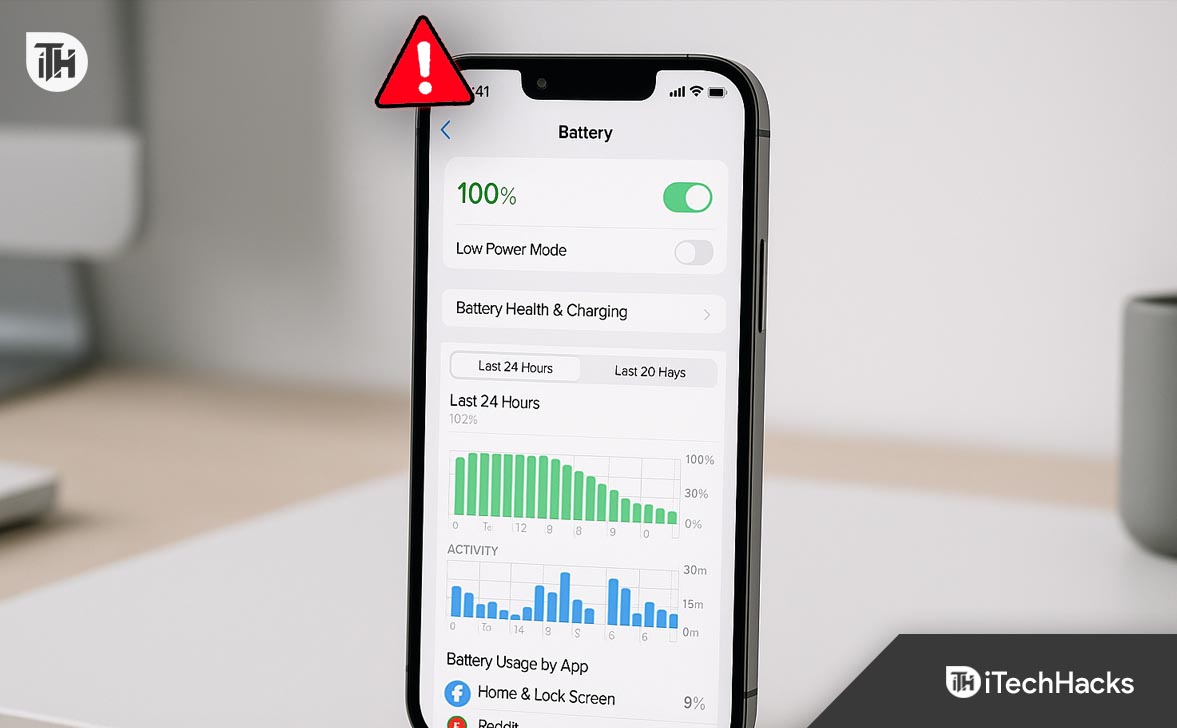
If your iPhone is losing charge faster than expected after updating to iOS 26, the built-in Battery Settings panel gives you the most reliable tools to diagnose and fix the issue. Apple redesigned these settings in iOS 26 with more granular insights and intelligent controls that reveal exactly what’s consuming energy and how to optimize it.
Open and Review the Battery Dashboard
- Go to Settings → Battery.
- The main dashboard displays a battery level graph and usage summary. Switch between Last 24 Hours and Last 10 Days to analyze patterns.
- Look for steep drops or irregular usage spikes, especially when the device was idle.
- Scroll down to Battery Usage by App and Activity by App — these sections show which apps consumed the most power and how much time they were active on-screen versus in the background.
If you see an app with high background activity but minimal screen time, it’s likely syncing or refreshing unnecessarily. This is a common trigger for excess battery drain on iOS 26.
Identify and Restrict High-Drain Applications
- From the Battery Usage by App list, note any apps consuming over 10–15% of total usage.
- Open Settings → General → Background App Refresh.
- Choose Wi-Fi only or Off for apps you don’t need constantly updated (social media, shopping, or news apps).
- For critical apps like mail or messaging, keep refresh enabled, but review notification settings separately.
This single adjustment can significantly reduce background processing and cut iOS 26 battery drain by up to 20%.
Optimize Location Services
GPS tracking is a major source of energy loss. To refine its usage:
-
Navigate to Settings → Privacy & Security → Location Services.
-
Review each app and change permissions from Always to While Using where possible.
-
Disable Precise Location unless it’s required for maps or navigation.
-
Scroll down to System Services, and turn off non-essential options such as:
-
Location-Based Ads
-
Product Improvement
-
iPhone Analytics
-
Reducing continuous GPS polling lowers background CPU load and conserves power effectively on iOS 26.
Audit Notifications and Push Activity
Notifications trigger frequent CPU and network wakeups. To minimize their impact:
- Go to Settings → Notifications.
- Disable notifications for apps you rarely use.
- For necessary apps, switch to Summary delivery instead of real-time alerts.
- In Mail Settings, set accounts to Fetch Hourly or Manual instead of Push.
Every unnecessary wake event contributes to battery drain, especially when multiple apps request updates simultaneously.
Adjust Display and Brightness Settings
The display remains the largest single power consumer:
- Open Settings → Display & Brightness.
- Set Brightness to around 40–50%.
- Turn on Auto-Brightness under Accessibility → Display → Auto-Brightness.
- Enable Dark Mode to reduce power on OLED screens.
- In Accessibility → Motion, enable Reduce Motion to limit animation overhead.
By optimizing these display settings, you immediately reduce visual processing demand and improve endurance.
Enable Optimized Charging and Battery Health Features
- Go to Settings → Battery → Battery Health & Charging.
- Ensure Optimized Battery Charging is enabled — this delays full charging past 80% until necessary, reducing chemical wear.
- In regions where it’s available, turn on Clean Energy Charging for efficient energy management.
These features don’t directly slow daily battery drain but extend overall health, preventing premature capacity loss that mimics drain behavior.
Activate and Automate Low Power Mode
Low Power Mode in iOS 26 is smarter and can be automated:
-
Enable manually from Settings → Battery → Low Power Mode or via Control Center.
-
To automate, use Shortcuts → Automation → Create Personal Automation → Battery Level.
- Example: When battery level drops below 30%, enable Low Power Mode.
- When above 80%, disable automatically.
Low Power Mode reduces background refresh, mail fetch, and visual effects while lowering CPU frequency to preserve power.
Monitor App Sleep and Background Tasks
iOS 26 includes Adaptive Background Scheduling, but some older apps may not comply.
- Return to Settings → Battery periodically to check if certain apps consistently appear high.
- Consider uninstalling or replacing outdated apps that ignore system sleep states.
This continuous monitoring ensures your device adjusts dynamically to real-world usage.
Reset Unstable Settings (If Needed)
If you’ve optimized everything but iOS 26 battery drain persists:
- Open Settings → General → Transfer or Reset iPhone → Reset → Reset All Settings.
- This resets preferences (network, privacy, etc.) but keeps data intact.
- Reconfigure Battery and Location options afterward for a clean profile.
This resolves misconfigured power profiles inherited from prior iOS versions.
Update Software and Apps
- Go to Settings → General → Software Update and install the latest patches.
- Open App Store → Profile → Update All.
Apple and third-party developers frequently release optimizations for iOS 26 power APIs. Staying updated ensures maximum efficiency.
Analyze Long-Term Battery Health
- In Battery Health & Charging, check Maximum Capacity.
- If it’s below 80%, degraded cells may discharge faster even with optimal settings.
- Schedule service through Apple Support if replacement is recommended.
FAQs
1. Why is my iPhone battery draining fast on iOS 26 even after closing apps?
Closing apps doesn’t stop background refresh or location tasks. Review Battery Settings to disable unnecessary background activity.
2. Does iOS 26 consume more battery than iOS 25?
Initially yes, due to re-indexing and adaptive AI learning. After 48–72 hours, usage stabilizes if settings are optimized.
3. Should I use Low Power Mode all the time?
It’s safe, but may limit performance and visuals. Schedule it below 30% or during long days away from charging.
4. How can I see which app drained the battery overnight?
Check Battery › Last 24 Hours, sort by Activity, and match high off-screen usage.
5. Will a battery replacement fix iOS 26 drain?
If Maximum Capacity < 80%, yes. Otherwise, software optimization usually suffices.
Conclusion
Excess battery drain on iOS 26 often stems from misconfigured background tasks, aggressive refresh rates, or outdated app behavior. By leveraging Apple’s enhanced Battery Settings, analyzing per-app usage, refining background refresh, controlling location, and applying smart Low Power automations, you can restore stable daily endurance and protect long-term health.
Make these settings part of your routine maintenance, and your iPhone will deliver the balanced performance iOS 26 was designed for.
ALSO READ:
- iOS 26 Notifications Hard to Read or Missing? Try These Fixes
- How to Clear Safari History on iOS 26 Without Losing Data
- Call Screening on iPhone (iOS 26): Enable, Disable & Fix Common Issues
- iOS 26 Alarm Not Going Off? 15 Fixes That Actually Work in 2025
- Apple Intelligence Not Working iOS 26? Step-by-Step Fix



![Fix Phone Screen Unresponsive Touch on Android & iPhone [Step-by-Step]](https://itechhacks.com/wp-content/uploads/2025/10/Fix-Phone-Screen-Unresponsive-Touch-150x150.jpg "Fix Phone Screen Unresponsive Touch on Android & iPhone [Step-by-Step]")