- Instagram launched an official app for Apple TV on October 23, 2026, allowing users to watch Reels, longer videos, and live shows directly on their televisions without using AirPlay or screen mirroring. This app is designed to work with Apple TV remote, making it easy to navigate on a bigger screen.
- To install Instagram on Apple TV, ensure your device runs tvOS 26 or later, and has access to the App Store. The app can be downloaded for free, and users need an existing Instagram account to access personalized content. Older Apple TV models without an App Store cannot install this app.
- If the Instagram app isn't available on your Apple TV, you can still use AirPlay from an iPhone or screen mir
Want to watch Instagram Reels on your Apple TV instead of scrolling through videos on your phone? There’s good news. Instagram has finally introduced an official Apple TV app, making it easier to enjoy your favorite Reels, creator videos, and live content on a bigger screen.
The Instagram app for Apple TV became available on October 23, 2026. Previously, Apple TV users had to rely on AirPlay or screen mirroring to watch Instagram content on their televisions. Now, compatible devices can run Instagram directly without needing an iPhone.
Whether you want to watch funny Reels with friends, explore trending videos, or follow your favorite creators, this guide explains how to install Instagram on Apple TV, what features are available, and how to fix common problems.
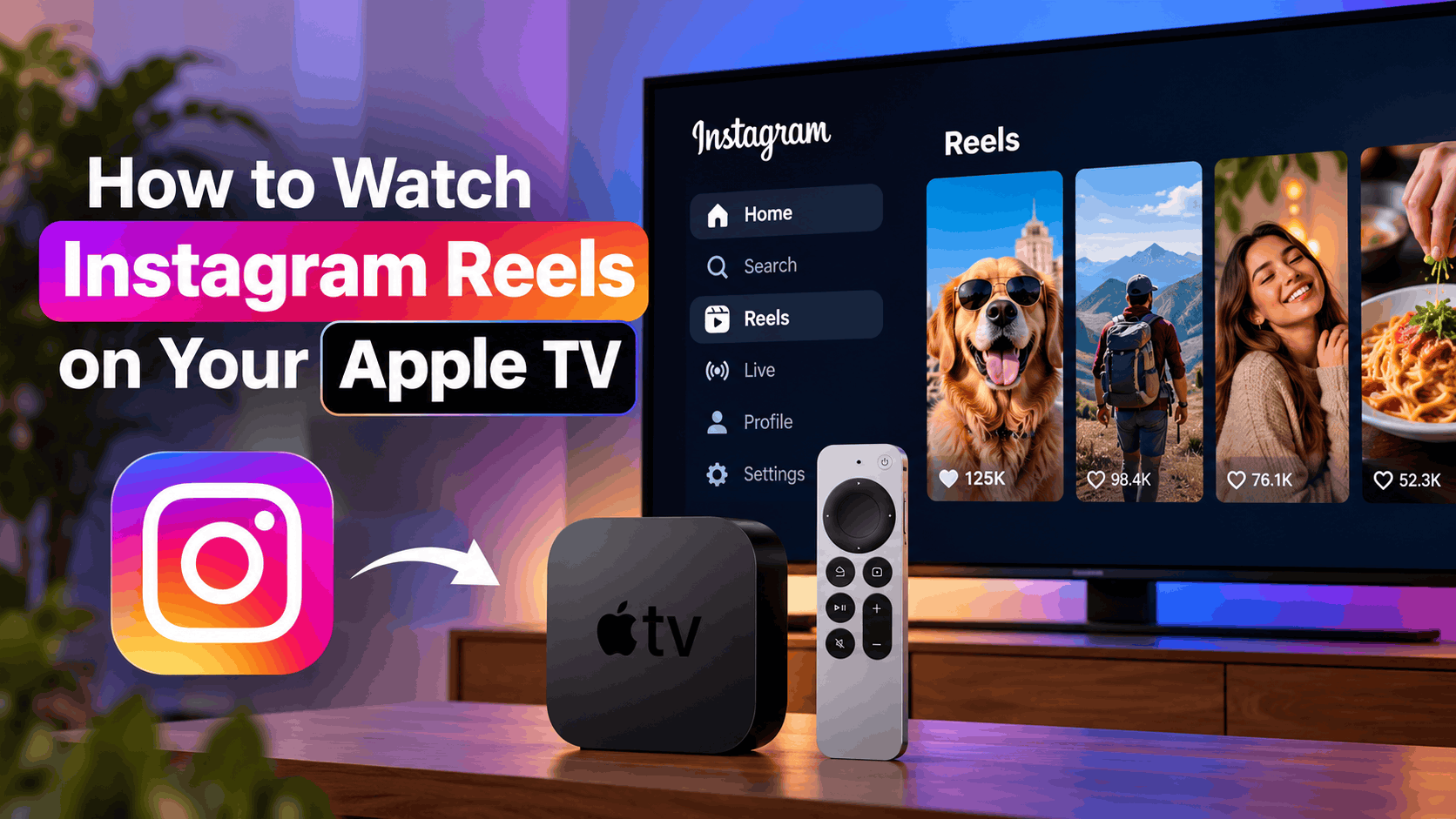
Can You Watch Instagram Reels on Apple TV?
Yes. As of October 2026, Instagram has an official Apple TV app that supports Reels, longer videos, and live shows. The app is designed specifically for television screens and works with the Apple TV remote.
Instagram originally introduced its television experience on Amazon Fire TV in December 2025. It later expanded to Google TV in February 2026 and supported Samsung Smart TVs in June 2026. Apple TV is the latest platform to receive the application.
Unlike screen mirroring, the dedicated app allows you to browse and watch Instagram videos directly on your television. You don’t have to keep your phone connected while watching.
Here are some of the main features:
- Watch Instagram Reels directly on your Apple TV.
- Discover videos from your favorite creators.
- Explore longer videos and supported live shows.
- Navigate Instagram using your Apple TV remote.
- Continue watching supported content across devices.
- Enjoy a viewing experience designed for larger screens.
Keep in mind that Instagram for Apple TV focuses mainly on video entertainment. It doesn’t necessarily offer every feature available in the Instagram app on iPhone or Android.
Requirements to Install Instagram on Apple TV
Before installing Instagram, make sure your Apple TV meets the minimum requirements. The official App Store listing specifies that Instagram requires tvOS 26.0 or later.
You’ll need:
- An Apple TV HD or compatible Apple TV 4K running tvOS 26 or later.
- A stable internet connection.
- Access to the Apple TV App Store.
- An Instagram account to access personalized content.
- Availability of the Instagram app in your App Store region.
The Instagram app is free to download. Although the App Store lists optional in-app purchases, you don’t need a separate paid Instagram subscription simply to install the application and watch regular Reels.
Older Apple TV devices without an App Store, including the third-generation Apple TV released in 2012, cannot install the new application.
How to Install Instagram on Apple TV and Watch Reels
The easiest way to watch Instagram Reels on Apple TV is through the official Instagram application. Once installed, you can browse videos using your remote, just like other streaming apps.
Step 1: Update Your Apple TV to tvOS 26 or Later
Since Instagram requires tvOS 26.0 or newer, start by checking your Apple TV software version.
- Turn on your Apple TV and open Settings.
- Select System.
- Choose Software Updates.
- Select Update Software.
- If an update is available, choose Download and Install.
- Allow your Apple TV to finish updating and restart.
Updating your Apple TV helps ensure compatibility with recently released applications, including Instagram. If your device already runs tvOS 26 or later, you can skip this step.
Step 2: Download the Instagram App
After updating your Apple TV, you can install Instagram directly from the App Store.
- Open the App Store on your Apple TV.
- Navigate to the Search section.
- Type Instagram using the on-screen keyboard.
- Find the official Instagram application published by Instagram, Inc.
- Select Get to download the app.
- Wait for the installation to finish.
- Select Open to launch Instagram.
If you see an Open button instead of Get, Instagram is already installed on your device.
Because the Apple TV version was introduced recently, availability may depend on your country, App Store region, and software version.
Step 3: Sign In to Your Instagram Account
Once Instagram opens, follow the instructions displayed on your television to connect your account.
- Open the Instagram application on Apple TV.
- Select the available sign-in option.
- Follow the on-screen instructions to authenticate your account.
- If a phone-based sign-in option appears, complete the verification on your phone.
- Wait for Instagram to load your personalized viewing experience.
Using your existing Instagram account helps the app connect you with creators and content you’re interested in. The available login methods may vary depending on the app version.
Step 4: Start Watching Instagram Reels
Once you’re signed in, browse the available videos and select a Reel using your Apple TV remote.
Instagram’s television experience is built around video discovery. Its TV platform includes content organized around interests such as entertainment, sports, travel, and music, although the exact sections may differ on Apple TV.
Choose a video to begin watching. You can use the remote to navigate the available controls and explore more content.
One useful advantage of the official application is that you can put your phone away while watching. Instagram runs directly on the Apple TV rather than displaying a mirrored phone screen.
How to Watch Instagram Reels on Apple TV Using AirPlay
If the official Instagram app isn’t available on your Apple TV, you can still watch Reels using Apple’s AirPlay screen mirroring feature.
Screen mirroring displays your iPhone or iPad screen on your television. This method is particularly helpful if you want to show a specific Reel, browse Instagram with your phone, or use mobile features unavailable in the television application.
Steps to Mirror Instagram Reels From iPhone
- Connect your iPhone and Apple TV to the same Wi-Fi network.
- Open Instagram on your iPhone.
- Swipe down from the top-right corner to open Control Center. On older iPhones with a Home button, swipe up from the bottom.
- Tap Screen Mirroring.
- Select your Apple TV from the available devices.
- Enter the AirPlay passcode if one appears on your television.
- Return to Instagram and open the Reel you want to watch.
Your iPhone screen should now appear on the television. As you scroll through Instagram Reels, the content displayed on your phone will also appear on Apple TV.
To disconnect, open Control Center, tap Screen Mirroring, and select Stop Mirroring.
Important: Screen mirroring and direct video casting are different. Instagram has tested direct Reel casting on certain other television platforms, but you shouldn’t assume the same casting controls are available on Apple TV. Screen Mirroring is the more reliable alternative.
How to Watch Instagram Reels on Apple TV Using a Mac
You can also display Instagram Reels on Apple TV from a Mac. This is useful if you prefer browsing Instagram in a desktop browser or don’t want to use your iPhone.
- Connect your Mac and Apple TV to the same network.
- Open Safari, Chrome, or another supported browser.
- Visit Instagram’s website and sign in.
- Open the Reels section.
- Click Control Center in the Mac menu bar.
- Select Screen Mirroring.
- Choose your Apple TV.
- Start playing your preferred Reel.
Your Mac screen will appear on the television, allowing you to view Instagram content on a larger display.
For the best experience, expand the browser window and keep your Mac connected to a stable Wi-Fi network. Remember that browser-based Instagram may have different features from the mobile app.
Official Instagram App vs. AirPlay: Which Is Better?
Both methods work, but the official Instagram application is generally the better choice for watching Reels regularly.
Choose the official Instagram app if:
- You want to watch Reels without using your phone.
- You prefer navigating videos with the Apple TV remote.
- You want a video interface designed for television viewing.
- You plan to watch Instagram frequently on your TV.
Choose AirPlay screen mirroring if:
- The Instagram TV app isn’t available in your region.
- You want to display a particular Reel from your phone.
- You need access to mobile Instagram features.
- You prefer scrolling through videos directly on your iPhone.
For casual viewing with family or friends, the native app is more convenient. However, AirPlay remains useful because it mirrors the familiar Instagram interface from your phone.
Instagram Not Working on Apple TV? Try These Fixes
Since Instagram for Apple TV is a relatively new application, you might encounter installation, playback, or login problems. Here are some practical troubleshooting methods.
1. Instagram App Not Showing in Apple TV App Store
If you can’t find Instagram, first verify that your Apple TV supports tvOS 26 or later.
Open Settings > System > Software Updates and install any available updates. Then restart Apple TV and search for Instagram again.
Also check your App Store country or region. An app can appear in one region before becoming available in another. If your model doesn’t support downloadable apps, you’ll need to use a compatible alternative device.
2. Instagram Reels Won’t Play or Keep Buffering
Videos that repeatedly pause or fail to load may indicate an unstable internet connection.
- Check whether other streaming apps play normally.
- Restart your Wi-Fi router if the connection is unstable.
- Move your Apple TV closer to your router if possible.
- Use Ethernet on supported Apple TV models for a more stable connection.
- Restart Instagram and try another Reel.
If only one particular video fails, the problem may be related to that video rather than your Apple TV.
3. Instagram Keeps Crashing on Apple TV
If Instagram closes unexpectedly or freezes during playback, try restarting the application and your Apple TV.
Go to Settings > System > Restart. Once the device restarts, reopen Instagram.
You should also check for app updates in the App Store. If crashes continue, deleting and reinstalling Instagram may help resolve damaged local app data, although you’ll need to sign in again.
4. Apple TV Not Showing in Screen Mirroring
If your iPhone can’t detect Apple TV, check whether both devices are connected to the same Wi-Fi network.
On Apple TV, open Settings > AirPlay and Apple Home and verify that AirPlay is enabled. The exact menu wording can vary by tvOS version.
Restart both devices and try again. If you’re using a guest or public Wi-Fi network, device isolation may prevent screen mirroring from working properly.
5. Instagram Reels Have No Sound
If a Reel plays without audio, start by increasing your television’s volume and checking whether the video is muted.
When using screen mirroring, verify that audio isn’t being routed to Bluetooth headphones or another device. You can also test a different Reel, since some videos may have no audio or music restrictions.
Tips for a Better Instagram Reels Experience on Apple TV
Watching short videos on a television feels different from watching them on a smartphone. A few adjustments can make the experience more enjoyable.
- Keep your software updated: New Instagram and tvOS updates may improve performance and compatibility.
- Use a stable connection: Reliable Wi-Fi or Ethernet helps prevent buffering.
- Expect vertical video: Many Reels use a portrait layout, so empty space on the sides of your widescreen TV is normal.
- Protect your privacy: Avoid leaving personal Instagram accounts signed in on shared or public televisions.
- Use the mobile app when necessary: Some Instagram features remain more convenient or available only on smartphones.
If several family members use the same Apple TV, check the account options inside Instagram rather than assuming Apple TV profiles automatically separate Instagram activity.
Frequently Asked Questions
Is Instagram Available on Apple TV in 2026?
Yes. Instagram introduced Apple TV compatibility on October 23, 2026. The app supports Instagram Reels, longer videos, and live content. It requires tvOS 26.0 or later, and availability can vary by App Store region.
Can I Watch Instagram Reels on Apple TV Without an iPhone?
Yes. With the official Instagram app installed, you can watch supported content directly on Apple TV without keeping an iPhone connected. An Instagram account and internet connection are needed for personalized viewing.
Is the Instagram Apple TV App Free?
Yes. Instagram is free to download from the Apple TV App Store. Optional in-app purchases may be listed, but a separate subscription isn’t required for regular Reel viewing.
Can I Watch Instagram Live on Apple TV?
The Apple TV app advertises live shows alongside Reels and longer videos. However, specific live viewing features and availability may vary. The television app shouldn’t be assumed to support every Instagram Live feature available on smartphones.
Why Are Instagram Reels Not Full Screen on My Apple TV?
Most Instagram Reels are created in a vertical format, while televisions use a horizontal display. As a result, you may see empty space or a specially adapted layout around some videos. This is normal and doesn’t necessarily indicate a display problem.
Can I Install Instagram on an Older Apple TV?
Apple TV HD and Apple TV 4K models that support tvOS 26 can meet the app’s software requirement. Older Apple TV models without an App Store cannot install Instagram directly. Check your specific model and software version before downloading.
Can I Post Instagram Reels From Apple TV?
Instagram for Apple TV is primarily intended for watching and discovering video content. For recording, editing, uploading, and managing Reels, continue using the Instagram mobile app.
Final Thoughts
Watching Instagram Reels on Apple TV is now easier thanks to the official Instagram application introduced in October 2026. Instead of relying entirely on screen mirroring, users with compatible Apple TV devices can install Instagram and enjoy Reels, longer creator videos, and supported live shows directly on their televisions.
To get started, update your Apple TV to tvOS 26 or later, open the App Store, download Instagram, and sign in to your account. If the application isn’t available on your device, AirPlay screen mirroring from an iPhone, iPad, or Mac remains a practical alternative.
For the best experience, keep Instagram and tvOS updated, use a reliable internet connection, and choose the viewing method that works best for your device.