

- Corrupted cache files are the leading cause of the “something went wrong, error tag 657rx” message. Clearing them usually resolves the issue within minutes without affecting your data.
- Saved Windows credentials, VPNs, or proxy settings can block proper authentication. Removing outdated credentials and ensuring a direct internet connection can fix error tag 657rx.
- If cache and login fixes don’t work, performing a clean reinstall or resetting the app through Windows settings can eliminate persistent bugs and restore functionality.
Microsoft Teams is one of the most widely used communication tools for businesses and remote teams. But just like any other app, it’s not perfect. One frustrating issue that many users face is the mysterious “Something went wrong, error tag 657rx” message.
If you’re seeing the error tag 657rx message while trying to use Microsoft Teams on Windows 11 or 10, it’s likely due to a login or cache-related issue. This guide will walk you through practical steps to resolve it quickly.
In this guide, we’ll explain what causes the error tag 657rx, walk you through step-by-step fixes, and help you get Microsoft Teams working smoothly again.
What Is Microsoft Teams Error Tag 657rx?
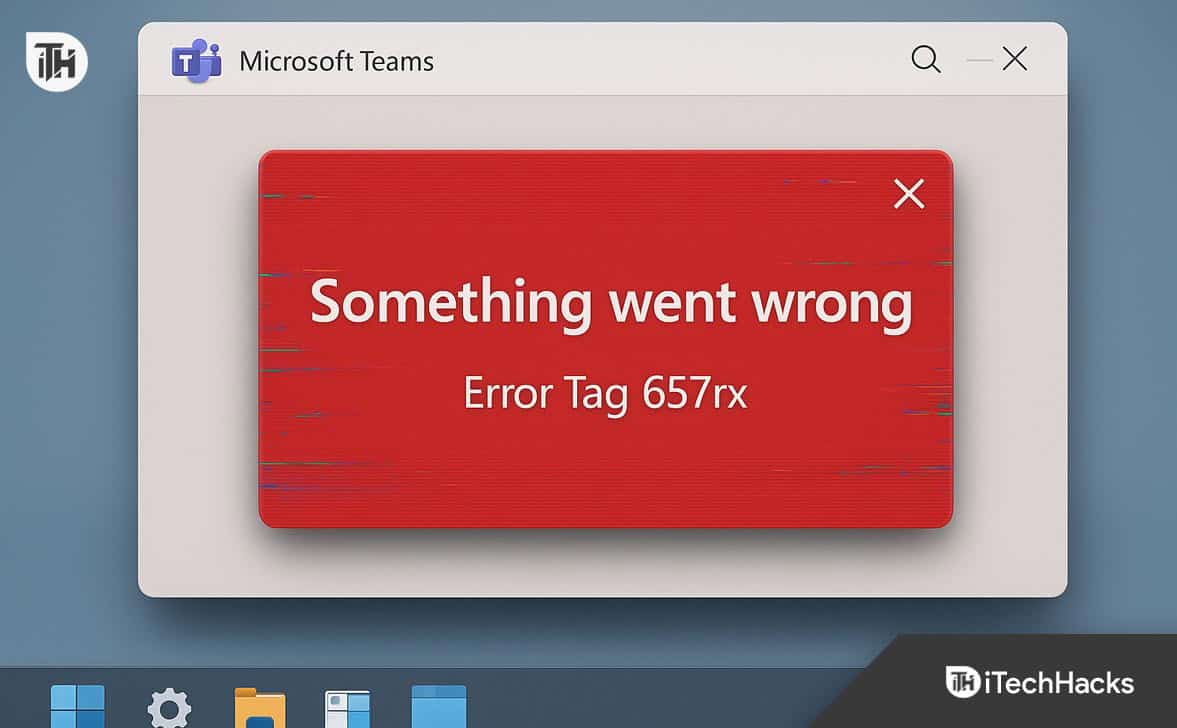
The error tag 657rx typically appears with a vague message: “Something went wrong.” Unfortunately, that doesn’t give much detail about what exactly caused the problem.
- Corrupted Teams cache files
- Issues with your Microsoft account sign-in
- Outdated Teams version or Windows update
- Conflicts with other Office 365 apps
- Network-related login failures
This error can appear randomly, even if Teams worked fine the day before. The good news is that you can fix it using a few simple methods.
Fix Microsoft Teams “Something Went Wrong” Error 657rx (Step-by-Step Guide)
1. Clear Microsoft Teams Cache (Most Common Fix)
Corrupted cache files are one of the top reasons why Teams displays error tag 657rx. Removing these files resets the app without affecting your Teams data.
- Exit Microsoft Teams completely. Right-click the Teams icon in the taskbar and click Quit.
- Press
Windows + Rto open the Run dialog. - Type:
%appdata%\Microsoft\Teams - Press Enter to open the folder.
- Select and delete all files and folders inside.
- Restart Microsoft Teams and log in again.
This method resolves the error tag 657rx in most cases.
2. Reset Microsoft Teams App via Windows Settings
If cache clearing didn’t solve the issue, resetting the app through system settings is another effective method.
- Go to Settings > Apps > Installed Apps.
- Search for Microsoft Teams in the list.
- Click the three-dot menu > Advanced Options.
- Scroll down and click Reset.
This will wipe the app’s internal settings and force it to reinitialize without deleting your messages or Teams channels.
3. Sign Out and Re-Sign In to Microsoft Teams
Sometimes the “something went wrong” error is caused by an expired login session or a broken token.
- Open Microsoft Teams.
- Click your profile icon on the top-right.
- Select Sign out.
- Close the Teams app completely.
- Reopen it and log in again with your Microsoft account.
If the problem was due to an authentication glitch, this should fix error tag 657rx instantly.
4. Remove Saved Credentials from Credential Manager
Outdated or corrupted saved credentials can interfere with Teams login and cause the error tag 657rx issue.
- Press
Windows + Sand search for Credential Manager. - Open it and go to Windows Credentials.
- Locate any entries named Microsoft Teams, Office, or similar.
- Click Remove next to each one.
- Reboot your system.
-
Open Teams and sign in again.
This forces the app to re-authenticate with fresh credentials.
5. Reinstall Microsoft Teams (Clean Install)
If the error still persists, a complete reinstall of Teams ensures any corrupted or outdated files are removed.
- Press
Windows + Ito open Settings. - Go to Apps > Installed Apps.
- Find and uninstall Microsoft Teams.
- Press
Windows + Rand type:%appdata% - Delete the Microsoft > Teams folder if it still exists.
- Visit the official Teams download page and install the latest version.
- Launch and sign in.
A clean reinstall often resolves the “something went wrong, error tag 657rx” error by removing all traces of previous failures.
6. Run Microsoft Teams as Administrator
Some Windows 11/10 systems restrict app permissions, which can trigger unexpected errors like error tag 657rx.
- Right-click the Microsoft Teams shortcut on your desktop or Start Menu.
- Choose Run as Administrator.
- Try signing in again.
If Teams weren’t allowed to access certain folders or network settings, this might solve the issue.
7. Disable VPN or Proxy (If Applicable)
If you’re using a VPN, proxy, or enterprise network, Teams may be blocked from authenticating correctly, leading to the error tag 657rx.
- Temporarily disconnect from any active VPN or proxy.
- Go to Settings > Network & Internet > Proxy.
- Turn off Use a proxy server, if it’s enabled.
- Restart Teams.
Teams needs a direct, unblocked internet connection to sync and authenticate successfully.
8. Update Microsoft Teams and Windows
Compatibility issues between outdated software versions can also result in the error tag 657rx message.
How to update Teams:
- Open Teams.
- Click your profile icon > Check for updates.
- Teams will install updates in the background and restart.
How to update Windows:
- Go to Settings > Windows Update.
- Click Check for updates and install any pending patches.
- Reboot your computer.
Staying updated ensures Teams runs smoothly on your system.
9. Try the Web Version of Microsoft Teams
If you urgently need access and none of the above fixes worked, use the web version of Teams.
- Go to https://teams.microsoft.com
- Sign in with your Microsoft account.
While this doesn’t fix the desktop error directly, it’s a good temporary solution when dealing with error tag 657rx.
10. Contact Microsoft Support (For Persistent Issues)
If you’ve tried everything and still see the “something went wrong, error tag 657rx”, it might be an account-specific or server-side issue.
- Visit Microsoft Teams Support
- Use the Teams app’s Help > Contact Support option (if accessible)
- Reach out to your IT administrator if you’re using Teams for work/school
Microsoft can investigate the issue more deeply and reset your account session or provide advanced fixes.
Frequently Asked Questions (FAQs)
1. What is Microsoft Teams error tag 657rx and why does it appear?
The error tag 657rx is a generic login or sync failure in Microsoft Teams, often shown with the message “something went wrong.” It usually appears due to corrupted cache files, expired Microsoft login sessions, outdated app versions, or network-related restrictions such as VPN or proxy use.
2. Will clearing the Teams cache delete my chats or data?
No, clearing the Microsoft Teams cache only removes temporary files that help the app load faster. It won’t delete your messages, meetings, or team/channel data since all your content is stored securely in the cloud.
3. Can I still use Teams if the desktop app shows error 657rx?
Yes. If the desktop app is giving you the “something went wrong, error tag 657rx” message, you can switch to the web version of Microsoft Teams by visiting https://teams.microsoft.com.
Conclusion
The Microsoft Teams error tag 657rx can be frustrating, especially when you need to attend meetings or respond to team messages quickly. But the good news is that this issue is usually fixable with a few reliable methods.
Start with the easiest fix, clearing the Teams cache. If that doesn’t help, go through the steps we’ve listed, like resetting the app, removing saved credentials, updating Teams, and finally, reinstalling it from scratch if needed. Temporary workarounds like using the web version of Teams can keep you productive while you troubleshoot.
ALSO READ:







![Fix Phone Screen Unresponsive Touch on Android & iPhone [Step-by-Step]](https://itechhacks.com/wp-content/uploads/2025/10/Fix-Phone-Screen-Unresponsive-Touch-150x150.jpg "Fix Phone Screen Unresponsive Touch on Android & iPhone [Step-by-Step]")