- In iOS 26, missing sounds for text messages, keyboard clicks, and emails are usually caused by muted tones, Focus mode interference, or “None” selected under Text Tone and New Mail. Reassign valid tones and review Sounds & Haptics settings to restore alerts.
- If sounds remain missing after confirming settings, install the latest iOS 26 update and use Reset All Settings to clear misconfigurations without losing data. This resolves most persistent no sound for text messages issues after major iOS updates.
After updating to iOS 26, many iPhone users have reported a frustrating issue: no sound for text messages, keyboard clicks, or email alerts. This can lead to missed notifications, silent keyboards, and a generally less responsive experience. Since iOS 26 introduced new notification settings and sound management controls, the root cause often lies in updated system configurations, Focus modes, or custom app settings.
In this comprehensive guide, you’ll learn the exact causes and working fixes for the iOS 26 no sound for text messages problem. Every method is explained in detail so you can methodically restore normal sound behavior on your iPhone — without guesswork.
What Changed in iOS 26
With iOS 26, Apple refined how notification sounds, Focus modes, and system haptics work. The update consolidated some options and changed how sound alerts interact with Do Not Disturb, Silent Mode, and per-app notification settings.
As a result, users may experience:
- No sound for incoming text messages (iMessage or SMS)
- No sound for keyboard clicks while typing
- No notification sound for emails in the Mail app
- Haptics working but no audible alerts
This issue is usually caused by configuration conflicts, muted alert tones, or Focus settings overriding notification sounds.
Common Causes of No Sound for Text Messages and Emails in iOS 26
Before jumping to solutions, it’s critical to identify the possible root causes:
- Silent Mode Enabled: The physical ring/silent switch is set to silent.
- Notification Sounds Disabled: Message or Mail alert tones set to “None.”
- Focus Mode Interference: Focus modes like “Do Not Disturb” or “Work” are muting notifications.
- Per-App Notification Settings: “Allow Notifications” toggled off or sounds disabled in Messages or Mail.
- Sound & Haptics Misconfiguration: System-level sound settings altered post-update.
- Custom Vibration Only: Sound replaced by vibration in contact settings.
- iOS 26 Bugs or Glitches: Update conflicts affecting sound behavior.
No Sound on iPhone After iOS 26? Fix Messages, Keyboard & Email Alerts
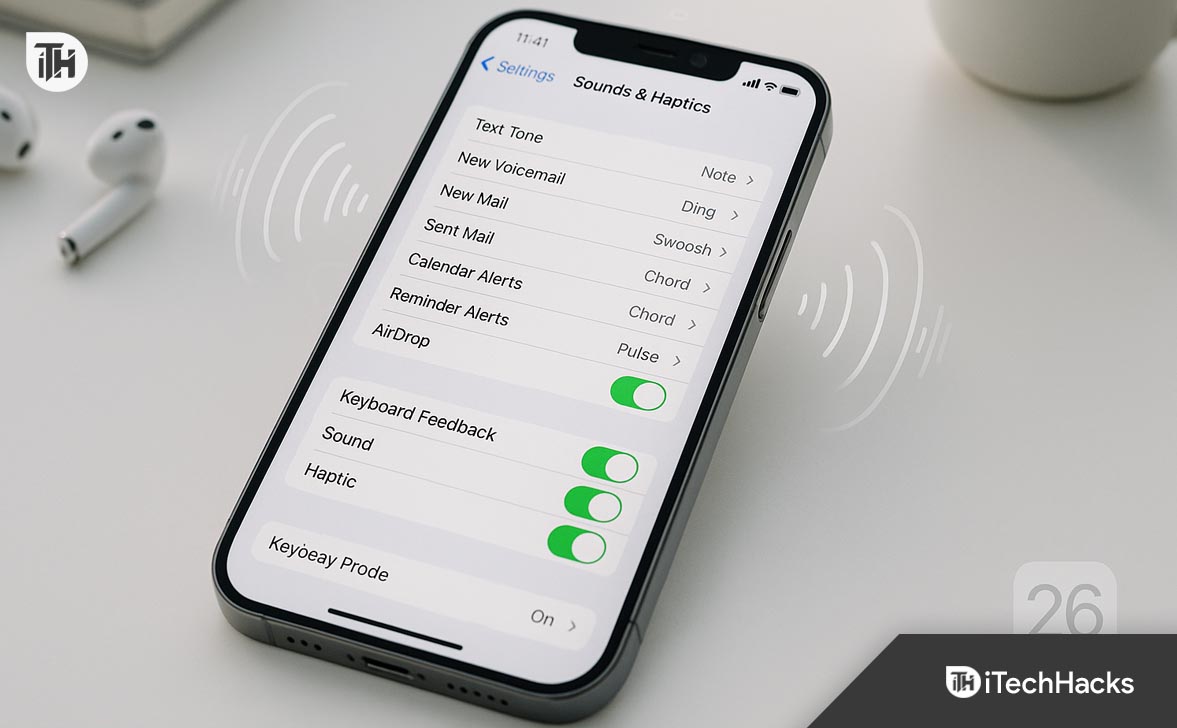
Below is a complete, methodical workflow to restore notification sounds for text messages, keyboard clicks, and emails on iOS 26. Follow the order; each step includes why it matters, the exact path, and a quick verification test. This section intentionally repeats “iOS 26” and “No Sound for Text Messages” where relevant for clarity and search intent.
If the phone is in Silent mode, you’ll hear nothing—even if tones are set.
- Physical switch (iPhone with ring/silent switch): Flip the switch up (no orange stripe).
- Action button models: Long-press the Action button (if assigned to Silent Mode) to toggle Ring.
- Control Center: Swipe down from the top-right → ensure Silent Mode is Off.
Verify
-
Go to Settings → Sounds & Haptics → Text Tone and tap a tone to preview. You must hear it.
Raise “Ringer and Alerts” volume and preview tones
On iOS 26, the Ringer and Alerts slider controls the volume for message/mail tones.
- Settings → Sounds & Haptics
- Increase Ringer and Alerts slider to at least 60–80%.
- Optional: enable Change with Buttons if you prefer using volume keys.
Verify
-
Under Sounds and Haptic Patterns, tap Text Tone and New Mail and play a couple of tones. If previews are audible, volume is not the blocker.
Assign valid tones (not “None”) for Messages and Mail
If a tone is set to None, you’ll get no sound for text messages or emails regardless of volume.
- Settings → Sounds & Haptics → Text Tone → pick any built-in or purchased tone (avoid “None”).
- Settings → Sounds & Haptics → New Mail (and Sent Mail, optional) → choose a tone.
- If you used purchased tones previously, scroll to the top of Sounds & Haptics and tap Download All Purchased Tones to restore missing tones after updates.
Verify
-
Ask someone to text you and send yourself a test email. You should now hear alerts in iOS 26.
Re-enable Message notifications (and ensure Sounds are allowed)
Why: Per-app notification toggles often reset after a major update.
-
Settings → Notifications → Messages
-
Turn Allow Notifications ON
-
Under Alerts, enable Lock Screen, Notification Center, and Banners
-
Turn Sounds ON and pick a tone
-
Enable Time Sensitive Notifications
-
-
Tap Customize Notifications (if shown) → ensure Sounds and Badges are on; enable Repeat Alerts (e.g., 1–2 times) if you miss the first ping.
Verify
-
Have someone send a text. You should hear a tone. If not, continue.
Fix Mail notifications per account + enable Push/Fetch
Mail notifications (and sounds) depend on per-account settings and background delivery.
-
Settings → Notifications → Mail → tap each email account
-
Allow Notifications ON
-
Sounds ON and choose a tone
-
Badges optional
-
-
Settings → Mail → Notifications → set your preference for VIP and Thread Notifications if you rely on them.
-
Settings → Mail → Accounts → Fetch New Data
-
Turn Push ON for accounts that support it
-
For non-Push accounts, set Fetch to Every 15 Minutes (or as needed).
-
-
Settings → General → Background App Refresh → ensure Mail is ON.
Verify
-
Send a test mail from another device to that account. You should hear the iOS 26 mail tone soon after (Push is immediate; Fetch may be delayed by schedule).
Restore keyboard click sounds and haptics
Keyboard clicks are controlled separately from message/mail tones.
-
Settings → Sounds & Haptics → Keyboard Feedback
-
Turn Sound ON
-
Turn Haptic ON (optional but recommended)
-
-
Ensure Silent mode is Off (keyboard clicks are muted in Silent).
Verify
-
Open Notes and type. You should hear distinct key clicks.
Disable Focus / Do Not Disturb mutes or allow Messages/Mail within Focus
Focus modes can silence notifications by design and cause No Sound for Text Messages symptoms.
- Settings → Focus → check Do Not Disturb, Work, Personal, Sleep, etc.
- For each active focus:
-
-
Allowed Notifications → Apps: add Messages and Mail
-
Allowed Notifications → People: allow important contacts
-
In Options, ensure Silence Notifications isn’t masking your alerts. Turn Time Sensitive Notifications ON.
-
-
Check Schedules and Automation; disable any you don’t need (time, location, app).
Verify
-
Temporarily turn off Focus. Send a test iMessage and email. If sounds return, re-tune your Focus allow-lists.
Turn off “Deliver Quietly” and remove apps from Notification Summary
“Deliver Quietly” removes sound/banners; Scheduled Summary bundles alerts silently.
Do this
-
Settings → Notifications → Messages and Mail
-
Ensure they are not set to Deliver Quietly (if you saw that option earlier via long-press on a notification, switch to Deliver Prominently).
-
-
Settings → Notifications → Scheduled Summary
-
Either turn Scheduled Summary OFF, or remove Messages and Mail from the summary list so they deliver immediately with sound.
-
Verify
-
Trigger a new message and confirm you hear a tone in iOS 26.
Fix contact-specific “None” tones or custom per-thread mutes
If only certain people are silent, their contact tone (or a chat thread) may be muted.
- Contacts app → open contact → Edit → Text Tone → pick a tone (not “None”).
- In Messages, open the chat → tap the title bar → ensure Hide Alerts is OFF (bell icon must not be crossed).
Verify
-
Ask that specific contact to send a test message.
Prevent audio routing to Bluetooth/AirPlay/Car
If alerts route to connected devices (AirPods, speakers, CarPlay), the iPhone speaker stays silent.
- Swipe to Control Center → tap AirPlay/audio output button → set output to iPhone.
- Settings → Bluetooth → temporarily Disconnect AirPods/car kit.
- If you use hearing devices: Settings → Accessibility → Hearing Devices → confirm routing.
Verify
-
Play a Text Tone preview again. If you now hear it, routing was the issue.
Disable sound-lowering side effects (Attention Aware, Headphone Safety)
Some features reduce or redirect sounds in edge cases.
- Settings → Face ID & Passcode → Attention Aware Features → toggle OFF (test impact; this lowers ringer when you’re looking at the screen).
- Settings → Sounds & Haptics → Headphone Safety
-
-
Reduce Loud Sounds can stay ON; it doesn’t mute alerts, but if you consistently use headphones, test with it OFF briefly to rule out anomalies.
-
Verify
-
Test message sound with the phone on a desk, screen off.
Reboot cleanly, then force restart if needed
A clean restart clears transient audio/notification glitches common after updates like iOS 26.
- Restart: Hold Side button + Volume Up → slide to power off → wait 30 seconds → power on.
- Force restart (if necessary): Quickly Volume Up, then Volume Down, then hold Side until the Apple logo appears.
Verify
-
Preview tones in Sounds & Haptics and send yourself a message.
Update to the latest iOS 26.x build
If this is an iOS 26 bug, Apple typically fixes it in 26.1 / 26.2.
- Settings → General → Software Update → install pending updates.
- After updating, reboot once more.
Verify
-
Test Messages and Mail alert sounds again. Many No Sound for Text Messages issues vanish after a point-release.
Reset All Settings (non-destructive)
Resets system preferences (including sound/notification databases) without erasing your data.
- Settings → General → Transfer or Reset iPhone → Reset → Reset All Settings
- Enter passcode → confirm. iPhone restarts.
What resets: Wi-Fi networks, wallpapers, accessibility, notification, and sound preferences. Apps/data remain.
Verify
-
Re-set Text Tone and New Mail tones. Send test alerts—this resolves stubborn iOS 26 sound conflicts in most cases.
Mail-specific deep checks (if email sounds still fail)
Why: Some email issues are account-level or app-specific.
- Settings → Mail → Accounts → select the affected account → Delete Account → reboot → Add Account again.
- If using a third-party mail app (Gmail/Outlook/Spark), open the app’s in-app settings and confirm:
-
-
Notifications ON
-
Alert type is Sound or High Priority
-
In Settings → Notifications, confirm Allow Notifications + Sounds for that app.
-
-
Ensure Background App Refresh is enabled for that app.
Verify
-
Send a new email to that account; wait for Push/Fetch; confirm you hear the tone.
Messages-specific deep checks (if text sounds still fail)
Rare per-thread or per-service issues can persist.
-
In Messages, check critical threads for Hide Alerts (bell icon). Turn it OFF.
-
Settings → Messages
-
Filter Unknown Senders: If ON, check Notifications settings for Messages to ensure unknown senders aren’t silenced if that matters to you.
-
Send & Receive: confirm your phone number/Apple ID email are active.
-
-
Sign out/in of iMessage (toggle iMessage Off, wait 20 seconds, then On) if delivery/sound is inconsistent.
Verify
-
Ask a known contact to text you. Confirm the sound plays.
Clean the speakers (if tones are too faint, not absent)
Dust can muffle alerts and make them seem silent.
- Power off the iPhone.
- Use a soft, dry brush to gently clean the bottom speaker grille and earpiece.
- Avoid liquids and sharp tools.
Verify
-
Power on and replay a Text Tone preview. Louder? Good—continue normal use.
Final resort: Fresh restore (only if everything else fails)
Corrupted system layers from major updates can persist across settings resets.
- Back up to iCloud or Finder.
- Settings → General → Transfer or Reset iPhone → Erase All Content and Settings.
- Set up as New iPhone first, test Messages/Mail sounds.
- If sounds work as new, restore your backup and test again.
- If the issue returns only after restoring the backup, the problem is in migrated preferences; consider manual setup or selectively reinstalling apps.
Verify
-
Before restoring any data, test text and mail tones. If they’re good, the OS and hardware are fine.
When to contact Apple Support
- No preview sound even in Settings → Sounds & Haptics → Text Tone
- Sounds randomly route or cut out despite all routing checks
- Speaker test tones are distorted or silent; phone calls are also barely audible
Use the Apple Support app or visit an Apple Store for diagnostics; a hardware fault (speaker/amp) or a deeper OS issue may require service.
FAQs
1. Why is there no sound for text messages after iOS 26 update?
Most often, text tones are reset to “None” or muted due to Focus mode or silent switch. Re-enable a valid tone under Settings → Sounds & Haptics → Text Tone and ensure Focus modes aren’t muting alerts.
2. How can I get keyboard clicks back on iOS 26?
Go to Settings → Sounds & Haptics → Keyboard Feedback and toggle ON Sound. Also ensure Silent Mode is OFF.
3. Why can’t I hear email alerts on iOS 26?
Check Settings → Notifications → Mail, select your account, and set Sounds to a tone. Verify Allow Notifications is ON.
4. Will resetting all settings delete my data?
No. It only resets preferences like Wi-Fi passwords, wallpapers, and sound settings. Your apps and data remain intact.
5. Does iOS 26 have a bug causing notification sounds to fail?
Some users report notification sound glitches after major iOS updates. Apple usually fixes these in subsequent updates (like iOS 26.1). Keeping your device updated is recommended.
Conclusion
The no sound for text messages and emails issue after iOS 26 usually stems from muted tones, silent mode, or Focus mode interference. By carefully checking your Sound & Haptics settings, notification permissions, and Focus configurations, you can restore normal sound behavior quickly.
For most users, reassigning tones in Sounds & Haptics and ensuring Focus modes are properly configured resolves the issue entirely. If all else fails, updating to the latest iOS 26 build or resetting all settings provides a clean fix.
Keeping your iPhone’s settings reviewed after each major update ensures reliable alerts and consistent user experience across calls, texts, and apps.
ALSO READ:
- How to Use iOS 26 Battery Settings to Fix Excess iPhone Drain
- iPhone 17 Data Transfer Failed? Fix “Unable to Complete Data Transfer” in iOS 26
- iOS 26 Notifications Hard to Read or Missing? Try These Fixes
- How to Clear Safari History on iOS 26 Without Losing Data
- Call Screening on iPhone (iOS 26): Enable, Disable & Fix Common Issues
- Apple CarPlay Not Working After iOS 26? Fix Connectivity, Crashes & Pairing Issues Fast