- If your Firestick keeps restarting, it may be because it's drawing power from the TV's USB port, which often doesn’t supply enough electricity; instead, plug it into a wall outlet using the included power adapter to solve this problem quickly.
- If using a wall outlet doesn’t help, inspect the USB cable for damage and try replacing it; faulty HDMI extenders can also cause similar issues, so connect the Firestick directly to the TV’s HDMI port as a test.
- Overheating due to restricted airflow or a software glitch might cause restart loops; ensure the Firestick is not overheating by using the HDMI extender for better ventilation, and consider performing a soft reset or factory reset if needed.
It usually happens at the worst possible moment. You have your snacks ready, you’ve settled into the couch, and you launch your favorite streaming app. Suddenly, the screen goes black, the “Amazon” logo flashes, and your Fire TV Stick reboots. Then it happens again and again, and your Firestick keeps restarting.
If you are dealing with a Firestick keeps restarting loop, you are experiencing one of the most frustrating but common issues in the streaming world. The device gets stuck in a cycle—often called a “boot loop”—where it tries to load the operating system but fails, forcing a restart.
While it is easy to assume your device is broken, the reality is usually much simpler. In 2025, we find that nearly 90% of these cases are caused by power delivery issues, not hardware failure. The Fire TV Stick is a surprisingly powerful computer, and if it doesn’t get the exact electricity it needs, it shuts down to protect itself.

Why Your Firestick Keeps Restarting and How to Fix It Fast
This guide will walk you through the most effective, expert-tested solutions to break the loop and get your streaming setup back to normal.
1. The #1 Culprit: The “TV USB” Mistake
If you take only one thing from this guide, let it be this: Stop powering your Firestick with your TV’s USB port.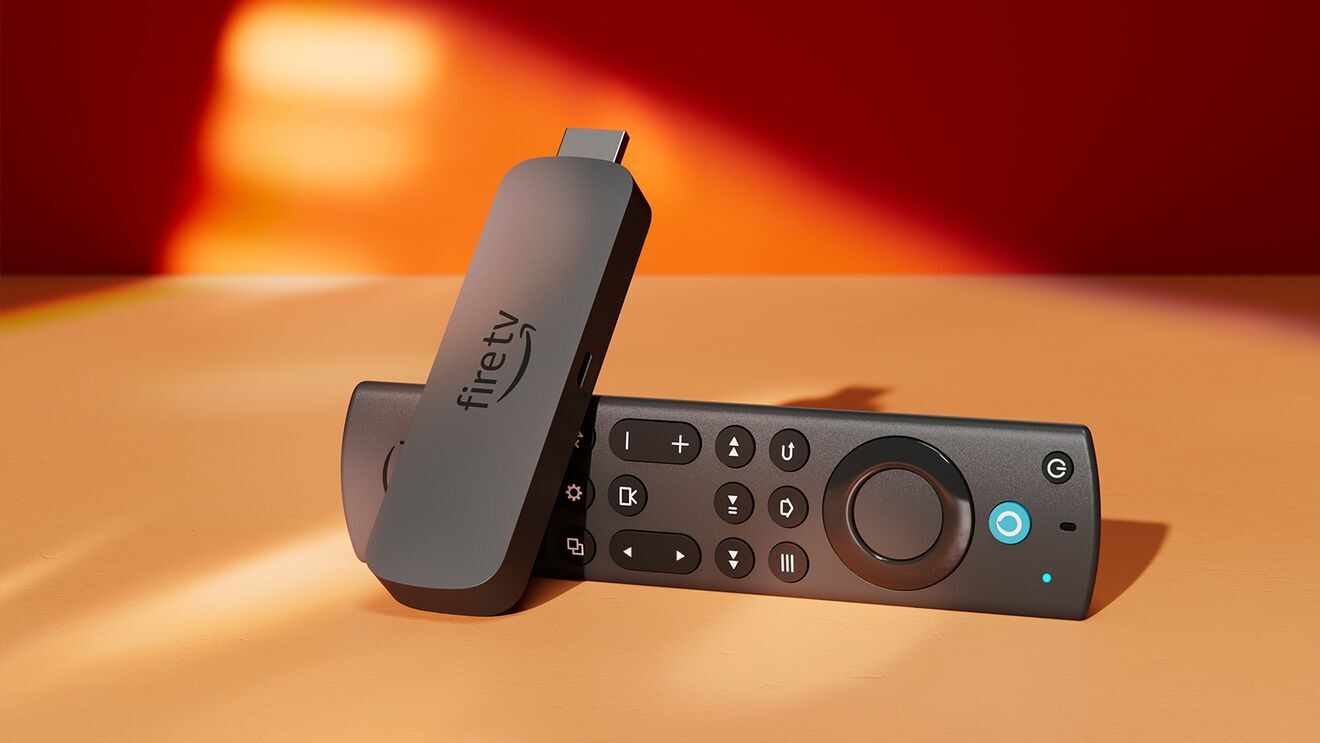
This is the cause of the vast majority of restart loops. When Amazon includes a power brick in the box, they do it for a reason. Standard USB ports on the back of most TVs deliver about 500mA (0.5 Amps) of power. However, modern Fire TV Sticks (especially the 4K and 4K Max models) often require 1.0 Amp or more, especially when launching demanding apps or decoding 4K HDR content.
When the device tries to pull more power than the TV port can provide, the voltage drops, and the Firestick crashes. It is exactly like a brownout in your home.
The Fix
- Use the Wall Outlet: Locate the official Amazon power adapter that came with your device. Plug the USB cable into that adapter and plug it directly into a wall outlet or power strip.
- Don’t have the original block? Any reputable 5V/1A (5 Watts) or higher USB power brick will work. An old iPhone charger (5W) or iPad charger (12W) is perfect.
Once you switch to wall power, the Firestick keeps restarting issue usually vanishes instantly.
2. Inspect Your “Power Pipeline” (Cable and Extender)
If you are already using the wall outlet and the device is still rebooting, the weak link is likely the cable itself. Micro-USB cables are prone to internal wear and tear. If the internal wires are frayed or damaged, they can’t deliver consistent current.
The Cable Swap Test
Find a different Micro-USB cable—preferably one you know works well (like one for a PS4 controller, an older Android phone, or a Kindle). Swap it out. If the Firestick stabilizes, your old cable was causing a “voltage drop.”
The HDMI Extender
Amazon includes a short HDMI extender (the little dongle) in the box. While this is meant to improve Wi-Fi signal and fit the stick into tight ports, these extenders can fail.
- The Test: Remove the extender and plug the Firestick directly into the TV’s HDMI port. If the rebooting stops, the extender was faulty.
- The Caveat: If the stick is jammed behind the TV without the extender, it might overheat (see Section 5), so only leave it this way if you have good airflow.
3. The “Soft Reset” Remote Trick
Sometimes the restart loop is caused by a software glitch—a temporary file that got corrupted during an update or an app crash. If you can’t navigate the menus to restart the device because it keeps crashing, you can force a restart using a specific button combination on your remote.
This is safer than yanking the power cord because it sends a signal to the operating system to shut down gracefully.
How to perform a Soft Reset:
- Turn your TV on and switch to the Firestick input.
- Press and hold the Select (large round center button) and Play/Pause buttons simultaneously.
- Hold them down for 5 to 10 seconds.
- You should see a message on the screen saying the device is powering off.
This clears the temporary cache and can often snap the device out of a boot loop caused by minor software errors.
4. Disable HDMI-CEC (Device Conflict)
Modern TVs have a feature called HDMI-CEC (Consumer Electronics Control). This allows your TV remote to control your Firestick and vice versa. While convenient, CEC implementations vary wildly between brands (Sony calls it Bravia Sync, Samsung calls it Anynet+, LG calls it SimpLink).
Sometimes, the TV sends a “kill” signal to the Firestick due to a CEC conflict, causing it to restart randomly.
How to fix it:
If you can keep the Firestick on long enough to access settings:
- Go to Settings > Display & Sounds.
- Select HDMI CEC Device Control.
- Turn it OFF.
If you cannot access the Firestick menus, try turning off CEC on your TV’s settings menu instead. This isolates the Firestick and prevents the TV from sending it power commands.
5. Check for Thermal Shutdown (Overheating)
The Fire TV Stick generates a surprising amount of heat. If it is plugged into the back of a TV, sandwiched against the plastic casing, and surrounded by warm exhaust from the TV screen, it can easily overheat.
When the internal temperature hits a critical threshold, the CPU triggers a thermal shutdown to prevent permanent damage. This looks exactly like a reboot loop—the device runs for 10 minutes, gets hot, restarts, runs for 2 minutes, and restarts again.
The Diagnosis: Touch the Firestick. It should be warm, but if it is too hot to hold comfortably, it is overheating.
The Fix:
- Use the Extender: If you aren’t using the HDMI extender, add it now. It moves the stick away from the back of the TV, improving airflow.
- USB Power: Ensure you aren’t using the TV’s USB port (which can sometimes cause inefficient power conversion and excess heat).
- Cool Down: Unplug it and let it cool for 15 minutes before testing again.
6. The “Nuclear Option”: Factory Reset
If none of the above hardware fixes work, your operating system might be corrupted. This can happen if the device lost power during a firmware update.
If your Firestick keeps restarting before you can reach the Settings menu, you can’t perform a standard reset. You must use the remote override code.
How to Force a Factory Reset:
- Unplug the Firestick for 30 seconds, then plug it back in.
- Once the “Fire TV” logo appears, immediately press and hold the Back button and the Right Directional button on the navigation ring at the same time.
- Hold them for a full 10 seconds.
- If successful, a text prompt will appear asking if you want to Factory Reset. Usually, if you don’t select anything, it will automatically reset after a few seconds.
Warning: This will erase all your apps, logins, and Wi-Fi passwords. It returns the device to the state it was in when you bought it.
7. Upgrade your Firestick
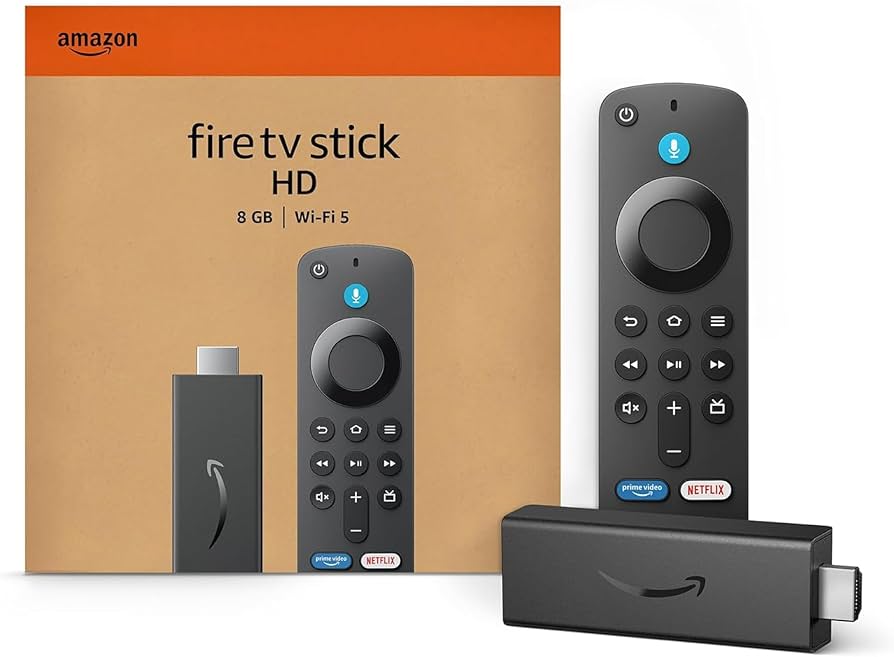
If you have tried wall power, different cables, cooling it down, and a factory reset, and the device is still restarting, it is likely a hardware failure on the motherboard (logic board).
Fire TV Sticks are durable, but they aren’t immortal. NAND flash storage (the memory chips inside) has a limited lifespan. If your device is an older model (like the 2nd Gen Stick from 2016-2019), the internal storage may have simply failed.
In 2025, upgrading to the Fire TV Stick 4K or 4K Max is a worthy investment. The newer processors are faster, the Wi-Fi 6 chips are more stable, and they are much less prone to the power sensitivity issues that plagued older models.
Conclusion
A Firestick keeps restarting issue is almost always a cry for more power. Before you throw the device in the trash, simply moving the power cable from your TV’s USB port to a dedicated wall outlet fixes the problem for nearly everyone.
By systematically checking your cables, ensuring proper airflow, and performing a reset if necessary, you can save your streaming setup and get back to your movie night without spending a dime.