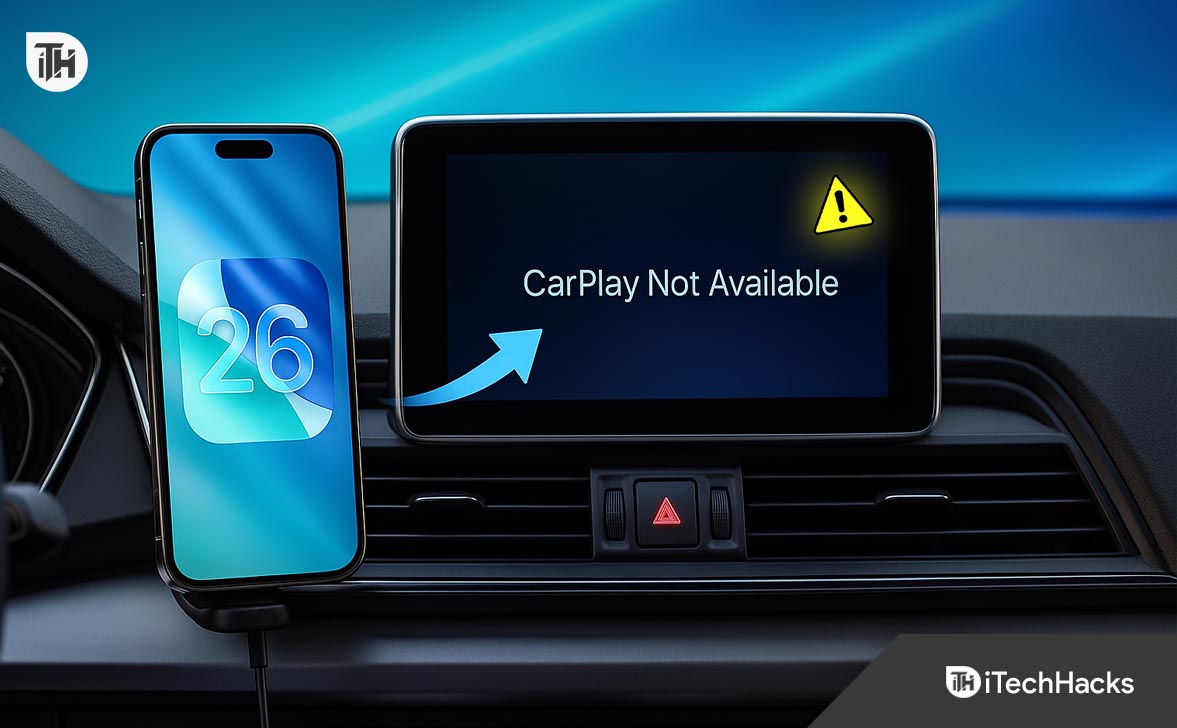
- If CarPlay stops working after the iOS 26 update, the issue is usually caused by connectivity resets, outdated car firmware, or disabled permissions. You can reliably fix it by rebooting both the iPhone and car system, re-pairing CarPlay connections, resetting network settings, and updating both iOS and your vehicle’s firmware restoring stable and seamless CarPlay functionality.
Many iPhone users have reported that CarPlay stopped working after updating to iOS 26, disrupting essential in-car features like navigation, calls, and music control. The issue typically appears when connecting the iPhone to the vehicle—CarPlay either fails to launch, disconnects frequently, or doesn’t get detected at all.
Since Apple CarPlay is a critical part of safe and connected driving, such failures after the iOS 26 update can be frustrating, especially for users who rely on hands-free functionality for daily commutes or long trips. These problems usually occur due to software conflicts, outdated car firmware, or reset network permissions introduced during the upgrade.
This guide provides comprehensive, step-by-step solutions to fix CarPlay not working after iOS 26, covering both wired and wireless setups. It also explains the underlying causes, advanced troubleshooting methods, and preventive measures to ensure stable connectivity across future updates.
Understanding CarPlay and iOS 26 Compatibility
Apple CarPlay connects your iPhone to the vehicle’s infotainment system via USB cable or wireless Bluetooth/Wi-Fi, mirroring essential apps like Maps, Phone, Messages, and Music.
With iOS 26, Apple rolled out major changes to connectivity APIs and privacy permissions. These updates sometimes interfere with vehicle integrations—especially if:
- The car firmware is outdated
- Settings reset during the update
- The iOS 26 CarPlay driver failed to reinitialize
CarPlay problems may vary depending on whether you’re using wired or wireless connections, or specific car brands (Ford Sync, Toyota Entune, BMW iDrive, etc.).
Common Symptoms When CarPlay Stops Working After iOS 26
Below are the typical signs indicating CarPlay not working after the iOS 26 update:
- CarPlay not launching automatically when connecting
- Black screen or blank display on infotainment
- Connection drops frequently or loops
- Car not recognizing iPhone
- Music or navigation lagging
- Voice commands via Siri not responding
- CarPlay settings missing from iPhone
These issues often stem from configuration conflicts or compatibility gaps introduced by the iOS 26 upgrade.
Main Causes of CarPlay Not Working After iOS 26 Update
1. Software Incompatibility
Your car’s firmware may not yet support iOS 26. Manufacturers release periodic updates for infotainment systems—failing to install them causes handshake failures.
2. Corrupted Settings Post-Update
The iOS 26 installation may have reset network or privacy settings, disabling CarPlay permissions.
3. Faulty Connection Type
- For wired CarPlay, damaged cables or USB ports trigger failures.
- For wireless CarPlay, Bluetooth/Wi-Fi interference blocks pairing.
4. Disabled CarPlay in Restrictions
After iOS updates, certain Screen Time restrictions may re-enable themselves, blocking CarPlay access.
5. Unrecognized Vehicles
Sometimes the iPhone no longer trusts a previously connected vehicle after major system updates.
Step-by-Step Fixes for CarPlay Not Working After iOS 26
Follow these proven steps in order. Each step explains what to do, why it helps, and what to check next. This section intentionally repeats the phrases iOS 26 and CarPlay Not Working a few times for search relevance while keeping the language natural and professional.
Confirm device, vehicle, and region support
- Verify your car/aftermarket head unit officially supports Apple CarPlay.
- Make sure CarPlay is available in your country/region and turned on in the vehicle’s settings menu.
- If your vehicle offers both wired and wireless CarPlay, confirm which modes it supports.
Many “CarPlay Not Working” cases after iOS 26 are compatibility or settings mismatches in the head unit.
CarPlay appears as a source/input on the infotainment screen when the iPhone is connected via the supported method (USB or wireless).
Reboot both systems (soft reset first)
- iPhone (iOS 26): Press and hold Side + Volume Up, power off, wait 30 seconds, power on.
- Infotainment: Use the head unit’s restart command (often press/hold power or home for ~10–15 seconds) or turn the car fully off, open the door, wait 60–90 seconds, then restart.
Clears temporary pairing caches and reinitializes CarPlay services introduced with iOS 26.
Reconnect and see if CarPlay launches automatically.
Inspect the physical setup (for wired CarPlay)
- Use an Apple-certified (MFi) Lightning cable. Avoid hubs, adapters, or front-panel “charge-only” ports.
- Try a different USB port in the car.
- Clean the iPhone’s Lightning port with a non-metallic pick to remove lint.
Data-lane issues are the #1 culprit for CarPlay Not Working via cable.
If CarPlay launches with a different cable/port, replace the faulty component.
Re-pair wireless CarPlay cleanly (Bluetooth + Wi-Fi)
- On iPhone: Settings ▸ Bluetooth ▸ (i) next to your car ▸ Forget This Device.
- On the car: delete the iPhone from paired devices.
- Toggle Bluetooth and Wi-Fi OFF, then ON.
- Start pairing fresh from the vehicle’s “Add Phone” or “Add CarPlay Device” screen.
iOS 26 can invalidate old pairing tokens. A clean handshake recreates the CarPlay profile.
Pairing completes without loops; CarPlay tiles appear on the head unit.
Enable the right iPhone settings for CarPlay
- Settings ▸ General ▸ CarPlay → select your car → turn Allow CarPlay While Locked ON.
- Settings ▸ Siri & Search → enable Listen for “Hey Siri” (or “Siri”), Press Side Button for Siri, and Allow Siri When Locked.
CarPlay relies on Siri and lock-screen permissions. iOS 26 may toggle them during a major update.
Siri works through the vehicle mic/buttons; CarPlay remains active with the phone locked.
Check Screen Time restrictions (CarPlay must be allowed)
Settings ▸ Screen Time ▸ Content & Privacy Restrictions ▸ Allowed Apps → ensure CarPlay is allowed.
Restrictions can silently block CarPlay, leading to “CarPlay Not Working” symptoms post-update.
CarPlay reappears under Settings ▸ General ▸ CarPlay and on the vehicle screen.
Forget the car profile and add it again
Settings ▸ General ▸ CarPlay → tap your car → Forget This Car → reconnect via USB or go through wireless pairing again.
Rewrites the CarPlay accessory profile created before iOS 26.
A fresh profile is created; CarPlay launches without manual intervention.
Reset network settings (wireless instability fix)
Settings ▸ General ▸ Transfer or Reset iPhone ▸ Reset ▸ Reset Network Settings (this clears Wi-Fi and Bluetooth memory; you’ll re-pair devices).
Corrupted Wi-Fi/Bluetooth stacks are common after a major iOS 26 install.
Re-pair the car; wireless CarPlay connects faster and stays stable.
Update to iOS 26.x and update your car’s firmware
- iPhone: Settings ▸ General ▸ Software Update → install the latest iOS 26.x patch.
- Vehicle: Check the manufacturer’s portal/app for infotainment updates; apply via OTA or USB.
Patch releases frequently address CarPlay Not Working bugs; head-unit firmware updates fix handshake and codec issues.
Version numbers increase; release notes often mention connectivity improvements.
Disable VPNs, content filters, and security apps temporarily
Turn off VPN, DNS filters, enterprise profiles, and traffic-shaping apps. For corporate devices, check MDM policies that might limit CarPlay.
Wireless CarPlay uses Wi-Fi Direct; traffic interception can disrupt the CarPlay control channel under iOS 26.
If CarPlay works with VPN disabled, whitelist the connection or adjust the profile.
Turn off Personal Hotspot and other radios that interfere
Disable Personal Hotspot, nearby tethering, or second phones broadcasting hotspot. Keep only one active iPhone in the cabin during pairing.
Hotspot beacons compete with CarPlay’s Wi-Fi link, causing intermittent drops that feel like CarPlay Not Working.
Stability improves; audio and maps stop cutting out.
Allow USB accessories while locked (for wired setups)
Settings ▸ Face ID & Passcode → scroll to Allow Access When Locked → enable USB Accessories.
Prevents the iPhone from cutting USB data when locked, a frequent cause on long drives after iOS 26.
CarPlay stays connected even with the iPhone screen off.
Reconfigure car-side CarPlay toggles
Open the vehicle’s Phone/Connectivity/Smartphone Integration menu:
- Toggle Apple CarPlay OFF → ON.
- For head units with “Projection” settings, ensure Apple CarPlay is selected rather than Android Auto/other modes.
Some head units reset integration flags after a phone OS upgrade.
The CarPlay icon reappears as a selectable source.
Remove duplicate iPhone entries in the vehicle
Delete all old iPhone entries and keep a single, clean profile (especially if you renamed your device or restored from backup).
Duplicate profiles cause pairing loops that look like CarPlay Not Working on iOS 26.
Only one iPhone remains listed; connection succeeds on first try.
Optimize Bluetooth audio settings (hands-free and media)
On some head units, ensure Hands-Free Telephony (HFP) and Media Audio are enabled for your iPhone. On iPhone, confirm the car’s Bluetooth profile shows both Calls and Audio enabled.
If HFP is off, CarPlay may appear but calls/Siri fail, leading users to think CarPlay is broken.
You can place/receive calls and invoke Siri via steering-wheel controls.
Clear location & privacy permissions if prompts don’t appear
Settings ▸ General ▸ Transfer or Reset iPhone ▸ Reset ▸ Reset Location & Privacy. Next connection should re-prompt trust/permission dialogs.
Revokes stale permissions, forcing iOS 26 to rebuild the trust chain with the head unit.
“Trust This Car/Accessory” prompts appear; grant access and test.
Use the correct connection sequence for wireless CarPlay
- Start the car and wait for the infotainment system to fully boot.
- Enable Bluetooth and Wi-Fi on iPhone.
- On the head unit, select Apple CarPlay; follow the pairing wizard.
Some systems require the head unit to advertise first; reversing the sequence can fail silently.
Connection completes within ~10–20 seconds; CarPlay tiles load.
Try another CarPlay vehicle or another iPhone
- Test your iPhone on a different CarPlay-enabled car/head unit.
- Test another iPhone (also on iOS 26) on your vehicle.
Identifies whether the fault is phone-side or vehicle-side when CarPlay Not Working persists.
If your phone fails everywhere, focus on phone resets; if other phones work in your car, update/reset the head unit.
Reset All Settings (non-destructive system reset)
Settings ▸ General ▸ Transfer or Reset iPhone ▸ Reset ▸ Reset All Settings. Content stays; system preferences revert.
Fixes deep configuration conflicts introduced during the iOS 26 upgrade without erasing data.
Re-set Wi-Fi, Face ID, notifications, etc., then re-pair CarPlay.
Advanced: DFU restore and clean install
Back up your iPhone. Use a Mac/PC to enter DFU mode and reinstall the latest iOS 26.x firmware, then restore your backup.
Rebuilds low-level firmware and drivers if they were corrupted during update.
Test CarPlay before restoring all apps/profiles; if it works clean, add apps gradually.
Update or service the head unit
If your manufacturer offers dealer-level updates, schedule a firmware reflash. For aftermarket units, install the latest vendor firmware and map packs.
Resolves chipset-level bugs, codec mismatches, or Wi-Fi/BT firmware issues uncovered by iOS 26.
Release notes mention “stability,” “CarPlay,” or “connectivity” improvements; connection becomes consistent.
Hardware inspection (ports, antennas, cables)
- Inspect the Lightning port for play/wobble.
- For wireless systems, check the car’s Wi-Fi/Bluetooth antennas and harnesses (dealer inspection).
- Replace visibly damaged cables.
If software steps fail, physical faults often explain persistent CarPlay Not Working behavior.
Post-repair, CarPlay connects quickly and remains stable under vibration.
Preventive Measures and Best Practices
To ensure CarPlay works seamlessly with future updates:
- Keep iOS and car firmware updated regularly.
- Always restart your car after a major iOS update before reconnecting.
- Use MFi-certified accessories.
- Avoid public Wi-Fi networks that interfere with wireless CarPlay.
- Don’t install beta iOS builds on your primary driving phone.
FAQs
1. Why did CarPlay stop working after iOS 26 update?
The iOS 26 update changes core Bluetooth and USB handling. If your car firmware or CarPlay settings didn’t adapt, the connection fails. Updating firmware and re-pairing usually fixes the issue.
2. Does iOS 26 remove CarPlay support for older cars?
No, Apple maintains backward compatibility. However, outdated infotainment firmware may break integration until updated.
3. How do I reset CarPlay on my iPhone?
Go to Settings > General > CarPlay, select your vehicle, and tap Forget This Car. Then reconnect via USB or wireless to create a fresh profile.
4. Can faulty Lightning cables cause CarPlay issues?
Yes. Non-certified or damaged cables disrupt data transmission required for CarPlay, leading to intermittent or total failure.
5. Is wireless CarPlay less stable on iOS 26?
Some users report drops due to Wi-Fi interference. Resetting network settings and re-pairing usually restores stability.
Conclusion
CarPlay not working after iOS 26 update typically stems from connectivity resets, outdated firmware, or permission conflicts introduced during the upgrade. By systematically checking compatibility, re-pairing connections, resetting network settings, and updating both iOS and vehicle firmware, you can restore full functionality.
If all else fails, a complete settings reset or Apple diagnostic check resolves persistent issues.
Maintaining regular updates and using certified accessories ensures CarPlay remains reliable across all future iOS versions.
ALSO READ:
- How to Fix iOS 26 Stuck on Black Screen: Step-by-Step Guide
- How to Fix Wireless Charging Not Working on iOS 26 iPhone
- Apple Intelligence Not Working iOS 26? Step-by-Step Fix
- How to Fix iOS 26 Brightness Issue on iPhone (Fixes)
- How to Turn Off or Disable iOS 26 Liquid Glass Design (2025)
- How to Fix Face ID Not Working After iOS 26 Update? Step-by-Step Fix
- iOS 26 Fast Battery Drain on iPhone? How to Restore iPhone Battery Health



![Fix Phone Screen Unresponsive Touch on Android & iPhone [Step-by-Step]](https://itechhacks.com/wp-content/uploads/2025/10/Fix-Phone-Screen-Unresponsive-Touch-150x150.jpg "Fix Phone Screen Unresponsive Touch on Android & iPhone [Step-by-Step]")