

- To clean up your Spotify Home feed, you can remove recently played items. Press and hold the unwanted tile in the mobile app and tap "Remove from this section" to hide shortcuts but it doesn't affect your listening history.
- Spotify introduced new Home feed controls worldwide for all Free and Premium users on November 12, 2026. Use "Not interested" to provide feedback on recommendations, and "Exclude from your taste profile" to reduce their influence on future suggestions.
- If repetitive recommendations bother you, tell Spotify with "Not interested" for specific shows or tracks. For more tailored changes, the Premium "Taste Profile" beta allows you to describe your listening preferences, ensuring your feed reflects your evolving interests better.
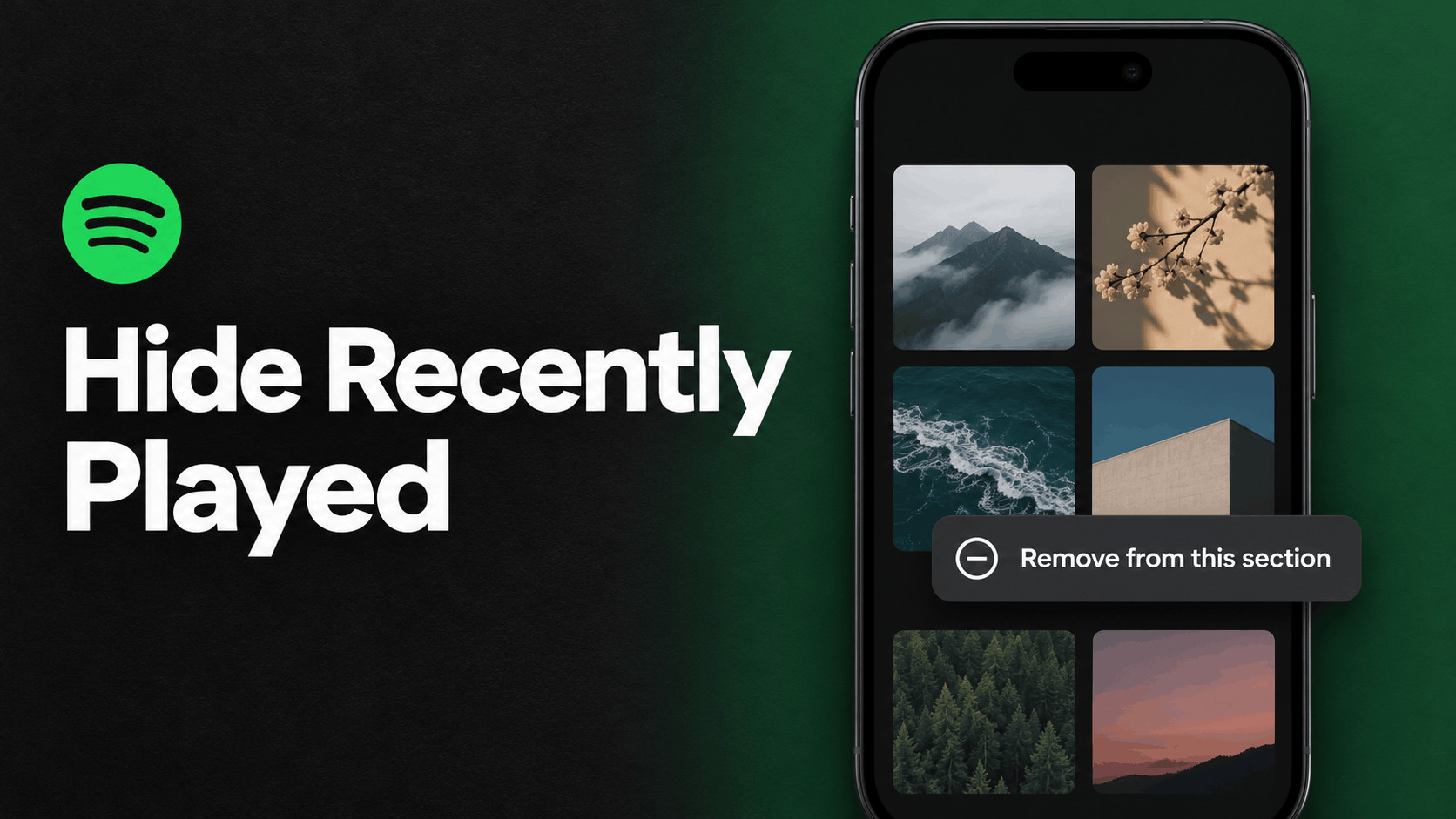
To hide something you recently played on Spotify, press and hold its tile in the mobile app and tap Remove from this section. You can do this with a shortcut at the top of Home or an individual entry in the Recents shelf. If Spotify keeps recommending a podcast or audiobook you have no interest in, look for Not interested on the recommendation instead.
Spotify announced the new Home controls recently, and is rolling them out worldwide to Free and Premium users on iPhone and Android. If you have the latest app and still see the old menu, the rollout may still be reaching your account.
What Changed on the Spotify Home Feed?
The top of Spotify Home gives you shortcuts back to things you’ve listened to, while the Recents shelf helps you find individual items again. Farther down Home, Spotify mixes in recommendations, including podcasts and audiobooks you may never have played. Where you see an item determines which control to look for.
- Remove from this section hides an item from the Home shortcuts or the Recents shelf without changing how that listen influences future suggestions.
- Not interested gives Spotify feedback about what to recommend less often. The expanded option covers specific shows and authors.
- Exclude from your taste profile reduces the influence of past and future streams of a particular track or playlist.
For example, say you finished an audiobook by an author you like and want to free up a shortcut. Remove the finished book’s tile. If Home keeps suggesting books by an author you tried and decided to skip, use Not interested on an eligible recommendation.
How to Hide Recently Played Tiles at the Top of Spotify Home
Use this option for the album you played once, the show you sampled, or the audiobook you finished. You can remove individual music, podcast, and audiobook tiles as the update becomes available.
- Open the Spotify app on your iPhone or Android phone.
- Tap Home at the bottom of the screen.
- Find the unwanted tile among the shortcuts at the top.
- Press and hold the tile until its menu opens.
- Tap Remove from this section.
The shortcut disappears from that spot. If you saved the item, you can still open it from Your Library. You can also look it up through Search, which is handy if you’re clearing a finished book or album you may want to revisit later.
How to Remove an Individual Item From Spotify Recents
Scroll down on Home to find the Recents shelf. If your app shows a Show all button next to the shelf, tap it to look through more entries. Some mobile layouts also offer a Recents shortcut when you tap your profile picture.
- Find the entry you want to hide in Recents.
- Press and hold it to open the menu.
- Select Remove from this section.
- Repeat for any other entries you want to hide.
This works one entry at a time. If you still see the same title at the top of Home after removing it from Recents, go back to the shortcut and use its own removal option. Removing an entry from view does not erase the underlying listening activity from your account.
How to Tell Spotify You’re Not Interested in a Recommendation
If you keep getting suggestions for the same podcast or books by the same author, start with the recommendation card on Home. Open its options using the three dots if the card has them, or press and hold the recommendation. Choose Not interested when it appears.
Spotify uses that feedback to suggest less of the content you marked. For example, if Home keeps recommending episodes from a show you tried once, give feedback on the recommendation when you see it. This is a preference signal, so the show can still be available through Search, and Spotify can still suggest related content.
Use Taste Profile to Tell Spotify What You Want More or Less Of
If you want to change a wider pattern, such as getting fewer celebrity interview podcasts and more technology shows, try Taste Profile. The feature is in beta for eligible Premium listeners aged 18 and older in the United States and New Zealand. You can find it in the mobile app when it’s available for your account.
- Tap your profile picture and select Taste Profile.
- Review Spotify’s summary of your music, podcast, and audiobook interests.
- Under Tell us more, describe what you want to hear more or less of and send your note.
Try something specific, such as “Show me more short history podcasts and fewer celebrity interview shows.” Changes typically start appearing on Home within a few hours. If your interests change, you can edit or delete the note from the same screen.
How to Keep Sleep Music or Kids’ Songs From Skewing Recommendations
If you play the same white noise track every night, hiding it from Home only clears the shortcut. To reduce its influence on music recommendations and taste summaries, open the track’s three-dot menu and select Exclude track from your taste profile. For a whole bedtime or kids’ playlist, open the playlist menu and choose Exclude from your taste profile.
The exclusion applies to past and future streams. Allow up to 48 hours for it to take effect, and give Discover Weekly until its next weekly refresh. If you play a song from an excluded playlist through Search or Liked Songs, that play can still count toward your taste profile. Exclude the individual track if you regularly play it from several places.
For a one-off session, such as letting a friend choose the music on a drive, turn on Private session before you start. On mobile, tap your profile picture and go to Settings and privacy > Privacy and social. Spotify leaves listening during that session out of recommendation personalization, and the session ends after six hours or when you restart the app.
What to Do if Spotify’s Home Feed Controls Are Missing
Update Spotify and check on your phone
Open Spotify’s listing in the App Store or Google Play and install any available update. Then reopen the app and press and hold a shortcut at the top of Home. Spotify announced the rollout for mobile, so use the iPhone or Android app if you’ve been checking the desktop app or web player.
Try a recently played tile or a Recents entry for Remove from this section. For Not interested, check the menu on a suggested show or audiobook farther down Home. If the controls are still missing after you update and check both places, give the rollout time. There’s no reason to delete your downloads or switch plans just to get these Home controls.
Frequently Asked Questions
Can you clear all of Recently Played on Spotify at once?
Spotify’s November update lets you hide individual entries. It does not include a Clear all button for Recents or a full listening-history reset. Start with the entries you see most often if you only want to tidy the screen.
Can Spotify Free users hide recently played items?
Yes. The new Home and Recents controls are rolling out globally to both Free and Premium listeners on mobile. The feature that lets you type notes under Tell us more is part of the separate Premium Taste Profile beta.
Does hiding a tile also hide my recently played artists from other people?
Your public profile has its own setting. In the mobile app, tap your profile picture, go to Settings and privacy > Privacy and social, and turn off Recently played artists. If you also want to stop sharing what you’re playing in Friends Activity, turn off Listening activity in the same menu.
Final Thoughts
Start with the Spotify screen you actually want to fix. Remove stale shortcuts so it’s easier to get back to what you’re listening to now. If the same unwanted shows or authors keep coming up in recommendations, use Not interested on those cards. And if a daily routine like sleep music is driving the suggestions, exclude the track or playlist at the source.