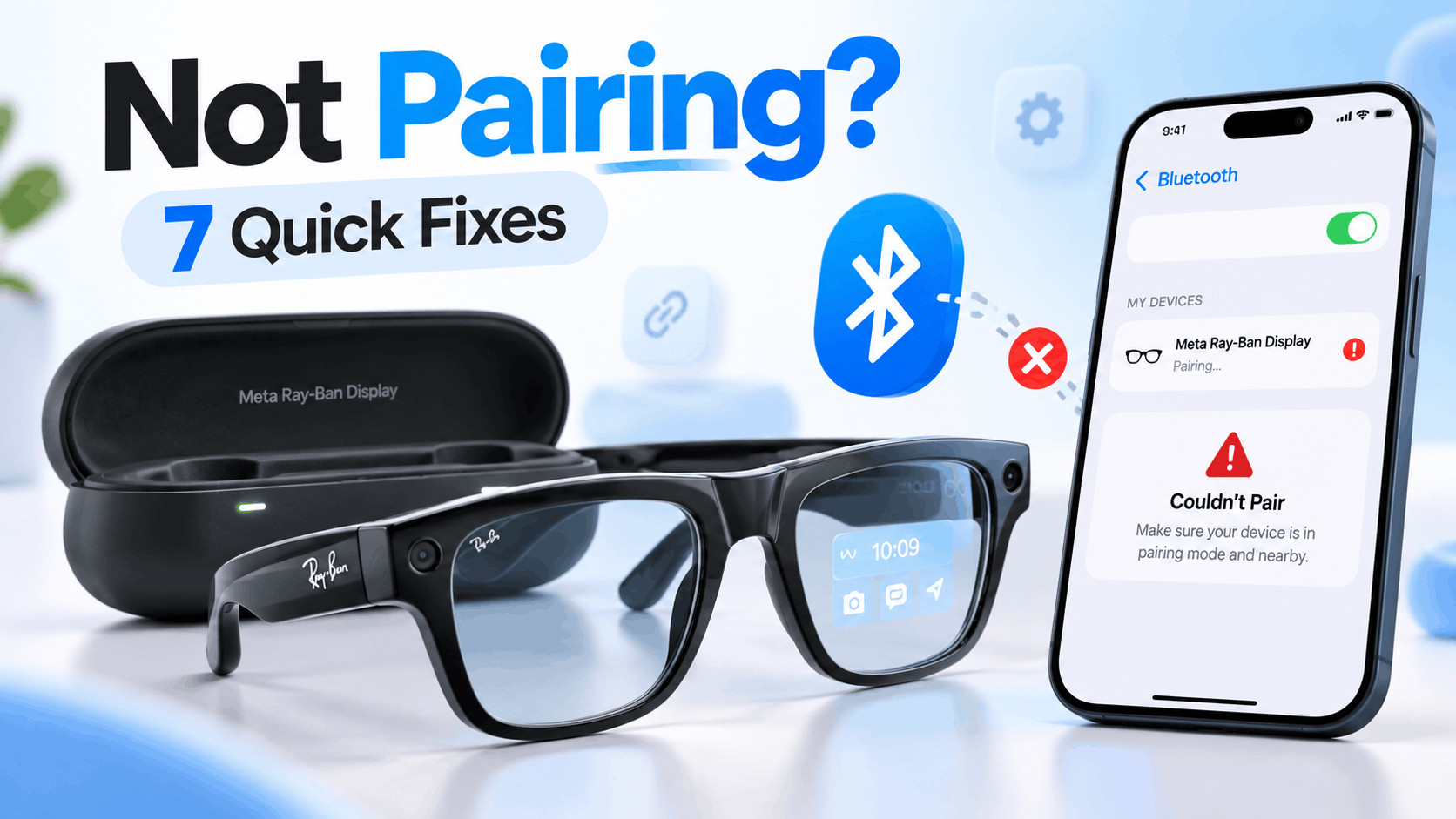
- If your Meta Ray-Ban Display glasses are not pairing with your phone, it might be due to Bluetooth issues, problems with the charging case, outdated software, or if the glasses are not in pairing mode.
- To fix these problems, make sure your phone has the latest version of the Meta AI app, the glasses are charged, properly seated in their case, and that you're following the correct steps for pairing mode. Restarting both the glasses and your phone can also resolve issues.
- Only perform a factory reset as a last resort because it deletes stored data. It's recommended to try simpler solutions first, such as checking Bluetooth settings and ensuring the app permissions are correctly set up.
If your Meta Ray-Ban Display is not pairing with your iPhone or Android phone, the problem is usually related to Bluetooth, the charging case, an incomplete previous pairing, the Meta AI app, or the glasses failing to enter pairing mode correctly.
The newer Meta Ray-Ban Display glasses use the Meta AI mobile app for setup and management. Simply finding the glasses inside your phone’s Bluetooth settings is not enough. The initial connection needs to be completed through the Meta AI app, and the glasses must be placed into the correct pairing mode.
Fortunately, most pairing problems can be fixed without resetting everything. This guide covers seven practical fixes for Meta Ray-Ban Display pairing problems in 2026, starting with the safest options before moving to a factory reset.
Why Is My Meta Ray-Ban Display Not Pairing?
Meta Ray-Ban Display uses Bluetooth to communicate with your phone, while Wi-Fi is also used for features such as updates, media transfers, and Meta AI services. A problem with either the glasses, charging case, phone, or Meta AI app can interrupt the initial setup process.
Common reasons your Meta Ray-Ban Display won’t connect include:
- The glasses are not actually in Bluetooth pairing mode.
- The charging contacts are not properly connecting inside the case.
- Your phone still has an old Bluetooth pairing saved.
- The glasses were previously connected to another Meta account.
- The Meta AI app has become stuck during setup.
- Bluetooth or required permissions are disabled.
- The glasses or charging case have temporarily stopped responding.
- Your phone’s operating system or Meta AI app is outdated.
There is also an important distinction between Meta Ray-Ban Display and older Ray-Ban Meta smart glasses. Some reset procedures found online apply to previous generations and may not exactly match Meta Ray-Ban Display. The steps below are specifically focused on the Display model.
Before You Start: Check the Basic Requirements
Before troubleshooting a Meta Ray-Ban Display that won’t pair, make sure your phone meets the basic requirements. Meta Ray-Ban Display requires a supported smartphone, the Meta AI app, a Meta account, Bluetooth, and internet access during setup.
Current Ray-Ban product information lists support for Android 10 or later and iOS 15.2 or later. However, using the latest stable Android or iOS version available for your phone is recommended because compatibility fixes are often included in system and app updates.
You should also:
- Charge both the glasses and charging case.
- Enable Bluetooth on your phone.
- Connect the phone to Wi-Fi or a reliable mobile data connection.
- Install or update the Meta AI app.
- Sign in using the Meta account you want associated with the glasses.
- Keep the phone close to the glasses during setup.
1. Put Meta Ray-Ban Display Into Pairing Mode Correctly
The first thing to check is whether your glasses are actually entering pairing mode. This is one of the most common reasons a new Meta Ray-Ban Display cannot be found by the Meta AI app.
Pair Meta Ray-Ban Display normally
Follow these steps carefully:
- Remove the Meta Ray-Ban Display glasses from the charging case.
- Turn them on by sliding the power switch on the left frame toward the front of the glasses.
- Place the glasses back inside the charging case.
- Gently press the glasses downward so the bottom of the nose bridge properly contacts the charging connector.
- Watch the charging case LED.
If the case LED begins flashing blue, the glasses are ready for pairing.
Now open the Meta AI app, tap the Devices or glasses icon near the bottom of the screen, tap the plus icon, and follow the setup instructions.
If the LED does not flash blue
Keep the glasses properly seated inside the case and press and hold the button on the back of the charging case for at least five seconds. Release it when the case LED begins flashing blue.
The blue flashing light is important because it confirms the device is discoverable. If the light never becomes blue, repeatedly searching for the glasses from your phone will usually accomplish nothing.
2. Charge the Glasses and Check Their Position in the Case
A Meta Ray-Ban Display may appear to be inside the charging case while not actually making contact with the charging connector. If the glasses are too low on power or the case does not detect them correctly, Bluetooth pairing may fail or the blue pairing light may never appear.
Remove the glasses and inspect the charging area for dust, debris, or anything preventing proper contact. Place them back inside the case and gently push down near the top of the frame so that the nose bridge connects correctly.
Leave the glasses charging for a while before attempting setup again if the battery is very low.
Also check the charging case
The charging case itself needs enough power to place the glasses into pairing mode reliably. Connect the case to a USB-C power source and allow it to charge before trying again.
If nothing happens when you press the rear pairing button, even after charging, the case itself may have temporarily stopped responding. A charging case reset is covered later in this guide.
3. Forget the Old Bluetooth Connection and Pair Again
A surprisingly common cause of Meta Ray-Ban Display not pairing is a stale Bluetooth connection left behind from an earlier setup attempt.
Your phone may show the glasses as connected or remembered even though the Meta AI app no longer has a valid connection. When that happens, the app can repeatedly fail to finish pairing.
On iPhone
- Open Settings.
- Tap Bluetooth.
- Look for your Meta Ray-Ban Display.
- Tap the information icon next to it.
- Select Forget This Device.
- Confirm the action.
On Android
- Open Settings.
- Go to Connected devices or Bluetooth.
- Find the Meta Ray-Ban Display entry.
- Tap its settings icon.
- Select Forget or Unpair.
Next, completely close the Meta AI app. Turn Bluetooth off for several seconds, turn it back on, reopen Meta AI, and put the glasses into blue-light pairing mode again.
Do not try to complete the entire setup directly from the Bluetooth menu. Use the Meta AI app to add the glasses.
4. Restart Your Phone and Force Restart Meta Ray-Ban Display
If the glasses enter pairing mode but Meta AI still cannot communicate with them, restart both devices. A normal restart clears temporary Bluetooth states without deleting photos, videos, settings, or your account association.
Restart your iPhone or Android phone normally first. Then power the glasses off and back on.
Force restart Meta Ray-Ban Display
If a normal restart doesn’t solve the problem, Meta Ray-Ban Display has a force restart procedure:
- Close both arms of the glasses.
- Turn the glasses off by sliding the power switch away from the lenses until the red marking is visible.
- Press and hold the capture button.
- While continuing to hold the capture button, turn the glasses back on by sliding the power switch toward the lenses.
- When the notification LED turns red, release the capture button.
- Allow approximately 15 to 20 seconds for the glasses to restart completely.
A force restart does not normally erase captures or factory-reset your glasses. It simply restarts the internal hardware and software more thoroughly than switching the glasses off and on.
Once they have restarted, place the glasses in the charging case and attempt pairing again.
5. Update or Reinstall the Meta AI App
If Bluetooth appears to work but setup fails inside the Meta AI app, the problem may be on the phone rather than the glasses.
Open the Apple App Store or Google Play Store and check whether an update is available for Meta AI. Install it before attempting another pairing.
It is particularly important to keep Meta AI updated with newer hardware such as Meta Ray-Ban Display because device compatibility, firmware installation, account authentication, and setup workflows can change through app updates.
Check permissions too
Make sure Meta AI has the permissions required for your phone. Depending on your operating system, these may include Bluetooth or nearby-device access, location, local network access, notifications, photos, camera, and microphone permissions.
Android users should pay particular attention to Nearby devices and location-related permissions. Denying one during the initial setup can sometimes prevent hardware discovery.
If Meta AI remains stuck:
- Force-close the app.
- Restart your phone.
- Open Meta AI again.
If that doesn’t work, uninstall Meta AI and reinstall the latest version from the official app store. Sign back into the same Meta account and attempt to add the glasses again.
6. Remove the Existing Meta Account Pairing
Meta Ray-Ban Display can only be paired with one Meta account at a time. This becomes especially important when the glasses are used, previously owned, connected to another account, or partially configured using a different Meta login.
If you can still access the glasses from the original Meta AI account, open Meta AI and go to the device section.
- Select the Meta Ray-Ban Display.
- Open its settings.
- Tap General.
- Select Unpair glasses.
- Confirm Unpair.
Afterward, remove the glasses from the phone’s Bluetooth settings as explained earlier.
Place them back into pairing mode and add them again using Meta AI.
What if the glasses belonged to someone else?
If another Meta account is still associated with the glasses, a factory reset may be required before they can be registered to your account. This is intentional and prevents another user from simply pairing previously configured glasses to a different account.
If you bought a used Meta Ray-Ban Display and setup consistently stops at the account stage, this should be one of the first things you investigate.
7. Factory Reset Meta Ray-Ban Display
A factory reset should be the last troubleshooting step because it erases data stored on the glasses and returns them to their original setup state.
If you have photos or videos on the glasses that have not been imported, they can be lost during a factory reset.
How to factory reset Meta Ray-Ban Display
- Close both arms of the glasses.
- Press the capture button five times.
- After the fifth press, press and hold the capture button.
- The notification LED should turn orange.
- Continue holding the capture button.
- Wait until the notification LED begins pulsing white and orange.
- Release the capture button.
Allow the reset process to complete before attempting anything else.
Afterward, remove any previous Meta Ray-Ban Display entry from your phone’s Bluetooth settings. Open Meta AI and repeat the normal pairing process from the beginning.
Reset the Meta Ray-Ban Display charging case
If the glasses work but the charging case refuses to enter pairing mode or its LED behaves abnormally, you can also reset the Display charging case.
- Open the charging case.
- Insert and remove the USB-C cable from the charging port three times within approximately 11 seconds.
- Watch the LED next to the USB-C port.
- A flashing white LED indicates that the case reset was successful.
Charge the case again if necessary, dock the glasses, and retry pairing.
Meta Ray-Ban Display Connected to Bluetooth but Not Meta AI
Seeing Meta Ray-Ban Display listed as connected inside your phone’s Bluetooth settings does not necessarily mean the setup is complete.
The Meta AI app still needs to establish the proper device association, complete account setup, and communicate with the glasses. If Bluetooth says connected but Meta AI says it cannot find the glasses, remove the glasses from Bluetooth and perform the pairing process through Meta AI again.
A clean pairing sequence is generally:
- Forget or unpair the glasses from the phone.
- Close Meta AI.
- Restart the phone.
- Restart the glasses.
- Place the glasses inside the case.
- Hold the case button until the LED flashes blue.
- Open Meta AI.
- Go to Devices and tap the plus icon.
- Complete setup from inside the app.
Meta Ray-Ban Display Pairing Stuck During Setup
Some pairing failures occur after the glasses have already been detected. For example, Meta AI might find the device but become stuck while preparing the glasses, communicating with them, downloading an update, or starting the initial tutorial.
If this happens, keep the phone close to the glasses and ensure the internet connection is stable. Temporarily disconnect unnecessary Bluetooth accessories such as headphones, watches, car systems, or speakers, then retry.
You should also disable VPN software temporarily if you are experiencing account or update-related failures. A VPN normally should not affect basic Bluetooth pairing, but it can interfere with online account authentication or firmware downloads in some network configurations.
If the setup repeatedly fails at exactly the same stage, update both your phone and Meta AI before performing a factory reset.
Meta Neural Band Not Pairing With Meta Ray-Ban Display
The Meta Neural Band is paired separately from the glasses. Therefore, successfully connecting Meta Ray-Ban Display does not automatically mean the Neural Band is paired.
First complete the setup of the glasses. Then open the Meta AI app, go to Devices, tap the plus icon, and select Meta Neural Band.
To turn on the Neural Band, press and hold its button for approximately two seconds until the LED flashes white and you feel a vibration. If it does not automatically enter pairing mode, press and hold the button for around three seconds until the LED rapidly flashes white.
Keep the band close to the phone while completing the instructions shown in Meta AI.
Additional Tips to Prevent Meta Ray-Ban Display Connection Problems
Once your glasses are working again, a few simple habits can reduce future connection problems.
- Keep Meta AI updated.
- Install firmware updates when offered.
- Avoid manually removing the glasses from Bluetooth unless troubleshooting.
- Keep the glasses and case reasonably charged.
- Do not switch between Meta accounts unnecessarily.
- Keep Bluetooth enabled when using the glasses.
- Keep your phone reasonably close during setup and firmware updates.
- Restart the glasses occasionally if connectivity becomes unreliable.
Also avoid performing a factory reset as your first troubleshooting step. Restarting, clearing an old Bluetooth connection, and re-entering pairing mode usually deserve to be tried first because they do not erase locally stored media.
Frequently Asked Questions
Why won’t my Meta Ray-Ban Display enter pairing mode?
Make sure the glasses are powered on, charged, and properly seated in the charging case. Press and hold the button on the back of the case for at least five seconds. The case LED should begin flashing blue when pairing mode is active.
What color should the Meta Ray-Ban Display light be when pairing?
The charging case LED should flash blue when Meta Ray-Ban Display is ready to pair with the Meta AI mobile app.
Can I pair Meta Ray-Ban Display directly from Bluetooth settings?
You should complete setup through the Meta AI app. Your phone uses Bluetooth as part of the connection, but the Meta AI app handles the device setup, Meta account association, settings, updates, and other functionality.
Why does Bluetooth find my glasses but Meta AI doesn’t?
Your phone may have a stale or incomplete Bluetooth pairing. Forget the glasses from Bluetooth settings, restart your phone and glasses, place them into blue-light pairing mode again, and add them through the Meta AI app.
Can Meta Ray-Ban Display connect to two Meta accounts?
No. Meta Ray-Ban Display can only be paired with one Meta account at a time. Changing to another account may require the existing pairing to be removed or the glasses to be factory reset.
Does factory resetting Meta Ray-Ban Display delete photos?
Yes. A factory reset can delete captures stored locally on the glasses. Import important photos and videos before resetting whenever possible.
Will force restarting Meta Ray-Ban Display delete anything?
No. A force restart is different from a factory reset and should not erase your captures or require a complete new setup. This makes it a good troubleshooting step before resetting the device.
What phones work with Meta Ray-Ban Display?
Current product specifications list compatibility with Android 10 or newer and iOS 15.2 or newer. Individual phone compatibility can still vary, so keeping your operating system updated is recommended.
What should I do if Meta Ray-Ban Display still won’t pair?
If you have charged everything, removed previous Bluetooth connections, updated Meta AI, force-restarted the glasses, reset the charging case, and finally factory reset the glasses without success, the problem may require official support or warranty service.
A device that never powers on, never responds to the case, cannot produce a pairing light, or repeatedly fails setup immediately after a clean factory reset may have a hardware or firmware problem rather than a normal Bluetooth issue.
Final Thoughts
If your Meta Ray-Ban Display is not pairing, start by checking the pairing light rather than immediately resetting the glasses. Power on the glasses, seat them correctly inside the charging case, hold the rear case button until the LED flashes blue, and then add the device through the Meta AI app.
If that fails, remove old Bluetooth connections, restart the phone and glasses, update Meta AI, and check whether another Meta account is associated with the device. A force restart is also worth trying because it can clear temporary communication problems without deleting your captures.
Use the factory reset only after the other fixes have failed. In most cases, a clean Bluetooth re-pair combined with the correct blue-light pairing mode should get Meta Ray-Ban Display connected again without requiring hardware service.