- If you're having trouble with the "Send Message" action missing in WhatsApp Shortcuts on your iPhone, it can be due to how actions are loaded, a software update, or corrupted data in Shortcuts, but it's fixable.
- To resolve this, start by opening the complete list of WhatsApp actions within Shortcuts, deleting and re-adding the WhatsApp action, and ensuring both WhatsApp and iOS are updated and correctly installed.
- If the problem started after an update, it might be a software bug, so ensure your data is backed up before reinstalling WhatsApp or doing bigger fixes, as a future update could ultimately solve the problem.
If you use Apple Shortcuts to automate WhatsApp messages, you may suddenly find that the “Send Message” action has disappeared. When searching for WhatsApp inside Shortcuts, some users see only a limited set of actions, such as “Open Meta AI,” while the normal WhatsApp messaging action is nowhere to be found.
This problem has been reported on newer iOS 26 releases, including by users whose WhatsApp shortcuts previously worked normally. In some cases, existing WhatsApp automations continue working while the Send Message action is unavailable when creating a new shortcut.
The good news is that this does not necessarily mean WhatsApp automation has permanently disappeared from your iPhone. The issue can be caused by how Shortcuts loads third-party app actions, an iOS or WhatsApp update, corrupted Shortcuts data, or WhatsApp failing to register its available actions correctly.
Below are the practical fixes worth trying when the WhatsApp Send Message action is missing from iPhone Shortcuts.
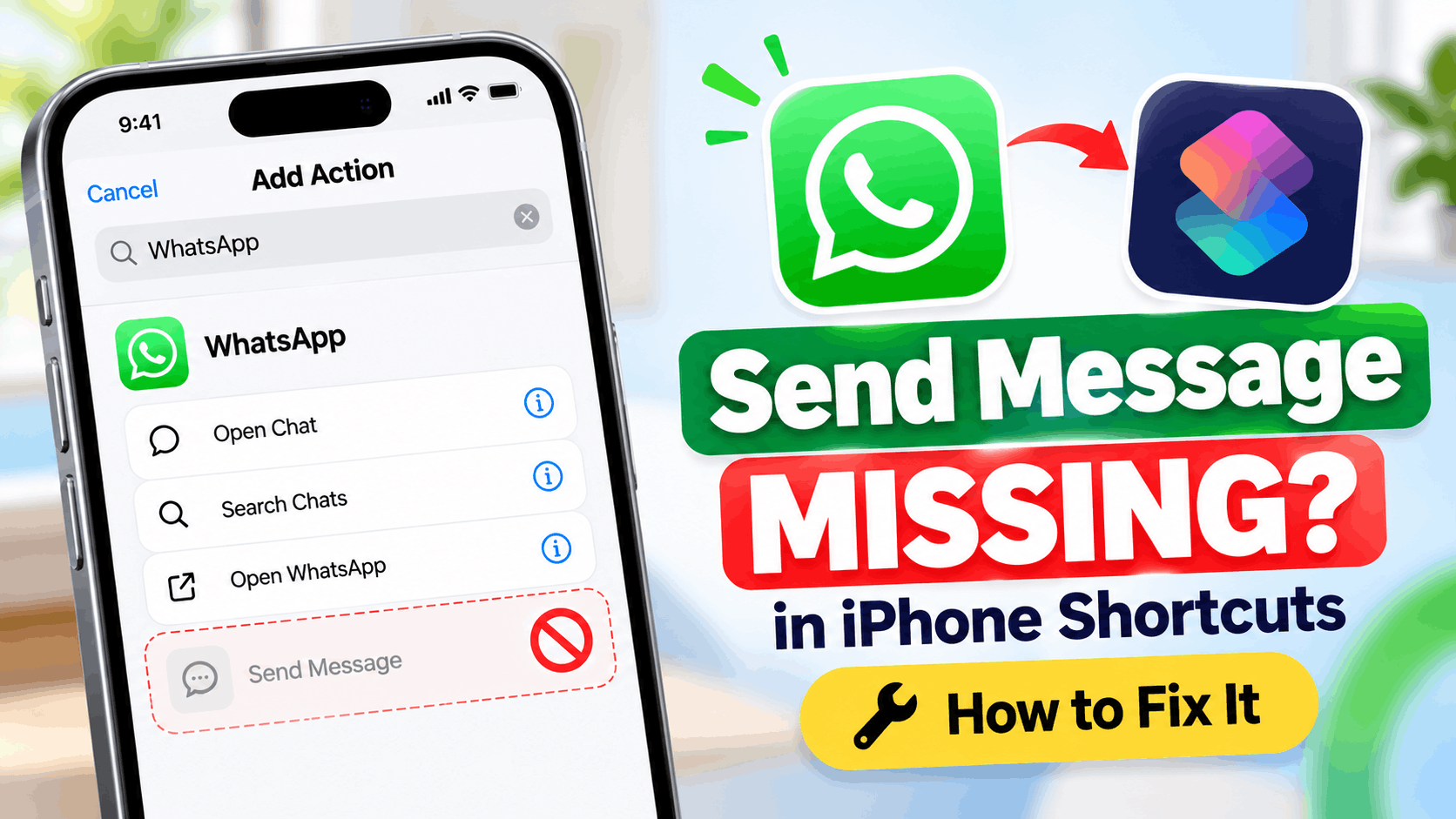
Why Is WhatsApp “Send Message” Missing from Shortcuts?
Apple Shortcuts can use actions provided by third-party apps installed on your iPhone. WhatsApp has historically exposed messaging-related actions that can appear when you browse or search the Shortcuts action library.
The important detail is that these actions are not controlled entirely by the Shortcuts app. WhatsApp must correctly expose its supported actions to iOS, and Shortcuts then needs to recognize and display them.
Therefore, the Send Message option can disappear even though both WhatsApp and Shortcuts are installed correctly. Common causes include:
- A recent WhatsApp update changed or temporarily broke its Shortcuts integration.
- An iOS update caused third-party actions to stop appearing correctly.
- Shortcuts has not refreshed WhatsApp’s available actions.
- WhatsApp needs to be opened after an update before its actions become available.
- The Shortcuts app has corrupted or stale local data.
- You are searching for the action directly instead of browsing WhatsApp’s complete action list.
- A temporary bug affects the current WhatsApp or iOS release.
Reports during 2026 are particularly interesting because some affected users found that WhatsApp appeared inside Shortcuts but its normal Send Message action did not. That points more toward an integration or action-discovery problem than WhatsApp simply being missing from the phone.
1. Open WhatsApp from the Apps Section in Shortcuts
Start with this method because it is quick and does not require reinstalling anything. Searching for “Send Message” is not always the same as opening an app’s complete list of available actions.
Apple allows you to browse actions according to the app providing them.
- Open Shortcuts on your iPhone.
- Tap + to create a new shortcut.
- Tap Search Actions or Add Action.
- Open Apps.
- Find and tap WhatsApp.
- Check whether Send Message appears here.
If you were previously typing “WhatsApp Send Message” into the general search box, browsing through Apps can sometimes expose actions that are not being surfaced properly by search.
If you use WhatsApp Business, check WhatsApp Business separately because iOS treats it as a different application.
2. Delete the Existing WhatsApp Action and Add It Again
This is particularly worth trying if you already have a shortcut containing a broken or incomplete WhatsApp action.
Open the affected shortcut and remove the existing WhatsApp action. Then tap the option to add another action and browse the available WhatsApp actions again.
Some iOS 26 users have reported that removing the old WhatsApp action caused the action drawer to refresh, after which additional WhatsApp and WhatsApp Business actions became visible again.
This is not a guaranteed fix, but it is one of the least disruptive options and should be tried before deleting apps or resetting settings.
3. Open WhatsApp and Send a Message Manually
If WhatsApp was recently updated, open the app normally before returning to Shortcuts.
- Close Shortcuts.
- Open WhatsApp.
- Open one of your chats.
- Send a normal message.
- Leave WhatsApp open for a few seconds.
- Return to Shortcuts.
- Create a new shortcut and check Apps > WhatsApp.
This can help if WhatsApp has not completely initialized after an update, reinstall, phone restart, or iOS upgrade.
4. Restart Your iPhone
A restart is basic troubleshooting, but it makes sense for this particular problem because Shortcuts relies on integrations supplied by other applications.
Restart the iPhone normally, then open WhatsApp first. After that, open Shortcuts and check the WhatsApp actions again.
Do not immediately factory reset the phone or reset all iPhone settings. Those measures are excessive for a missing third-party Shortcut action and are unlikely to be the first solution you need.
5. Update WhatsApp from the App Store
If the Send Message action disappeared following an iOS update, check whether a newer WhatsApp build is available.
- Open the App Store.
- Tap your profile picture.
- Check the available app updates.
- Update WhatsApp if an update is available.
- Open WhatsApp once after updating.
- Return to Shortcuts and check again.
This matters because third-party Shortcuts actions depend on the app itself. If an iOS change affects an integration, the app developer may need to update its app before everything works correctly again.
6. Install the Latest Stable iOS Update
Next, check Settings > General > Software Update.
If Apple has released a newer stable iOS build for your device, install it and test Shortcuts again. However, updating iOS is not a guaranteed solution. Users have reported WhatsApp Shortcuts problems across multiple iOS releases, so the underlying issue may sometimes require a WhatsApp-side update instead.
If the problem started immediately after an iOS update, there is usually little reason to attempt a complicated downgrade just to restore one Shortcuts action. Try the remaining fixes first.
7. Create a Completely New Shortcut
Do not assume your existing automation accurately represents the actions currently available to Shortcuts.
Create a blank shortcut:
- Open Shortcuts.
- Tap +.
- Tap Add Action.
- Select Apps.
- Select WhatsApp.
Check the complete action list.
This is especially useful when an old shortcut was created on an earlier version of WhatsApp. An existing shortcut can retain an action that is no longer appearing when you build a new shortcut, or the reverse can happen after an integration refresh.
8. Offload and Reinstall the Shortcuts App
If WhatsApp works normally but multiple actions appear to be missing from Shortcuts, the problem may be with Shortcuts itself.
Before doing this, make sure important shortcuts are synced or otherwise backed up. Then go to:
Settings > General > iPhone Storage > Shortcuts
Choose Offload App, then reinstall Shortcuts. Offloading is preferable to immediately deleting the app because iOS attempts to preserve its associated documents and data.
After reinstalling:
- Open Shortcuts.
- Complete any repair or restore prompt that appears.
- Give the app time to reload your shortcuts.
- Open WhatsApp once.
- Return to Shortcuts.
- Check Apps > WhatsApp again.
There have been user reports of missing Shortcuts actions following major iOS upgrades being restored after offloading and reinstalling Shortcuts. Consider this a troubleshooting workaround rather than a guaranteed Apple-documented fix for WhatsApp specifically.
9. Reinstall WhatsApp Only as a Later Fix
If nothing else works, reinstalling WhatsApp may force iOS to register the application’s Shortcuts integration again.
Do not delete WhatsApp until you have confirmed that your chats are safely backed up.
Inside WhatsApp, check:
Settings > Chats > Chat Backup
Confirm that you have a suitable recent backup before proceeding. After reinstalling WhatsApp, complete the setup, restore your chats if necessary, send a normal message, and then check Shortcuts again.
Reinstallation should not be the first solution because the problem may be caused by the current WhatsApp build itself. In that situation, installing the same version again may make no difference.
10. Check Whether WhatsApp Actions Are Missing Entirely
How WhatsApp appears inside Shortcuts can provide an important clue.
If WhatsApp does not appear at all under Apps, iOS may not currently be recognizing its Shortcuts integration correctly.
If WhatsApp appears but only one or two unrelated actions are available, while Send Message is absent, the issue is more likely related to which actions the current WhatsApp version is exposing to Shortcuts.
If Send Message appears but produces an error such as “There was a problem communicating with the app”, you have a different problem. In that case, the action has been registered successfully but is failing when Shortcuts attempts to communicate with WhatsApp.
WhatsApp Send Message Action Exists but Doesn’t Work
Some users do not lose the action completely. Instead, they receive an error when running it.
If that happens, first open WhatsApp manually and confirm you can send a normal message to the same contact. Then delete the WhatsApp action from the shortcut and add a fresh instance of it.
Also test with a simple new shortcut containing only the minimum required actions. This helps determine whether WhatsApp itself is failing or another action or variable in your automation is causing the problem.
Apple recommends testing Shortcuts actions individually when troubleshooting a workflow. You can also use actions such as Quick Look while building more complicated shortcuts to inspect what information is being passed between steps.
Can You Use a WhatsApp URL as a Workaround?
If the native WhatsApp Send Message action remains unavailable, a URL-based shortcut may be useful for some workflows.
WhatsApp supports links that can open a conversation and, depending on the URL used, prepare text for the chat. A shortcut can construct the appropriate link and open it using the URL/Open URLs actions.
However, this should not be treated as an exact replacement for every Send Message automation. Opening a WhatsApp conversation with prepared text may still require you to interact with WhatsApp before the message is actually sent.
For reminders or semi-automated workflows, that may be sufficient. For an automation that must send a WhatsApp message unattended, it may not provide the behavior you expect.
What Not to Do
A missing WhatsApp action can be frustrating, particularly when an automation worked for months. Still, avoid making major changes to your iPhone too quickly.
- Do not factory reset your iPhone just for this problem.
- Do not delete WhatsApp without verifying your chat backup.
- Do not downgrade iOS as your first troubleshooting step.
- Do not install unknown WhatsApp modifications or unofficial apps.
- Do not assume an old tutorial matches the current WhatsApp and iOS behavior.
Shortcuts integrations can change when either iOS or a third-party application is updated. A tutorial showing a particular WhatsApp action does not guarantee that the same action is currently exposed by the version installed on your phone.
Frequently Asked Questions
Why can’t I find WhatsApp Send Message in Shortcuts?
The action may be temporarily unavailable because WhatsApp is not exposing it correctly to Shortcuts, Shortcuts has not refreshed the app’s actions, or a recent WhatsApp/iOS update has affected the integration. Check Shortcuts > Add Action > Apps > WhatsApp rather than relying only on search.
Why does Shortcuts show WhatsApp but not Send Message?
This generally means Shortcuts recognizes WhatsApp as an installed application, but the complete set of expected WhatsApp actions is not currently available. Try deleting an existing WhatsApp action, reopening the action drawer, updating WhatsApp, restarting the iPhone, and creating a new shortcut.
Can reinstalling Shortcuts restore missing WhatsApp actions?
It can help if the Shortcuts action database or app data has become stuck after an update. Try offloading Shortcuts from iPhone Storage and reinstalling it before considering more disruptive troubleshooting.
Will reinstalling WhatsApp fix the missing Send Message action?
It may force iOS to register WhatsApp’s actions again, but it is not guaranteed. Always verify your WhatsApp chat backup before deleting the application.
Can I schedule WhatsApp messages with iPhone Shortcuts?
Shortcuts supports time-based personal automations, but what the automation can do inside WhatsApp depends on the actions WhatsApp currently exposes and the permissions required by iOS. A URL-based workaround can open a chat with prepared content, but it should not automatically be assumed to provide fully unattended message sending.
Why do my old WhatsApp shortcuts work while Send Message is missing?
An existing shortcut may retain an action that was added when a previous WhatsApp version exposed it normally. Meanwhile, the current action library may fail to offer that same action when creating a new shortcut. This is a strong indication that the issue is related to action registration or the current app integration rather than your original automation.
Final Thoughts
If the WhatsApp “Send Message” action is missing from iPhone Shortcuts, start by opening the complete WhatsApp action list under Shortcuts > Apps > WhatsApp. Next, remove and re-add any existing WhatsApp action, open WhatsApp manually, restart your iPhone, and make sure both WhatsApp and iOS are current.
If WhatsApp still does not expose Send Message, test a completely new shortcut and consider offloading and reinstalling Shortcuts. Reinstall WhatsApp only after confirming that your chats are safely backed up.
Most importantly, if the problem began immediately after a WhatsApp or iOS update and the Send Message action remains absent across newly created shortcuts, it may be an integration bug rather than something incorrectly configured on your iPhone. In that situation, a later WhatsApp or iOS update may ultimately be required to restore the missing action.