- To activate your new Ollo credit card, you can either use the official Ollo website or the Ollo Credit Card Mobile App, ensuring you have your 16-digit card number, expiration date, and the last four digits of your Social Security number ready.
- Ollo cards are now operated by Merrick Bank, not Ally, so make sure to use the current website ollocard.com rather than older links or bookmarks that may lead to outdated Ally pages.
- If you face issues while activating, double-check your information, try another browser, or contact Ollo customer service at 1-833-845-2200 for help, but never share your full Social Security number on suspicious sites.
If you recently received a new Ollo credit card, you must activate it before you can start making purchases. The Ollo Card activate process is straightforward and can usually be completed online or directly through the Ollo Credit Card mobile app.
There is one important update cardholders should know. Ollo credit cards are now associated with Merrick Bank following changes to the credit card business that previously operated under Ally. Ollo was relaunched under Merrick Bank, which means older instructions directing every Ollo cardholder to Ally may no longer be appropriate.
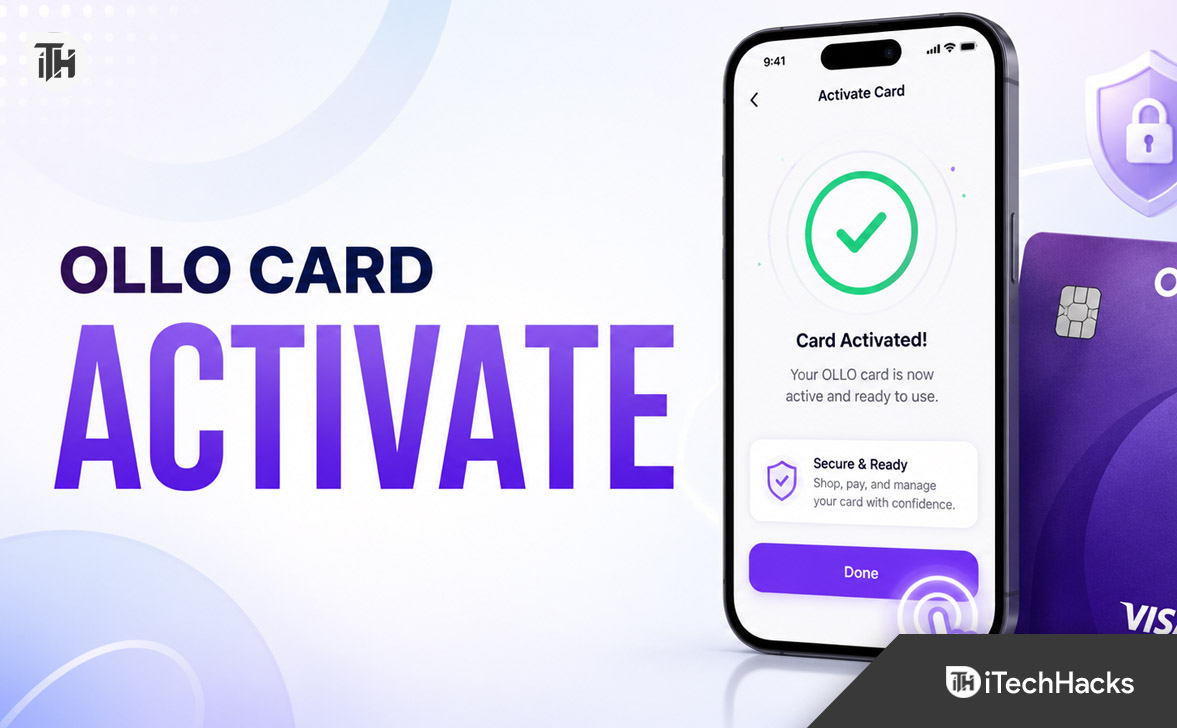
What Is Ollo Card Activation?
Card activation is a security step used to confirm that your newly issued credit card has reached the correct cardholder. Until activation is completed, the physical card may be restricted from making normal purchases.
During the Ollo credit card activation process, you will be asked to provide information that identifies both you and your card. The current Ollo activation page asks for details including your last name, date of birth, the last four digits of your Social Security number, your 16-digit Ollo card number, and the card expiration date.
Once those details have been verified, Ollo can associate the physical card with the correct account and enable it for use.
What You Need Before You Activate an Ollo Card
Keeping the required information nearby can make the activation process much faster. Before starting, have your new physical Ollo credit card available.
You may need the following information:
- Your 16-digit Ollo credit card number
- Your card expiration date
- Your last name as registered on the account
- Your date of birth
- The last four digits of your Social Security number
- Your Ollo account login details if using the mobile app
Enter the information exactly as it appears on your account. Even a small mismatch in your personal information can cause the verification process to fail.
Method 1: Ollo Card Activate Online
For most cardholders, activating online is one of the quickest options. Ollo currently provides a dedicated activation page where you can verify your identity and card information without going through several account-management screens.
Step 1: Visit the Official Ollo Website
Open your browser and manually type ollocard.com. Using the official website instead of clicking an activation link from an unfamiliar email or text message reduces the risk of entering your card information on a phishing website.
You can then locate the card activation option. The official activation system is hosted through Ollo’s secure website.
Step 2: Enter Your Personal Information
The activation page will ask for information that Ollo can use to confirm your identity. Enter your last name, date of birth, and the last four digits of your Social Security number.
Make sure the information matches the details associated with your credit card account.
Step 3: Enter Your Ollo Card Details
Next, enter the 16-digit card number printed on your new Ollo card. You will also need to select the expiration month and year shown on the card.
Double-check each number before continuing. Accidentally entering one incorrect digit is one of the easiest ways to receive an activation error.
Step 4: Continue the Verification Process
Select the option to continue after entering your information. Ollo will verify the card and personal details you submitted.
If everything matches the account records, follow the remaining onscreen instructions to finish activating your card.
Step 5: Confirm Your Card Is Active
Wait for the confirmation message before closing the page. Once activation has successfully completed, your physical Ollo credit card should be ready for normal use unless your account has another restriction.
Method 2: Activate Ollo Card Using the Mobile App
If you already manage your account from your phone, the Ollo Credit Card Mobile App may be even more convenient. The current Ollo app specifically includes a feature for activating newly received cards.
To activate through the app:
- Download or open the official Ollo Credit Card Mobile App.
- Sign in to your Ollo account.
- Select the card activation option.
- Choose your newly received card if more than one card appears.
- Enter or verify the requested card information.
- Follow the prompts until activation is confirmed.
The Ollo app is also useful after activation because you can use it to review transactions, check balances and statements, make payments, set up autopay, manage security controls, and lock or unlock your card.
Method 3: Activate Ollo Card by Phone
If online activation does not work, phone activation is another option worth trying. First check the sticker attached to your new credit card, the card carrier, or the back of your card for the appropriate activation or customer service number.
This is the safest approach because the number supplied with your physical card corresponds to the card you actually received.
Ollo currently lists 1-833-845-2200 for account questions and 24/7 customer assistance.
When calling, keep your card and personal information nearby. You may be required to verify your card number and other identifying information before the activation can be completed.
Ollo Card Activation Not Working? Try These Fixes
An Ollo card normally should not require complicated troubleshooting, but activation can occasionally fail because of incorrect details, browser problems, account changes, or security checks.
1. Check the Card Number Again
Re-enter the 16-digit number directly from your physical card. Avoid relying on a number stored in an old password manager, browser autofill entry, or screenshot because it may belong to a previous card.
The same rule applies if Ollo recently sent you a replacement card. Make sure you are activating the newest card rather than entering information from the card it replaced.
2. Check Your Personal Information
Your last name, date of birth, and Social Security number information must correspond with the information Ollo has for your account.
If your legal name or other information recently changed, automatic verification may fail. Contact Ollo support instead of repeatedly submitting different information.
3. Stop Using an Old Ally Activation Bookmark
This can be particularly important for people who have had the account for some time. Ally agreed to sell its credit card business to CardWorks and Merrick Bank in 2025, and Ollo has since returned as an active credit card brand.
If an old bookmark takes you to an Ally credit card page, start again from the current Ollo website or use the Ollo mobile app associated with your account.
4. Try Another Browser
If the activation button does nothing or the page keeps loading, try Chrome, Edge, Firefox, or Safari. You can also open a private or incognito window and start the activation process again.
This helps when outdated cookies, cached files, extensions, or stored form information interfere with the secure activation page.
5. Disable a VPN Temporarily
Financial websites use automated security systems to identify suspicious activity. A VPN, unusual IP address, aggressive privacy extension, or frequently changing network can sometimes interfere with authentication.
If you trust the network you are using, temporarily disconnect the VPN and retry using your regular home or mobile connection.
6. Update the Ollo App
If Ollo Card activation is not working inside the mobile app, check the App Store or Google Play Store for an update. Ollo continues to release updates containing reliability improvements and bug fixes.
You can also completely close the app, reopen it, and sign in again before retrying activation.
7. Switch Between Wi-Fi and Mobile Data
A network problem can look like an Ollo activation failure when the actual problem is the connection between your device and the service.
Try switching from Wi-Fi to cellular data or from cellular data to a trusted Wi-Fi network. Then reload the page or reopen the Ollo app.
8. Contact Ollo Customer Service
If your information appears correct but activation still fails, avoid submitting the form dozens of times. The account may require manual verification or there could be a restriction that cannot be resolved from the activation screen.
Use the number on the back of your Ollo card or contact Ollo account support at 1-833-845-2200.
Important Security Tips When Activating Your Ollo Card
Credit card activation requires sensitive information, making fake activation pages particularly dangerous. Always confirm that you are dealing with Ollo before submitting your card number or Social Security information.
- Type ollocard.com directly into your browser whenever possible.
- Do not activate your card from a suspicious text-message link.
- Never provide your full Social Security number unless you have independently verified why it is required.
- Do not send your credit card number through email or social media.
- Avoid activating financial accounts over public Wi-Fi.
- Check the website address carefully for misspellings.
- Use the telephone number printed on your actual card when uncertain.
The official online Ollo activation page currently requests only the last four digits of the cardholder’s Social Security number as part of its initial verification form.
What to Do After Ollo Card Activation
Activating your card is only the first step. Spending a few more minutes configuring your account can make the card easier and safer to manage.
Set Up Online Account Access
If you have not already enrolled, create your online account and use a strong, unique password. Avoid reusing the same password you use for email, shopping sites, or social media.
Enable Account Alerts
Transaction and account alerts can help you notice suspicious activity faster. Consider enabling notifications for purchases, payments, or other important account events available within your account settings.
Set Up Automatic Payments Carefully
Autopay can help prevent missed payments, but check which payment option you select. Depending on the available choices, you may want to pay the minimum amount, a fixed amount, or the statement balance.
Also verify that your linked bank account maintains enough money to cover scheduled payments.
Review Your First Transactions
After using the card, check the Ollo app or online account to make sure purchases appear correctly. If you see a transaction you do not recognize, lock the card if that option is available and contact Ollo immediately.
Frequently Asked Questions
How do I activate my Ollo credit card?
You can activate an Ollo credit card through Ollo’s official online activation system or the Ollo Credit Card Mobile App. Enter the requested personal information and your new card details, then complete the verification process.
What information is required for Ollo Card activation?
The current online activation form asks for your last name, date of birth, last four digits of your Social Security number, 16-digit Ollo card number, and card expiration date.
Can I activate my Ollo Card through the app?
Yes. The current Ollo Credit Card Mobile App includes a feature that allows newly received cards to be activated directly from the app.
Is Ollo still part of Ally?
Older Ollo accounts have a complicated history involving Ally, but the current Ollo credit card brand is associated with Merrick Bank. Ally announced the sale of its credit card business to CardWorks and its wholly owned bank subsidiary Merrick Bank in January 2025, and the Ollo brand subsequently returned.
Why is my Ollo credit card not activating?
Common causes include entering an incorrect card number, using information that does not exactly match your account, trying to activate an old replacement card, browser problems, network issues, or an account that requires additional verification.
Do I need an Ollo online account before activating my card?
Ollo provides a dedicated online activation form that can begin by verifying your personal and card information. If you prefer managing the card through the mobile app, you will need the appropriate account access to sign in.
What is the Ollo customer service number?
Ollo currently lists 1-833-845-2200 for account questions, with assistance available 24/7. For activation problems, the number printed on your physical card or its activation sticker should be your first choice because it relates directly to the card you received.
Can I use my Ollo card immediately after activation?
Once activation has been successfully confirmed and there are no additional restrictions on the account, the card should be available for normal eligible transactions. If a purchase continues to be declined, sign in to check the account status or contact Ollo support.
Final Thoughts
The Ollo Card activate process is relatively simple once you use the correct current system. Start with the official Ollo website or the Ollo Credit Card Mobile App, provide the required personal and card information, and wait for confirmation that activation was successful.
Most importantly, be careful with outdated Ollo activation guides. The credit card business has changed ownership and branding, so instructions that only direct users to old Ally activation pages may no longer reflect the current Ollo setup.
If Ollo credit card activation still does not work after checking your information, browser, app, and internet connection, contact Ollo using the telephone number printed on your card or the current Ollo customer support number. That is safer than repeatedly submitting sensitive account information through an unfamiliar website.
ALSO READ:
- Prezzy Card Not Activated? How to Unlock It Online
- Download Microsoft Office 2021 Full Free 32/64 Bit (Activated Version)
- Activate JCPenney Credit Card Login at jcp.syf.com 2026: Apply for a JCPenney
- How to Activate Indigo Mastercard at Indigocard.com & Set Up Login
- How to Activate Apple at activate.apple.com Enter Code 2026