- WhatsApp group calls can include up to 32 people, counting the caller, and you may face an error if you try to add more participants than allowed. This error often appears when the app mistakenly counts more people due to outdated information or chooses an entire group by default without prompting you.
- To fix the error, manually select fewer than 32 participants for the call, create a new call if the current one is stuck, update WhatsApp to the latest version, or clear the app’s temporary cache files. These steps can help ensure the call doesn't exceed the participant limit and resolve any issues created by outdated app data.
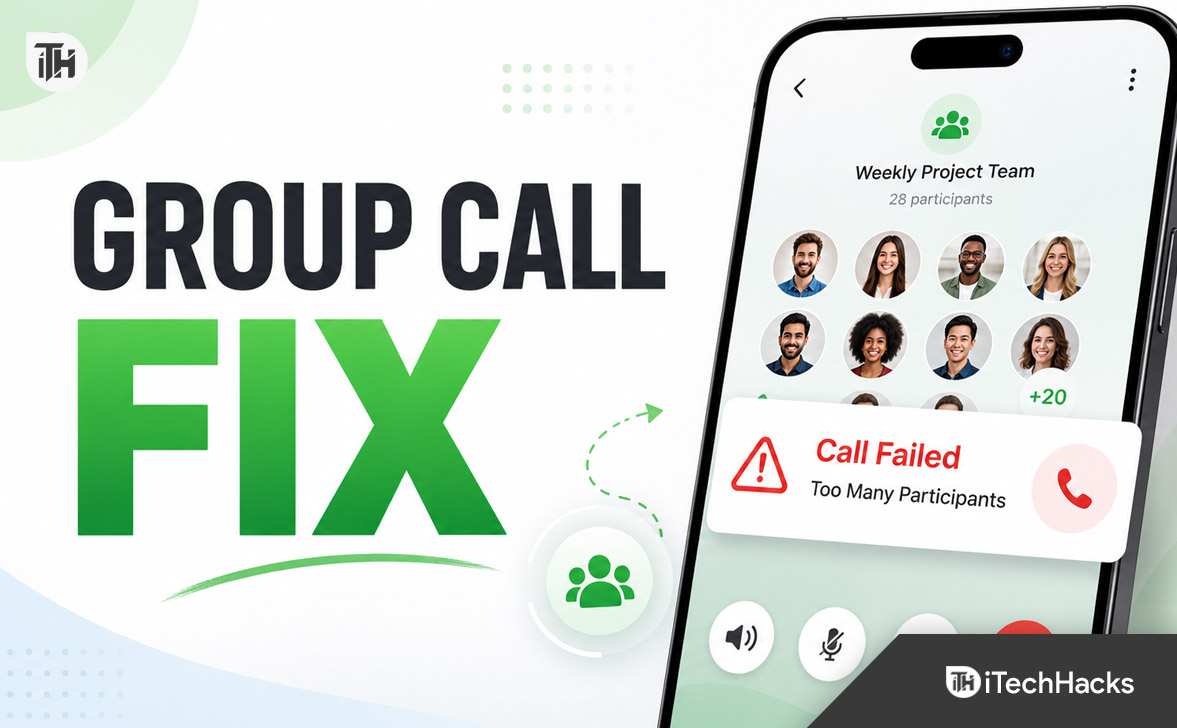
Seeing the “Call Failed, the Group Has Too Many Participants” error on WhatsApp can be confusing, especially when you are not trying to call every member of the group. The error usually appears when WhatsApp cannot correctly create a group voice or video call because the group contains more members than the call can support, too many people have been selected, or the app is using outdated participant-limit information.
WhatsApp currently allows up to 32 people in a group voice or video call, including the person who starts the call. A WhatsApp group itself can contain far more members, so being able to join a group chat does not mean everyone in that group can enter the same call.
Fortunately, this error can normally be fixed by manually choosing fewer participants, creating a fresh call, updating WhatsApp, or clearing temporary app data. This guide explains why the WhatsApp group call failed error appears and shows practical fixes for Android, iPhone, Windows, and Mac users.
What Does “The Group Has Too Many Participants” Mean on WhatsApp?
The message means WhatsApp is trying to start or continue a group call that exceeds the number of participants supported in a single calling session. It does not necessarily mean that your WhatsApp group itself has too many members.
WhatsApp groups can include hundreds of people, while a group call has a much smaller limit. If the group contains more than 32 members, WhatsApp should normally ask you to select the people you want to call instead of attempting to call the entire group. Official WhatsApp instructions state that when a group has more than 32 people, you can manually select up to 31 other members to join you, making 32 call participants in total.
The error may appear when this selection screen does not load correctly, an old call is being reused, your WhatsApp version is outdated, or the app temporarily miscounts the participants.
Why Does WhatsApp Say the Group Has Too Many Participants?
There is no single cause behind this WhatsApp call failed message. Before changing app settings, it helps to understand what may be triggering it.
1. More Than 32 People Were Selected
A WhatsApp group call supports a maximum of 32 participants. The person starting the call is counted as one participant, so you can invite up to 31 additional people.
If the app attempts to include more people, the call may fail immediately. This commonly happens when starting calls from very large family, school, office, community, or customer groups.
2. You Started the Call From a Large Group
When a group contains more than 32 members, tapping the call button may open a participant selection screen. If WhatsApp fails to open that screen properly and instead attempts to process the entire group, it can show the “group has too many participants” error.
3. An Old Group Call Is Being Reopened
WhatsApp keeps recent call records in the Calls tab. Recalling an old group session may sometimes include participants who were part of the previous call, including contacts you no longer intend to call.
Creating a completely new call usually resolves this problem because WhatsApp builds a fresh participant list.
4. WhatsApp Is Outdated
WhatsApp has changed its group calling limits and calling interface several times. An older app version may use outdated rules or may not correctly communicate with newer versions installed by other participants.
Updating the app also installs bug fixes that can resolve incorrect participant counts, call-screen problems, and connection failures.
5. Temporary Cache or App Data Is Corrupted
WhatsApp stores temporary files to make chats and calling features load faster. If this cached information becomes corrupted, the app may display an incorrect group size or continue using data from a failed call.
6. Some Participants Are Joining From Older Devices
A participant using an outdated WhatsApp version, unsupported operating system, or poorly connected linked device may prevent the call from being created correctly. The error may appear on the caller’s screen even when the issue originates from another participant’s device.
7. The Call Was Started From a Linked Device
WhatsApp calling is available on supported desktop and linked-device apps, but temporary synchronization problems can occur between your phone and computer. A call may fail when the desktop app has not refreshed the latest group information.
8. Weak Internet or a Temporary WhatsApp Problem
Although the message specifically mentions participants, a connection problem can prevent WhatsApp from retrieving the correct list of eligible call members. The app may then show a misleading participant-limit error instead of a standard network error.
How to Fix “Call Failed, the Group Has Too Many Participants” on WhatsApp
Start with the first method because manually selecting participants fixes the problem in most cases. Continue with the remaining solutions only if the error still appears.
1. Manually Select the Group Call Participants
Do not start the call in a way that tries to include the entire group. Instead, open the participant selector and choose only the people who need to join.
On Android
- Open WhatsApp.
- Open the group in which you want to start the call.
- Tap the phone or video-call icon near the top of the screen.
- If prompted, choose Group Call or New Call.
- Select no more than 31 other participants.
- Tap the phone icon for a voice call or the camera icon for a video call.
On iPhone
- Open WhatsApp and enter the group chat.
- Tap the call icon at the top.
- Select the members you want to invite.
- Keep the total number of people, including yourself, at 32 or fewer.
- Choose voice call or video call.
This method works because WhatsApp no longer has to process every person in the group. It creates a smaller calling session containing only the selected members.
2. Start a New Call Instead of Reusing the Failed Call
If the error appeared while reopening a previous call from the Calls tab, do not keep tapping the same call entry. That entry may still contain an invalid or oversized participant list.
- End the current call completely.
- Ask any remaining participants to disconnect.
- Close the WhatsApp call screen.
- Return to the group chat.
- Start a new call and manually select the participants.
You can also create a new group call from the Calls section:
- Open WhatsApp and go to Calls.
- Tap New Call.
- Select New Group Call, if shown.
- Choose the required contacts.
- Start the voice or video call.
A fresh call removes old session information and forces WhatsApp to calculate the participant count again.
3. Call One Person First and Add Others Later
If the group call button keeps producing the same error, start with an individual call. You can then add the remaining participants one by one.
- Open a private chat with one group member.
- Start a voice or video call.
- After the person answers, tap the Add Participant icon.
- Select another contact.
- Repeat until everyone you need has been added.
Keep the total at 32 or fewer. Adding members gradually can bypass problems caused by WhatsApp trying to load a large group list all at once.
A call link is useful when the group contains many people but only some members need to attend. Instead of selecting everyone manually, create a link and share it with the intended participants.
- Open WhatsApp.
- Go to the Calls tab.
- Tap Create Call Link.
- Select whether it will be a voice or video call.
- Copy or share the link with the required people.
- Ask only the intended participants to join.
Call links reduce the chance of accidentally selecting too many group members. WhatsApp also provides a waiting-room system for supported call links, although the actual live call remains subject to WhatsApp’s participant restrictions.
Do not post a private call link in a public group or on social media. Anyone with access to the link may attempt to join, depending on the call’s access controls.
5. Update WhatsApp to the Latest Version
If your WhatsApp app is outdated, it may not correctly support the current 32-person group calling system. Update WhatsApp on both the caller’s device and the devices used by other participants.
Update WhatsApp on Android
- Open the Google Play Store.
- Search for WhatsApp Messenger.
- Tap Update if the option is available.
- Restart your phone after the update.
Update WhatsApp on iPhone
- Open the App Store.
- Tap your profile picture.
- Scroll to the available updates.
- Tap Update next to WhatsApp.
Update WhatsApp on Windows or Mac
- Open the Microsoft Store or Mac App Store.
- Search for WhatsApp.
- Install any available update.
- Close and reopen the desktop app.
Ask the other participants to update their apps as well. Group calls can behave unpredictably when some members use much older WhatsApp versions.
6. Force Close WhatsApp and Open It Again
A temporary process may be preventing WhatsApp from refreshing the group member count. Fully closing the app is more effective than simply leaving it open in the background.
On Android
- Press and hold the WhatsApp icon.
- Tap App Info.
- Select Force Stop.
- Wait a few seconds and reopen WhatsApp.
On iPhone
- Swipe up from the bottom and pause to open the app switcher.
- On iPhones with a Home button, double-press the Home button.
- Swipe the WhatsApp preview upward to close it.
- Open WhatsApp again.
After reopening the app, start a fresh call rather than selecting the failed call from your history.
7. Clear WhatsApp Cache on Android
Android allows you to delete temporary WhatsApp cache files without removing your chats, photos, or account. This can fix an incorrect participant count or a call interface that is not loading properly.
- Open your phone’s Settings.
- Go to Apps or Manage Apps.
- Select WhatsApp.
- Tap Storage or Storage and Cache.
- Select Clear Cache.
- Reopen WhatsApp and try the call again.
Do not select Clear Data, Clear Storage, or Delete App Data unless you have a verified chat backup. Clearing app data may sign you out and remove locally stored information.
8. Offload WhatsApp on iPhone
iPhones do not provide the same direct clear-cache button available on Android. Instead, you can offload WhatsApp, which removes the app installation while keeping its stored documents and data.
- Open Settings.
- Go to General.
- Tap iPhone Storage.
- Select WhatsApp.
- Tap Offload App.
- Choose Reinstall App.
Before using this method, confirm that important WhatsApp chats are backed up to iCloud. Although offloading is designed to preserve app data, maintaining a current backup is the safer approach.
9. Restart Your Phone
Restarting clears temporary memory, closes stuck calling processes, and reconnects WhatsApp to the network. It is particularly helpful if you have recently updated the app or switched between Wi-Fi and mobile data.
After restarting, wait for the phone to reconnect to the internet. Open WhatsApp, enter the group, and manually select a smaller number of participants.
10. Switch Between Wi-Fi and Mobile Data
A weak connection may stop WhatsApp from loading the latest group and call information. Test the call using another network.
- Turn off Wi-Fi and try mobile data.
- If mobile data is unstable, connect to a reliable Wi-Fi network.
- Disable any active VPN temporarily.
- Turn Airplane Mode on for about 10 seconds, then turn it off.
- Move closer to the Wi-Fi router.
- Avoid downloading large files during the call.
WhatsApp calls use your device’s internet connection, so network quality affects whether a group session can be created and maintained.
11. Check WhatsApp Permissions
Missing microphone, camera, contact, or background-data permissions may prevent the call from starting normally. Although permission problems usually produce a different warning, they can sometimes contribute to a general call failed message.
On Android
- Open Settings.
- Go to Apps and select WhatsApp.
- Tap Permissions.
- Allow access to the microphone, camera, and contacts.
- Check that background mobile data is enabled.
On iPhone
- Open Settings.
- Scroll down and select WhatsApp.
- Enable the microphone, camera, contacts, and mobile-data permissions.
Restart WhatsApp after changing any permission.
12. Try the Call From Your Primary Phone
If the problem occurs on WhatsApp Web, Windows, Mac, or another linked device, start the call from your main phone instead.
Your primary phone usually has the freshest group information and account synchronization. If the call works on the phone, restart or relink the affected desktop device.
- Open WhatsApp on your phone.
- Go to Settings and select Linked Devices.
- Tap the affected device.
- Log out that device.
- Open WhatsApp Desktop or Web again.
- Scan the QR code to relink it.
Relinking downloads updated chat and group information and can correct a participant list that is no longer synchronized.
13. Ask Other Participants to Leave a Stuck Call
Sometimes a participant disconnects without WhatsApp immediately removing them from the session. The person may appear to have left while still being counted as an active call member.
Ask everyone to end the call fully, close WhatsApp, and wait briefly. Then have one person create a completely new call.
Avoid having several group members start separate calls at the same time. Multiple overlapping call invitations can make it difficult to identify which session people are joining.
14. Use WhatsApp Voice Chat for a Group Conversation
For supported groups, WhatsApp offers a voice-chat feature that allows members to join a live conversation without ringing every person in the group. Official WhatsApp guidance states that voice chats can be started in eligible groups containing between 3 and 32 members.
To start one when the option is available:
- Open the WhatsApp group.
- Swipe up from the bottom of the chat.
- Hold until Connect appears.
- Release to start the voice chat.
The exact interface may vary by phone and WhatsApp version. This option is useful for informal group discussions because members can join without receiving a traditional ringing call.
15. Reinstall WhatsApp as a Last Resort
Reinstalling WhatsApp can repair damaged application files, but it should only be used after simpler fixes fail.
First, create a current backup:
- Open WhatsApp.
- Go to Settings.
- Select Chats.
- Tap Chat Backup.
- Complete a Google Drive or iCloud backup.
After confirming that the backup completed successfully, uninstall WhatsApp, restart the phone, and reinstall the official app from the Play Store or App Store. Sign in with the same phone number and restore the backup when prompted.
What to Do If Your WhatsApp Group Has More Than 32 Members
You do not need to remove members from the WhatsApp group just to make a call. Instead, use one of these approaches:
- Manually select up to 31 other people.
- Create a smaller temporary group for regular meetings.
- Share a call link only with the required members.
- Split a large meeting into multiple sessions.
- Ask one organizer to control who is invited.
Removing members from the main group is unnecessary because the group chat limit and group call limit are separate. A WhatsApp group can support up to 1,024 members, while the group voice or video call is limited to 32 active people.
Common Problems and Their Fixes
The Error Appears With Only a Few Selected People
Force close WhatsApp, clear the Android cache, and restart your phone. Then create a fresh call instead of reopening the failed one.
The Call Works on the Phone but Fails on the Computer
Update WhatsApp Desktop and relink the computer from the Linked Devices section. Until synchronization is restored, start the group call from your primary phone.
The Call Button Does Nothing
Check microphone and camera permissions, test another internet connection, and disable battery restrictions for WhatsApp. Also confirm that the app has permission to use background data.
One Particular Person Cannot Join
Ask that person to update WhatsApp, restart their phone, and verify their internet connection. You can also remove them from the active call invitation and add them again after the call begins.
The Error Started After a WhatsApp Update
Restart the device and clear temporary cache files. A newly installed version may need to rebuild local app data before group calling works normally.
The Group Has Fewer Than 32 Members but the Error Continues
The issue is probably caused by stale call information rather than the actual group size. Start a new call from the Calls tab, update WhatsApp, and ask all participants to disconnect from earlier call sessions.
Tips to Prevent WhatsApp Group Call Errors
- Keep WhatsApp updated on every device you use.
- Select only the people who need to attend.
- Remember that the caller counts toward the 32-person limit.
- Avoid restarting failed calls from old call-history entries.
- Use a reliable Wi-Fi or mobile-data connection.
- Create a call link for planned meetings.
- Ask participants to join from updated phones or desktop apps.
- End old call sessions before creating another one.
- Back up WhatsApp regularly before clearing data or reinstalling.
Frequently Asked Questions
How many participants can join a WhatsApp group call?
Up to 32 people can join a WhatsApp group voice or video call, including the person who starts it.
Can I call every member of a large WhatsApp group?
Not when the group contains more than 32 people. You must select up to 31 other members so that the total number of call participants does not exceed 32.
Why does WhatsApp say too many participants when only a few people joined?
The app may be counting invited users, disconnected members, or contacts from a previous failed call. Close the call, restart WhatsApp, and create a new session with a fresh participant list.
Does the 32-person limit include me?
Yes. The person starting the call is included, which means that person can normally invite up to 31 additional participants.
Will removing people from the WhatsApp group fix the error?
It can reduce the group size, but it is usually unnecessary. Simply choose fewer participants when starting the call or create a smaller temporary group.
Can clearing WhatsApp cache delete my chats?
Using the Clear Cache option on Android should not remove your chats. However, selecting Clear Data or Clear Storage can sign you out and remove locally stored information. Always maintain a current chat backup.
Can I make a 32-person WhatsApp video call on a computer?
WhatsApp’s current help documentation describes group video calling with up to 32 members on supported platforms. The exact interface and availability can depend on the desktop app version, operating system, hardware, and account rollout.
Is a WhatsApp call link better for large groups?
A call link is often easier because you can share it only with the people who should attend. It does not remove the active-call participant limit, but it avoids manually selecting contacts from a very large group.
Could a WhatsApp outage cause this error?
Yes. A temporary server or synchronization problem can occasionally produce misleading call errors. If several people experience the same problem, try again later after checking that WhatsApp works normally for messages and individual calls.
Why can I message the group but not start a group call?
Messaging and calling use different systems and limits. A large WhatsApp group may continue working normally for messages even though all its members cannot enter one group call.
Final Thoughts
The “Call Failed, the Group Has Too Many Participants” error on WhatsApp usually appears when the app tries to create a call with more people than the calling feature supports. The fastest fix is to open the group, manually select no more than 31 other members, and start a completely new voice or video call.
If the participant count is already below the limit, update WhatsApp, force close the app, clear its temporary cache, restart the phone, and try another network. Desktop users should also test the call from their primary phone and relink the computer if necessary.
ALSO READ:
- WhatsApp DP Not Showing or Removed Automatically? Fix It Fast
- Does WhatsApp Username Hide Your Phone Number? What You Need to Know
- WhatsApp Username Already Taken? What You Can Do Next
- How to Reserve a WhatsApp Username Before Someone Else Takes It
- Top 8 Ways to Fix WhatsApp Stuck on Connecting on iPhone 2026