- The Testwise platform by GL Assessment is an important tool for digital exams like CAT4 and Progress Tests, but accessing it can be tricky if the URL is typed incorrectly or network settings block it.
- To access Testwise successfully, ensure you type the correct URL (www.testwise.com/platform/code), use the provided student access code accurately, and clear your browser cache if issues persist.
- Network restrictions or browser extensions might obstruct access; to resolve, ensure internet connection, disable conflicting extensions, or contact a school administrator for a new access code if needed.
Educational assessments have largely transitioned to the digital realm, and GL Assessment’s Testwise platform is at the forefront of this shift, hosting critical exams like the CAT4 and Progress Tests. Whether you are a student preparing to take an important benchmark exam or a teacher trying to administer a test to a crowded classroom, a seamless login process is absolutely essential. Unfortunately, accessing the testing environment can sometimes be confusing, especially if you are dealing with broken links or migrating to their newly updated web infrastructure.
If you are frantically searching for https //www.testwise/platform/code : How do I access the new Testwise site?, you are likely dealing with a malformed web address or an expired access token. This specific error usually occurs when users mistype the official URL, accidentally omitting the “.com” extension, or when a strict school network blocks the testing server. Fortunately, getting past this digital roadblock is incredibly straightforward. By entering the correct web address and verifying your student credentials, you can instantly log into the new testing dashboard.
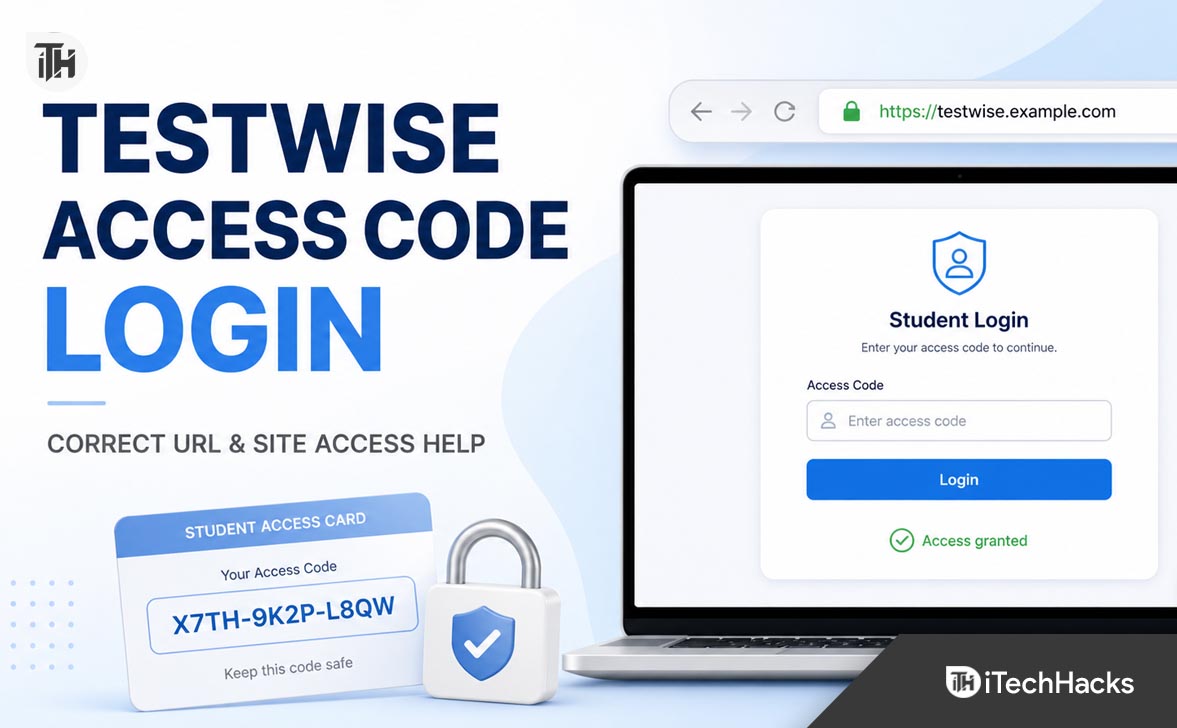
https //www.testwise/platform/code : How to Access the New Testwise Site
Are you struggling to log into your upcoming digital assessment? Given below are various troubleshooting steps to help fix this connection issue and successfully access the new Testwise platform.
1. Enter the Correct Website URL
The most common reason users fail to reach the login screen is a simple typographical error in the web address. The query https //www.testwise/platform/code is missing a crucial domain extension (like .com) and proper punctuation. To navigate to the correct and active login portal, follow the steps given below:
- Open your preferred web browser (Google Chrome or Microsoft Edge are highly recommended for testing environments).
- Click directly on the main URL address bar at the very top of your browser window.
- Type the official URL precisely: www.testwise.com/platform/code (or the specific regional link provided by your school, such as uk.testwise.com).
- Press the Enter key on your keyboard to load the official GL Assessment landing page.
- Bookmark this specific page by clicking the star icon in your address bar so you do not have to type it out manually in the future.
- Verify that you see the official GL Assessment logo and a secure padlock icon next to the URL before proceeding.
2. Input Your Student Access Code
Unlike traditional websites that require an email and a password, the Testwise student portal relies on highly secure, single-use access codes generated by a school administrator. If you are on the correct web page but cannot get past the login screen, your code may be entered incorrectly. To properly input your credentials, follow the steps given below:
- Locate the eight-character Student Access Code provided by your teacher or exam invigilator.
- Click on the large text box clearly labeled “Access Code” located directly in the center of the screen.
- Type the code exactly as it appears on your printout, paying close attention to capital letters and numbers.
- Double-check that you have not confused the letter “O” with the number “0“, or the lowercase “l” with the uppercase “I“.
- Click the “Login” or “Start Test” button located directly beneath the text input box.
- If the code is valid, you will be instantly redirected to a confirmation page displaying your name and the specific test assigned to you.
3. Clear Your Web Browser Cache
If you previously visited an older, outdated version of the Testwise website, your browser might have saved broken temporary files. When you try to access the new site, the browser loads these corrupted background files, resulting in a blank white screen or a continuous loading loop. To clear your browser cache safely, follow the steps given below:
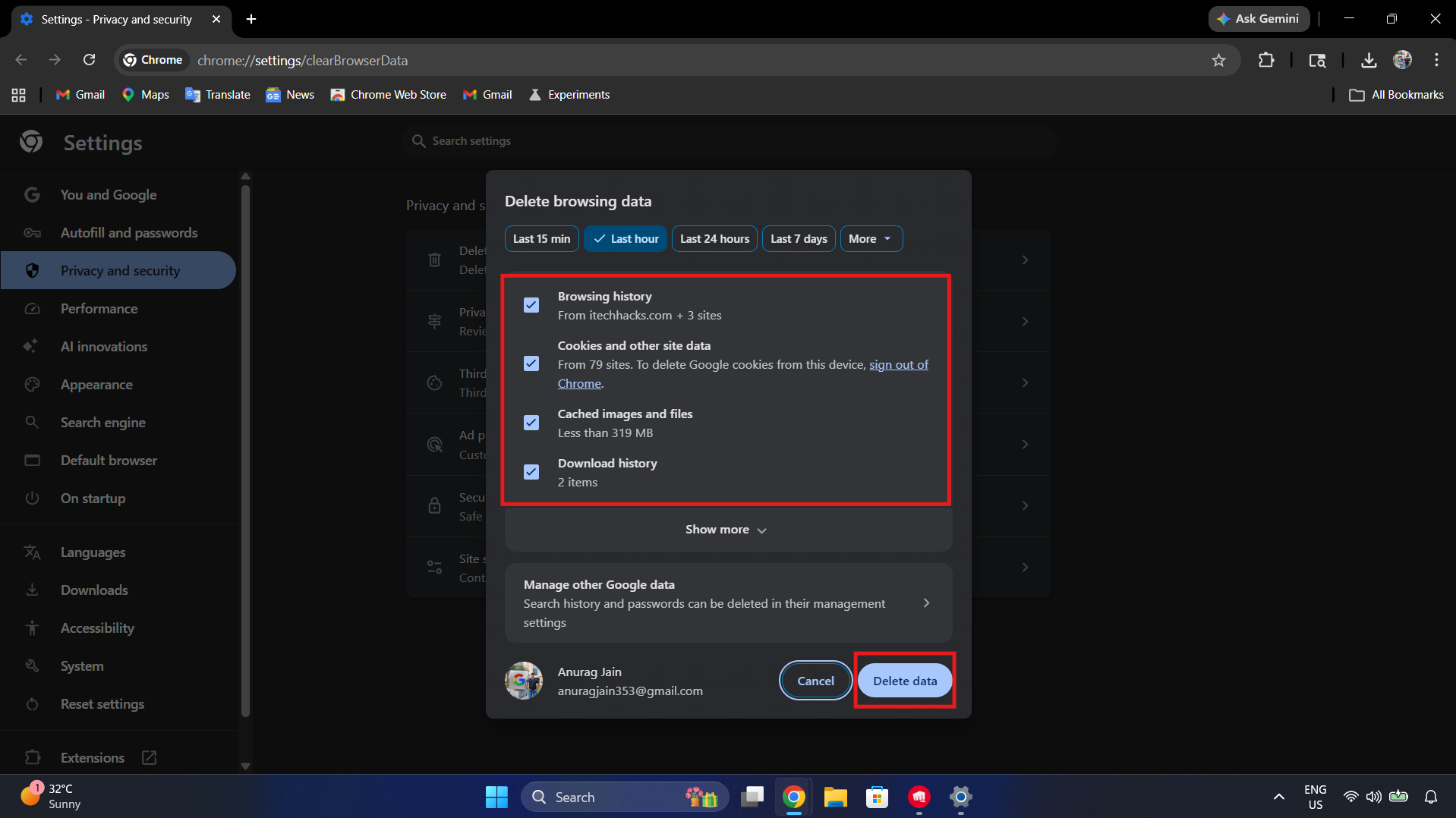
- Open your web browser and press Ctrl + Shift + Delete (Windows) or Cmd + Shift + Delete (Mac) on your keyboard.
- In the “Clear browsing data” menu that pops up, set the time range option to All time.
- Check the boxes specifically labeled Cookies and other site data and Cached images and files.

- Uncheck the “Passwords” box to ensure you do not accidentally delete your saved personal logins for other websites.
- Click the Clear data button and wait a few moments for the browser to permanently purge the memory.
- Close your web browser completely, reopen it, and navigate back to the Testwise URL to try logging in again.
4. Bypass Strict Network Firewalls
Because Testwise is used primarily in educational environments, many students attempt to log in using a school-provided laptop or campus Wi-Fi. However, overly aggressive school firewalls or third-party web filters can mistakenly block the new Testwise platform servers, causing the page to time out. To resolve network blocking issues, follow the steps given below:
- Check your Wi-Fi settings to confirm you are actively connected to the internet and can load a basic site like Google.
- If you are using a personal Virtual Private Network (VPN) on your device, turn it off entirely, as Testwise blocks hidden IP addresses to prevent cheating.
- If you are on a home network, restart your Wi-Fi router by unplugging the power cable for thirty seconds and plugging it back in.
- If you are taking the test on a school campus, immediately raise your hand and inform the exam invigilator about the connection error.
- The IT administrator may need to manually whitelist the new *.testwise.com domain in the school’s central firewall settings.
- Once the network restrictions are lifted, refresh the page to establish a secure connection to the testing servers.
5. Disable Conflicting Browser Extensions
Modern web browsers allow users to install third-party extensions like ad blockers, grammar checkers, and translation tools. While helpful for daily browsing, these extensions heavily modify the background code of websites and can severely interfere with the secure anti-cheat scripts required by the Testwise environment. To disable interfering extensions, follow the steps given below:
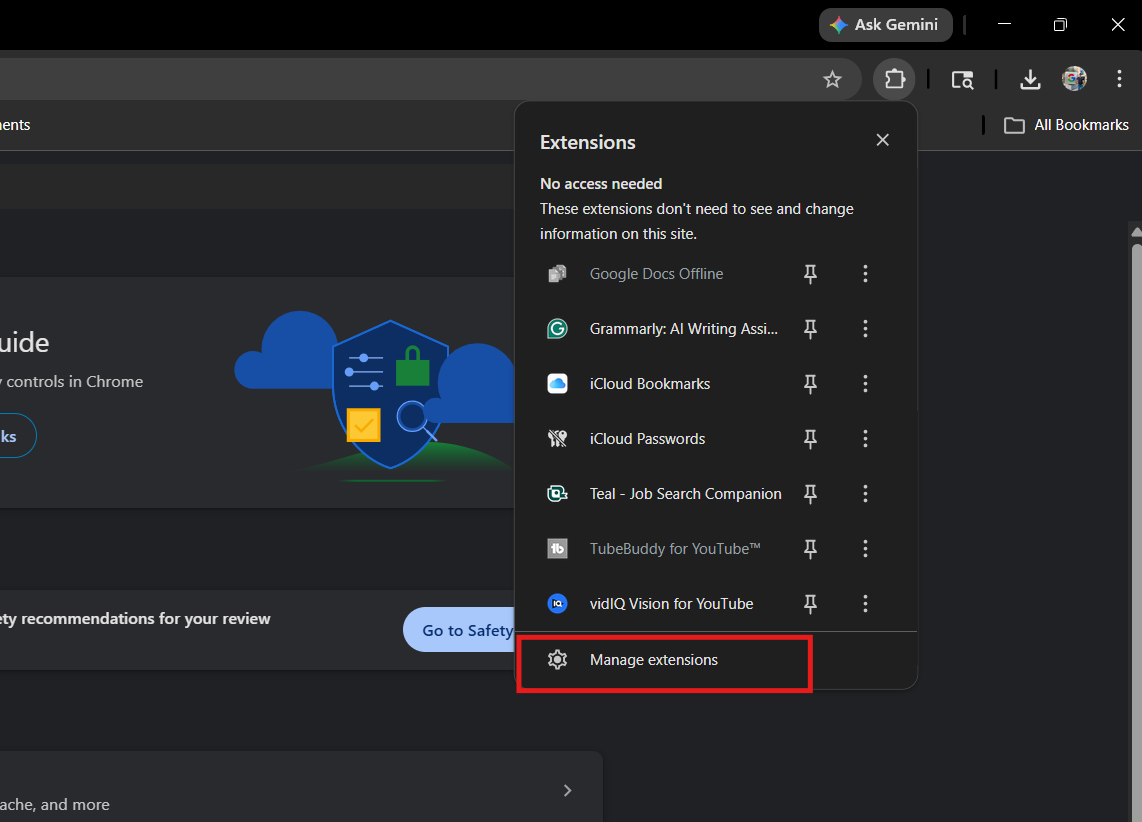
- Look at the top right corner of your browser window, next to the URL bar, and click the Extensions icon (often shaped like a puzzle piece).

- Click on Manage extensions from the drop-down menu to open your full list of installed add-ons.

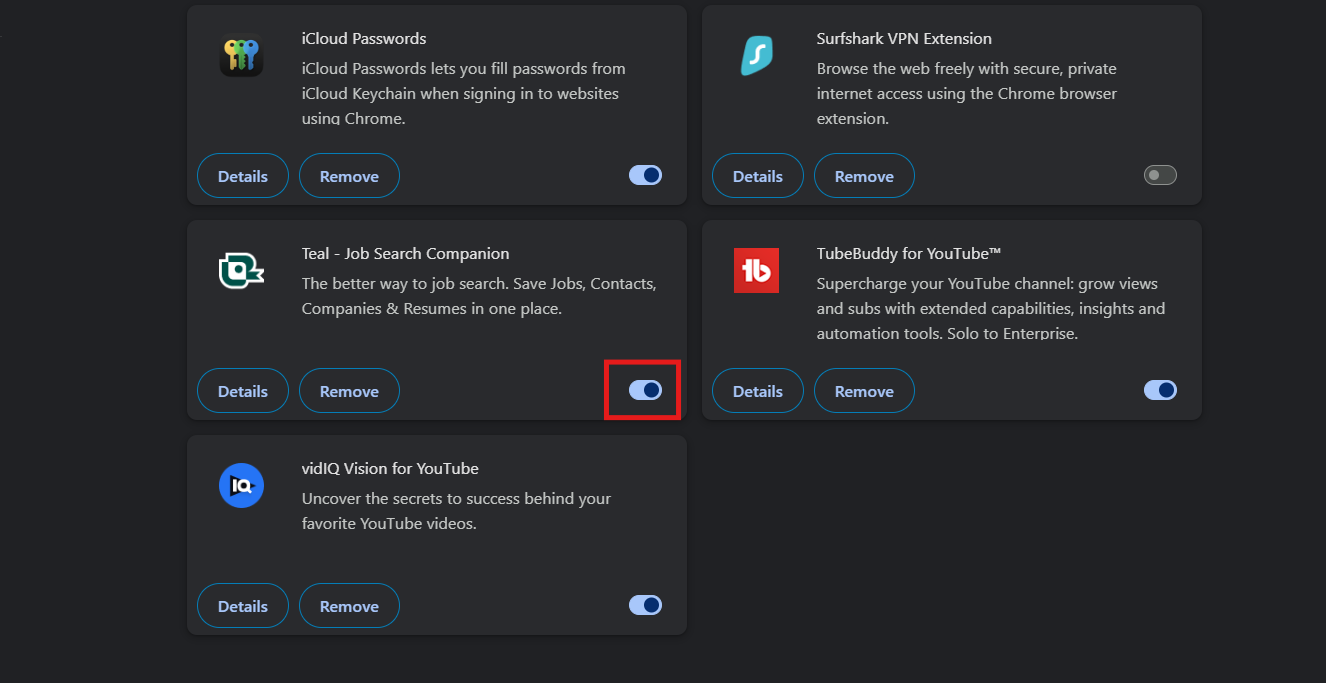
- Locate any active ad blockers (like uBlock Origin or Adblock Plus), pop-up blockers, or privacy shields.
- Toggle the blue switch next to these specific extensions to the Off position.

- Alternatively, you can simply open a completely private window (Incognito Mode), which temporarily disables all extensions by default.
- Reload the Testwise login page to see if the missing input boxes, graphics, or login buttons have reappeared.

6. Contact the School Administrator for a New Code
If you have typed the exact URL, cleared your cache, and verified your internet connection, but the portal still rejects your entry, your specific Student Access Code may be fundamentally invalid. Access codes are time-sensitive and lock automatically once a test is completed or if an expiration date passes. To acquire a working code, follow the steps given below:
- Verify with your teacher that the testing window is actually open and actively accepting submissions for your specific class.
- Do not attempt to guess the code multiple times, as this can trigger a security protocol and temporarily lock your profile.
- Approach your teacher or the school’s testing administrator with the exact error message you are receiving on your screen.
- Request that the administrator log into their Teacher Portal to check the real-time status of your assigned assessment.
- The administrator can easily generate a brand-new, active 8-digit access code for your profile in a matter of seconds.
- Return to your computer, enter the newly generated code into the platform, and begin your assessment without further delays.
Conclusion
A smooth, uninterrupted digital environment is critical when sitting for an important academic assessment. Encountering a broken URL or a frustrating login loop right before an exam can cause unnecessary stress for both students and educators. However, by understanding how to properly navigate to the correct https //www.testwise/platform/code URL and bypassing common browser glitches, you can easily access the new Testwise site. Always ensure you are typing the address correctly, keep your browser cache clean, and verify your access codes with your administrator so you can focus entirely on acing your test.
ALSO READ: