- Grindr's "Unable to Refresh" error happens when the app can't connect to its servers, which could be due to a widespread server problem or an issue with your device's network connection. Checking if Grindr is down using tools like Down Detector can reveal if it's a server issue affecting many users.
- Simple troubleshooting steps can fix this error if it's not a server issue. Try turning on Airplane Mode on your phone temporarily to reset your network, or clear the app's cache to remove corrupted files, which can disrupt the connection.
Grindr is a vital social and dating platform that connects millions of users worldwide based on real-time geographical proximity. The entire core functionality of the application relies on a constantly updating grid of nearby profiles, instant messaging, and accurate location pinging. Unfortunately, that seamless digital connection is instantly severed when the app refuses to load. It is incredibly frustrating to open the app to check a new message or update your location, only to be met with an endless loading circle and the dreaded Grindr Unable To Refresh error message locked across the top of your screen.
When this specific error occurs, it means your smartphone is physically failing to communicate with Grindr’s backend servers. This communication breakdown is usually caused by one of two things: a massive, global server outage on Grindr’s end, or a localized network glitch on your specific device. By utilizing third-party outage trackers and systematically resetting your local network configurations, you can easily determine who is at fault and quickly restore your access to the grid.
Troubleshooting Steps To Fix Grindr Unable To Refresh
Are you staring at a blank grid and a frozen loading screen? Given below are various troubleshooting steps to help fix this issue and permanently restore your real-time app connection.
1. Check Grindr on Down Detector
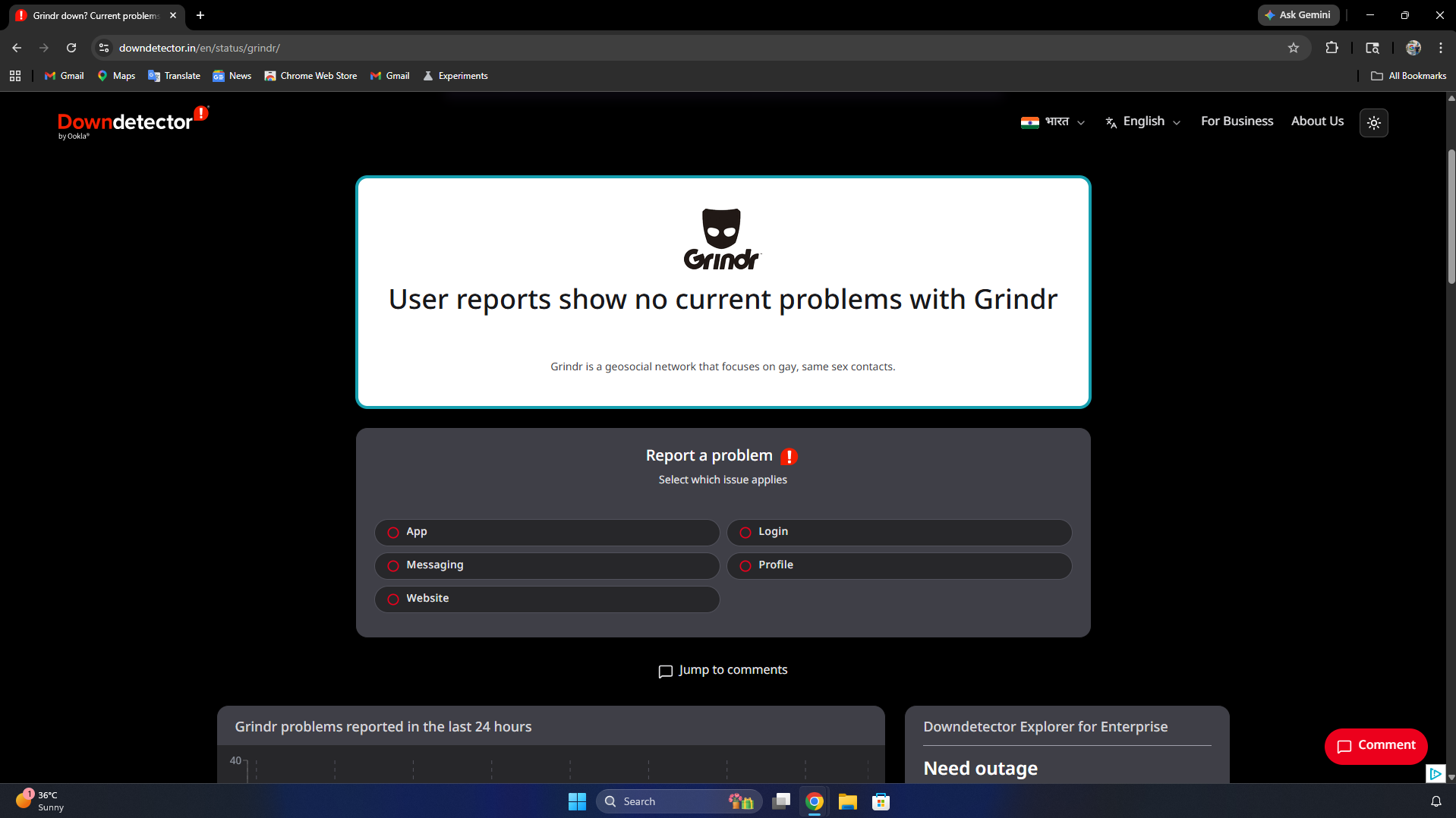
Before altering any settings on your phone, you must first verify if the issue is actually your fault. The Grindr Unable To Refresh error is most commonly triggered by routine server maintenance or unexpected backend crashes. Using a third-party service like Down Detector allows you to see if thousands of other users are experiencing the exact same blackout in real-time. To check the server status, follow the steps given below:
- Head over to the Grinder Page on Downdetector.

- Look at the real-time outage graph. If there is a massive, sudden spike in user reports, Grindr’s servers are officially down.
- Scroll down to read the live comment section to see if users are reporting the specific “Unable to Refresh” error.
- If the servers are down, no local troubleshooting will fix it. You simply must wait for Grindr’s engineering team to bring the servers back online.
2. Toggle Airplane Mode for a Network Reset
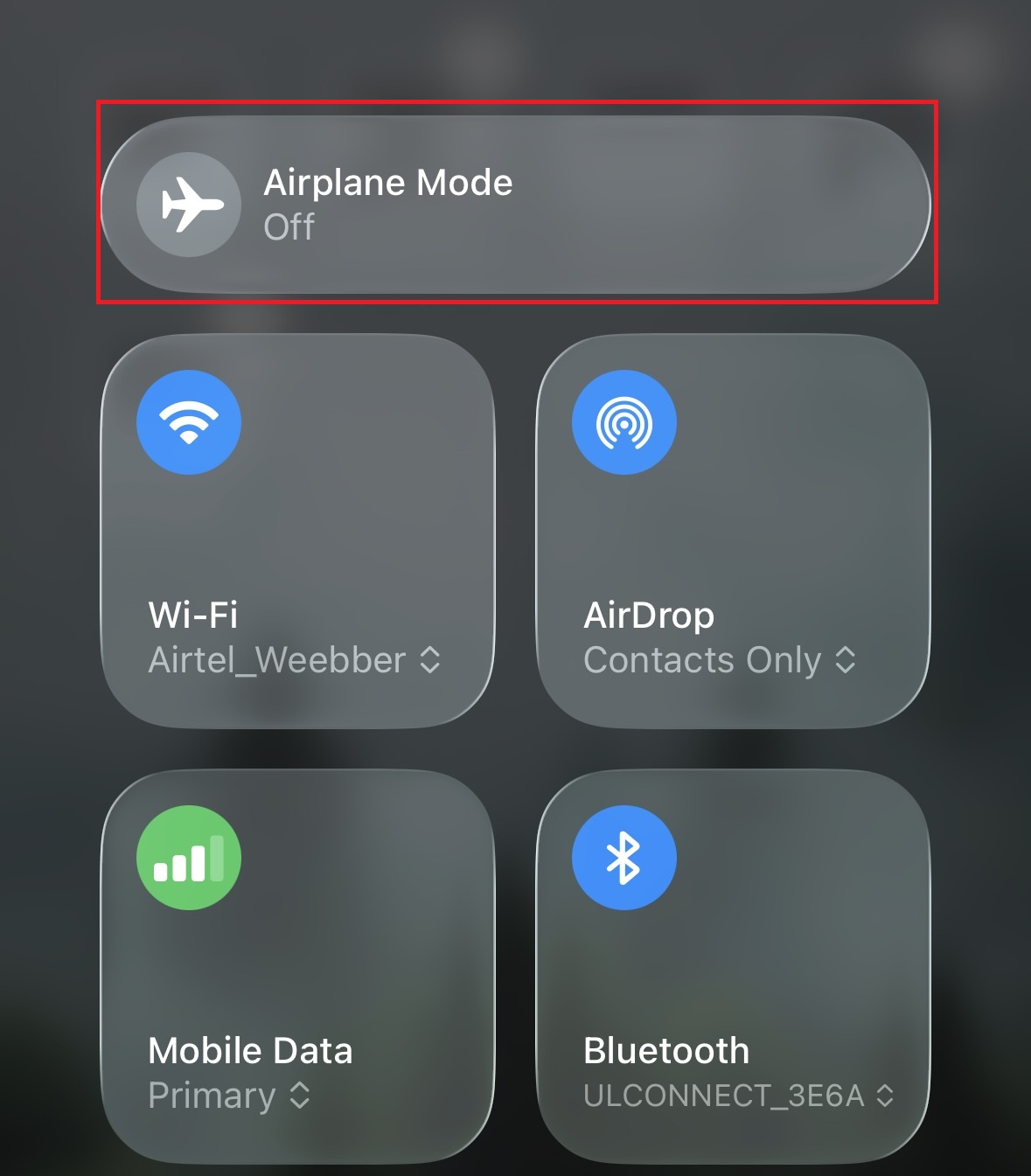
Grindr relies on pinpoint GPS data and a highly stable cellular connection to load profiles accurately. If your phone struggles to hand off your data connection between two different cell towers, the app will hang and fail to pull the grid. Toggling Airplane Mode forces your device’s internal modem to drop all dead connections and establish a fresh, clean ping to the nearest tower. To reset your cellular connection, follow the steps given below:
- Swipe down from the top right of your screen (iOS) or the top middle (Android) to open your device’s Control Center.
- Locate the icon shaped like an Airplane and tap it to enable Airplane Mode.

- Verify that your Wi-Fi, Bluetooth, and cellular signal bars completely disappear from the top of your screen.
- Leave the phone completely isolated for an uninterrupted 15 to 20 seconds.
- Tap the Airplane icon again to disable it. Wait for your 4G/5G and Wi-Fi signals to fully reconnect.
- Open Grindr and pull down on the grid to see if the refresh command goes through.
3. Force Stop and Clear the App Cache
Over time, Grindr saves thousands of profile thumbnails and chat logs in a temporary cache folder to help the app load faster. When these hidden temporary files become bloated or corrupted, the application freezes and refuses to download new data. Clearing this cache safely flushes out the bad files without deleting your account or your saved chat history. To clear the application cache, follow the steps given below:
On Android:
- If you are on an Android device, open your phone’s main Settings app and navigate to Apps or App Management.
- Scroll through the installed application list and tap on Grindr.
- Tap the Force Stop button at the bottom of the screen to kill any frozen background processes.
- Tap on Storage and Cache, then tap the Clear Cache button. (Do not tap Clear Data, as that will log you out entirely).
On iOS
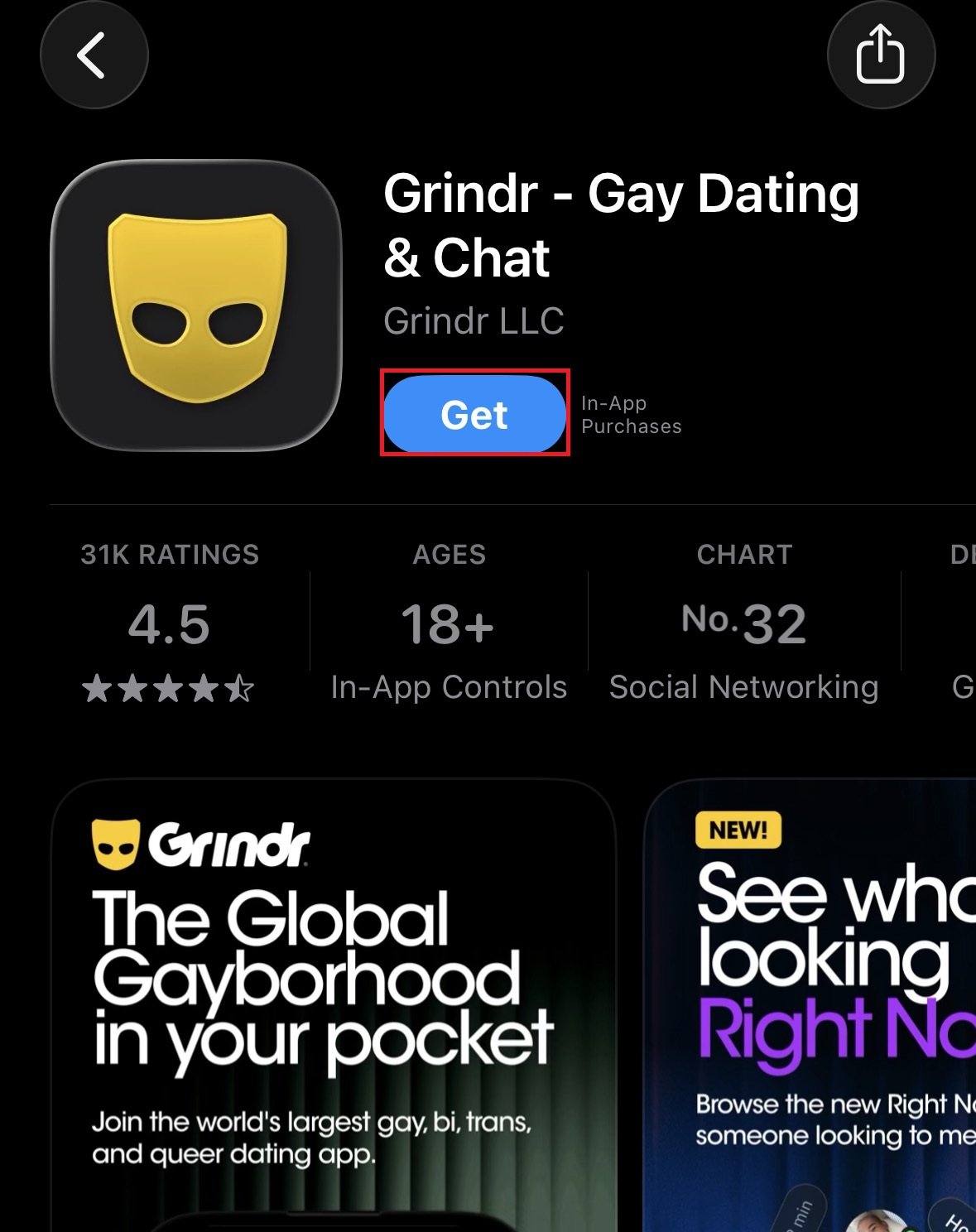
- If you are on an iOS (iPhone) device, you cannot manually clear the cache. You must hold down the Grindr icon on your home screen and select Remove App.
- Now, select Delete App.
- Open the App Store, search for Grindr, and install it to clear out the corrupted memory.

4. Disable VPN and Proxy Connections
Many individuals utilize Virtual Private Networks (VPNs) to maintain their privacy while browsing online. However, Grindr’s security architecture actively flags and blocks known VPN IP addresses to combat spam bots and malicious location spoofing. If the backend server detects that your traffic is being routed through a proxy, it will instantly cut the data feed, triggering the refresh error. To bypass this security block, follow the steps given below:
- Open the dedicated application for your specific VPN provider (e.g., NordVPN, ExpressVPN, Surfshark).
- Tap the primary disconnect or power button to disable the secure tunnel.
- Open your smartphone’s main Settings menu and navigate to the Network & Internet or General tab.
- Locate the VPN sub-menu and ensure no profiles are currently marked as “Connected.”
- Open your multitasking view and completely swipe away the Grindr app to close it.
- Reopen Grindr using your authentic, unmasked cellular or home Wi-Fi IP address.
5. Update to the Latest App Version
Because it handles sensitive user data and real-time location tracking, Grindr frequently pushes mandatory security updates to its application. If you are running an outdated version of the app, the legacy code will eventually fail to communicate with the modern, updated servers. Forcing an update fixes broken APIs and seamlessly restores the grid refresh functionality. To update the app, follow the steps given below:
- Open the Google Play Store (Android) or the Apple App Store (iOS) on your device.
- Tap on your profile picture icon located in the top right corner of the screen.
- Select Manage apps and device (Android) or simply scroll down to the upcoming updates list (iOS).
- Locate Grindr in the list of available updates.
- Tap the Update button next to the application and wait for the new files to download and install.
- Launch the newly updated app and log back in to verify the grid is populating correctly.
Conclusion
Losing connection to the grid can completely ruin your experience on the app, leaving you isolated from your matches and local network. However, by understanding how to quickly diagnose the Grindr Unable To Refresh error, you can save yourself hours of frustration. Always make it a habit to check Down Detector first to ensure you are not simply caught in a global server outage. Once you confirm the servers are operational, running through basic local fixes—like toggling Airplane Mode, clearing your temporary cache, and disabling aggressive VPNs—will almost always force the application to reconnect and restore your real-time grid.