- Installing TLauncher on Mac in 2026 is straightforward if you follow some basic safety steps, like downloading it from the official TLauncher website and handling macOS security permissions carefully to avoid errors.
- TLauncher is a third-party application used for managing Minecraft versions and mods and is different from the official Minecraft Launcher, which is recommended for a secure and official experience.
- For security, ensure you have the right Java version, keep your macOS updated, and do not disable essential security settings like Gatekeeper, while treating TLauncher as untrusted software to handle it responsibly.
Installing TLauncher on Mac in 2026 is not difficult, but you should be careful before downloading any third-party Minecraft launcher. macOS has stronger app security than Windows, and apps downloaded outside the App Store or official developer channels may be blocked by Gatekeeper until you manually approve them. Apple explains that Gatekeeper is designed to help ensure only trusted software runs on your Mac.
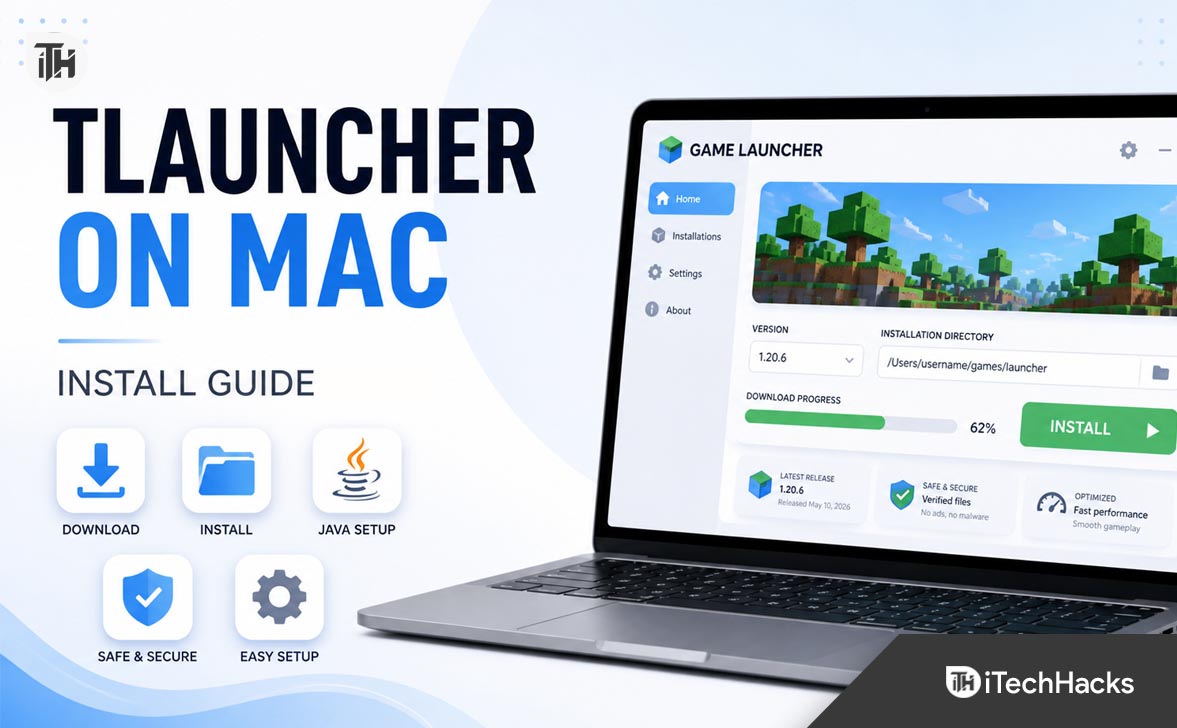
This guide explains how to install TLauncher on Mac safely, how to fix common launch errors, and what you should know before using it. The important point is simple: TLauncher is a third-party launcher, not the official Minecraft Launcher from Mojang or Microsoft. The official Minecraft Launcher for Mac is available from Minecraft’s own download page and is the safest option for users who own the game.
If you still want to install TLauncher on Mac, use it responsibly, avoid suspicious download mirrors, and do not use it to bypass paid access to Minecraft. This article focuses on safe installation, Mac compatibility, Java setup, and troubleshooting.
What Is TLauncher on Mac?
TLauncher is a third-party Minecraft launcher that lets users manage Minecraft versions, mods, skins, and game profiles from one interface. Many users search for how to install TLauncher on Mac because they want easier version switching, modded gameplay, or a separate launcher experience.
However, TLauncher is not the same as the official Minecraft Launcher. The official Minecraft Launcher is provided by Minecraft and supports Windows, Mac, and Linux. It is the recommended option if you already own Minecraft Java Edition or want the cleanest installation path.
There have also been online debates about TLauncher safety. TLauncher’s own website has published posts denying spyware claims, while many users and gaming communities continue to discuss safety concerns around third-party launchers. Because of this, the best approach is to treat it as untrusted third-party software and install it only after understanding the risks.
Before You Install TLauncher on Mac
Before downloading TLauncher for Mac, check a few basic things. This avoids most errors like TLauncher not opening, Java not found, app blocked by macOS, or launcher stuck on loading.
1. Check Your Mac Version
TLauncher should work on many modern macOS versions, but your experience may depend on your Mac model, Java version, and security settings. If your Mac is very old, the launcher may open slowly or fail to run newer Minecraft versions smoothly.
For best results, update macOS from System Settings > General > Software Update. You do not always need the latest macOS release, but you should avoid running outdated versions with missing security patches.
2. Check Whether Your Mac Uses Apple Silicon or Intel
Modern Macs use either Apple Silicon chips like M1, M2, M3, or M4, or older Intel processors. This matters because some Java builds and older launcher packages may behave differently depending on the chip type.
To check your Mac chip:
- Click the Apple logo in the top-left corner.
- Click About This Mac.
- Look for Chip or Processor.
- If it says M1, M2, M3, or M4, your Mac is Apple Silicon.
- If it says Intel, your Mac is an Intel Mac.
3. Install Java If Needed
Minecraft Java Edition depends on Java. Some launchers include their own runtime, while others may ask you to install Java separately. TLauncher also has a Java installation guide for macOS, which shows the usual DMG and PKG installation process.
If TLauncher opens but Minecraft does not launch, Java is one of the first things to check. Newer Minecraft versions often require newer Java builds, while older modpacks sometimes work better with older Java versions. That is why launchers may allow you to choose a specific Java path in settings.
How to Download TLauncher on Mac Safely
The safest way to download any third-party launcher is to use the developer’s official website rather than random mirror sites. Search results often show multiple download pages, but some mirror sites may bundle installers, ads, or outdated files.
For TLauncher, the official website appears as tlauncher.org in search results. Third-party websites such as Softonic, Uptodown, and FileHorse also list TLauncher, but using mirror sites increases the chance of getting an older build or extra unwanted installer components.
Follow these safe download tips:
- Download only from the official TLauncher site if you choose to install it.
- Avoid “cracked Minecraft free download” pages, pop-up ads, and fake download buttons.
- Do not install browser extensions, VPNs, or “required tools” offered by unrelated websites.
- Scan the downloaded file with your Mac security tool if available.
- Never enter your Apple ID, email password, or banking details into any launcher.
How to Install TLauncher on Mac 2026
Once you understand the safety side, the installation process is simple. The steps below are written for beginners, so follow them in order.
Step 1: Download the Mac Version of TLauncher
Open Safari, Chrome, or your preferred browser and go to the official TLauncher website. Look for the macOS download option. The downloaded file may come as a DMG, ZIP, or installer package depending on the current version.
After the download finishes, open your Downloads folder. If the file is compressed, double-click it to extract it. If it is a DMG file, double-click it to mount the installer window.
Step 2: Move TLauncher to the Applications Folder
If the installer window shows the TLauncher app icon, drag it into the Applications folder. This is the normal way to install many Mac apps manually.
Moving the app to Applications is better than running it directly from Downloads. It keeps the app in the right location and avoids permission issues later.
Step 3: Open TLauncher for the First Time
Go to Finder > Applications and double-click TLauncher. If macOS blocks it because it was downloaded from the internet, do not panic. This is common with apps outside the App Store.
Apple says that when an app from an unidentified developer is blocked, you can go to System Settings > Privacy & Security and use Open Anyway after trying to open the app. Apple notes that this button is available for about an hour after the blocked launch attempt.
Avoid disabling Gatekeeper globally through Terminal commands. That weakens your Mac security for all apps, not just TLauncher. Approving one specific app through Privacy & Security is safer.
Step 4: Allow Required Permissions
When TLauncher opens for the first time, macOS may ask for permissions. Allow only the permissions that make sense for the launcher to run. For example, file access may be needed to store game files, mods, and launcher data.
If a launcher asks for unrelated permissions, be cautious. A Minecraft launcher should not need access to your contacts, photos, camera, microphone, or full disk unless there is a very specific reason.
Step 5: Install or Select Java
If TLauncher asks for Java, install the required Java version or select an already installed Java path. For most users, the automatic or recommended Java option is easier.
If Minecraft fails to start after clicking Play, open TLauncher settings and check the Java path. Some errors happen because the launcher points to the wrong Java version, especially on Macs that have multiple Java versions installed.
Step 6: Choose a Minecraft Version
After TLauncher opens, select the Minecraft version you want to run. If you are using mods, choose the version required by that mod or modpack. For example, some older mods may need older Minecraft versions, while newer mods may require the latest compatible Forge or Fabric version.
If you are not using mods, choose a stable release instead of snapshots or experimental builds. Stable versions usually have fewer crashes.
Step 7: Log In Responsibly
If you own Minecraft, the safest route is to use the official Minecraft Launcher with your Microsoft account. If you use any third-party launcher, be careful with account login. Do not enter your Microsoft account password into unknown or suspicious login windows.
For security, enable two-factor authentication on your Microsoft account and avoid reusing the same password across gaming, email, and banking accounts.
How to Install Minecraft Official Launcher on Mac Instead
If your main goal is to play Minecraft safely on Mac, the official Minecraft Launcher is the better choice. Minecraft’s download page provides the official launcher for Mac and other platforms. The Minecraft Help Center also explains that the launcher is used to download, manage, and update Minecraft game installations.
Here is the basic process:
- Go to the official Minecraft download page.
- Download the Mac launcher.
- Open the downloaded file.
- Move Minecraft Launcher to Applications if required.
- Open the launcher and sign in with your Microsoft account.
- Install Minecraft Java Edition from inside the launcher.
This method is recommended if you want a clean setup, official updates, proper account support, and fewer security concerns.
Common TLauncher Mac Problems and Fixes
If TLauncher is not opening on Mac or Minecraft crashes after launch, the issue is usually related to macOS security, Java, file permissions, or an incompatible game version.
TLauncher Is Blocked by macOS
If you see a message saying the app cannot be opened because it is from an unidentified developer, try this:
- Open TLauncher once so macOS blocks it.
- Go to Apple menu > System Settings.
- Open Privacy & Security.
- Scroll to the Security section.
- Click Open Anyway for TLauncher.
- Enter your Mac password if asked.
This works because macOS allows you to manually approve a blocked app after the first launch attempt. Apple documents this process for apps from unknown developers.
TLauncher Opens but Minecraft Does Not Start
This usually points to a Java problem or a version conflict. Open TLauncher settings and check which Java version is selected. If you are launching a newer Minecraft version, install a current Java runtime. If you are launching an older modded version, check the modpack’s Java requirement.
Also try running a clean Minecraft version without mods. If the clean version starts, the problem is likely one of your mods, shaders, or resource packs.
Minecraft Crashes After Clicking Play
Crashes can happen because of low memory allocation, incompatible mods, wrong Java version, or corrupted game files. Start with these fixes:
- Restart your Mac and open TLauncher again.
- Try a different Minecraft version.
- Remove recently added mods.
- Disable shaders temporarily.
- Increase RAM allocation only if your Mac has enough memory.
- Delete the problematic version folder and let the launcher download it again.
Do not allocate all your Mac’s RAM to Minecraft. If your Mac has 8 GB RAM, giving Minecraft around 2 GB to 4 GB is usually safer. If your Mac has 16 GB or more, you can allocate more for heavy modpacks, but leaving memory for macOS is still important.
TLauncher Is Stuck on Loading
If TLauncher stays stuck on the loading screen, check your internet connection first. Then quit the app completely and reopen it. If the issue continues, remove cache files or reinstall the launcher.
Before reinstalling, back up important Minecraft saves. Your worlds are usually stored separately from the launcher app, but beginners should still be careful before deleting folders.
Mods Are Not Working on Mac
Mods usually fail because the Minecraft version, mod loader, and mod file do not match. For example, a Forge mod will not run correctly on Fabric unless the mod supports Fabric. A mod made for Minecraft 1.20 may not work on Minecraft 1.21 or newer.
Check these points:
- The mod supports your selected Minecraft version.
- You installed the correct loader, such as Forge or Fabric.
- The mod file is placed in the correct mods folder.
- You are not mixing incompatible mods.
- You have installed required dependency mods if needed.
TLauncher Runs Slowly on Mac
If the launcher opens but Minecraft runs slowly, reduce graphics settings first. Lower render distance, turn off fancy graphics, disable shaders, and close background apps like Chrome, video editors, or screen recorders.
On Apple Silicon Macs, performance is generally strong, but heavy shaders and modpacks can still slow things down. On older Intel Macs, keep settings modest and avoid high-resolution resource packs.
Is TLauncher Safe on Mac?
There is no simple universal answer. TLauncher’s website has denied spyware claims, but the launcher remains third-party, closed-source software, and many users remain cautious because of online safety discussions.
From a practical safety point of view, you should treat TLauncher like any unofficial launcher. That means downloading only from the official source, avoiding account password reuse, scanning files, and not giving unnecessary permissions.
If you are installing it for a child, school computer, shared Mac, or work device, the safer answer is to use the official Minecraft Launcher instead. It gives you official account support, cleaner updates, and less security uncertainty.
Best Safety Tips Before Using TLauncher on Mac
Use these safety habits if you decide to install TLauncher on Mac:
- Download only from the official TLauncher website.
- Do not use modified installers from random websites.
- Do not disable macOS Gatekeeper globally.
- Do not enter sensitive account passwords into suspicious login screens.
- Use a separate strong password for gaming accounts.
- Keep macOS updated.
- Back up Minecraft worlds before changing launcher files.
- Use the official Minecraft Launcher if you own Minecraft and want the safest setup.
How to Uninstall TLauncher from Mac
If TLauncher is not working properly or you no longer want to use it, uninstalling it is simple.
Basic Uninstall
- Quit TLauncher completely.
- Open Finder.
- Go to Applications.
- Drag TLauncher to the Trash.
- Empty the Trash if you are sure you no longer need it.
Remove Leftover Files
Some launcher data may remain in your user Library folder. Be careful here because deleting the wrong folder can remove saves, mods, or profiles.
- Open Finder.
- Click Go in the top menu.
- Hold the Option key and click Library.
- Look for folders related to TLauncher or Minecraft data.
- Back up saves before deleting anything.
If you are unsure, do not delete Library files manually. Removing the app from Applications is enough for most users.
Frequently Asked Questions
Can I install TLauncher on Mac in 2026?
Yes, you can install TLauncher on Mac if a macOS version is available from its official website. However, since it is a third-party launcher, you should download carefully, check macOS security warnings, and avoid using it for anything that violates Minecraft’s terms or copyright rules.
Why won’t TLauncher open on my Mac?
TLauncher may not open because macOS Gatekeeper blocks apps downloaded outside the App Store or from unidentified developers. Try opening it once, then go to System Settings > Privacy & Security and click Open Anyway if macOS shows that option. Apple documents this method for opening blocked apps from unknown developers.
Do I need Java to run TLauncher on Mac?
In many cases, yes. Minecraft Java Edition depends on Java, and TLauncher may need a compatible Java version to run selected Minecraft versions. If the game does not launch, check Java settings inside the launcher.
Is TLauncher better than the official Minecraft Launcher?
For safety, account support, and official updates, the official Minecraft Launcher is better. TLauncher may offer version and mod management features, but it is still unofficial third-party software.
Is TLauncher safe for kids?
For kids, the official Minecraft Launcher is the safer recommendation. It avoids many third-party software risks and gives parents a cleaner path for account control, updates, and support.
Can TLauncher damage my Mac?
Any third-party app can create risk if downloaded from unsafe sources or granted unnecessary permissions. TLauncher should be treated carefully. Download only from the official site, keep macOS updated, and do not disable security features globally.
What is the safest way to play Minecraft on Mac?
The safest way is to buy or own Minecraft and use the official Minecraft Launcher from Minecraft’s official download page. It is supported on Mac and is designed for managing Minecraft installations officially.
Final Thoughts
Installing TLauncher on Mac in 2026 is easy once you understand macOS security, Java requirements, and launcher permissions. Download the Mac version from the official TLauncher site, move it to Applications, approve it through Privacy & Security if macOS blocks it, and make sure Java is correctly configured.
Still, TLauncher is not the official Minecraft Launcher. If you own Minecraft or want the safest and cleanest setup, use the official Minecraft Launcher from Minecraft’s download page. If you decide to use TLauncher, treat it as third-party software, avoid suspicious download mirrors, protect your accounts, and never disable Mac security features just to make one app work.
ALSO READ: