- Installing Flix Vision on a Firestick or Android TV in 2026 is easy by enabling unknown sources, using a downloader app for the APK file, and following instructions for manual installation.
- Flix Vision, a popular third-party app, offers movies, TV shows, and live content, but as it’s not on official app stores, manual updates and safe downloading from trusted sources are crucial.
- For smooth use and troubleshooting, consider using a VPN for privacy, regularly clearing app cache, and using external players like VLC if necessary, while ensuring it’s downloaded from secure sources to avoid risks.
If you are trying to install Flix Vision on Firestick or Android TV in 2026, you are not alone. Many users want access to a simple streaming app that offers movies, TV shows, and live content without complicated setup steps. However, since Flix Vision is not available on official app stores like Amazon App Store or Google Play Store, installing it requires a few extra steps.
This guide explains everything clearly, even if you have never done this before. You will learn how to install Flix Vision on Firestick and Android TV safely, why certain steps are needed, and how to fix common issues during installation.
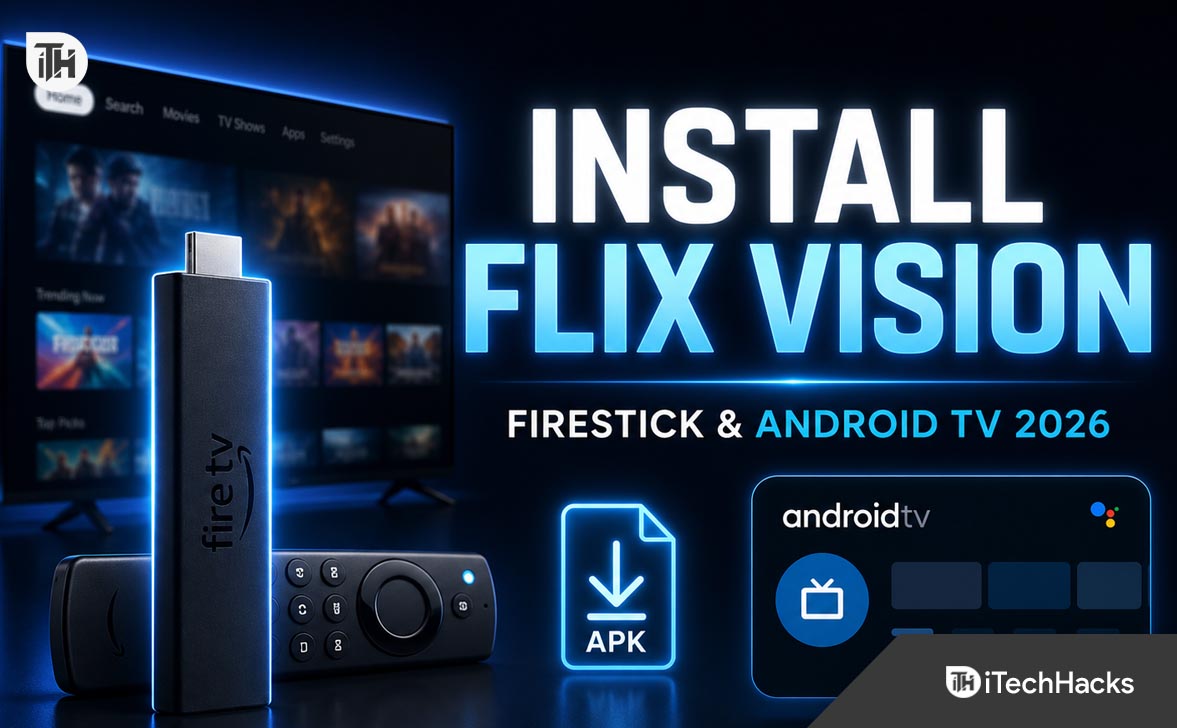
What Is Flix Vision?
Flix Vision is a third-party streaming application that allows users to watch movies, TV shows, and sometimes live channels. It is popular because it offers a wide content library and works on multiple devices, including Firestick, Android TV, and smartphones.
Since it is not hosted on official app stores, you will need to manually install the APK file. This process is called sideloading.
Important to understand: apps like Flix Vision operate outside official ecosystems, so updates and security depend on the source you download from.
Before You Start: Requirements
Before installing Flix Vision on Firestick or Android TV, make sure you have the following ready:
- Stable internet connection
- Firestick or Android TV device
- Remote access to your device
- Enough storage space
You also need to enable installation from unknown sources. This step is required because the app is not available on official stores.
How to Install Flix Vision on Firestick
Step 1: Enable Apps from Unknown Sources
By default, Firestick blocks apps from unknown sources for security reasons. You must enable it manually.
- Go to Settings
- Select My Fire TV
- Click Developer Options
- Turn ON Apps from Unknown Sources
Why this works: Firestick restricts installations to prevent malicious apps. Enabling this option allows you to install APK files manually.
Step 2: Install Downloader App
The Downloader app is required to download the Flix Vision APK file.
- Go to the search icon on Firestick
- Type “Downloader”
- Install the app
Once installed, open it and allow necessary permissions.
Step 3: Download Flix Vision APK
Now you need to install Flix Vision on Firestick using Downloader.
- Open Downloader
- Enter the APK download URL
- Click Go
- Wait for the file to download
Make sure you are using a trusted source. Downloading from random sites can expose your device to risks.
Step 4: Install the APK
Once the file is downloaded:
- Click Install
- Wait for installation to complete
- Click Done or Open
You can delete the APK file afterward to save storage space.
Step 5: Launch Flix Vision
Go to your apps section and open Flix Vision. You may need to move it to the home screen for easy access.
How to Install Flix Vision on Android TV
Step 1: Enable Unknown Sources
Just like Firestick, Android TV blocks third-party apps by default.
- Go to Settings
- Select Device Preferences
- Open Security & Restrictions
- Enable Unknown Sources
Step 2: Install a File Downloader
You can use apps like Downloader or a browser.
- Open Google Play Store
- Search for Downloader or File Manager
- Install the app
Step 3: Download Flix Vision APK
Open your downloader app and enter the APK URL.
- Download the file
- Wait for completion
Step 4: Install the App
Once downloaded:
- Open the APK file
- Click Install
- Wait for the process to finish
Step 5: Open Flix Vision
After installation, launch the app from your app drawer and start exploring content.
How to Use Flix Vision After Installation
Once installed, the interface is usually simple and easy to navigate.
- Browse categories like Movies or TV Shows
- Search for specific titles
- Select a stream source
If buffering happens, try switching to another source. Most third-party apps provide multiple streaming links.
Additional Tips for Better Performance
Use a VPN
Many users prefer using a VPN for privacy and security while streaming. It helps protect your IP address and can also improve access to certain content.
Keep the App Updated
Since Flix Vision is not on official stores, updates will not happen automatically. You need to manually install newer versions when available.
Clear Cache Regularly
If the app becomes slow:
- Go to Settings
- Open Applications
- Select Flix Vision
- Clear Cache
This improves performance by removing temporary files.
Use External Players
Some streams work better with external players like MX Player or VLC. If you face playback issues, try switching.
Common Problems and Fixes
Flix Vision Not Installing
If installation fails:
- Check if Unknown Sources is enabled
- Ensure the APK file is not corrupted
- Free up storage space
App Not Opening
This can happen due to compatibility issues.
- Restart your device
- Reinstall the app
- Try a different version of the APK
Buffering Issues
Streaming problems are usually related to internet speed or server issues.
- Switch to another stream link
- Restart router
- Lower video quality
No Sound or Video
If playback fails:
- Try a different media player
- Update your device software
- Check audio settings
Is It Safe to Install Flix Vision?
This depends on where you download the APK. Since it is not from an official store, there is always some risk.
To stay safe:
- Download only from trusted sources
- Avoid modified or cracked versions
- Use antivirus apps if possible
Being cautious helps reduce security risks.
Frequently Asked Questions
Can I install Flix Vision on Firestick without Downloader?
Yes, but it becomes more complicated. Downloader is the easiest method because it handles both downloading and installation.
Why is Flix Vision not available on official stores?
Third-party streaming apps often do not meet store policies, so they are not listed on platforms like Amazon App Store or Google Play.
Do I need to update Flix Vision manually?
Yes, updates are not automatic. You need to install the latest APK manually.
Is Flix Vision free to use?
Most versions are free, but availability and features can vary depending on the version you install.
Does Flix Vision work on all Android TVs?
It works on most Android TV devices, but performance depends on hardware and software compatibility.
Final Thoughts
Installing Flix Vision on Firestick or Android TV in 2026 is simple once you understand the process. The key steps involve enabling unknown sources, using a downloader app, and installing the APK safely.
While the app offers a wide range of content, always be careful about where you download it from. Keeping your device secure and updated should always be your priority.
If you follow the steps in this guide properly, you should be able to install Flix Vision on Firestick or Android TV without any issues and enjoy smooth streaming.