- Many users report their voicemails missing after updating their iPhones to iOS 26. This problem mostly happens because the updated system struggles to connect properly with older networks.
- The voicemail messages are not lost but are held up due to system and network integration issues. Users can try several easy fixes such as changing phone app layout, force closing the app, resetting network settings, and checking for carrier updates to retrieve their voicemails.
- When all else fails, contacting your mobile carrier for assistance can solve the problem. They can reset voicemail settings on their end, which often resolves syncing issues after software updates.
Updating your iPhone is supposed to be an exciting experience, bringing fresh features, enhanced security, and a smoother interface. However, for many users, the transition to the latest software has been anything but smooth. One of the most alarming bugs plaguing early adopters is the sudden disappearance of the Phone app’s most critical feature: voicemail. You see a missed call notification, but the “Voicemail” tab remains stubbornly empty. There are no red badges, no transcription previews, and seemingly no way to listen to the message that was just left. If you are relying on your phone for business or urgent family matters, this silence can be terrifying.
The issue of voicemail not showing after update is rarely a sign that your messages are deleted forever. In almost every case, the audio files still exist safely on your mobile carrier’s servers. The problem lies in the “handshake” between your iPhone’s new operating system and the carrier’s legacy network. The iOS 26 update has introduced significant changes to how background data is handled, specifically regarding the Visual Voicemail protocol and the new “Live Voicemail” on-device processing. When these protocols clash, the Phone app simply fails to download the list. This guide will walk you through the most effective methods to fix missing voicemail iPhone iOS 26 glitches, restoring your access to those vital messages.
Fix Missing Voicemails on iPhone After iOS 26
This article will list various troubleshooting steps to help you restore missing voicemails and fix synchronization errors between your carrier and your iPhone running iOS 26.
1. Change Phone App Layout
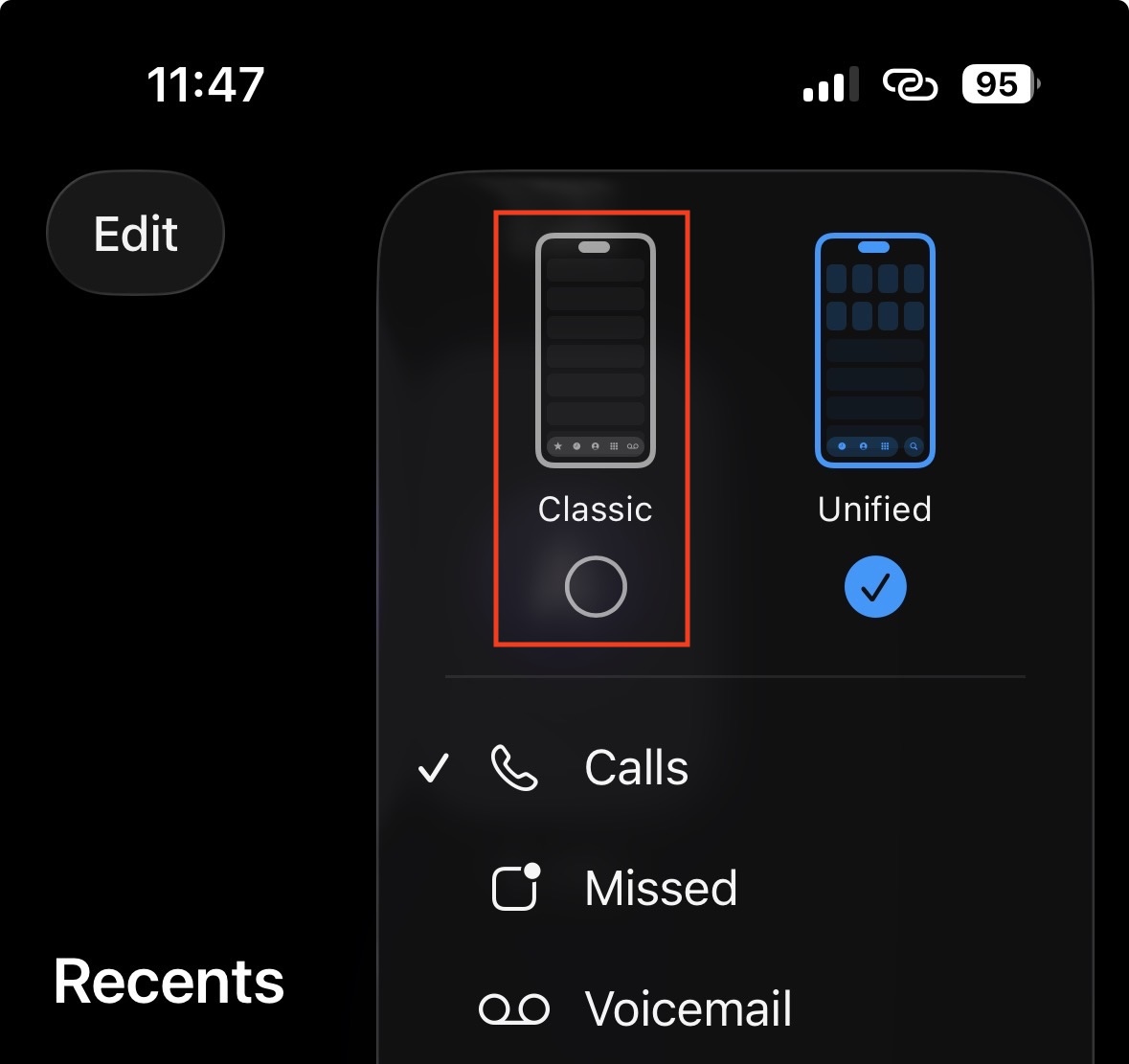
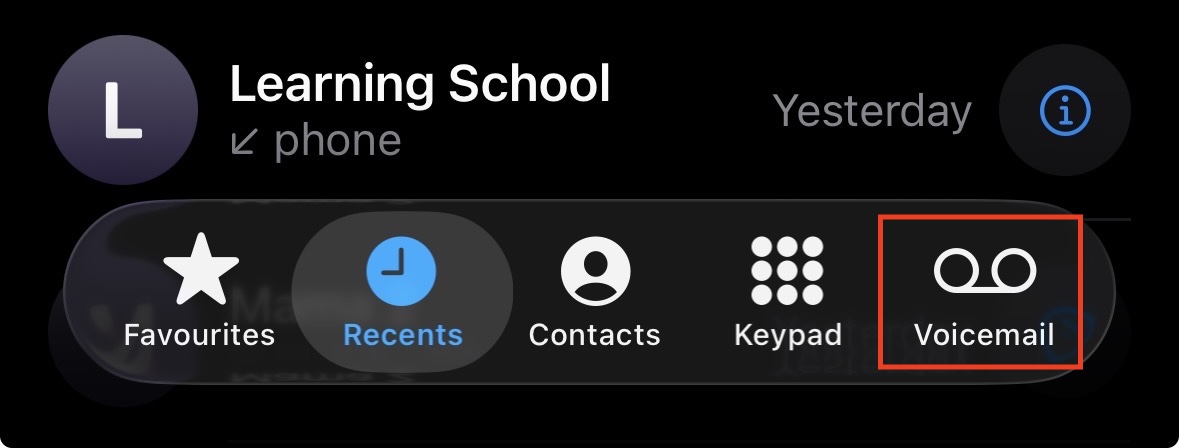
With the latest iOS 26 update, Apple introduced a new unified layout for the phone app in iPhones. This layout hides the voicemail tab, and the voicemail appears under the missed calls. However, you can fix it by reverting back to the classic layout which shows the voicemail tab. Here’s how you can do it:
- Open the Phone app on your iPhone.
- Tap on the Menu icon in the top right corner.

- Select Classic to switch to the classic layout.

- Once you do this, you will see the Voicemail tab on the bottom right corner.


2. Force Close Phone App and Toggle Airplane Mode
Before diving into complex resets, you should attempt to force the Phone app to “refresh” its connection to the cellular network. Often, the voicemail not showing after update bug is simply a UI glitch where the app is displaying cached data from before the update instead of fetching new data.
- Swipe up from the bottom of the screen and pause in the middle to open the App Switcher.
- Find the Phone app card and swipe it up vigorously to force close it.
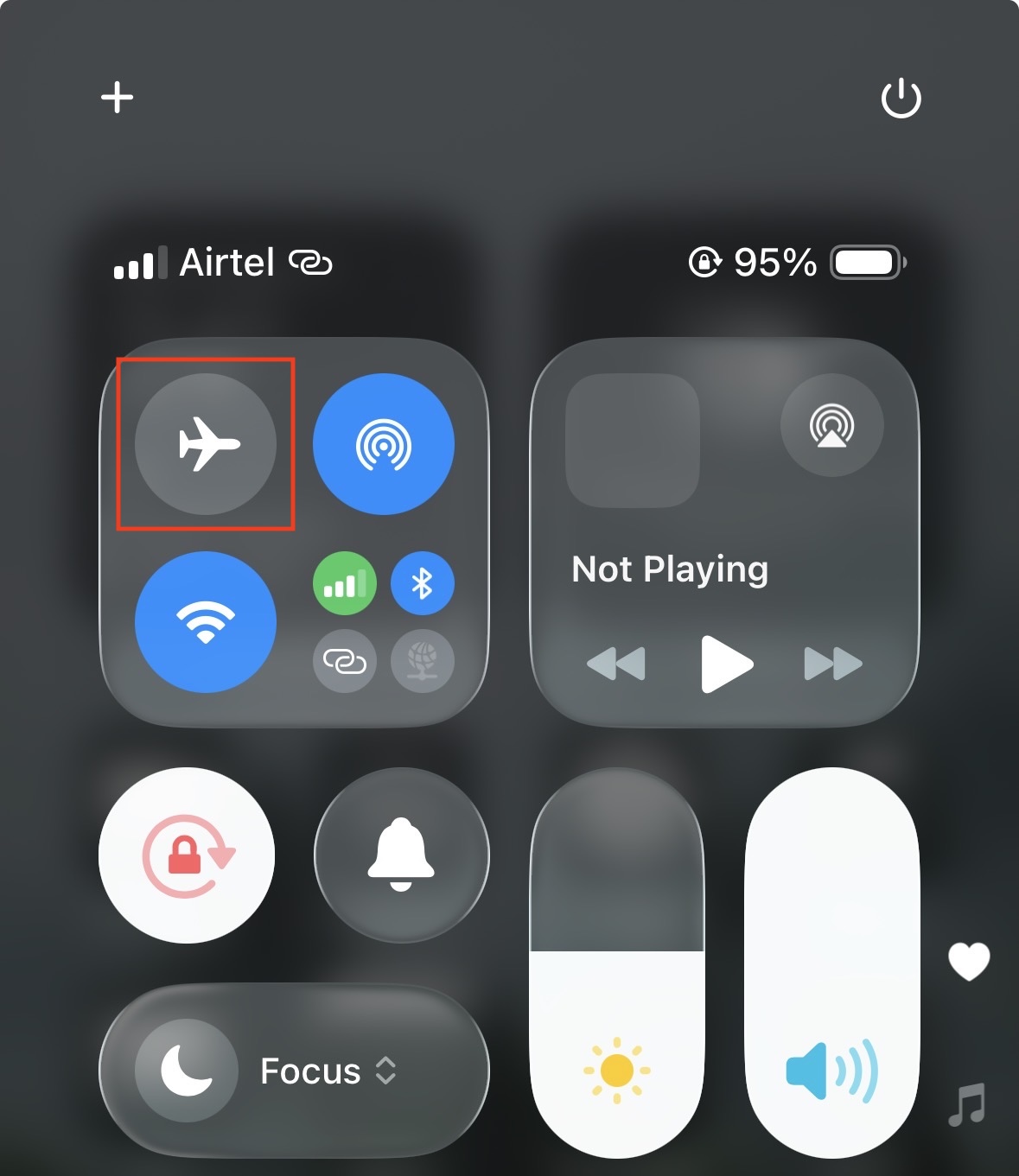
- Now, swipe down from the top-right corner to open the Control Center.
- Tap the Airplane Mode icon (the orange plane) to turn it on.

- Wait for at least 30 seconds. This is crucial as it forces the cellular modem to completely power down and disconnect from the nearest cell tower.
- Tap the icon again to turn it off.
- Watch the signal bars in the top corner. Once 5G or LTE reappears, open the Phone app and tap the Voicemail tab. Wait a few moments to see if the messages populate.
3. Check for a Carrier Settings Update
While you updated your iOS, you might not have updated the specific file that tells your iPhone how to talk to your carrier (Verizon, T-Mobile, AT&T, Jio, etc.). Carrier settings updates are separate from iOS system updates and are often required to fix missing voicemail iPhone iOS 26 compatibility issues.
- Make sure your iPhone is connected to Wi-Fi.
- Open the Settings app.
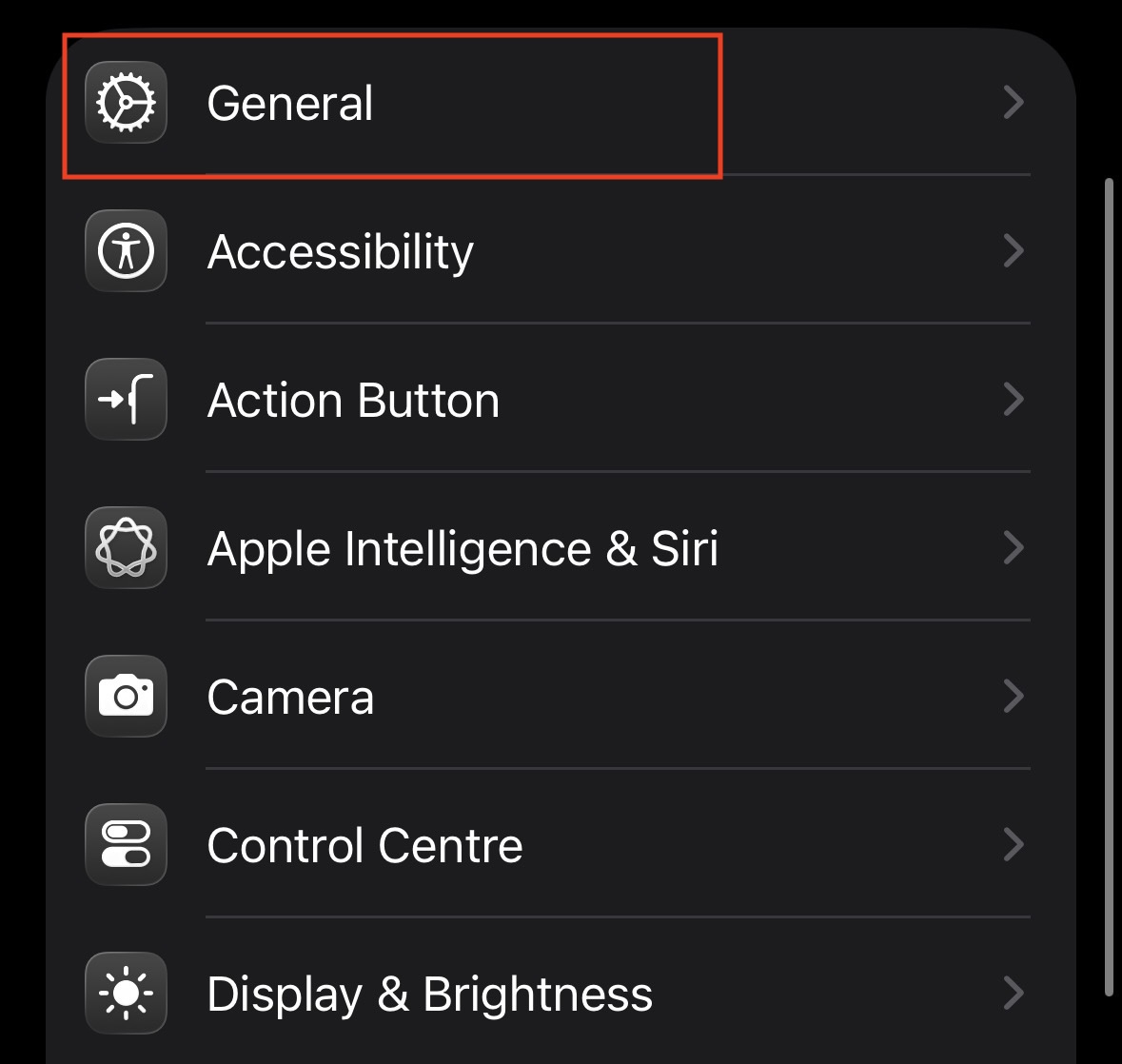
- Tap on General.

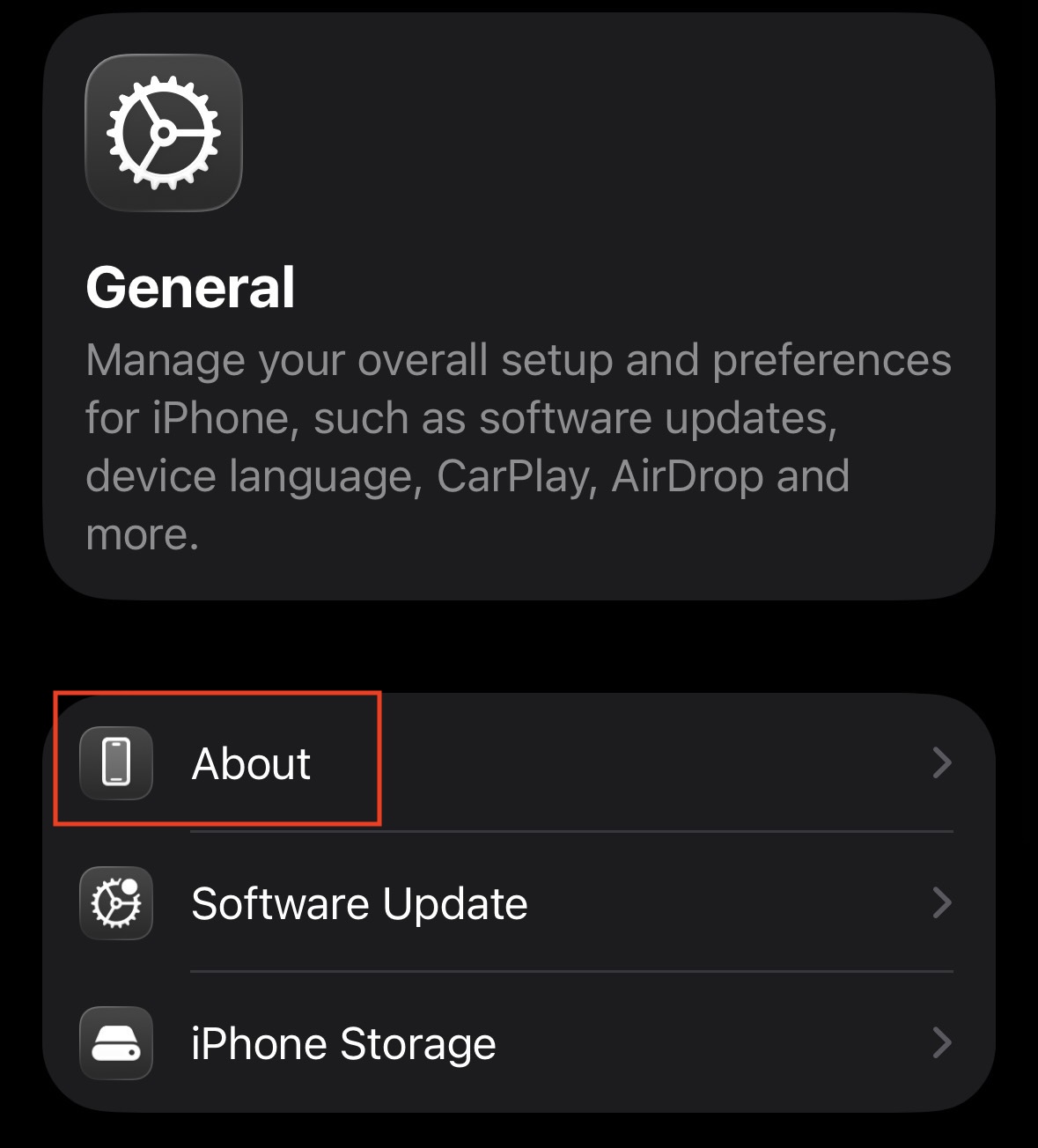
- Tap on About.

- Stay on this screen for about 15-30 seconds. Do not navigate away.
- If an update is available, a popup will appear saying “Carrier Settings Update: New settings are available. Would you like to update them now?”
- Tap Update.
- Once the version number next to “Carrier” changes, restart your iPhone. This often bridges the gap between the new OS and the old carrier protocols.
4. Toggle “Live Voicemail” Off and On
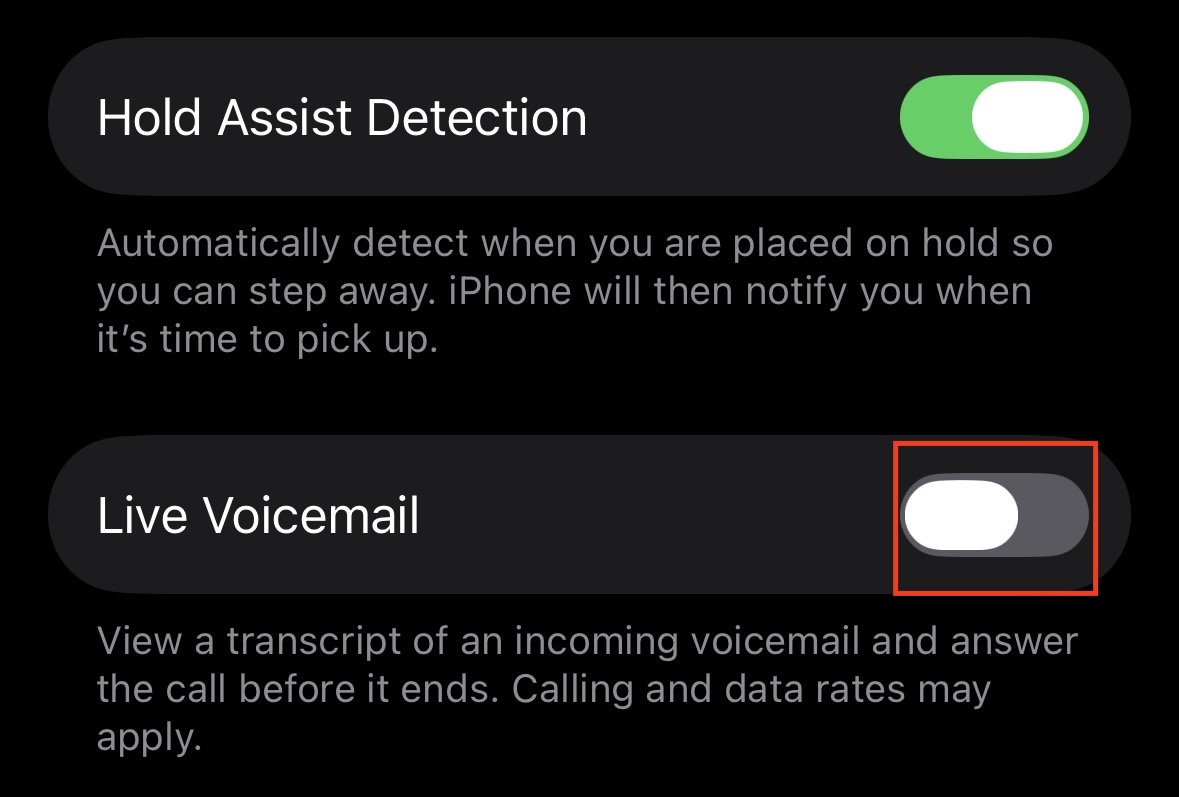
iOS 26 places a heavy emphasis on “Live Voicemail,” a feature that transcribes the message in real-time on your screen as the caller speaks. This feature intercepts the call before it reaches your carrier’s server. If this system glitches, it might be “holding” the voicemail on your device without displaying it, or failing to hand it off to the Visual Voicemail tab.
- Open Settings > Apps > Phone.
- Scroll down to find Live Voicemail.

- Toggle the switch to OFF.
- Wait a few moments, then restart your iPhone.
- Check your Voicemail tab. If the missing messages appear, they were likely stuck in the on-device processing queue.
- You can try turning Live Voicemail back ON later, but if the issue returns, keep it off until Apple releases a patch. This is a primary suspect when diagnosing why voicemail not showing after update.
5. Reset Network Settings (The Most Effective Fix)
If the connection between your device and the voicemail server is corrupted, no amount of toggling will fix it. You need to flush the networking configuration. Note that this will erase your saved Wi-Fi passwords and Bluetooth connections, but it is the most reliable way to fix missing voicemail iPhone iOS 26 errors.
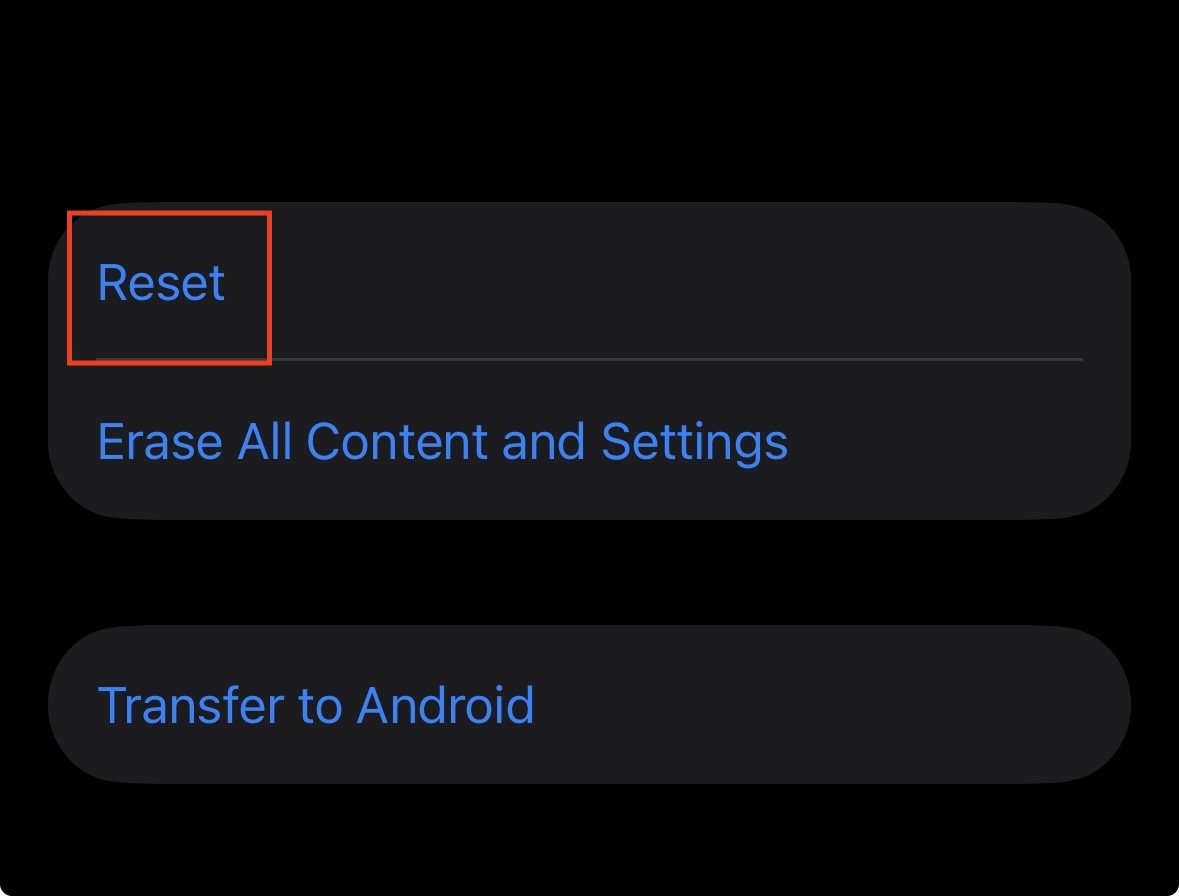
- Go to Settings > General.
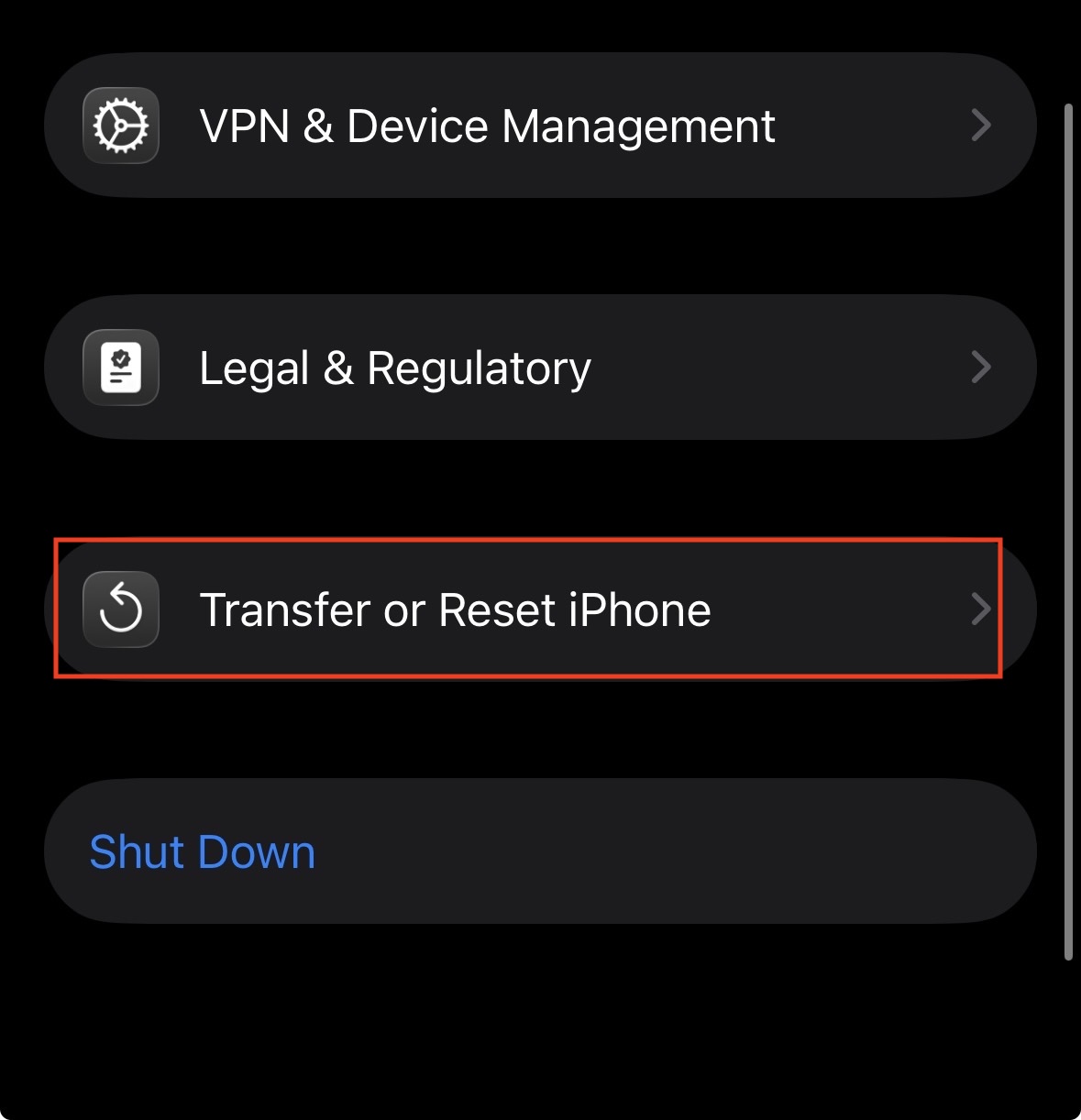
- Scroll to the bottom and tap Transfer or Reset iPhone.

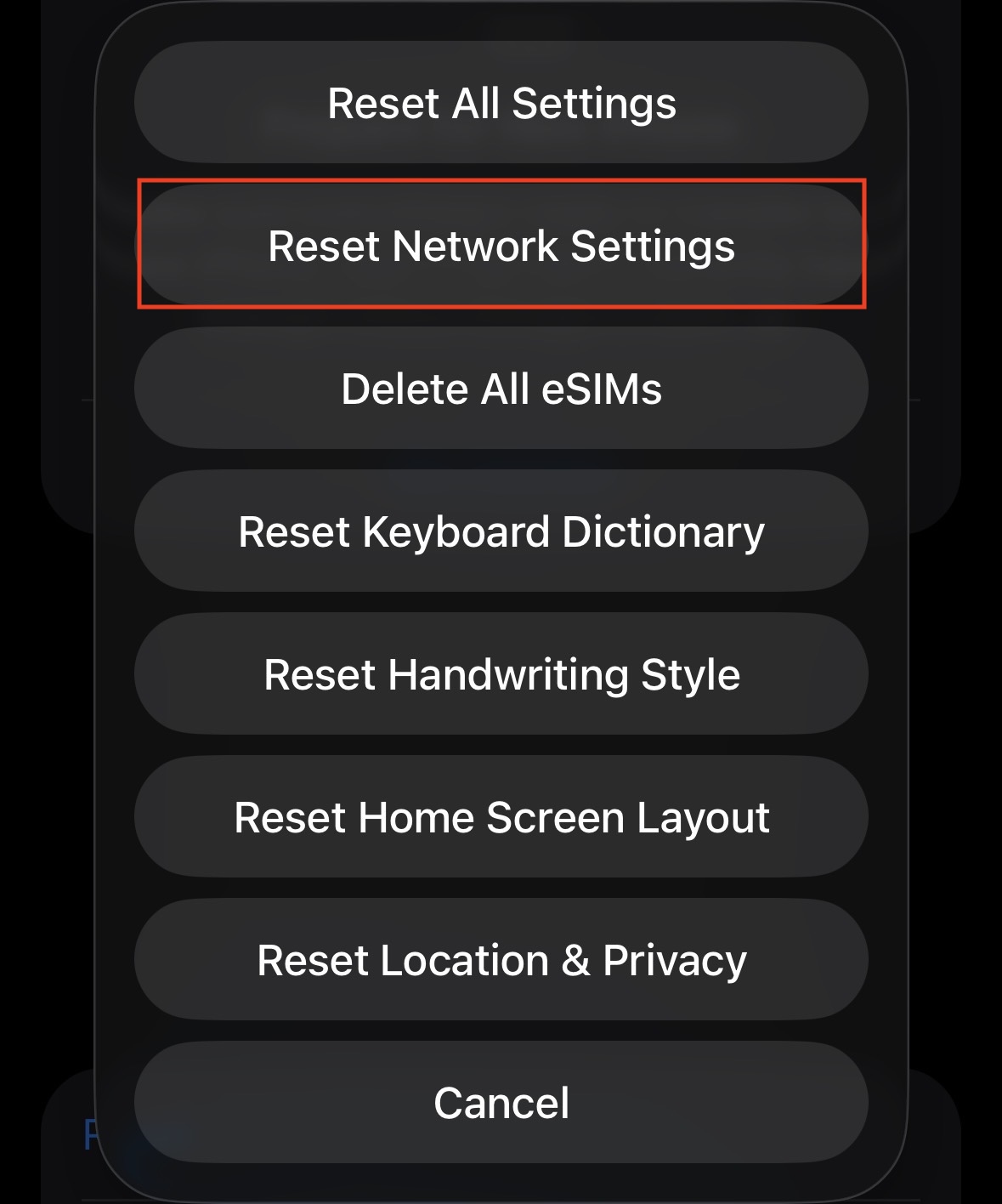
- Tap Reset.

- Select Reset Network Settings.

- Enter your passcode.
- Your iPhone will restart.
- Once it boots up, it will treat your cellular connection as “new.” It will request a fresh Visual Voicemail token from your carrier. Go to the Phone app, and you may see a “Setting up Visual Voicemail” message briefly before your inbox is restored.
6. Call Your Voicemail Manually
If Visual Voicemail is broken, you need to verify that the messages actually exist. This also helps “jumpstart” the visual interface.
- Open the Phone app.
- Tap on the Keypad tab.
- Press and hold the 1 key (or dial your own phone number).
- Enter your voicemail PIN if prompted.
- Listen to the menu commands. If the automated voice says “You have 3 new messages,” but your Visual Voicemail tab is empty, you have confirmed that this is a display sync issue, not data loss.
- Pro Tip: Sometimes, listening to and saving a message manually via the audio menu forces the Visual Voicemail list to refresh and sync, effectively solving the voicemail not showing after update glitch.
7. Verify “Blocked Messages” Folder
Sometimes, iOS 26’s spam filtering is too aggressive. It might categorize legitimate voicemails as spam or blocked content, hiding them from the main list.
- Open the Phone app.
- Tap on Voicemail.
- Scroll to the very bottom of the list.
- Look for a folder named Blocked Messages.
- Tap it to open. You might find “missing” voicemails here.
- If you find a legitimate message, tap it, then tap the “i” info icon, and select Unblock Caller to prevent this from happening again.
8. Disable Wi-Fi Calling Temporarily
Wi-Fi Calling is fantastic for audio quality, but it routes your calls over the internet rather than the cellular voice network. Some users have reported that after the iOS 26 update, voicemails left while on Wi-Fi Calling fail to download to the device until Wi-Fi is turned off.
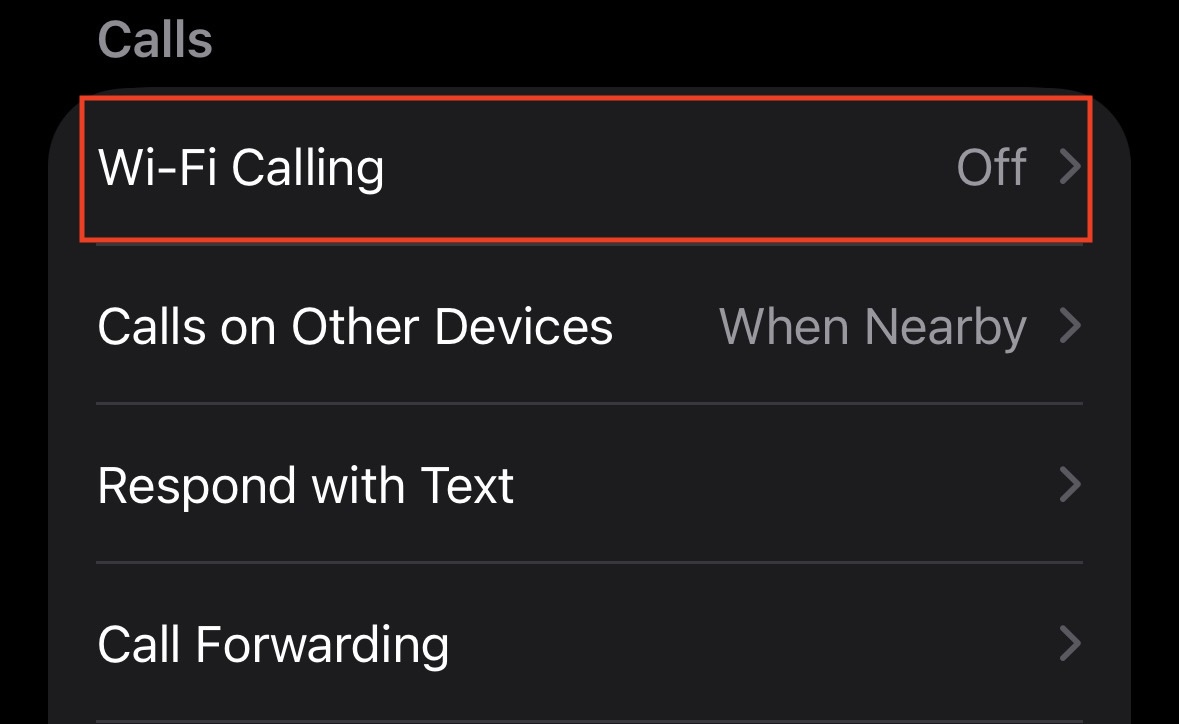
- Go to Settings > Apps > Phone.
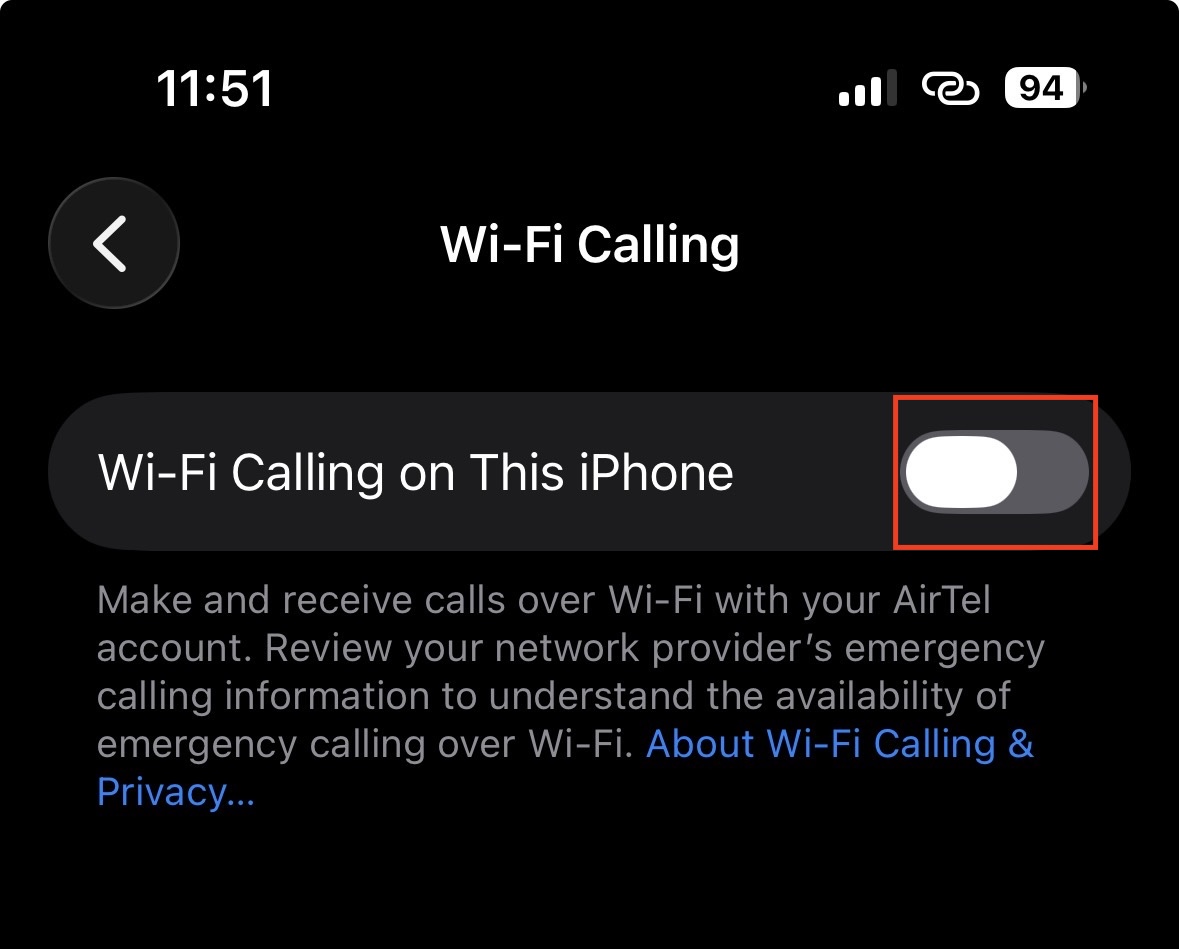
- Tap Wi-Fi Calling.

- Toggle Wi-Fi Calling on This iPhone to OFF.

- Turn off your Wi-Fi via Control Center so you are strictly on 5G/LTE.
- Ask someone to leave you a test voicemail.
- If it appears immediately, the issue is a conflict between your router’s firewall and the Visual Voicemail ports. You may need to leave Wi-Fi Calling off to ensure you don’t encounter voicemail not showing after update in the future.
9. Check Background App Refresh
Visual Voicemail requires background activity to fetch new audio files without you opening the app. If you operate in Low Power Mode constantly, this might be hindered.
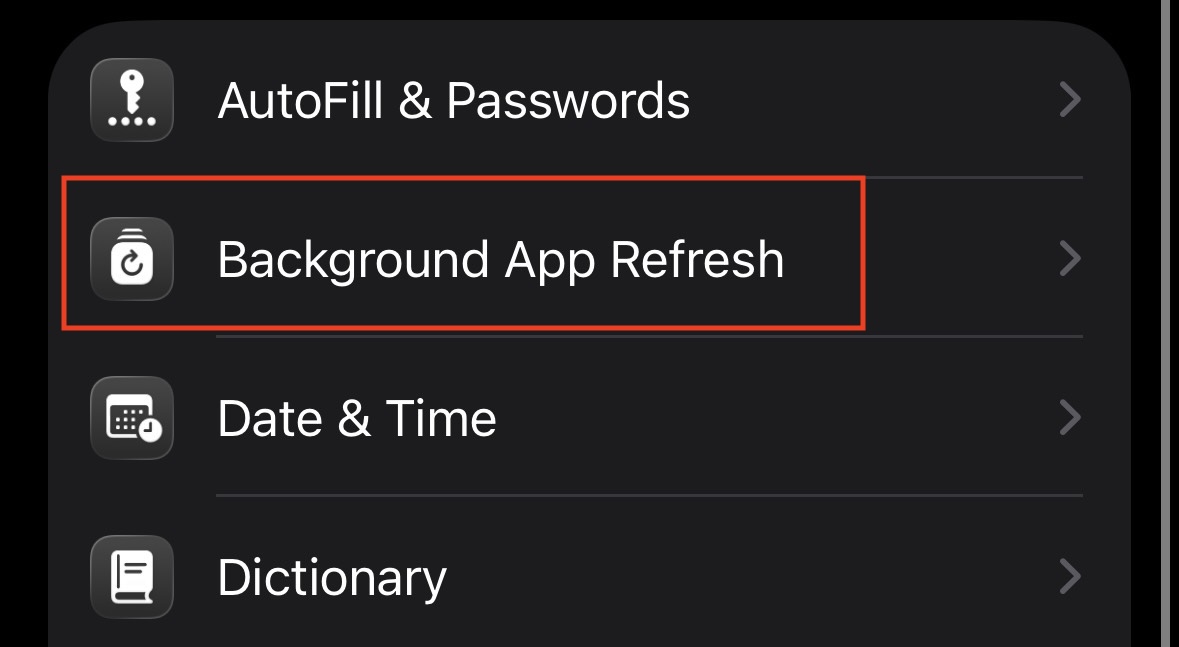
- Go to Settings > General > Background App Refresh.

- Ensure the master toggle is ON.
- While the Phone app isn’t explicitly listed here (as it’s a system app), ensuring the system has permission to fetch data in the background is vital.
- Also, ensure Low Power Mode (battery icon is yellow) is turned OFF while troubleshooting.
Final Words
The panic of opening your Phone app to find an empty Voicemail tab is a feeling no one enjoys, especially when you know you have missed calls. While the iOS 26 update brings many improvements, it clearly has some friction when it comes to legacy carrier protocols. The good news is that the data is almost never lost; it is just hidden behind a software curtain.
By methodically resetting your network connections, updating carrier settings, and ensuring features like Live Voicemail aren’t causing conflicts, you can usually fix missing voicemail iPhone iOS 26 bugs within minutes. Remember, if all else fails, your carrier’s support team can reset your voicemail mailbox from their end, a “hard reset” that clears out any server-side corruptions causing the voicemail not showing after the update error.
ALSO READ:
- How to Remove the Liquid Glass Effect from App Icons on iOS 26
- How to Turn Off or Disable iOS 26 Liquid Glass Design
- iOS 26 Alarm Not Going Off? 15 Fixes That Actually Work
- Xbox App Not Working on iPhone After iOS 26? Fix It Now
- iPhone 17 Pro Max Camera Blurry After iOS 26 Update? Full Step-by-Step Fix for Sharp Photos