- If your iPhone repeatedly shows an "Alarms Access is OFF" message, it might be due to a conflict between apps like Health and third-party applications that try to access your wake-up time. This issue often arises after an iOS update when system permissions get reset or misconfigured.
- To resolve this, start by checking the privacy settings in the Settings app. Make sure the Clock is allowed access under Privacy & Security, especially concerning Motion & Fitness or Sleep data. You can also toggle off the Sleep Schedule in the Health app and restart it to refresh the system permissions.
You pick up your iPhone to set an alarm for the next morning, or perhaps you are just glancing at your lock screen, and there it is: a persistent, annoying notification or gray overlay stating “Alarms Access is OFF.” You try to swipe it away, but it bounces back. Or you try to tap it, but it takes you nowhere. It hovers over your apps like a ghost, blocking buttons and ruining the clean aesthetic of your iOS interface. If you are reading this, you are likely stuck in this frustrating loop where your iPhone seems to have forgotten how to manage its own basic clock functions.
This error is particularly baffling because “Alarms” isn’t typically a permission you think about granting. Unlike the camera or microphone, the alarm clock is a core system function. So why is your iPhone claiming access is off? In 2026, with the complexity of iOS 26, this usually stems from a conflict between the Health App (Sleep Schedule), Focus Modes, and third-party apps trying to read your wake-up time to trigger automations. The system is trying to “handshake” data between these apps, failing, and getting stuck in a warning state.
If you are tired of seeing this message and just want your screen back, this guide is for you. We have analyzed the file system behavior and permission structures of the latest iOS builds to find the root cause. Below, we will walk you through how to fix alarms access off reminders iPhone issues, ranging from simple privacy toggles to resetting specific system dictionaries.
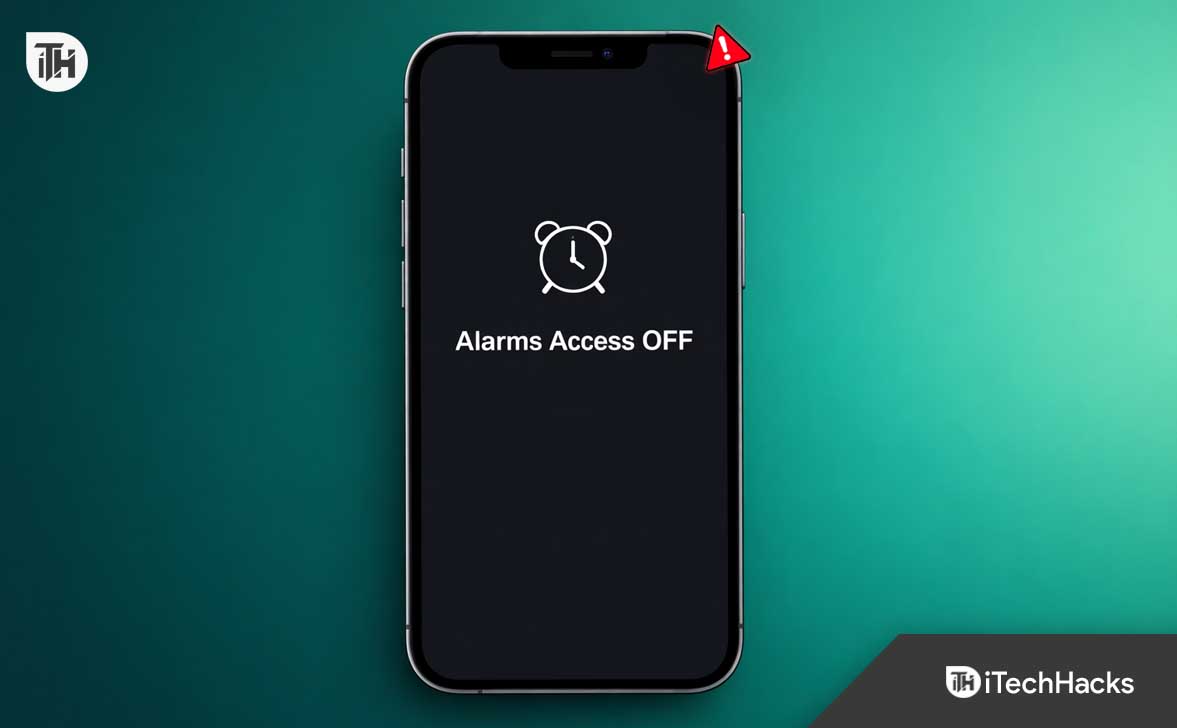
“Alarms Access Is OFF” Warning Not Going Away? Try These Fixes
This article will list various troubleshooting steps to help resolve the “Alarms Access is OFF” error that won’t disappear, focusing on privacy settings, Health app conflicts, and system resets.
1. Check Privacy & Security Settings (The Root Cause)
The most common reason for this error is that a specific system service or app has lost the privilege to read your Clock data. This often happens after a major iOS update where permissions are reset for security reasons. If you want to fix alarms access off reminders iPhone, you must verify the privacy layers first.
- Open the Settings app.
- Scroll down and tap on Privacy & Security.
- Look for Motion & Fitness or Health. (While it sounds unrelated, alarm data is often categorized under “Sleep” data here).
- Ensure that the Clock is toggled ON if it appears in any list.
- Crucial Step: Go back to the main Privacy menu and look for Focus. Tap it. Ensure that any apps listed here have the correct permissions. Often, a “Sleep” focus mode tries to read your alarm to turn itself off automatically. If this handshake is broken, the alarms access off not disappearing issue occurs.
2. Disable and Re-enable Sleep Schedule
The integration between the Clock app and the Health app’s “Sleep Schedule” is the number one suspect. The iPhone tries to sync your “Wake Up” alarm with your health data. If the Health app loses “Access” to the alarm function, it triggers the persistent message.
- Open the Health app.
- Tap on the Browse tab and select Sleep.
- Scroll down to Your Schedule.
- Tap Full Schedule & Options.
- Toggle “Sleep Schedule” to OFF.
- Wait for 10-15 seconds.
- Now, open the Clock app. Go to the Alarm tab. You should see that the “Sleep/Wake Up” alarm is gone.
- Force close both apps (swipe up from the bottom of the screen and pause, then swipe the apps away).
- Restart your iPhone.
- Once restarted, go back to Health and turn the schedule back on. This forces the system to re-request permission, often resolving the alarms access off not disappearing glitch.
3. Force Restart the iPhone (Clear the Cache)
Sometimes, the message is simply a “UI Ghost”—a graphical element that the system thinks it has already dismissed, but the display driver is still rendering. A simple reboot might not clear this cache, but a Force Restart will.
- Press and quickly release the Volume Up button.
- Press and quickly release the Volume Down button.
- Press and hold the Side Power Button.
- Keep holding until the screen goes black and the Apple logo appears (this usually takes about 10-15 seconds).
- Release the button.
- This cuts power to the logic board and forces the iOS kernel to reload all UI elements from scratch, which is highly effective if you see the alarms access off not disappearing from your lock screen.
4. Check Siri & Search Suggestions
iOS uses on-device intelligence (Siri) to suggest alarms or reminders based on your habits. If Siri’s access to the Clock app is corrupted, it can throw an “Access is OFF” error when it tries to display a suggestion on your lock screen or in Spotlight search.
- Open Settings > Siri & Search.
- Scroll down the list of apps until you find Clock.
- Tap on it.
- Toggle OFF the following:
- Show App in Search
- Show Content in Search
- Suggest App
- Suggestion Notifications
- Repeat this process for the Health app and the Reminders app.
- Restart your iPhone.
- If the message disappears, you can try turning these settings back on one by one. This is a proven method to fix alarms access off reminders iPhone errors caused by the recommendation engine.
5. Remove Third-Party Alarm/Sleep Apps
Are you using apps like Sleep Cycle, Rise, or a smart home app that triggers lights when your alarm goes off? These apps use a specific API to “listen” for your alarm. If you updated the app or iOS recently, that permission might be revoked, causing the app to panic and spam the system with “Access is OFF” alerts.
- Identify any third-party app that interacts with your sleep or alarms.
- Long press the app icon and select Remove App > Delete App.
- Note: Do not just remove it from the Home Screen; delete it fully.
- Check if the error message vanishes.
- If it does, reinstall the app. Upon opening it for the first time, it will explicitly ask for permission to access Motion/Fitness or Alarms. Grant it carefully. This fresh installation clears the “stale” permission token that was causing the alarms access off not disappearing loop.
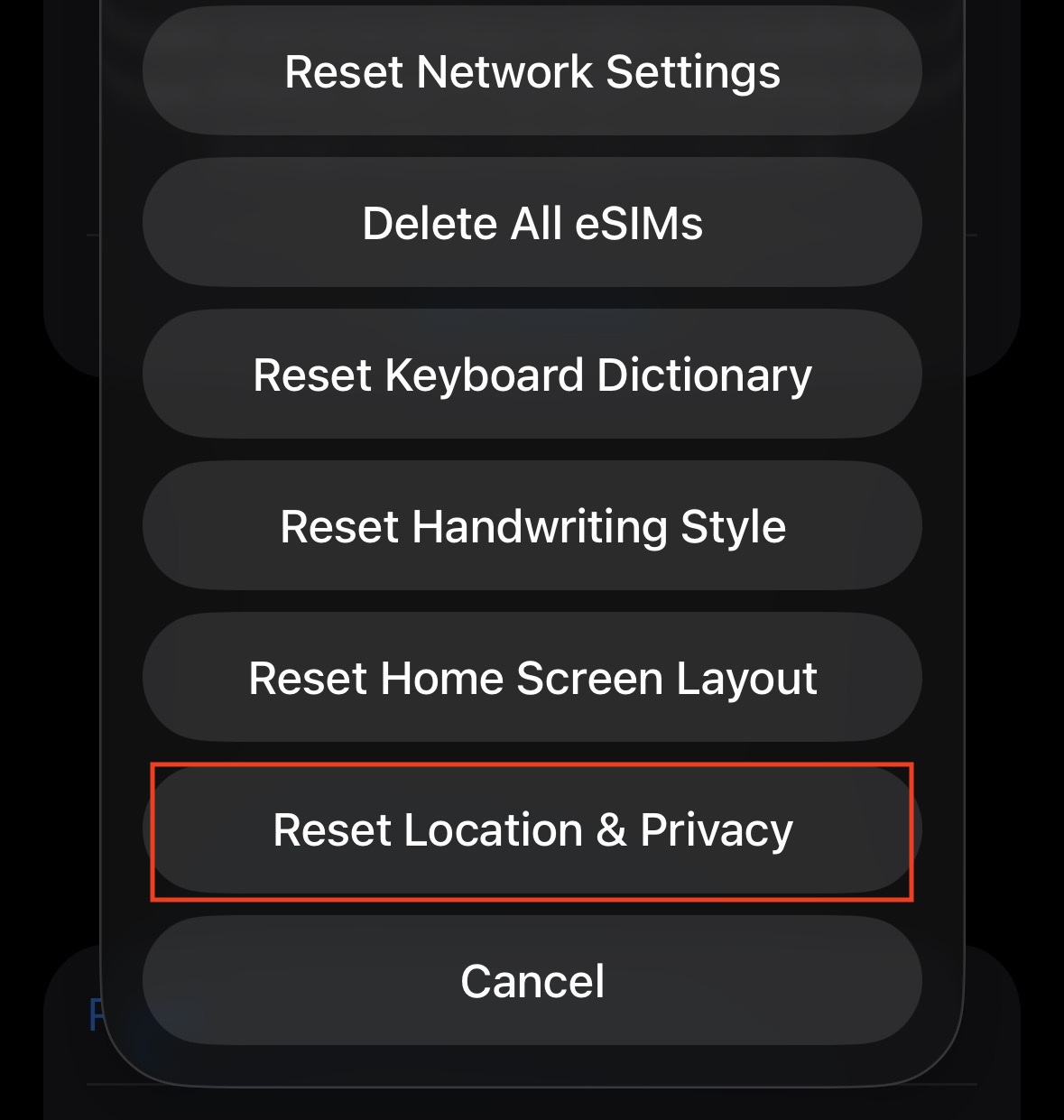
6. Reset Location & Privacy Settings
If the message persists despite all the above steps, the privacy configuration file in your iOS installation is likely corrupted. You need to reset the location and privacy settings to their factory defaults. This will not delete your photos or apps, but it will force every single app to ask for permission (Camera, Microphone, Photos, Location) again.
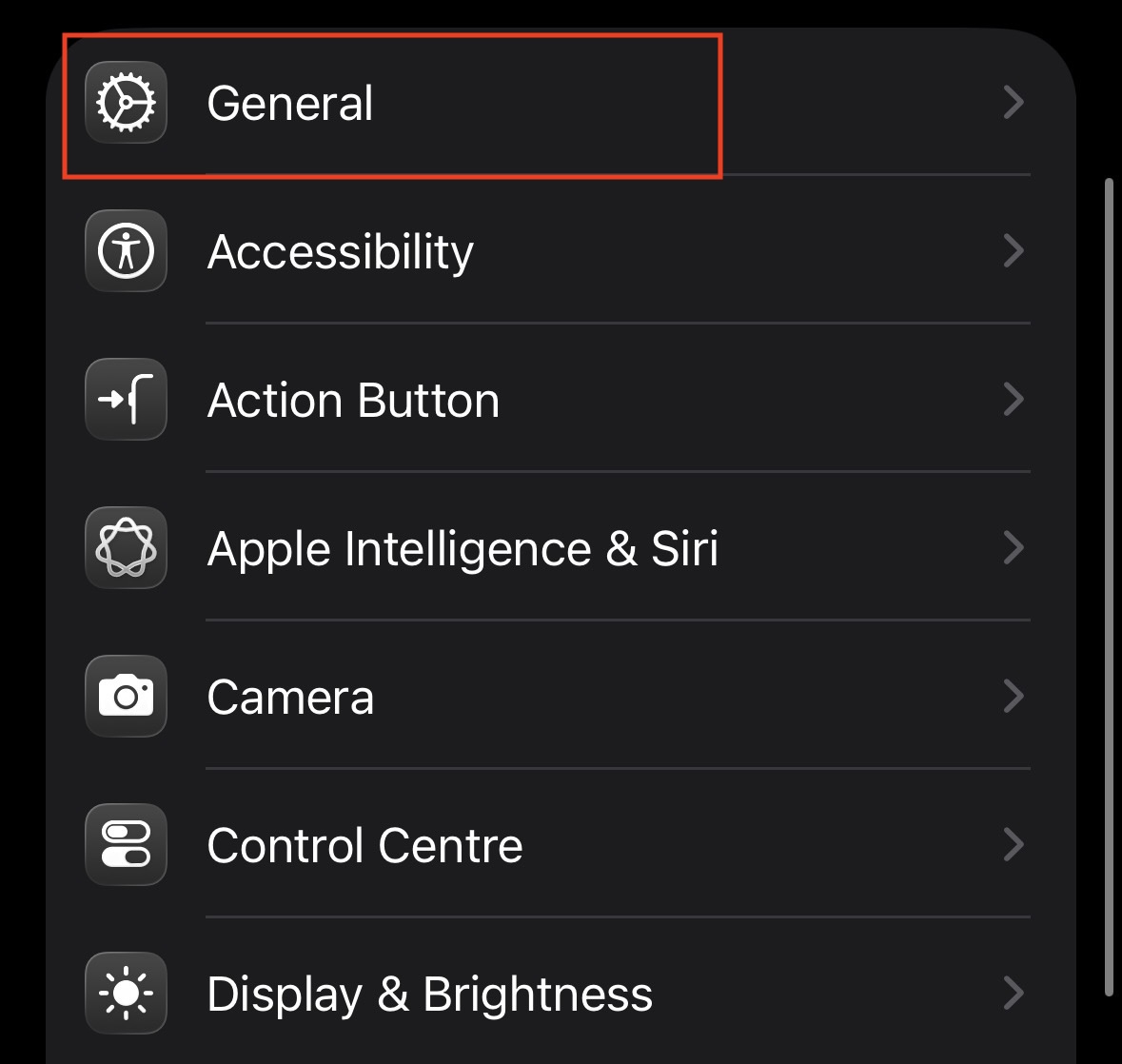
- Go to Settings > General.

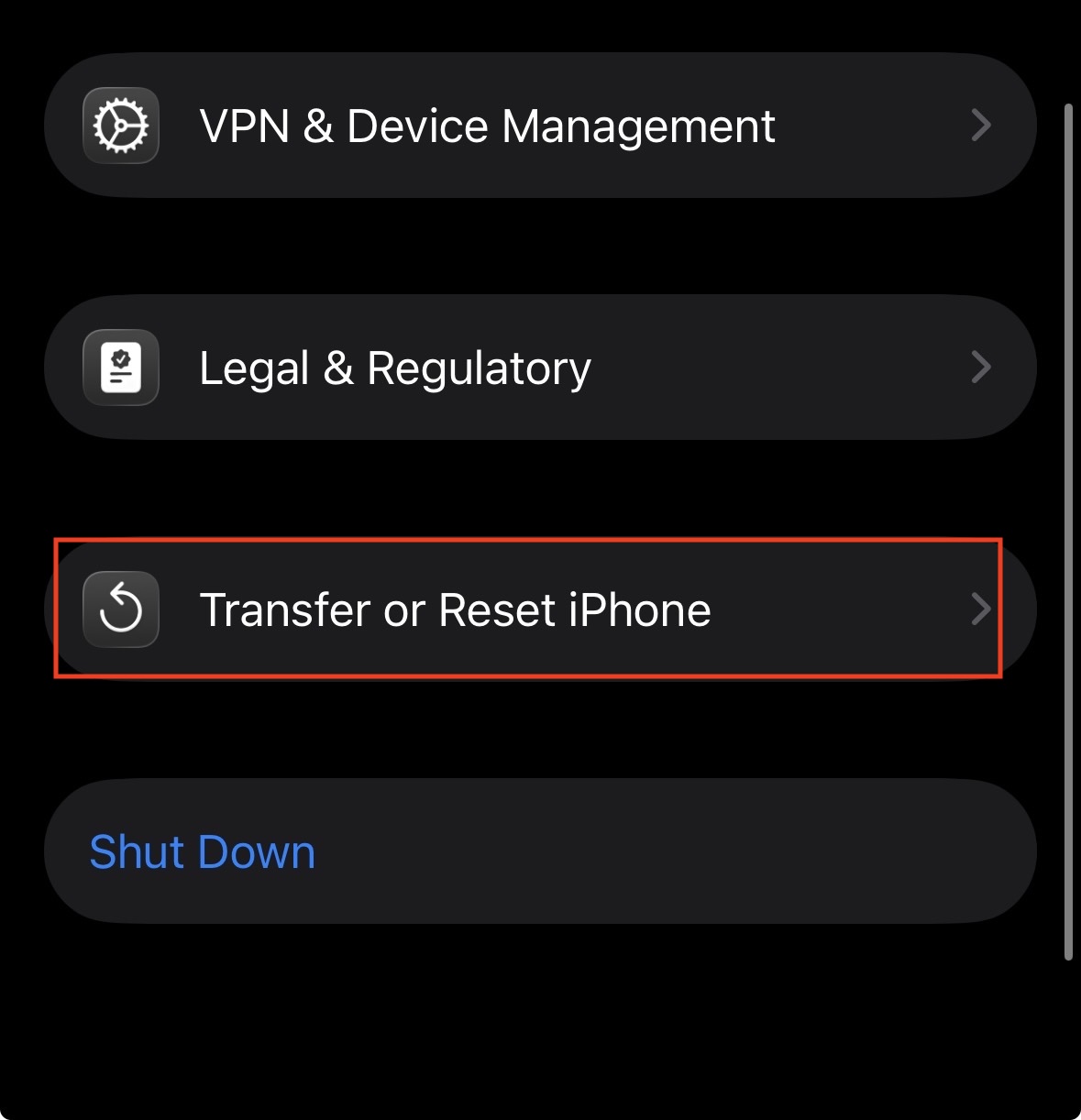
- Scroll to the bottom and tap Transfer or Reset iPhone.

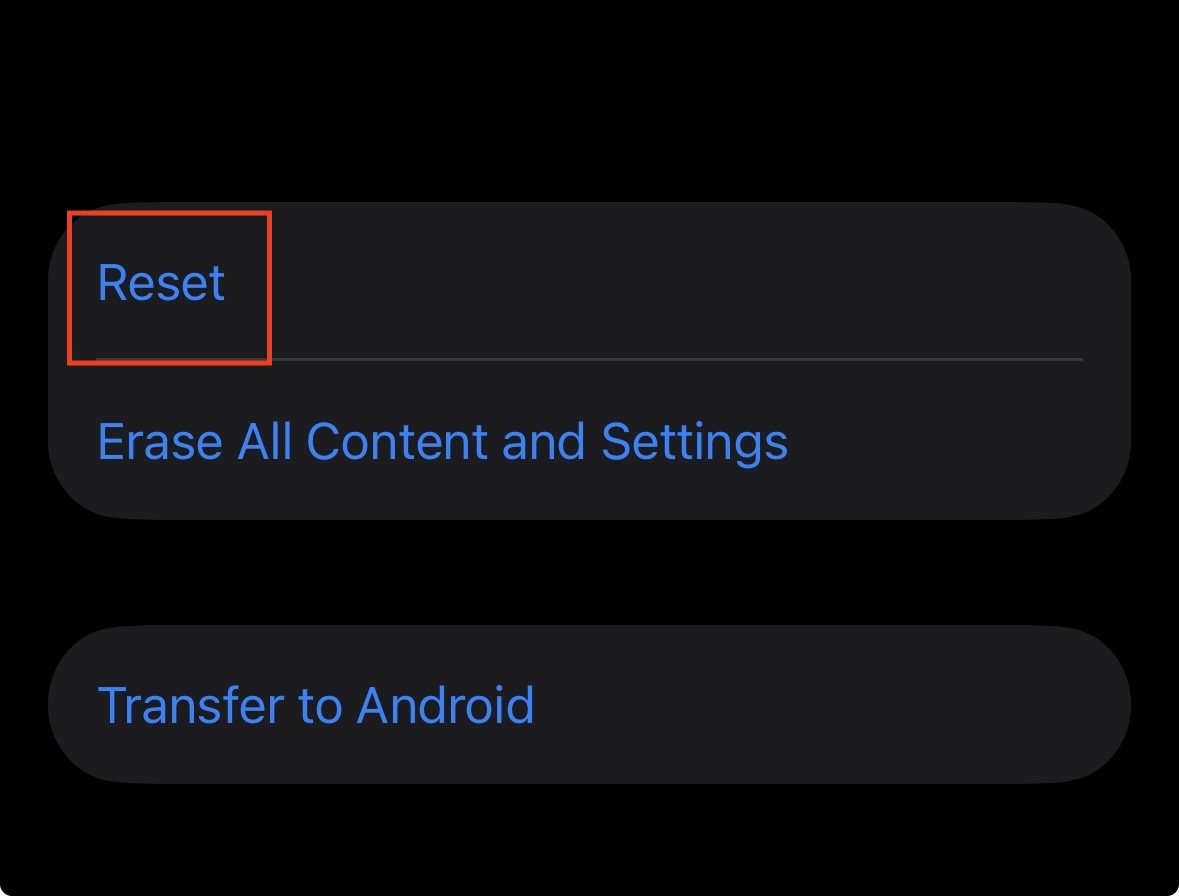
- Tap Reset.

- Select Reset Location & Privacy.

- Enter your passcode.
- Confirm the reset.
- After the phone reboots, open the Clock app. You might get a prompt asking for permission (which shouldn’t happen normally, but might in this reset state). This hard reset is often the only way to fix alarms access off reminders iPhone issues that have persisted for weeks.
7. Update iOS Firmware
Sometimes, this error is a genuine bug in the operating system code, specifically within the “SpringBoard” (the software that manages the home screen and notifications). Apple patches these UI glitches in point updates.
- Go to Settings > General.
- Tap Software Update.
- If you are on iOS 26.0, look for an update to 26.1 or higher. Even a small “security response” update can refresh the system files responsible for displaying these alerts.
- If you are on a Beta version of iOS, this error is very common. The only fix is often to roll back to a stable public release or wait for the next beta patch.
8. Delete and Recreate the “Sleep” Focus Mode
If the error specifically appears when your phone goes into “Sleep” mode at night, the Focus profile itself is corrupted.
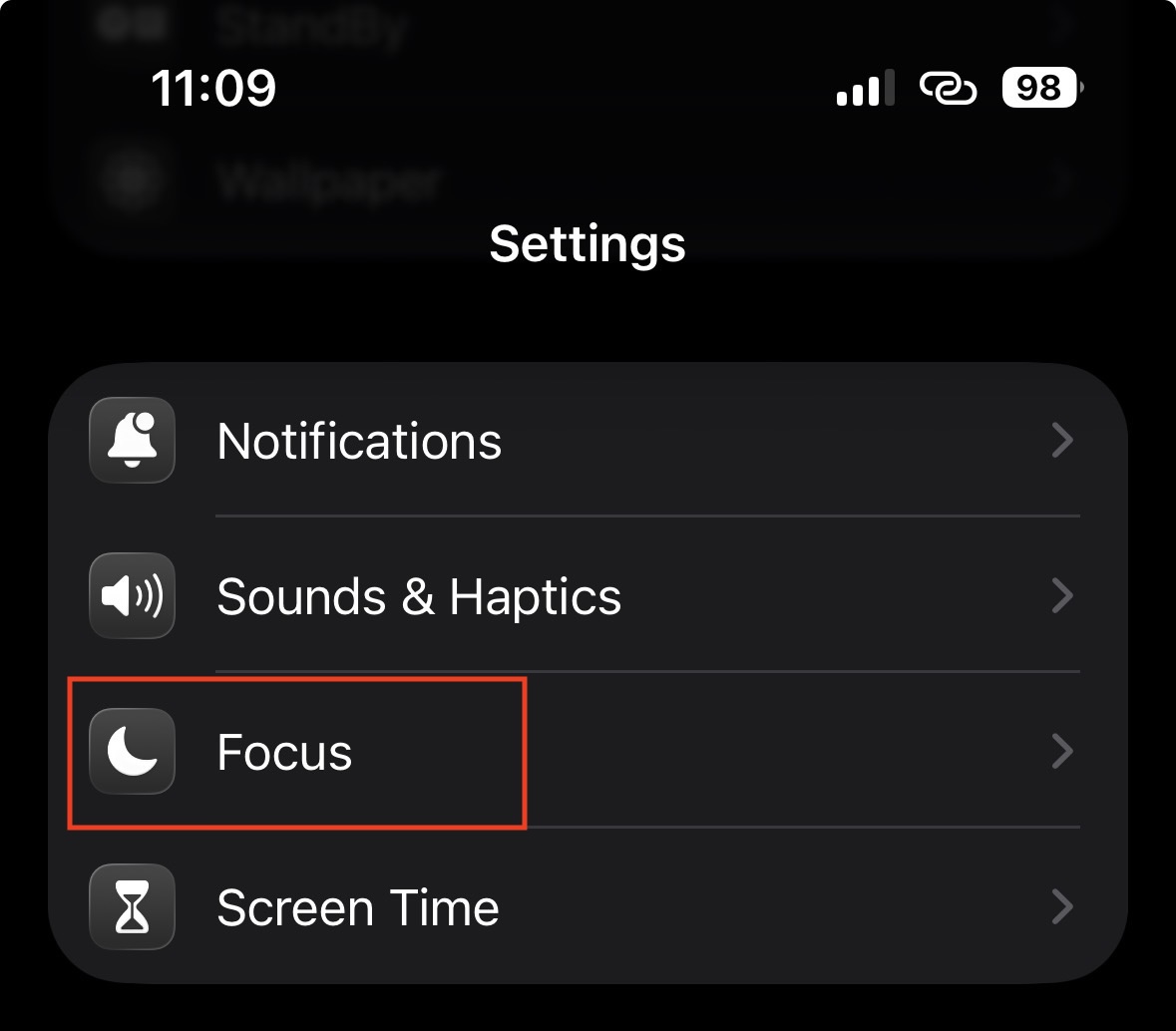
- Go to Settings > Focus.

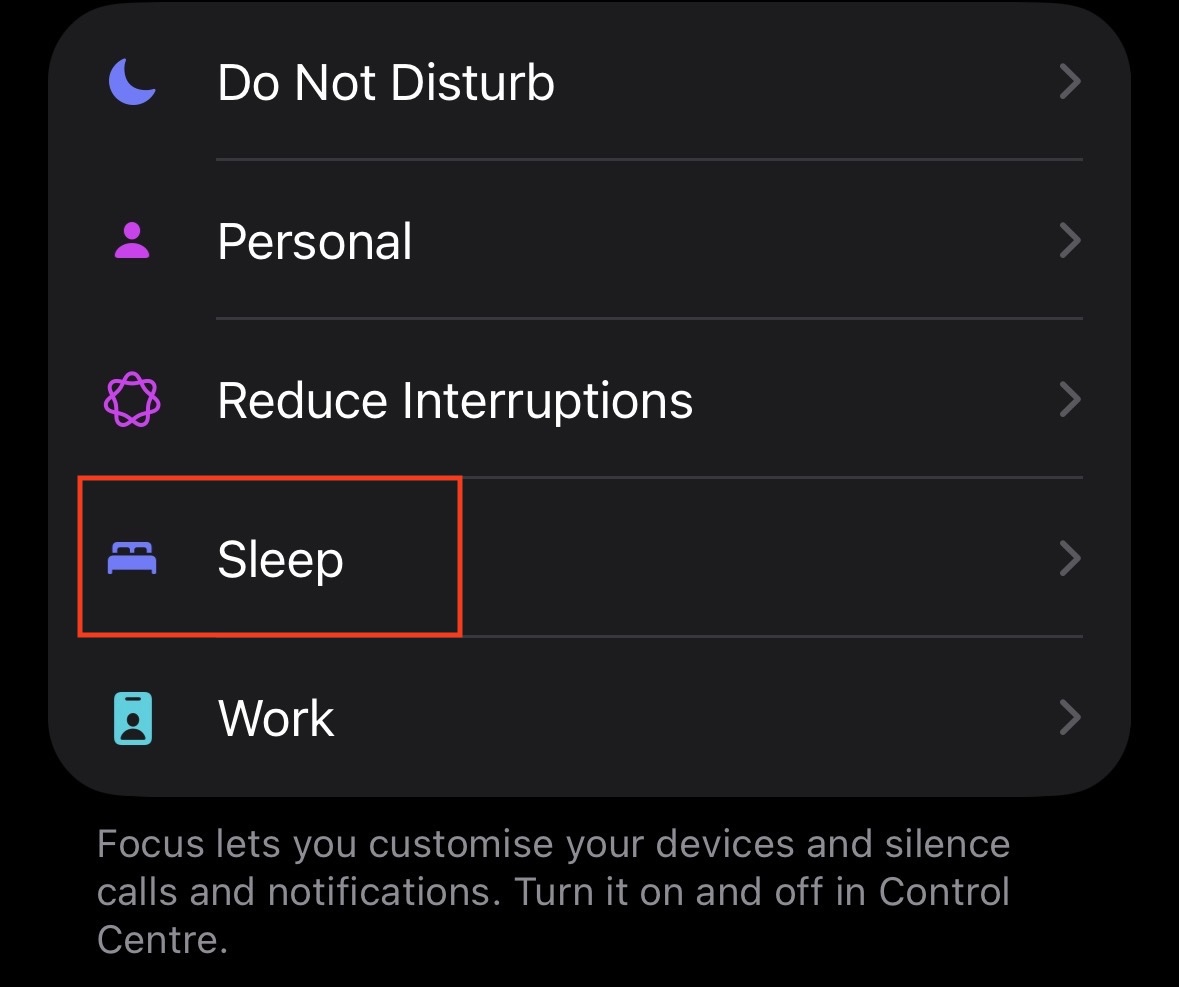
- Tap on Sleep.

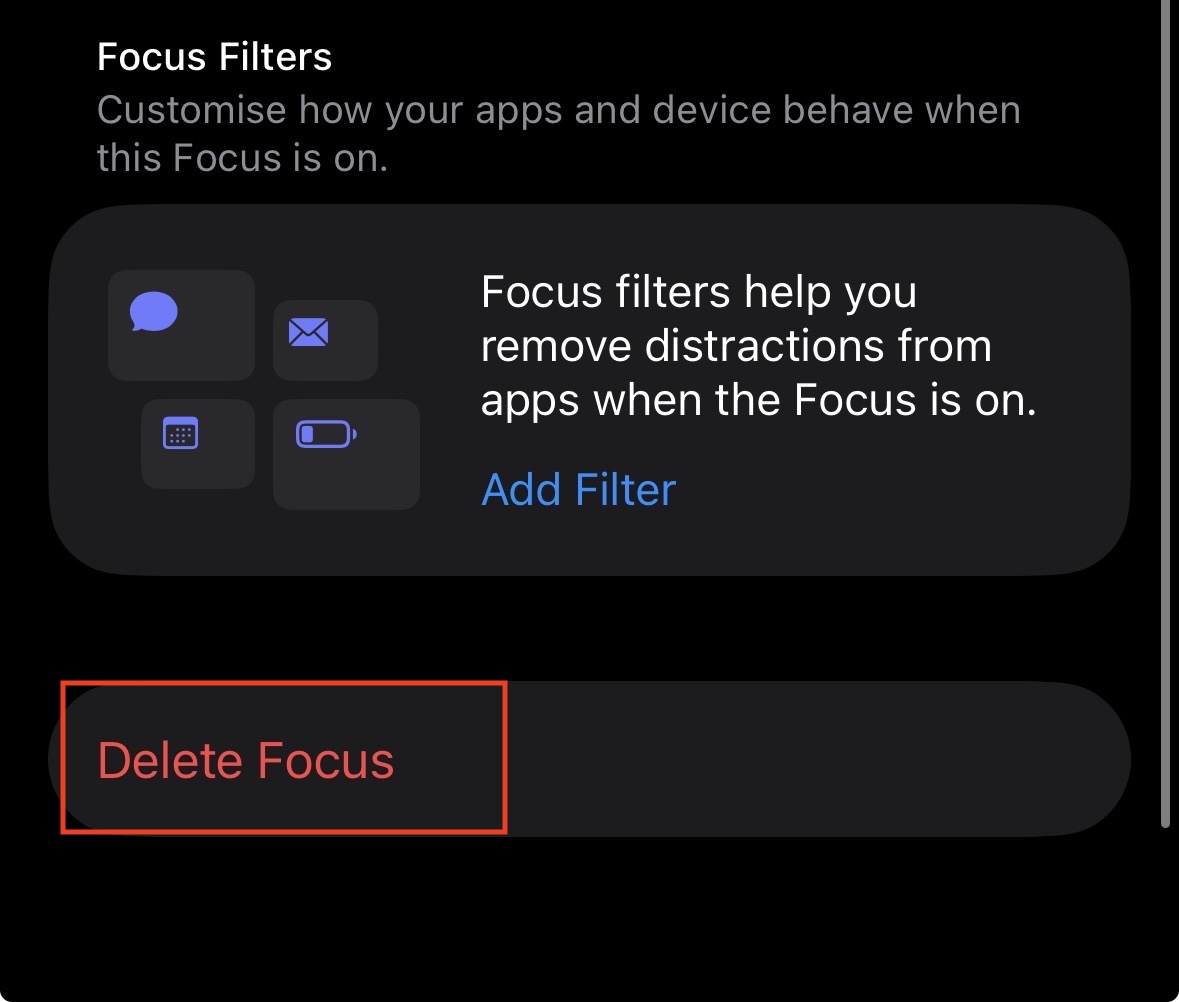
- Scroll to the bottom and tap Delete Focus.

- Confirm deletion.
- Restart your iPhone.
- Go back to Settings > Focus and tap the + (Plus) icon to create a new Sleep Focus.
- Re-setting this up from scratch ensures the link between the Focus mode and the Lock Screen alarm widget is fresh, resolving the alarm’s access not disappearing bug.
Final Words
The “Alarms Access is OFF” message is more than just a visual annoyance; it is a sign that the delicate web of permissions between your Health, Clock, and Focus systems has tangled. It is rarely a hardware issue. By methodically resetting the privacy permissions, refreshing the Sleep Schedule, and clearing the cache via a Force Restart, you can usually banish this ghost from your screen.
Remember, modern iOS is designed to protect your data, and sometimes it gets too protective, locking out its own system apps from talking to each other. The steps above are designed to force the system to re-verify those handshakes. Once you fix alarms access off reminders iPhone issues, you can go back to sleeping soundly, knowing your alarm will actually go off when it’s supposed to.
ALSO READ:
- How to Cancel Or Delete Alarms on Android or iPhone
- iOS 26 Alarm Not Going Off? 15 Fixes That Actually Work in 2026
- How to Remove the Liquid Glass Effect from App Icons on iOS 26
- iPhone 17 Bluetooth Not Working After Update? Try These Fixes
- Fix: Microsoft Teams Keeps Asking Me to Sign In with Old Account