- Apple's iOS 26 introduced "Liquid Glass" icons with a 3D look, which may seem fancy to some users but can be distracting, hard to read, and use more battery power.
- To bring back a cleaner, flat interface, you can switch to the "Classic" icon style through the home screen settings or reduce transparency and motion effects in Accessibility settings for better readability and performance.
- Enabling Low Power Mode is a quick way to temporarily turn off the Liquid Glass effects, making your iPhone's icons less shiny and extending battery life, especially on older phones.
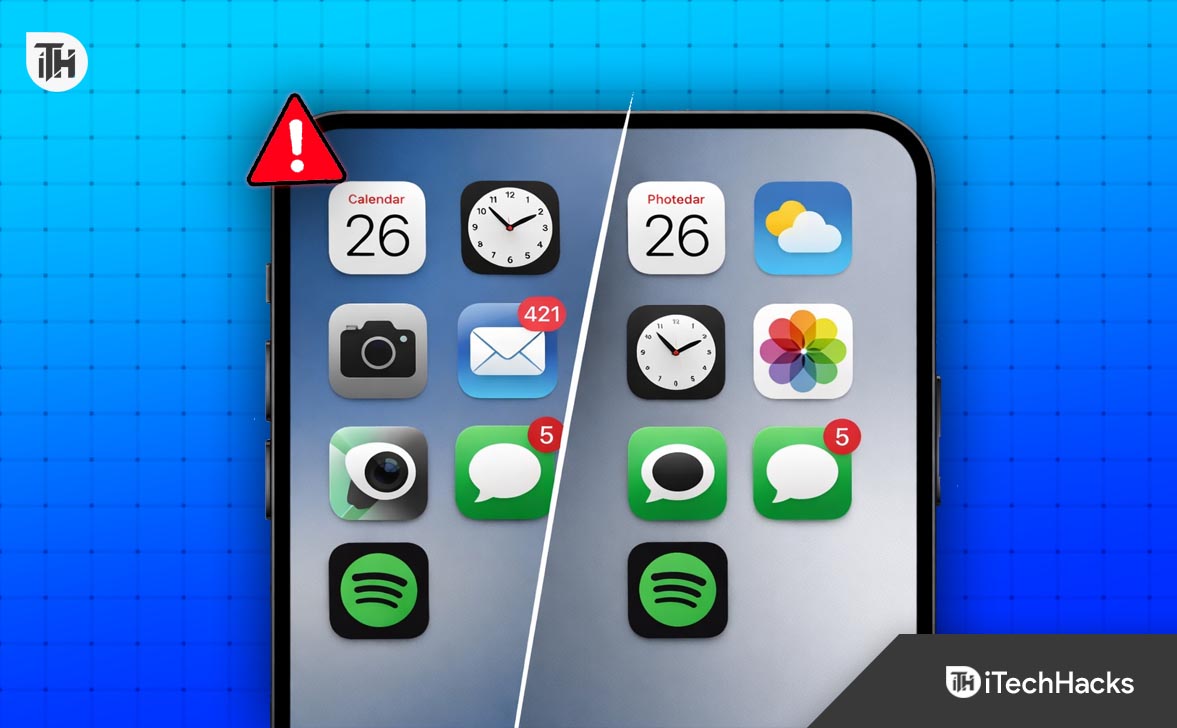
Apple’s iOS 26 introduced the “Liquid Glass UI” and its signature Liquid Glass icons, replacing the flat design of the past decade with refractive, 3D textures. While this new look adds a premium feel for some, many users find the shimmering edges and motion effects distracting, difficult to read, or a drain on battery life.
If you are searching for this article, you are likely looking for a way to turn off this new aesthetic and return to a cleaner, flatter interface. This guide will help you by walking you through the simple steps to remove the liquid glass look from the app icons in iOS 26.
Why Remove the Liquid Glass Look?
If you don’t know why you might want to remove the liquid glass look, you can follow this article’s explanations. We have discussed the reasons for disabling the liquid glass look on iOS 26 below.
Understanding the technology behind the look helps explain why it might be problematic for some users. iOS 26 uses a rendering technique called “Volumetric Iconography.” Unlike previous icons, which were static images, Liquid Glass icons are essentially small 3D models with active lighting layers.
There are several reasons why you might want to disable this feature. It is not just about taste; for many, it is about usability and performance.
- Visual Accessibility & Readability: The key issue with the “Liquid Glass” aesthetic is contrast. The refractive edges and dynamic lighting can sometimes obscure the glyph (the symbol) inside the icon, especially outdoors under bright sunlight or for users with visual impairments. A flat icon offers consistent, high-contrast legibility that glass textures simply cannot match.
- Motion Sensitivity: The “Liquid” part of the name refers to the subtle parallax effect where the “liquid” inside the glass appears to move as you tilt the phone. For users prone to vestibular disorders or motion sickness, this constant, subtle wiggling on the home screen can trigger dizziness or nausea.
- Battery Preservation: Rendering real-time light physics on 24+ icons on a home screen requires constant GPU engagement. While the A-series chips are efficient, disabling these complex shaders can noticeably improve screen-on time, especially on models that are a few years old.
- Minimalism: Trends are cyclical. After years of flat design, Apple moved to depth. But many users have cultivated a minimalist digital workspace. The shiny, gem-like appearance of iOS 26 can clash with minimal wallpapers and simple setups, creating a sense of digital clutter.
How to Remove Liquid Glass Look from App Icons?
You can remove or minimize the liquid glass effect using various system settings and customization tools found in iOS 26. To fix the icon appearance, follow the steps given below:
1. Switch to “Classic” Icon Style
Apple anticipated that the Liquid Glass UI overhaul would be controversial, so they included the option to switch back to the classic icon style. Here’s how you can switch back to Classic icon style on your iPhone:
- Long-press the Home Screen on your iPhone.
- Tap the Edit option in the top-left corner.

- Now, tap on the Customize option.

- From here, select the Default or Dark option.


2. Enable “Reduce Transparency.”
If you like the shape of the new icons but hate the shimmering, distracting “glass” effect, you can use Accessibility settings to flatten the textures without changing the entire icon pack. This disables the GPU-heavy light rendering. To enable this setting, follow the steps given below-
- Launch the Settings app.
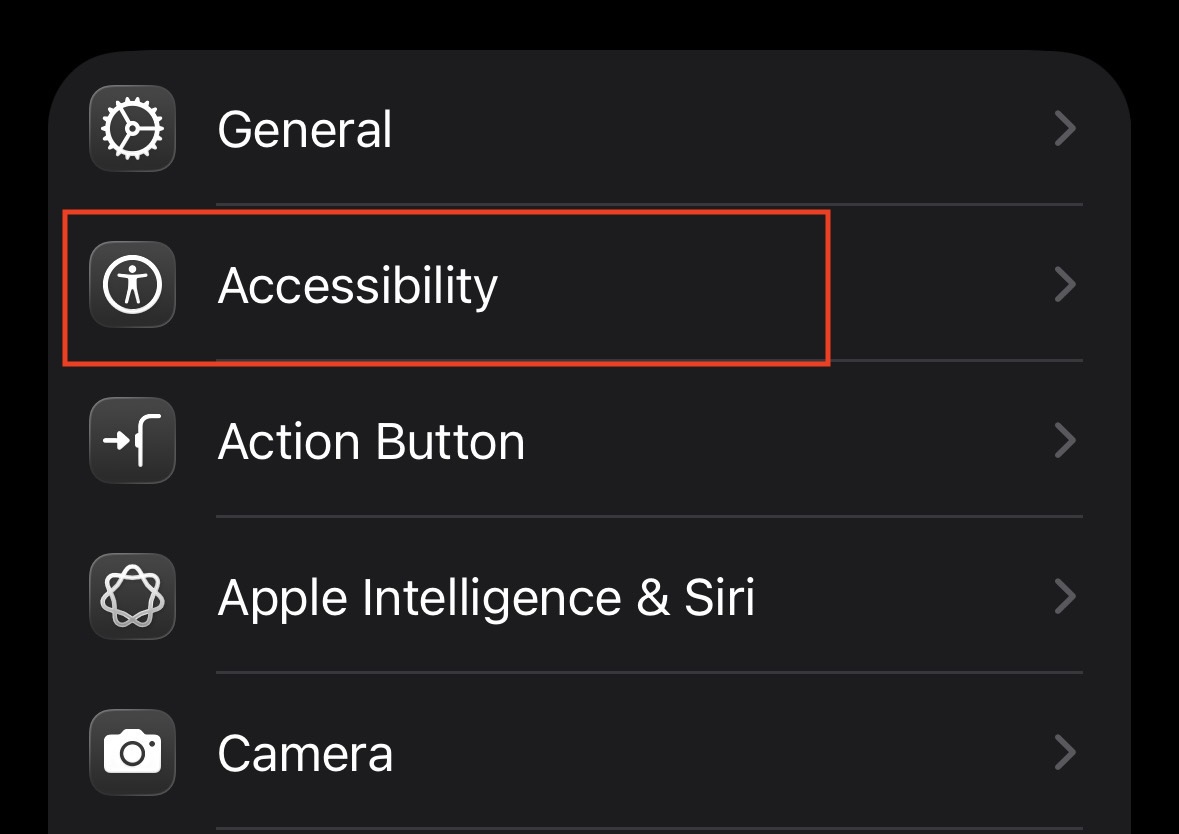
- Scroll down and tap on Accessibility.

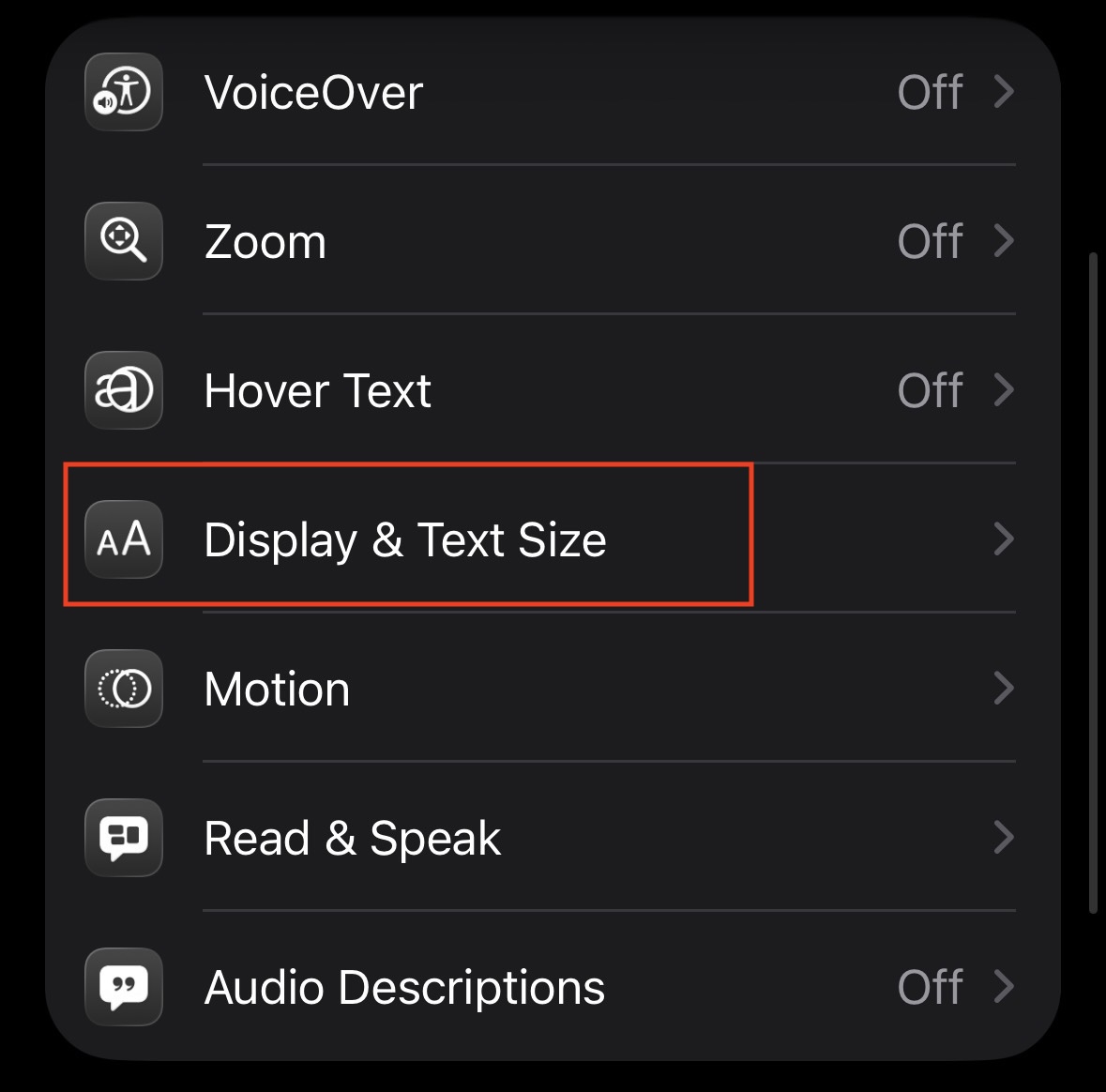
- Tap on Display & Text Size.

- Turn on the toggle for Reduce Transparency.


This strips away the transparency layers. The icons will still have rounded depth but will look like opaque plastic rather than clear, shimmering glass. This significantly improves contrast and readability.
3. Enable Low Power Mode (The Temporary Fix)
iOS 26 is designed to save power intelligently. When the phone enters Low Power Mode, the system automatically disables “superfluous visual effects,” which includes the real-time ray tracing used on Liquid Glass icons. To use this method, follow the steps given below-
- Open the Settings app on your iPhone.
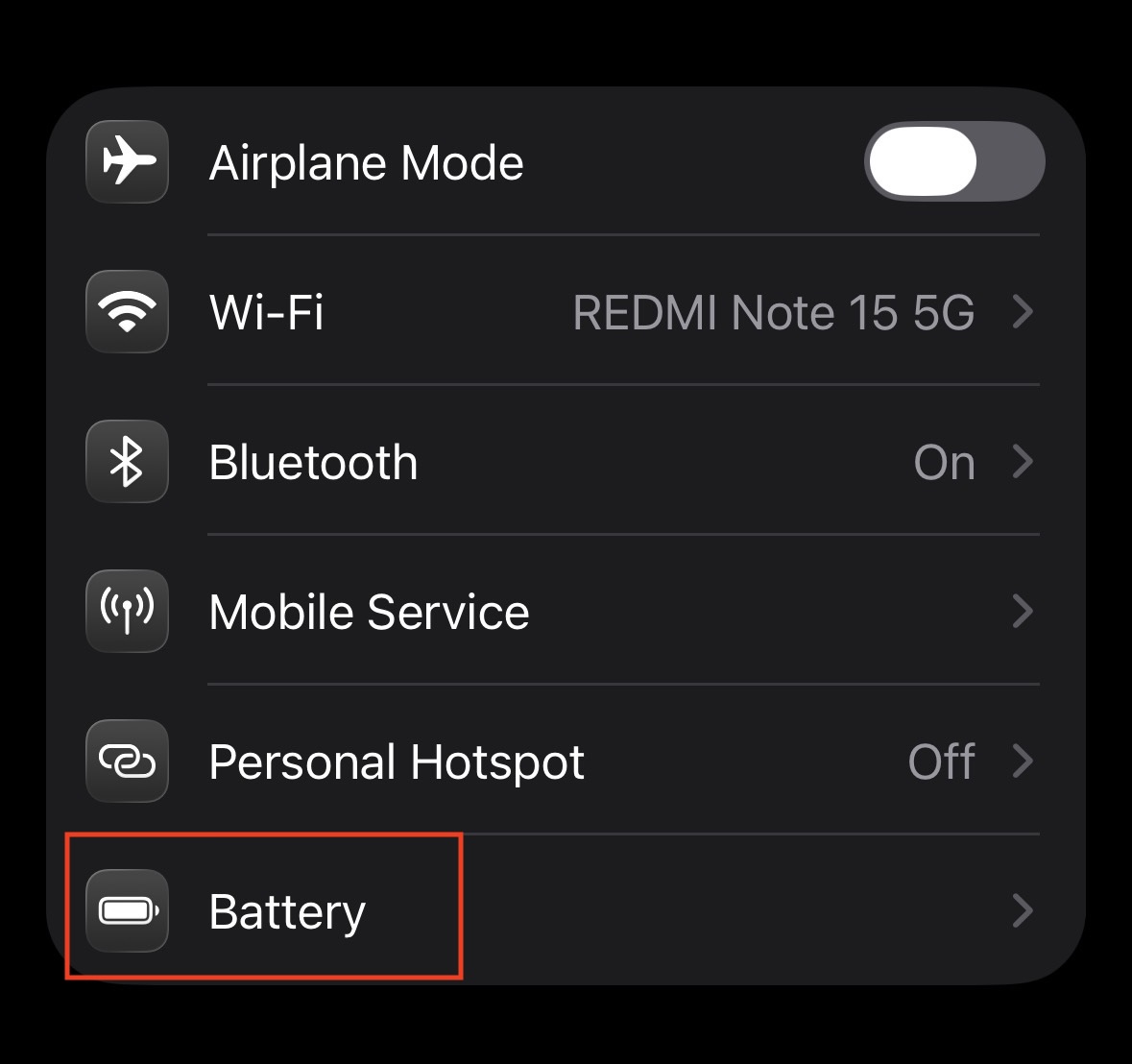
- Tap on the Battery option.

- After this, tap on Power Mode.

- Turn on the toggle next to Low Power Mode.



Final Words
By doing so, you can remove or customize the liquid glass look from app icons on iOS 26. Following the steps mentioned in this article, you will be able to revert your iPhone’s interface to a style that is comfortable for your eyes and gentle on your battery. Whether you choose to completely flatten the interface using the “Classic Flat” mode or simply tweak the opacity of the glass for better visibility, iOS 26 offers enough flexibility to ensure your home screen works for you. While the Crystal UI is the future of Apple’s design language, the ability to control it ensures that function never has to follow form.
ALSO READ:
- How to Turn Off or Disable iOS 26 Liquid Glass Design
- iOS 26 Alarm Not Going Off? 15 Fixes That Actually Work in 2026
- Xbox App Not Working on iPhone After iOS 26? Fix It Now
- Fix Music Album Art Not Animating on iPhone Lock Screen iOS 26
- Auto Rotate Not Working on iOS 26? 10 Proven Ways to Fix It Fast