- In Windows 11, Microsoft added a feature called "Share with Copilot" that pops up in various parts like File Explorer and the Edge browser, but many users find it distracting and a privacy issue because it sends data to the cloud.
- To turn off "Share with Copilot," users can use different methods depending on their version of Windows 11. This can include adjusting settings in Edge, removing it from the taskbar, using Group Policy for Pro versions, or editing the registry in Home versions.
- Disabling "Share with Copilot" is important for privacy because it prevents accidental data sharing with Microsoft's cloud servers, which can be risky, especially for those handling sensitive information like lawyers or doctors.
In the ever-evolving landscape of Windows 11, Microsoft has made one thing abundantly clear: they believe Artificial Intelligence is the future of computing. With the rollout of Windows 11 versions 23H2 and the AI-centric 24H2, the operating system has become deeply intertwined with Microsoft Copilot.
While Copilot offers powerful capabilities—summarizing documents, generating images, and automating settings—its integration has become increasingly aggressive. One of the most intrusive additions is the “Share with Copilot” (or sometimes labeled “Send to Copilot” or “Ask Copilot”) feature. This option frequently clutters the “Share” menu in File Explorer, appears in the context menu when you highlight text in Edge, and pops up in the image viewer.
For many users, this constant nudging is not a helpful assistant; it is a distraction. Whether you are a privacy-conscious professional worried about sending sensitive data to the cloud, or simply a user who prefers a clean, minimalist interface, you might find yourself asking: How do I get rid of this?
This comprehensive guide will walk you through every method to disable the “Share with Copilot” features on Windows 11, ranging from simple settings toggles to advanced system-level blocks.
Before we start disabling things, it is important to understand that “Share with Copilot” is not a single switch. It is a hydra with three heads:
- The Edge Context Menu: When you select text or images in the Microsoft Edge browser, a mini-menu pops up asking if you want to send it to Copilot.
- The Windows Share Sheet: When you right-click a file and hit “Share,” Copilot often appears as a suggested target.
- The Taskbar & System: The main Copilot integration that sits on your taskbar and listens for system commands.
To truly banish “Share with Copilot,” you often need to address all three areas. This guide covers them all.
Disabling “Ask Copilot” in Microsoft Edge
For most users, the most annoying iteration of this feature is inside the web browser. You are trying to copy a sentence for a report, and suddenly a button pops up asking if you want AI to rewrite it.
Here is how to remove Copilot from your browsing experience.
Step 1: Open Edge Settings
- Launch Microsoft Edge.
- Click the three dots (…) in the top-right corner.
- Select Settings from the bottom of the dropdown menu.
In the left-hand settings menu, click on Sidebar.
- Note: Even if you don’t use the sidebar, Copilot settings are often hidden here because Copilot lives in the sidebar.
Step 3: Configure App and Notification Settings
- Under “App and notification settings,” click on Copilot.
- You will see several toggles. To completely stop the “Share with” behavior, turn off:
- Show Copilot: This removes the main icon.
- Show specific Copilot options in the context menu: This is the critical one. Toggle this Off.
- Automatically open Copilot in the sidebar: Toggle Off.
Step 4: Clean the Mini-Menu
If the “Ask Copilot” button still appears when you highlight text:
- Go back to Settings > Appearance.
- Scroll down to the Context menus section.
- Look for Mini menu on text selection.
- You can either disable the mini menu entirely or click on it to uncheck the Copilot integration specifically.
Removing Copilot from the Windows Taskbar
If your issue is that the Copilot icon is cluttering your taskbar near the “Start” button or the notification area, this is the easiest fix.
- Right-click on any empty space on your Taskbar.
- Select Taskbar settings.
- Under the “Taskbar items” section, locate Copilot (preview) or just Copilot.
- Toggle the switch to Off.
The icon will disappear instantly. However, the background service is still running. If you want to kill the feature at the root so it cannot “share” data at all, you need to proceed to the next section.
The Group Policy Method (For Windows 11 Pro/Enterprise)
If you are a power user or an IT administrator running Windows 11 Pro, the Group Policy Editor (GPO) is the cleanest way to disable “Share with Copilot” system-wide. This ensures that even if Microsoft updates the OS, the feature stays dead.
Step 1: Open the GPO Editor
- Press Windows Key + R on your keyboard to open the Run dialog.
- Type gpedit.msc and press Enter.
In the left sidebar, navigate through the folders in this exact order:
- User Configuration
- Administrative Templates
- Windows Components
- Windows Copilot
Note: If you don’t see “Windows Copilot,” you may need to look under “Windows AI” depending on your specific version of Windows 11 (23H2 vs 24H2).
Step 3: Enable the Block
- In the right pane, look for the setting named Turn off Windows Copilot.
- Double-click it.
- A window will pop up. Select the radio button for Enabled.
- Confusing Wording Alert: You are Enabling the “Turn Off” feature.
- Click Apply and OK.
Step 5: Force the Update
Restart your computer for the policy to take effect immediately. Once rebooted, the Copilot integration points in the OS (including the Share menu) should be disabled.
The Registry Editor Method (For Windows 11 Home)
Users on Windows 11 Home do not have access to the Group Policy Editor. Instead, we must modify the Windows Registry.
Warning: The Registry is the nervous system of Windows. Editing it incorrectly can cause system instability. Follow these steps exactly, and backing up your data is always recommended.
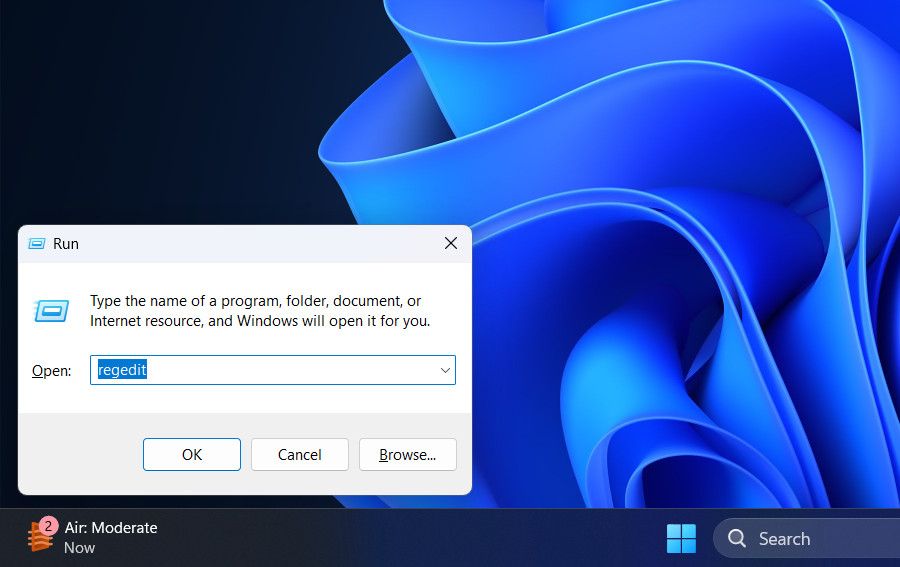
Step 1: Open Registry Editor
- Press Windows Key + R.
- Type regedit and press Enter.

- Click Yes on the User Account Control (UAC) prompt.
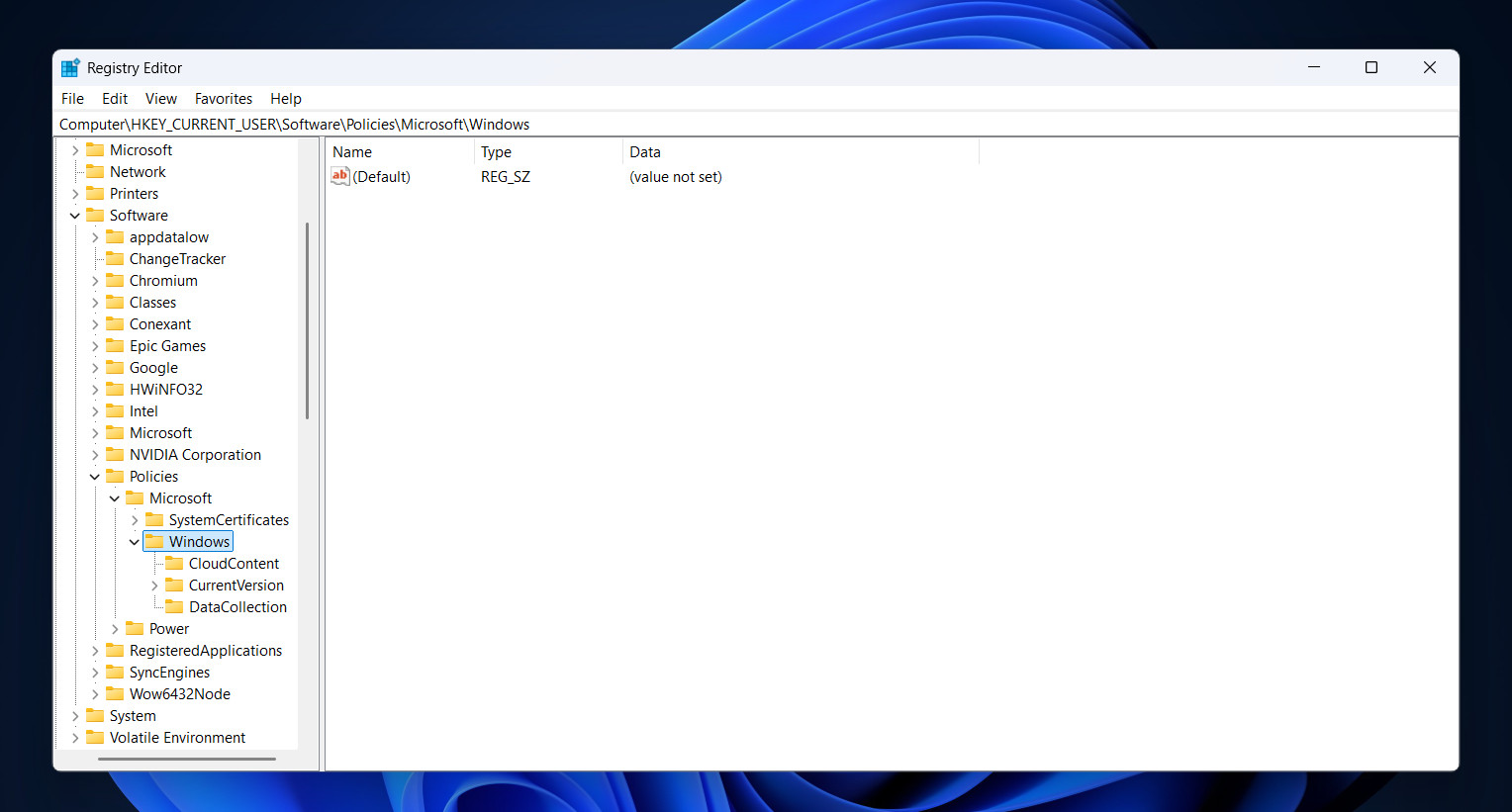
Copy and paste this path into the address bar at the top of the Registry Editor, or navigate manually:
HKEY_CURRENT_USER\Software\Policies\Microsoft\Windows
Step 3: Create the Copilot Key
- Look for a folder named WindowsCopilot inside the “Windows” folder.

- If it exists: Click on it.
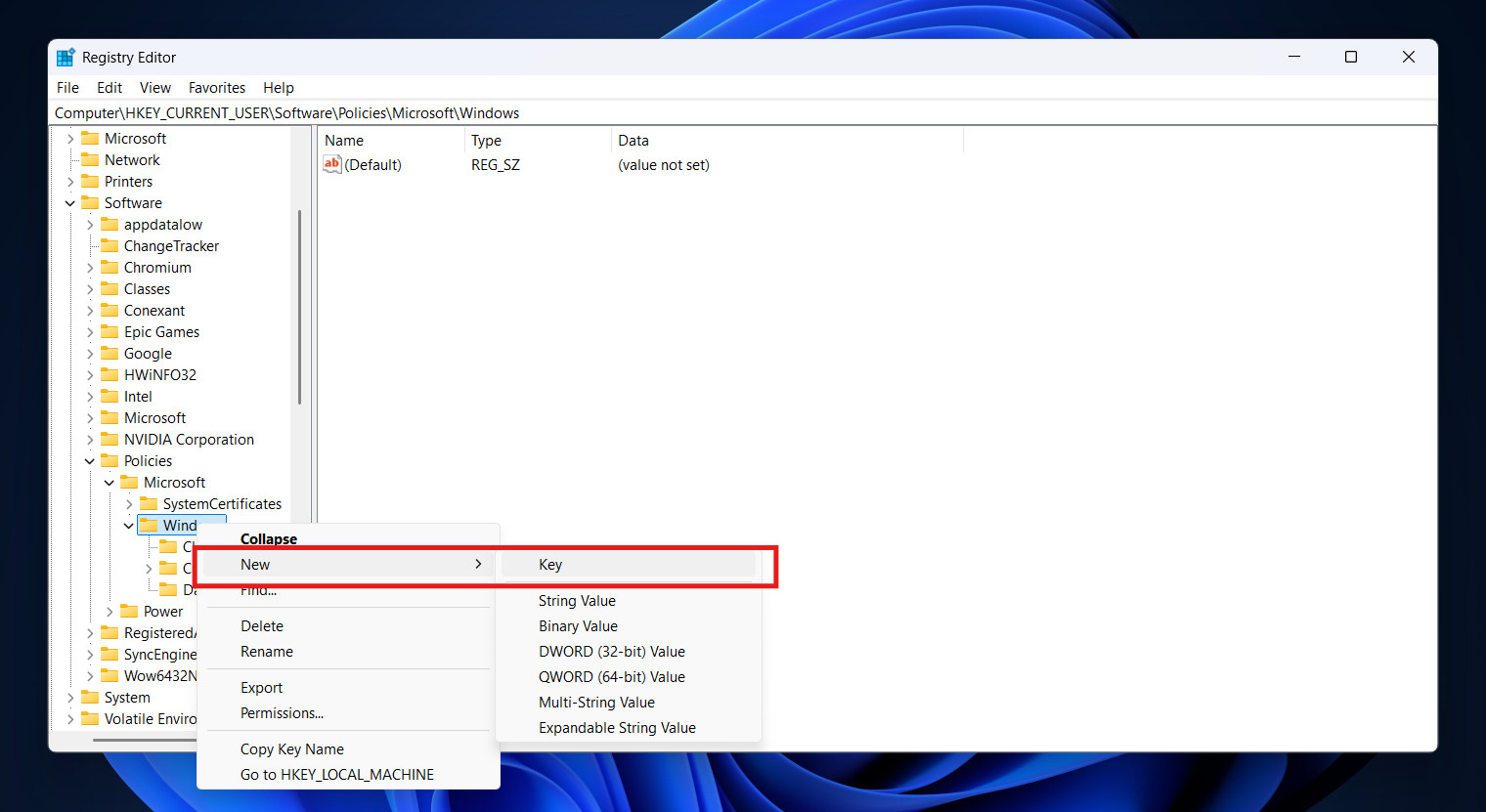
- If it does not exist:
- Right-click on the Windows folder.
- Select New > Key.

- Name it WindowsCopilot.
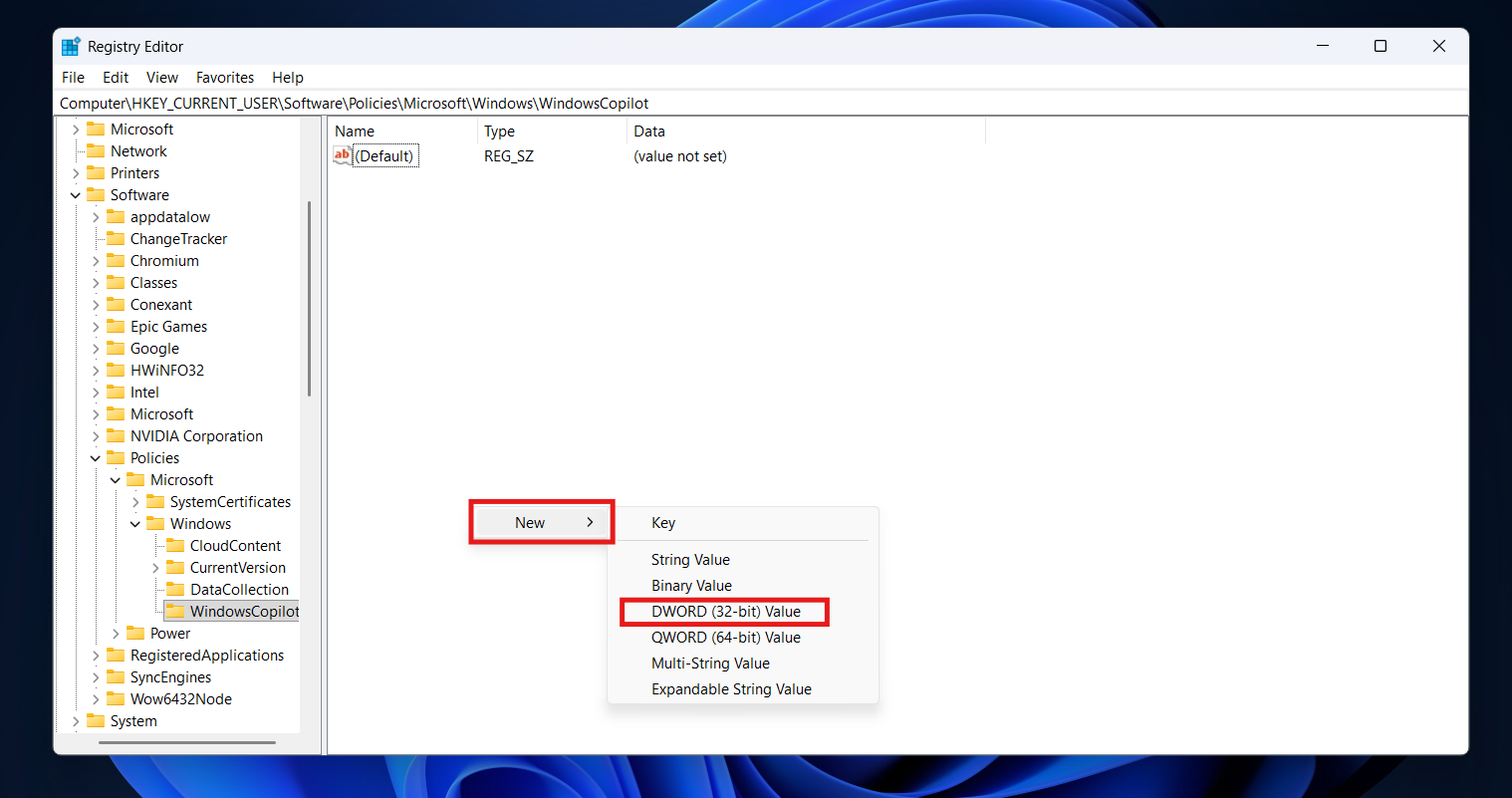
Step 4: Create the DWORD Value
- With the WindowsCopilot folder selected, right-click in the empty white space on the right side of the window.
- Select New > DWORD (32-bit) Value.

- Name it exactly: TurnOffWindowsCopilot.
Step 5: Set the Value
- Double-click on your new TurnOffWindowsCopilot entry.
- Change the Value data from 0 to 1.

- Click OK.

Step 6: Restart
Close the Registry Editor and restart your PC. The “Share with Copilot” features should now be suppressed across the operating system.
You might be wondering, “Why go through all this trouble?” Why is disabling “Share with Copilot” such a priority for privacy advocates?
It comes down to how Large Language Models (LLMs) work.
When you use a local feature on your computer—like the Calculator or Paint—the data stays on your hard drive. However, Copilot is a cloud-based service. When you accidentally click “Share with Copilot” on a confidential PDF or a personal family photo:
- Data Transmission: A request is sent to Microsoft’s cloud servers.
- Processing: The content is analyzed by the AI model.
- Data Retention: Depending on your settings and Microsoft’s current terms of service, snippets of that interaction may be retained for a short period for “safety monitoring” or quality control.
For lawyers, doctors, developers working on proprietary code, or simply users who value digital privacy, the risk of accidentally sharing a sensitive file with a cloud AI via a misplaced click in the Share menu is unacceptable. Disabling the feature removes this risk entirely.
Conclusion
The “Share with Copilot” feature represents a fundamental shift in how Windows operates—moving from a passive tool that obeys your commands to an active assistant that suggests actions. While this is innovative, it should always be optional.
Microsoft’s enthusiastic integration often blurs the line between “helpful suggestion” and “intrusive advertisement.” By following the steps in this guide, you reclaim the sovereignty of your user interface. You ensure that when you click “Share,” you are sharing your files with the people you choose, not with an AI model in the cloud.
Whether you used the simple Edge settings toggle or went deep into the Registry Editor, your Windows 11 experience should now be cleaner, faster, and more private.