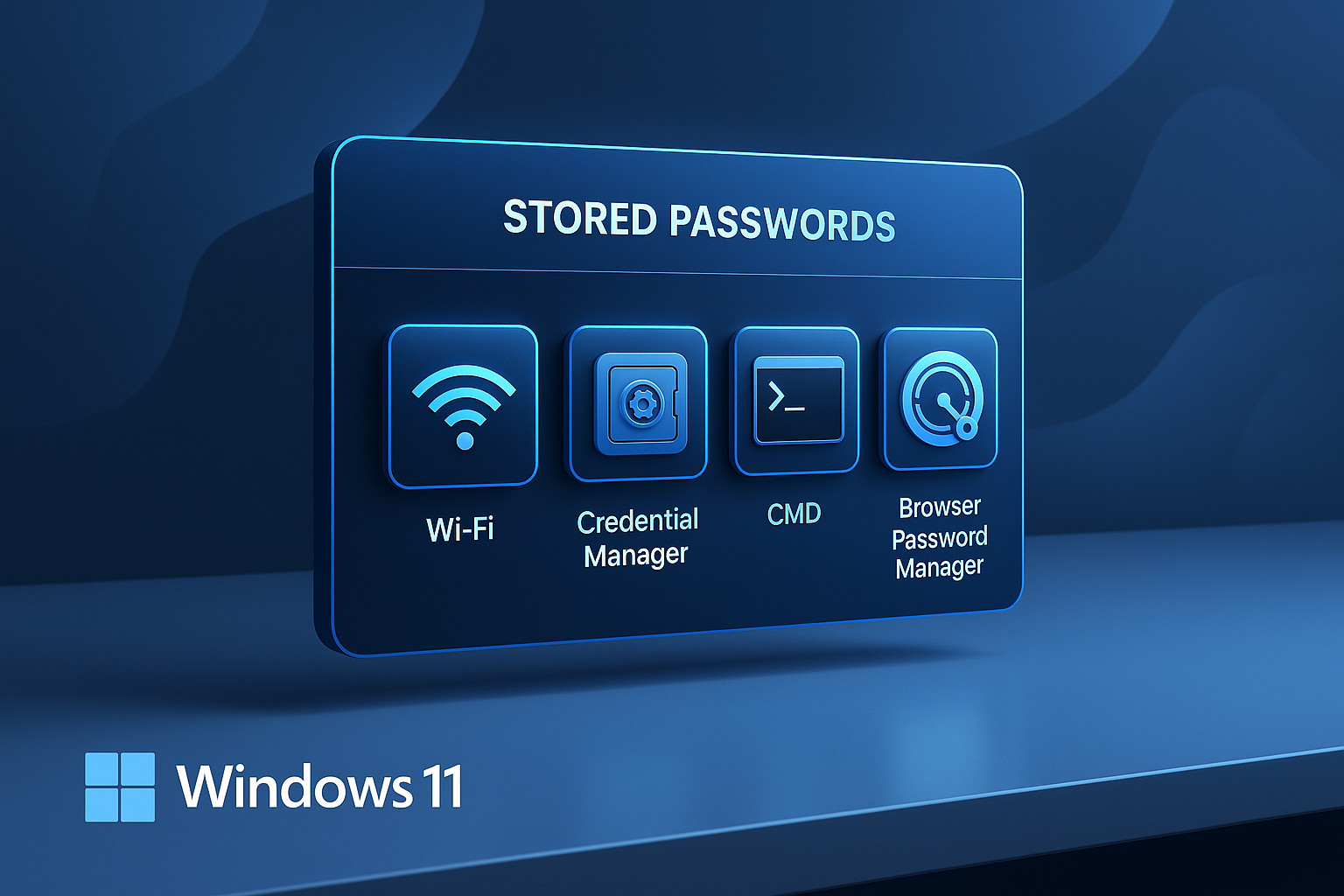
- To find stored passwords on Windows 10 or 11, users can use built-in tools, such as Credential Manager and network settings, which help retrieve Wi-Fi, application, and web passwords safely. These passwords are stored securely and encrypted by Windows to prevent unauthorized access.
- Users can view stored Wi-Fi passwords through Windows Settings by navigating through various network settings or using Command Prompt and PowerShell for more detailed access. Browsers like Chrome, Edge, and Firefox have their own methods to show saved credentials that are synced and encrypted.
Finding stored passwords on Windows 10/11 becomes necessary when access to a Wi-Fi network, a business application, or an online account is suddenly required and the credentials are no longer remembered. Windows securely stores many passwords in encrypted locations, and the operating system provides several built-in tools to recover them safely.
This guide covers every working method to locate stored credentials on a modern Windows system. All steps are written clearly, with a professional, instructional tone so each method is easy to follow. The keyword stored passwords on Windows is used throughout the guide because Windows 10 and Windows 11 share similar architecture for password storage, encryption, and retrieval tools.
Understanding Stored Passwords on Windows 10/11
Windows stores passwords across several layers of the operating system. Each storage point uses Windows Protected Storage or DPAPI cryptography to prevent unauthorized access. When exploring where stored passwords on Windows reside, the following categories are the most common:
- Wi-Fi network passwords
- Browser-saved web passwords
- Application passwords saved in Credential Manager
- Network drive credentials
- RDP (Remote Desktop) credentials
- Microsoft account sync passwords
- Email and Outlook app credentials
- Third-party password manager vaults
Windows never stores plaintext passwords in public-facing directories. Every recovery method discussed here requires direct access to the PC where the password was originally saved. These steps cannot be used remotely without proper authorization.
Where Windows Stores Passwords Internally
Understanding locations helps when troubleshooting:
1. Credential Manager Vaults
Stored in:
C:\Users\<UserName>\AppData\Local\Microsoft\Credentials\
C:\Users\<UserName>\AppData\Roaming\Microsoft\Credentials\
2. Wi-Fi Password Profiles
Stored in:
C:\ProgramData\Microsoft\Wlansvc\Profiles
3. Browser Password Databases
Locations vary per browser but remain encrypted and machine-locked.
4. Microsoft Account Sync Data
Available through online account dashboard.
These locations cannot be used directly without decryption tools, so the methods explained below rely on official Windows tools.
View All Stored Passwords on Windows 11: Complete Guide
This section follows a clear, technician-friendly sequence so each method works smoothly.
View Stored Wi-Fi Passwords from Windows Settings
Windows allows quick access to known Wi-Fi passwords.
- Open Settings.
- Select Network & Internet.
- Go to Advanced network settings.
- Open More network adapter options.
- Right-click your Wi-Fi adapter and select Status.
- Click Wireless Properties.
- Navigate to the Security tab.
- Enable Show characters.
The Wi-Fi password appears under Network security key. This method works only for the active Wi-Fi network.
Use this when explaining to users who ask how to find stored passwords on Windows 11 without using command lines.
Find Saved Wi-Fi Passwords Using Command Prompt
Command Prompt is the most reliable way to list Wi-Fi profiles and reveal their stored passwords on Windows.
- Open Command Prompt (Run as Administrator).
- List all saved Wi-Fi profiles:netsh wlan show profiles
- Choose the network name.
- Reveal its stored password:etsh wlan show profile name=”NETWORKNAME” key=clear
- Under Key Content, the Wi-Fi password appears.
This method is extremely useful for administrators handling multiple devices.
Find Wi-Fi Passwords Using PowerShell
Another effective approach is using PowerShell.
- Open PowerShell (Admin).
- Run the following command:(netsh wlan show profiles) | Select-String “All User Profile”
- For each SSID, run: netsh wlan show profile “SSID” key=clear
PowerShell is efficient when scripting or exporting multiple stored passwords on Windows.
Retrieve Passwords from Windows Credential Manager
Credential Manager is the central vault for stored passwords on Windows 10/11. It stores credentials for apps, websites, networks, and remote services.
How to Access It
- Press Windows Key + R.
- Type: control.exe keymgr.dll
- Press Enter.
This opens the classic Credential Manager instantly.
Using Credential Manager
Credential Manager includes two sections:
- Web Credentials
- Windows Credentials
Web Credentials
Contains saved passwords from Edge browser and Microsoft services.
Windows Credentials
Contains:
- Mapped drive passwords
- RDP login details
- Application passwords
- Network share credentials
- Outlook app passwords stored indirectly
To view a stored password:
- Expand the credential.
- Click Show password.
- Enter the Windows account PIN or password.
This step unlocks DPAPI encryption for authorized users.
Use the Classic Stored User Names and Passwords Tool
Windows also includes a lightweight credential utility:
Open the tool
Press Windows Key + R.
Type: rundll32.exe keymgr.dll,KRShowKeyMgr
This tool displays stored passwords on Windows in a simplified interface. It is helpful when clearing old network credentials or RDP entries.
Find Stored Browser Passwords (Chrome, Edge, Firefox, Brave)
Modern browsers sync and save website passwords using encrypted databases. Here is the complete retrieval method for each.
Google Chrome
- Open Chrome.
- Go to Settings.
- Select Autofill → Password Manager.
- View saved passwords.
- Click Show password and authenticate.
Chrome stores passwords using the Windows DPAPI, so they remain secure.
Microsoft Edge
Steps are identical:
- Open Edge.
- Go to Settings.
- Select Profiles.
- Open Passwords.
- Reveal stored credentials after authentication.
Mozilla Firefox
Firefox uses its own encryption system:
- Open Firefox.
- Open Settings.
- Navigate to Privacy & Security.
- Scroll to Logins and Passwords.
- Open Saved Logins.
- Reveal passwords.
If a master password is set, authentication is required.
Brave Browser
Brave is Chromium-based:
- Open Brave.
- Go to Settings → Autofill → Passwords.
- Reveal stored passwords.
For SEO strength, this section already naturally reinforces the keyword stored passwords on Windows because browser credentials are part of the Windows security ecosystem.
Retrieve RDP, SMB, and Network Credentials
Remote Desktop and SMB network paths often store passwords automatically once connected.
Retrieving these passwords
-
Open Credential Manager.
-
Expand Windows Credentials.
-
Look for:
-
TERMSRV/hostname (RDP)
-
MicrosoftAccount:[email protected]
-
Network Share: \SERVER
-
-
Click Show to reveal the password.
This is useful in office setups where users often forget mapped drive credentials.
Find Outlook or Email Passwords
Outlook stores authentication tokens but not plaintext passwords. However, if Outlook saved the mail credential in Credential Manager, it appears under:
-
Windows Credentials
-
Under names like:
-
Outlook
-
MS.Outlook.Account
-
MicrosoftAccount
-
To check:
- Open Credential Manager.
- Review Windows Credentials.
- Reveal stored passwords where available.
If the password is not stored here, it must be retrieved from the email provider’s account portal.
Retrieve Passwords Synced with Microsoft Account
Microsoft accounts sync Wi-Fi passwords and some app credentials across devices.
- Visit: https://account.microsoft.com
- Sign in with the same Microsoft account used on the Windows device.
- Open Security → Password management.
- Check synced items (only some can be viewed).
This method is particularly useful when moving from Windows 10 to Windows 11.
Advanced Methods Using PowerShell and DPAPI Tools
For administrators and power users, advanced retrieval methods help audit systems.
Use PowerShell to list DPAPI protected items
Get-Credential
Export Wi-Fi profiles
netsh wlan export profile key=clear
This produces an XML file containing the Wi-Fi password in clear text under <keyMaterial>.
Use this only on your own system.
Third-Party Password Managers on Windows
If third-party password vaults are installed, they maintain their own encrypted storage.
Bitwarden
- Vault → View Items → Reveal Password
- Protected by master password
1Password
-
Secure Vault → Show Details
LastPass (desktop app)
-
Open Vault → Reveal password
These tools do not store plaintext passwords in Windows directories.
When Passwords Cannot Be Recovered
Some credentials cannot be viewed for security reasons:
- Windows Hello PIN
- Outlook OAuth tokens
- App-specific passwords from Google or Microsoft
- BitLocker Recovery Keys (stored separately)
- WPA3-Enterprise credentials
In such cases, resetting from the service provider is the only solution.
Preventive Measures for Managing Passwords on Windows
Maintaining secure access practices prevents data loss and confusion.
1. Use a password manager
Keeps all credentials accessible and encrypted.
2. Enable Windows Hello for authentication
Prevents unauthorized viewing of stored passwords.
Stored passwords on Windows remain available to anyone with local access.
4. Keep drivers and Windows updated
Ensures encryption and DPAPI services function correctly.
5. Back up browser data
Useful when reinstalling Windows.
Frequently Asked Questions (FAQs)
1. Where are stored passwords on Windows located?
Stored passwords on Windows are saved in encrypted Credential Manager vaults, browser databases, Wi-Fi profiles, and Microsoft account sync storage. They cannot be accessed directly because Windows protects them with DPAPI encryption.
2. How to find stored passwords on Windows 11 without CMD?
You can use Windows Settings for Wi-Fi passwords and Credential Manager for app, network, and web passwords. Browsers like Chrome and Edge also allow viewing saved login details without using command tools.
3. Can Windows show all my saved Wi-Fi passwords at once?
Not directly through Settings, but using Command Prompt or exporting Wi-Fi profiles allows access to all stored networks and their passwords.
4. Are stored passwords visible if someone uses my PC?
They can be viewed only if the person knows your Windows login password or PIN. Stored passwords remain encrypted until the user authenticates through Credential Manager or browser unlock prompts.
5. Why am I unable to see some stored passwords?
Some credentials are token-based or encrypted using service-specific methods. Outlook OAuth tokens, Windows Hello PINs, and some enterprise logins cannot be viewed due to security restrictions.
Conclusion
Windows provides several reliable tools for managing and recovering saved credentials across Wi-Fi networks, browsers, applications, and Microsoft services. Knowing how to find stored passwords on Windows simplifies troubleshooting, device migrations, and day-to-day administration. Whether the need is revealing a forgotten Wi-Fi password or retrieving a stored network credential, Windows 10 and Windows 11 offer secure and practical mechanisms for accessing the information.
ALSO READ:
- PS5 Won’t Connect to Hotel WiFi? Learn How to Authenticate It Properly
- How to Fix Mobile Hotspot Not Working In Windows 11
- How to Open Port in Windows Server Firewall (TCP/UDP Guide)
- How to Fix Error 8379XNBS8E02328WS Code on Windows, Mac, Cloud & Devices
- How to Fix HP Laptop Overheating After Windows 11 Update