- You can enable or disable Call Screening on iPhone (iOS 26) from Settings > Phone > Call Blocking & Identification to filter spam and unknown callers automatically or allow all calls if you prefer.
- For enhanced control, combine Apple’s built-in Call Screening with trusted third-party apps like Truecaller or Hiya for more accurate spam detection and better caller identification in iOS 26.
With the release of iOS 26, Apple has added smarter privacy and spam control features to the iPhone, including an improved Call Screening system. This feature helps users manage incoming calls from unknown numbers, telemarketers, and suspected spam, giving you more control over who reaches you.
Understanding how to turn on or off Call Screening on iPhone (iOS 26) is crucial if you want to customize how your device handles calls, whether to filter spam automatically or to ensure you never miss important calls from new contacts.
In this detailed guide, you’ll learn how Call Screening works in iOS 26, how to enable or disable it through Settings and Phone app preferences, how it interacts with “Silence Unknown Callers,” and what to do if it’s not functioning properly.
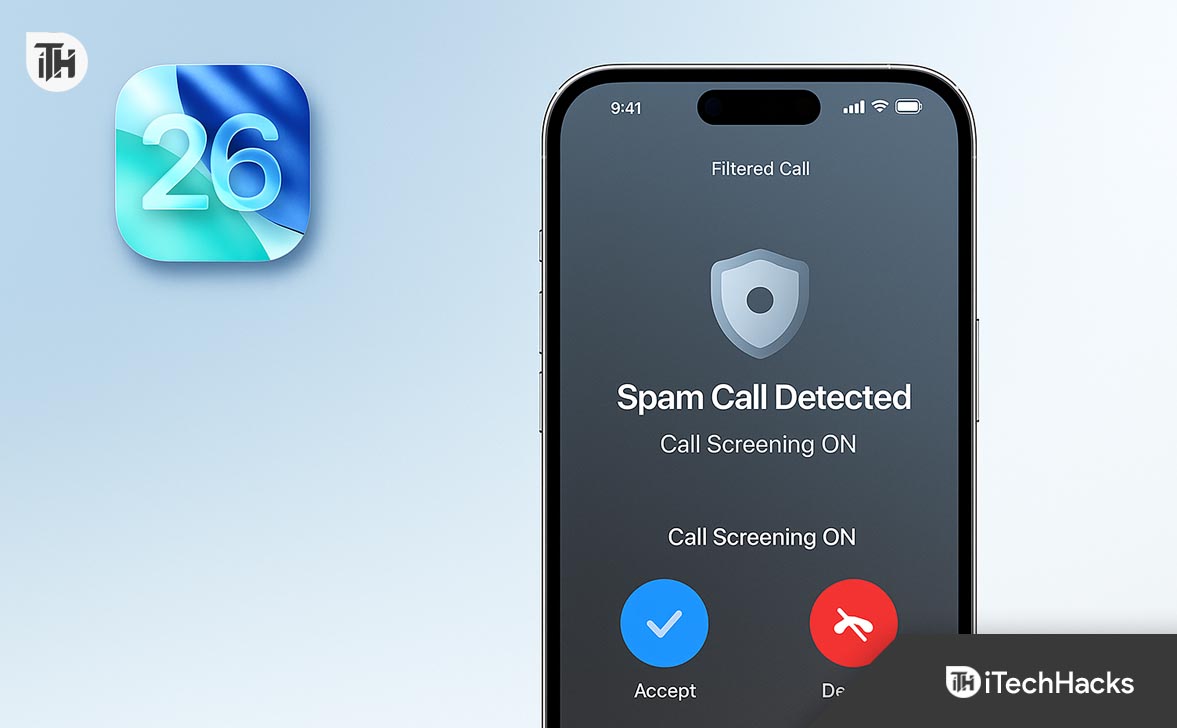
What Is Call Screening?
Call Screening on iPhone is Apple’s built-in feature designed to detect and filter potential spam or unknown callers. It uses data from Apple’s spam database and your contact list to identify callers. If a number seems suspicious, it can be screened, silenced, or sent directly to voicemail.
Unlike Android’s Google Assistant-powered Call Screening, Apple’s approach in iOS 26 focuses on privacy-first filtering and silent blocking rather than live call answering.
Why It Matters
- Avoid Spam Calls: Blocks robocalls and telemarketers.
- Improved Focus: Reduces interruptions during work hours.
- Privacy Control: Keeps your call log clean from unknown callers.
- Better Caller Insights: Labels calls as “Spam,” “Unknown,” or “Potential Fraud.”
Key Features of Call Screening in iOS 26
- Automatic Filtering: Filters known spam numbers automatically.
- Integration with Silence Unknown Callers: Works alongside Apple’s existing feature to silence calls not in your contacts.
- Third-Party Apps Support: Supports apps like Truecaller or Hiya for enhanced screening.
- Caller Identification Labels: Shows “Business,” “Fraud Risk,” or “Telemarketer” tags.
- Custom Control: You can toggle the feature ON/OFF as per your preference.
How to Turn ON Call Screening on iPhone (iOS 26)
Follow these steps to enable Call Screening:
Step 1: Open Settings
- Go to Settings on your iPhone.
- Scroll down and tap Phone.
Step 2: Locate Call Blocking & Identification
- Under the Phone settings, tap Call Blocking & Identification.
- This is where all call screening options are managed.
Step 3: Enable Call Screening
- Toggle “Silence Junk Callers” or “Filter Unknown Callers” ON.
- If you use third-party apps, ensure they are turned ON here.
Step 4: Allow Third-Party Apps (Optional)
- Download a trusted app like Truecaller or Hiya from the App Store.
- Go back to Settings > Phone > Call Blocking & Identification.
- Toggle ON the app under “Allow These Apps to Block Calls and Provide Caller ID.”
Once enabled, your iPhone running iOS 26 will start screening incoming calls automatically.
How to Turn OFF Call Screening on iPhone (iOS 26)
If you want to ensure you receive all calls, including unknown ones:
Step 1: Go to Settings > Phone
Step 2: Tap Call Blocking & Identification
Step 3: Turn OFF:
- Silence Junk Callers
- Filter Unknown Callers
- Disable any third-party call screening apps.
Once disabled, your iPhone will no longer screen calls, and all incoming calls will ring normally.
How Call Screening Works Behind the Scenes in iOS 26
- Apple’s Database: Uses Apple’s verified spam list and machine learning to detect spam calls.
- Network Data: Identifies known robocall numbers from carrier data.
- Third-Party Integration: Combines additional filters if you’ve installed supported apps.
- Local Contact Analysis: Ensures contacts and recently called numbers are always allowed.
When Should You Turn ON Call Screening?
- You receive frequent spam calls.
- You’re tired of robocalls disrupting work.
- You want calls from only known numbers.
- You use your iPhone for business and need cleaner call logs.
When Should You Turn OFF Call Screening?
- You often expect calls from new clients or services.
- Important verification or OTP calls are being blocked.
- You’re troubleshooting missing calls.
Advanced Settings: Using Truecaller or Hiya with iOS 26
To enhance Call Screening on iPhone, you can integrate Truecaller or Hiya:
Step 1: Download the App
-
From App Store, install Truecaller or Hiya.
Step 2: Enable in Settings
- Go to Settings > Phone > Call Blocking & Identification.
- Toggle ON the third-party app.
Step 3: Allow Permissions
-
Open the app and allow necessary permissions like Contacts and Notifications.
Step 4: Enable Live Caller ID (if available)
-
Some apps require a subscription for live caller ID.
These apps update spam databases frequently, improving detection accuracy.
Troubleshooting: Call Screening Not Working in iOS 26
If Call Screening isn’t working properly:
1. Check iOS Version
- Ensure your device runs iOS 26 or later.
- Go to Settings > General > Software Update.
2. Verify Settings
- Settings > Phone > Call Blocking & Identification
- Make sure toggles are ON.
3. Restart iPhone
-
Sometimes settings take effect only after a reboot.
4. Update Third-Party Apps
-
If using Truecaller, ensure it’s updated.
5. Check Permissions
- Go to Settings > Privacy > Contacts.
- Confirm the app has access.
6. Reset Network Settings (if issue persists)
-
Settings > General > Transfer or Reset iPhone > Reset > Reset Network Settings.
7. Contact Apple Support
-
If the problem continues, visit support.apple.com.
Pro Tips for Managing Calls in iOS 26
- Add Frequent Callers to Contacts to avoid unnecessary screening.
- Use Focus Modes to control notifications alongside call screening.
- Review Missed Calls in Recents to identify wrongly filtered numbers.
- Enable Voicemail Transcripts for screened calls.
How Call Screening Helps in 2025
With increasing spam activity, Call Screening in iOS 26 uses on-device intelligence and cloud-based filters. It’s privacy-centric; no audio is recorded or sent to Apple. This ensures protection from scams while respecting your data.
Preventive Measures
- Keep iOS and apps updated.
- Avoid sharing your number publicly.
- Report spam numbers through Phone > Recents > Block this Caller.
- Use dual-layer protection: Apple + third-party screening.
FAQs
1. Does iPhone have call screening like Android?
Yes, but Apple’s Call Screening on iPhone (iOS 26) works differently. It filters or silences calls automatically rather than answering them with an AI assistant.
2. Can I customize which calls get screened?
You can’t manually select numbers, but enabling Silence Unknown Callers and trusted third-party apps gives granular control.
3. Why am I missing calls after enabling Call Screening?
Some legitimate calls (like courier services or OTPs) may be silenced. Add these numbers to contacts or temporarily disable screening.
4. Will I still get voicemails from screened calls?
Yes. Screened calls go to voicemail, and you can access them anytime.
5. Is Call Screening available on all iPhones?
It’s available on iPhone XR and newer models running iOS 26 or later.
Conclusion
Managing spam and unknown calls is easier than ever with Call Screening on iPhone (iOS 26). By enabling it in Settings > Phone > Call Blocking & Identification, you can automatically filter unwanted calls while keeping important ones accessible. If your work requires frequent new calls, consider toggling the feature off or fine-tuning with third-party tools like Truecaller or Hiya.
With proper setup, iOS 26 Call Screening becomes a reliable guard against spam and robocalls—ensuring your iPhone stays focused on the calls that matter.
ALSO READ:
- iOS 26 Alarm Not Going Off? 15 Fixes That Actually Work in 2025
- Apple CarPlay Not Working After iOS 26? Fix Connectivity, Crashes & Pairing Issues Fast
- How to Fix iOS 26 Stuck on Black Screen: Step-by-Step Guide
- How to Fix Face ID Not Working After iOS 26 Update? Step-by-Step Fix
- How to Turn Off or Disable iOS 26 Liquid Glass Design (2025)
- How to Accept Shared Album Invite on iPhone (iOS 18 & 26)