- The fastest and most reliable way to clear Safari history on iOS 26 is through Settings > Safari > Clear History and Website Data, which removes browsing history, cookies, and cached files across all iCloud-synced devices.
- If the “Clear History and Website Data” button is disabled, adjust Screen Time > Content Restrictions > Web Content to Unrestricted Access or remove any MDM profiles to restore full control over Safari cleanup.
Clearing your browsing history is essential for privacy, freeing up storage, and improving Safari performance. With iOS 26, Apple has refined how Safari stores and syncs data across iPhone, iPad, and iCloud. However, many users struggle to find the right settings or encounter issues when trying to clear Safari history on iOS 26.
In this detailed guide, you’ll learn every method to delete Safari history, cache, and cookies on your iPhone running iOS 26. We’ll also cover fixes for common problems like the “Clear History” button being greyed out or history not syncing properly. By the end, you’ll know exactly how to manage Safari data for better privacy and performance.
Understanding Safari History in iOS 26
Safari’s history includes:
- URLs of visited websites
- Cached images and scripts
- Cookies and website data
- Autofill and search suggestions
In iOS 26, Apple syncs Safari history via iCloud across all devices signed into the same Apple ID. That means clearing history on your iPhone also removes it from iPads and Macs using the same iCloud account.
Why Clearing Safari History Matters
- Protects privacy: Removes traces of visited websites.
- Frees storage: Deletes cached files and cookies.
- Fixes website issues: Resolves outdated scripts or login errors.
- Improves speed: Reduces clutter for smoother browsing.
- Removes auto-suggestions: Stops showing old URLs in search bar.
If you share your iPhone or want to maintain a clean browser environment, regularly clearing Safari history on iOS 26 is a recommended habit.
Methods to Clear Safari History on iOS 26 iPhone
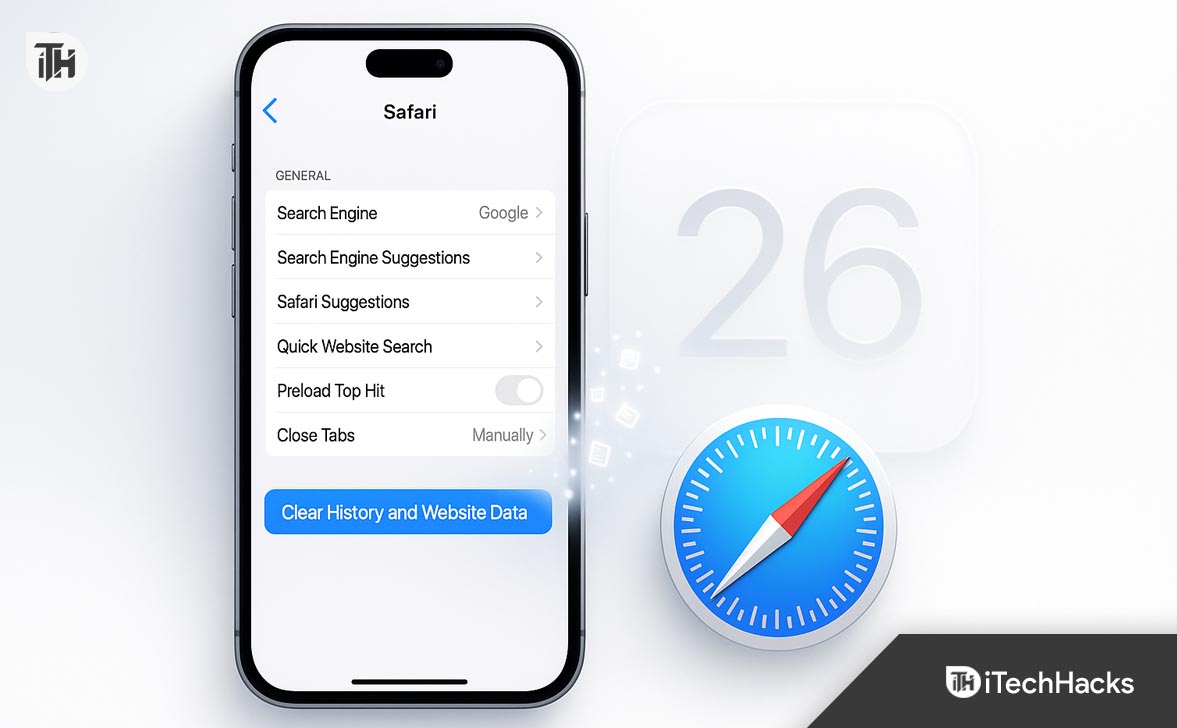
There are multiple ways to clear Safari history on iOS 26 depending on what you want to remove — full browsing history, cookies, cached data, or specific site data. Below are the most reliable and updated methods tested on iOS 26 for iPhone users in 2025.
Each method is explained in depth with its purpose, effect, and exact steps to ensure you get the results you want.
Clear Safari History and Website Data from iPhone Settings (Recommended)
This is the most complete and system-level method to clear all Safari browsing data at once. It removes history, cookies, cached files, and stored site data across all devices using your Apple ID.
What This Method Removes
- Full browsing history
- Cookies from all websites
- Cached images, scripts, and offline data
- Auto-filled URLs in the address bar
- Recent search suggestions
Step-by-Step Instructions
- Open the Settings app on your iPhone.
- Scroll down and tap Safari.
- Scroll to the bottom and tap Clear History and Website Data.
- Confirm the action when prompted.
- Wait a few seconds — Safari will purge all stored browsing data.
iCloud Sync Behavior
If you’re signed into iCloud and Safari sync is enabled, this method removes history from all connected Apple devices — including iPads and Macs.
To limit deletion to just one device:
- Go to Settings > Apple ID > iCloud > Safari,
- Turn off sync before clearing data.
If the “Clear History and Website Data” option is greyed out, check for Screen Time restrictions or device management profiles (see troubleshooting below).
Clear Safari History Directly from the Safari Browser
Use this method when you want to remove history without leaving the app. It’s ideal for quick cleanups.
- Open Safari on your iPhone.
- Tap the Bookmarks icon (book symbol at the bottom).
- Select the History tab (clock icon).
- Tap Clear at the bottom right.
- Choose a time range:
-
-
Last Hour – for recent privacy
-
Today – to clear all sites visited today
-
Today and Yesterday – for a short-term reset
-
All Time – to completely wipe history
-
- Removes visited sites from history list
- Deletes related cache for selected timeframe
- Keeps cookies unless you clear them separately
If you just visited a sensitive website or want to erase today’s browsing activity, this method is fast and efficient.
Delete Individual Website Data (Targeted Cleanup)
In iOS 26, Safari allows granular control to remove data for specific websites — useful when one site misbehaves or shows old content.
- Open Settings > Safari.
- Scroll down and tap Advanced.
- Tap Website Data.
- Tap Edit in the top-right corner.
- Remove individual sites by tapping the red minus (-) icon.
- Or tap Remove All Website Data for a full wipe.
Why Use This:
- Clear outdated cookies causing login errors
- Fix loading issues for specific domains
- Maintain login sessions on other sites
If Amazon keeps showing old cart items or a news site isn’t updating, remove only that domain’s data.
Use Screen Time Settings to Re-enable Clear Option (When Disabled)
Many users find the “Clear History and Website Data” option greyed out on iOS 26. The cause is usually Screen Time content restrictions.
- Go to Settings > Screen Time.
- Tap Content & Privacy Restrictions.
- Tap Content Restrictions.
- Select Web Content.
- Change from Limit Adult Websites to Unrestricted Access.
- Return to Safari Settings — the Clear History button will now be enabled.
This restriction exists to prevent children from erasing parental monitoring records. If your iPhone is managed by Family Sharing, the organizer must adjust these settings.
Clear Safari Data via iCloud Settings (Cloud-Level Reset)
If Safari sync is turned on, old history can reappear due to iCloud synchronization. To perform a clean reset across all devices:
- Go to Settings > Apple ID (Your Name).
- Tap iCloud → Show All under “Apps Using iCloud.”
- Locate Safari and turn it off.
- When prompted, choose Delete from iPhone.
- Wait 1–2 minutes.
- Turn Safari sync back on.
This clears synced history from Apple’s iCloud servers and prevents reappearing data.
Safari history sync uses iCloud Drive metadata. Deleting and re-enabling Safari sync forces Apple’s system to resync only current, valid data.
Use Private Browsing Mode to Avoid Future History Storage
Instead of repeatedly clearing history, prevent it from being saved by default using Safari’s Private Browsing.
- Open Safari.
- Tap the Tabs icon (bottom right).
- Tap Private (or “Private Browsing”).
- Tap Done.
What Private Mode Does:
- Doesn’t save browsing history
- Doesn’t store cookies permanently
- Doesn’t auto-fill search suggestions
- Deletes temporary data upon closing
Best for sensitive browsing sessions — such as banking, job searches, or research you don’t want recorded.
Clear Safari Cache and Cookies Separately
Sometimes you may want to keep history but delete cookies and cache for better performance or troubleshooting login issues.
- Go to Settings > Safari.
- Tap Advanced > Website Data.
- Tap Remove All Website Data.
- Alternatively, delete individual domains.
This improves speed, frees storage, and resolves outdated sessions.
Unlike clearing full history, this method keeps your visited site list intact while refreshing site functionality.
Use “Reset All Settings” for Persistent Problems
If none of the above works, Safari data may be corrupted at system level.
- Go to Settings > General > Transfer or Reset iPhone.
- Tap Reset > Reset All Settings.
- Enter passcode and confirm.
This resets preferences (Wi-Fi, location, privacy) but retains your data. After reset, repeat Method 1 to clear Safari completely.
Update iOS 26 to Latest Version
Safari bugs or sync issues are often fixed through software updates.
- Open Settings > General > Software Update.
- Install the latest iOS 26.x build.
- Reboot and attempt clearing again.
Use Mac or iCloud.com for Cross-Device History Management
If you use Safari on multiple devices, clean history from one to propagate across all:
On Mac:
- Open Safari > Menu Bar > History > Clear History.
- Choose All Time.
- Confirm.
On iCloud.com (if enabled):
- Sign in to iCloud.com.
- Open Account Settings > Advanced.
- Choose Restore Bookmarks or Delete History (if available).
This ensures no residual data remains in cloud backups.
FAQs
Does clearing Safari history on iOS 26 delete bookmarks?
No, bookmarks remain untouched. Only browsing history, cookies, and cached data are removed.
It’s usually due to Screen Time restrictions or MDM profiles. Check Settings > Screen Time and Device Management to remove restrictions.
Will clearing history sign me out of websites?
Yes, clearing cookies and website data logs you out of most websites. If you only clear history (not data), some sessions may remain.
Does clearing history on iPhone remove it from Mac or iPad?
Yes, if iCloud Safari sync is enabled, history is deleted across all devices.
How to clear Safari history without affecting website data?
Use Safari app > Bookmarks > History tab > Clear. This removes URLs but retains cookies.
Conclusion
Clearing your Safari history on iOS 26 is essential for maintaining privacy, resolving browsing errors, and freeing space. You can use Settings or the Safari app to clear data selectively or completely. If you face issues like a greyed-out option or reappearing history, review Screen Time, iCloud sync, and MDM restrictions.
For best results, clear both history and website data regularly, and use Private Browsing for sensitive sessions. Keeping Safari clean ensures smoother performance and peace of mind across your Apple ecosystem.
ALSO READ:
- Call Screening on iPhone (iOS 26): Enable, Disable & Fix Common Issues
- iOS 26 Alarm Not Going Off? 15 Fixes That Actually Work in 2025
- Apple CarPlay Not Working After iOS 26? Fix Connectivity, Crashes & Pairing Issues Fast
- How to Fix iOS 26 Stuck on Black Screen: Step-by-Step Guide
- How to Fix Wireless Charging Not Working on iOS 26 iPhone
- Apple Intelligence Not Working iOS 26? Step-by-Step Fix