- In iOS 26, unreadable notifications are often caused by the new Count or Stack layout and hidden message previews. Changing Display As → List and setting Show Previews → Always restores full, readable notifications instantly.
- Features like Focus Mode and Scheduled Summary can silently hide or delay alerts. Turning them off (or allowing key apps through) ensures every notification appears in real time with complete message content.
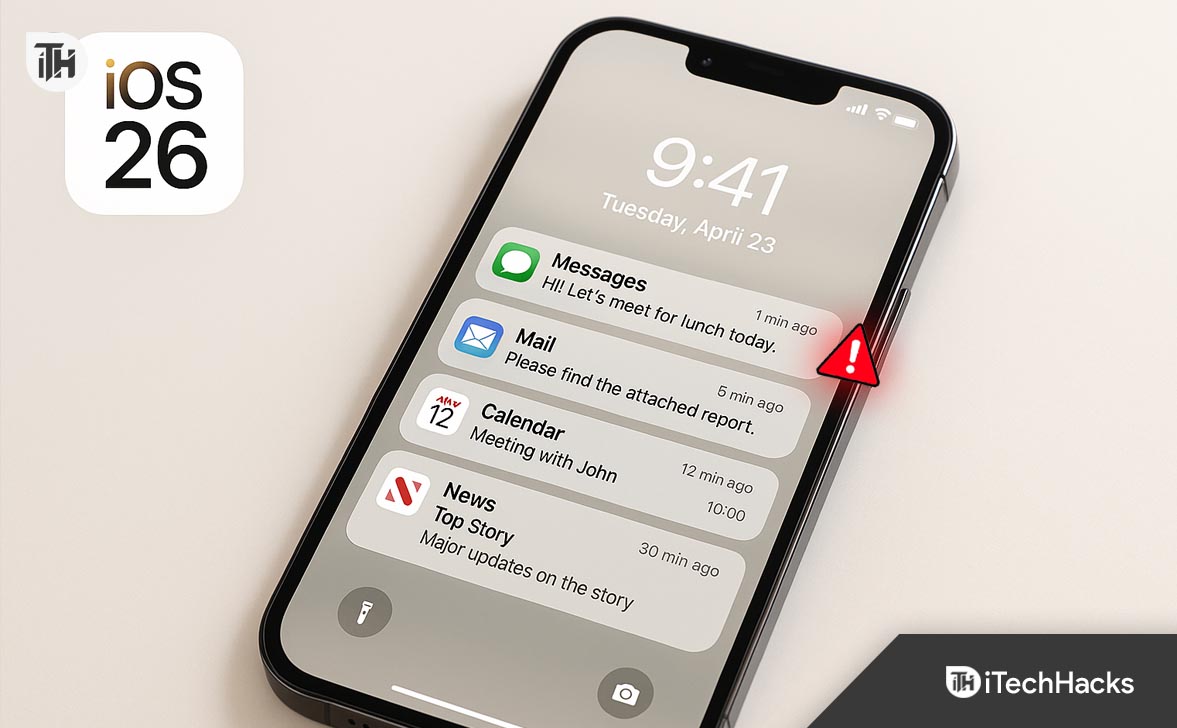
Many iPhone users upgrading to iOS 26 have reported a frustrating issue: they can’t read notifications properly on the Lock Screen, Notification Center, or banners. Notifications may appear blurred, truncated, or disappear before being read. This can disrupt essential tasks like checking messages, calls, reminders, or app alerts.
If you’re struggling with “Can’t Read Notifications in iOS 26”, this guide provides a comprehensive set of practical, expert-approved solutions. We’ll examine the root causes, system-level changes introduced in iOS 26, and step-by-step fixes to ensure you regain full control and visibility over your iPhone notifications.
Understanding Notifications Behavior in iOS 26
Apple’s iOS 26 introduced several new features for notification management — focusing on privacy, context, and adaptive layouts. These updates, while designed to reduce distraction, can sometimes make notifications unreadable or hidden.
Key Notification Changes in iOS 26:
- Grouped notifications by app or time.
- Dynamic text scaling tied to Accessibility settings.
- Enhanced Focus Modes that hide or summarize alerts.
- Contextual banners that adapt to your on-screen activity.
These changes can create situations where:
- Notifications are collapsed by default.
- Text appears dimmed or too small.
- Alerts are hidden under Focus filters.
- Notification preview is disabled for privacy.
- To restore full readability, we’ll address all these areas methodically.
Common Reasons You Can’t Read Notifications in iOS 26
Before applying fixes, it’s essential to understand what’s causing unreadable notifications. Below are the most frequent culprits:
1. Notification Previews Are Disabled
Apple allows users to hide message content on the Lock Screen. If previews are off, you’ll only see the app name — not the full message.
2. Focus Mode or Do Not Disturb Is Active
Focus Modes like Work, Sleep, or Driving can suppress or summarize notifications.
3. Display & Text Size Settings
Custom font scaling, bold text, or reduced transparency may distort or truncate notification text.
4. Lock Screen Style and Stack Settings
iOS 26 introduced stacked notifications, which may collapse alerts into a count (like “3 Notifications”) instead of showing content.
5. Notification Grouping by App
Grouped alerts might require tapping to expand, otherwise you see only a summary line.
6. Bugs or iCloud Sync Errors
In rare cases, notification data sync may fail across devices, leading to missing or blank previews.
7. App-Specific Notification Restrictions
Some apps may have notification permissions revoked or custom notification styles disabled.
Step-by-Step Fixes for “Can’t Read Notifications in iOS 26”
If you’ve upgraded to iOS 26 and suddenly find that your notifications are hard to read—or worse, not showing at all—you’re not alone. Many users have reported blurred text, collapsed alerts, or missing previews after the update. Thankfully, this isn’t a permanent issue.
1. Enable Full Notification Previews
Apple’s privacy settings often hide message details by default. If previews are turned off, you’ll only see the app name—no content.
- Open Settings.
- Tap Notifications.
- Select Show Previews.
- Choose Always.
This ensures that full message content appears on the Lock Screen, Notification Center, and as banners.
Tip: If you prefer privacy, you can choose When Unlocked instead. You’ll still see full text once you open the phone.
2. Switch the Lock Screen Layout to “List”
One of the biggest design changes in iOS 26 is how notifications are displayed. Apple now offers Count, Stack, and List views:
- Count: Only shows “X Notifications” — not useful if you want to read them.
- Stack: Groups alerts together in a single pile.
- List: Displays each notification fully, one by one.
To make notifications readable again:
Go to: Settings → Notifications → Display As → Select “List.”
This instantly expands all notifications into a scrollable list, restoring full readability.
3. Turn Off Focus Mode or Adjust Allowed Notifications
Focus Mode is designed to reduce distractions—but it can easily hide or silence important alerts.
- Swipe down from the top-right corner to open Control Center.
- If Focus or Do Not Disturb is active, tap it to turn it off.
Or, to allow certain apps:
- Go to Settings → Focus.
- Tap each Focus profile (e.g. Work, Sleep).
- Under Allowed Notifications, add the apps or people you want visible.
Turning off or customizing Focus ensures your notifications appear when they should.
4. Disable Scheduled Notification Summary
Apple’s Scheduled Summary feature collects non-urgent alerts and delivers them in batches—great for productivity, but bad if you rely on real-time messages.
- Open Settings → Notifications → Scheduled Summary.
- Turn off the toggle.
Once disabled, notifications will arrive instantly and show complete previews.
5. Check Each App’s Notification Settings
Sometimes the issue isn’t system-wide—it’s per app. If you can read notifications for some apps but not others, adjust those app settings.
- Go to Settings → Notifications.
- Tap the app (e.g. Messages, WhatsApp).
- Make sure the following are ON:
-
-
Allow Notifications
-
Lock Screen
-
Notification Center
-
Banners
-
-
Under Banner Style, choose Persistent (so the message stays visible until dismissed).
-
Set Show Previews to Always.
6. Adjust Text Size and Display Settings
Unreadable or cut-off notifications can be caused by oversized text or accessibility settings.
- Open Settings → Display & Brightness → Text Size.
- Move the slider closer to default.
- Enable Bold Text for clarity if needed.
Then go to Settings → Accessibility → Display & Text Size and turn OFF these options:
- Increase Contrast
- Reduce Transparency
- Smart Invert
- Color Filters
These can distort background layers, making text less legible.
7. Change Banner Style from Temporary to Persistent
If your banners disappear too quickly, you might miss them entirely.
- Go to Settings → Notifications → [App Name].
- Under Banner Style, choose Persistent.
This keeps the notification visible until you manually close it.
8. Reboot and Refresh Notification Services
After major updates like iOS 26, the notification system can glitch.
- Restart your iPhone.
- After rebooting, go to Settings → Notifications.
- Toggle Allow Notifications off and back on for one affected app.
This resets Apple’s background notification service and often resolves display bugs.
9. Update to the Latest iOS 26 Patch
Apple regularly releases minor updates (like iOS 26.1) that fix bugs reported after the initial release.
Go to: Settings → General → Software Update
If a new version is available, download and install it.
10. Reset All Settings (Non-Destructive)
If none of the above works, your system preferences might be misconfigured.
- Open Settings → General → Transfer or Reset iPhone.
- Tap Reset → Reset All Settings.
- Confirm.
This resets notification preferences, display settings, and Wi-Fi connections—without deleting data or apps.
After reboot, re-enable your preferred notification settings.
11. Check Apple Watch or Other Devices
If you use an Apple Watch, your iPhone may silence notifications when the Watch is nearby.
- Remove the Watch or turn it off temporarily.
- Send a test message.
- If notifications appear normally, adjust Watch settings: Watch App → Notifications → Turn off Mirroring for affected apps.
12. Reinstall Affected Apps
If one app continues showing unreadable or missing notifications, uninstalling it can clear corrupted settings.
- Long-press the app → Remove App → Delete App.
- Reinstall from the App Store.
- Re-enable Allow Notifications during setup.
13. Check Accessibility Features
Sometimes color filters or smart invert change the visibility of notification text.
- Settings → Accessibility → Display & Text Size
- Turn off Color Filters and Smart Invert.
This restores default text contrast and ensures notifications are easy to read.
14. Keep Storage and Background Refresh Healthy
If your iPhone is low on storage or has background refresh disabled, notifications may not load correctly.
- Free up at least 5–10 GB of space.
- Enable Settings → General → Background App Refresh → Wi-Fi & Mobile Data.
This ensures apps can update and deliver notifications in real time.
15. Perform a Clean Install (Last Resort)
If you’ve tried every fix and still can’t read notifications in iOS 26, consider a fresh install.
- Back up your iPhone to iCloud or Mac Finder.
- Go to Settings → General → Transfer or Reset iPhone → Erase All Content and Settings.
- Set up the phone as new (not from backup).
- Test notifications before restoring data.
If the issue is gone, the problem was in old configuration data.
FAQs
Why are my iOS 26 notifications blank or not showing content?
It’s usually due to disabled previews or Focus filters hiding message content. Enable Show Previews → Always and turn off Focus to restore visibility.
How do I fix notifications that only show “X Notifications” instead of messages?
Change Display As to List in Settings → Notifications. The Count option only shows a summary.
Why can’t I read notifications on the Lock Screen in iOS 26?
Lock Screen settings might be restricted. Ensure Lock Screen is selected under each app’s notification style and previews are Always On.
Does iOS 26 have a bug causing unreadable notifications?
Some early iOS 26 builds had UI overlap issues. Updating to the latest patch (e.g., iOS 26.1) fixes most known bugs.
Will resetting all settings delete my data?
No. It resets preferences like Wi-Fi, display, and notification settings but keeps your apps, photos, and files intact.
Conclusion
Unreadable notifications on iOS 26 can stem from Focus filters, collapsed views, or disabled previews. By enabling List view, allowing full previews, adjusting text size, and keeping your software updated, you can restore clear, visible, and timely alerts.
Always ensure Focus Modes, Notification Summaries, and accessibility filters are configured correctly. With the above steps, you’ll resolve “Can’t Read Notifications in iOS 26” and ensure your iPhone delivers notifications the way you need — clear, complete, and consistent.
ALSO READ:
- How to Clear Safari History on iOS 26 Without Losing Data
- Call Screening on iPhone (iOS 26): Enable, Disable & Fix Common Issues
- iOS 26 Alarm Not Going Off? 15 Fixes That Actually Work in 2025
- Apple CarPlay Not Working After iOS 26? Fix Connectivity, Crashes & Pairing Issues Fast
- How to Fix iOS 26 Stuck on Black Screen: Step-by-Step Guide
- How to Fix Wireless Charging Not Working on iOS 26 iPhone