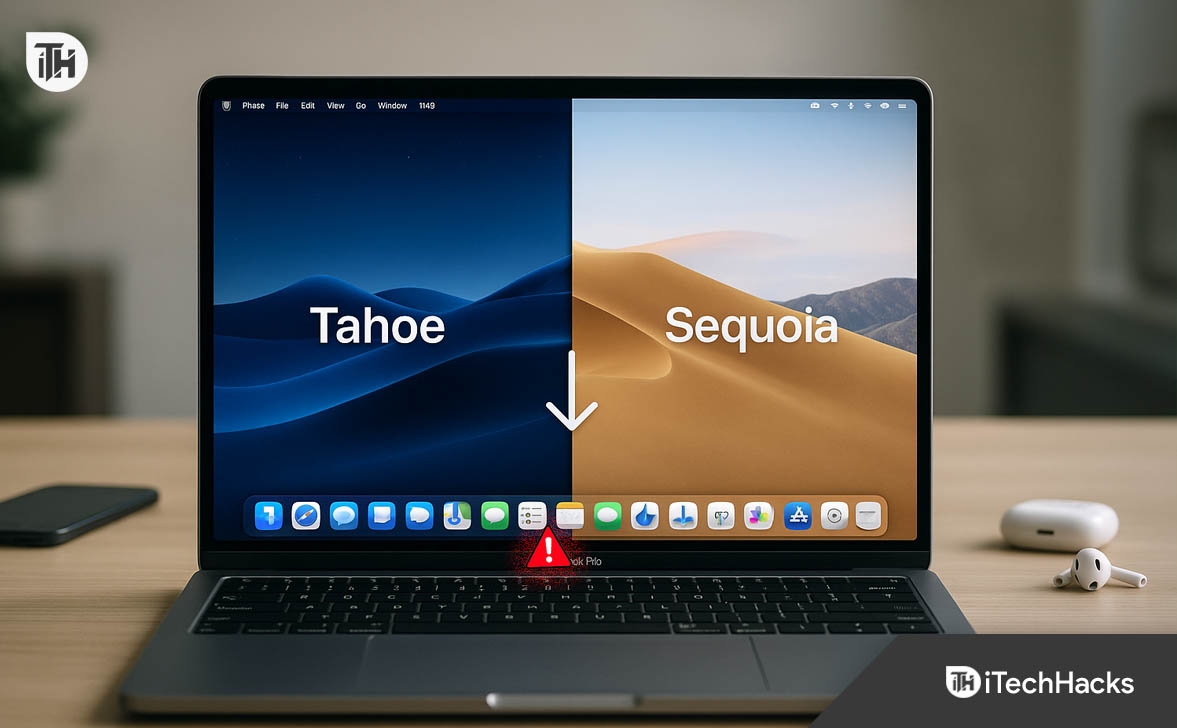
- You cannot roll back directly — to downgrade from macOS Tahoe to Sequoia, you must erase the disk and reinstall Sequoia via Time Machine, bootable USB, or Internet Recovery.
- Always secure a Time Machine backup or manually copy essential files. Without backups, restoring data after the downgrade will be difficult.
Many Mac users upgrade to the latest macOS release expecting improved performance, new features, and tighter integration with Apple’s ecosystem. But sometimes, the newest version isn’t the smoothest for daily work. If you’ve installed macOS Tahoe and experienced compatibility problems, reduced battery life, or application crashes, you may need to downgrade from macOS Tahoe to Sequoia.
This process isn’t as straightforward as clicking “Uninstall.” It requires careful preparation, the right tools, and an understanding of Apple’s system restore mechanisms. In this detailed guide, you’ll find every step needed to move from Tahoe back to Sequoia without losing critical data or compromising stability.
Understanding the Downgrade from macOS Tahoe to Sequoia
Apple designs macOS upgrades to move forward, not backward. Once you’ve upgraded to Tahoe, your Mac is optimized for that system. Applications, settings, and firmware may adapt to the new architecture.
That’s why downgrading is a multi-step operation:
- Erasing the current installation – because Apple doesn’t allow direct rollback.
- Reinstalling macOS Sequoia – using a bootable installer, recovery tools, or Time Machine backup.
- Restoring personal files – ensuring your workflow continues without interruption.
Downgrading is essential when:
- Applications critical for work are incompatible with Tahoe.
- Hardware drivers (printers, external GPUs, audio devices) fail after the upgrade.
- Performance or stability has declined noticeably.
- You rely on software vendors who only certify Sequoia for production environments.
Preparation Before You Downgrade from macOS Tahoe to Sequoia
Downgrading is disruptive if done without planning. Before erasing Tahoe, take these steps:
1. Back Up Data
- Time Machine Backup: If you created backups before upgrading to Tahoe, restoring them will reinstall Sequoia and your files in one step.
- External Drive Copy: At minimum, copy essential files (Documents, Photos, Work Projects) to an external SSD or cloud storage.
2. Check Device Compatibility
Ensure your Mac originally supported Sequoia. If your hardware only officially supports Tahoe, Apple may block the downgrade.
3. Prepare Internet Connection
If you reinstall through macOS Internet Recovery, a strong and stable internet connection is mandatory.
4. Download macOS Sequoia Installer
Apple’s App Store may hide older versions. You’ll need:
- A verified macOS Sequoia installer package.
- A minimum 16GB USB drive to create a bootable installer.
Methods to Downgrade from macOS Tahoe to Sequoia
There are three reliable downgrade methods. Choose depending on your backup situation.
Method 1: Using Time Machine Backup

This is the most seamless way to return to Sequoia.
- Connect Backup Drive – Plug in the drive containing Sequoia backups.
- Restart Mac in Recovery Mode – Press and hold Command (⌘) + R during boot.
- Erase Current macOS – From Disk Utility, erase the startup disk (APFS or Mac OS Extended format).
- Restore from Time Machine – Select the most recent backup taken before upgrading to Tahoe.
Result: Your Mac reverts to Sequoia with apps, settings, and documents intact.
Method 2: Installing macOS Sequoia via Bootable USB
If no backup exists, you can manually install Sequoia.
-
Create Bootable Installer
-
On another Mac, download the macOS Sequoia installer.
-
Use Terminal command: sudo /Applications/Install\ macOS\ Sequoia.app/Contents/Resources/createinstallmedia –volume /Volumes/MyUSB
-
Replace
MyUSBwith your USB drive name.
-
-
Boot from USB
-
Insert the USB drive into your Tahoe Mac.
-
Restart and hold Option (⌥) until boot menu appears.
-
Select the USB installer.
-
-
Erase Disk & Install Sequoia
-
Open Disk Utility → Erase Macintosh HD.
-
Reinstall macOS Sequoia from the bootable installer.
-
-
Restore Files Manually
-
Copy your saved files from external storage back to the Mac.
-
Method 3: Internet Recovery (Apple Servers)
For Macs still supported by Sequoia, Internet Recovery may reinstall it.
- Restart Mac and hold Shift + Option + Command + R.
- The system will attempt to reinstall the version of macOS originally shipped with your Mac (or the closest available).
- If your Mac shipped with Sequoia, you can restore it directly.
Advanced Considerations When Downgrading
Firmware Compatibility
Some Macs update firmware during a Tahoe upgrade. Apple firmware usually supports backward OS versions, but occasionally, new firmware causes instability on older systems.
Application Integrity
Applications installed under Tahoe may not launch correctly under Sequoia. Consider reinstalling fresh versions after the downgrade.
File System Format
- Sequoia uses APFS by default. If your disk is already APFS under Tahoe, reinstalling Sequoia poses no issue.
- For older HFS+ systems, always select the default Apple-recommended format.
Troubleshooting Common Problems
Problem 1: “Installer Is Damaged or Incomplete”
- Cause: Corrupted download.
- Fix: Re-download the Sequoia installer and recreate the bootable USB.
Problem 2: Mac Boots Back Into Tahoe
- Cause: Startup disk wasn’t erased.
- Fix: Restart → Recovery → Disk Utility → Erase → Reinstall Sequoia.
Problem 3: Missing Data After Downgrade
- Cause: Files weren’t backed up.
- Fix: Check iCloud Drive, Google Drive, or external disks. Professional recovery tools may help.
Problem 4: Internet Recovery Installs Tahoe Again
- Cause: Apple servers default to latest supported OS.
- Fix: Use bootable USB installer instead.
Preventive Measures for Future Upgrades
- Test New OS on a Secondary Mac before upgrading production machines.
- Wait for Vendor Updates – Only upgrade when critical applications confirm compatibility.
- Keep Multiple Backups – Maintain Time Machine plus at least one manual backup.
- Create Bootable Installers in Advance – Always store the last stable macOS installer on a USB stick.
This ensures you never get locked into a system that doesn’t work for your workflow.
FAQs
1. Can I downgrade from macOS Tahoe to Sequoia without erasing my Mac?
No. Apple requires a clean erase before reinstalling an older version. You must back up your data first.
2. How long does the downgrade process take?
On average, 1–2 hours depending on whether you use Time Machine or USB installer, plus additional time for restoring data.
3. Will downgrading affect my warranty or AppleCare?
No. Downgrading is a supported recovery option. However, Apple Support typically encourages staying on the latest OS.
4. What if my Mac won’t boot from the Sequoia installer?
Ensure the USB installer is properly created. Try different ports, re-download the installer, or reset NVRAM/PRAM before retrying.
5. Can I reinstall Sequoia if my Mac shipped with Tahoe?
No. If your hardware was released alongside Tahoe and never supported Sequoia, downgrading is blocked.
Conclusion
Downgrading isn’t a quick setting change—it requires erasing the drive, preparing the correct installer, and restoring files. Still, with proper backups and planning, you can successfully downgrade from macOS Tahoe to Sequoia.
Whether you use Time Machine, a bootable installer, or Internet Recovery, the key is preparation. Always back up, confirm compatibility, and reinstall with care. By following these steps, you’ll restore stability, performance, and software compatibility until Apple releases updates that make Tahoe as reliable as Sequoia.
ALSO READ:
- How to Fix Chrome Not Loading Most Websites on macOS Sequoia
- macOS Sequoia Update Causing Internet Drops? Here’s How to Fix It
- macOS Sequoia Blocking VPN? Here’s How to Fix Issues with Messages and iCloud
- Time Machine Backup Not Working on macOS Sequoia? Here’s How to Fix It
- Slow Login After macOS Sequoia Update: 9 Ways to Fix it