
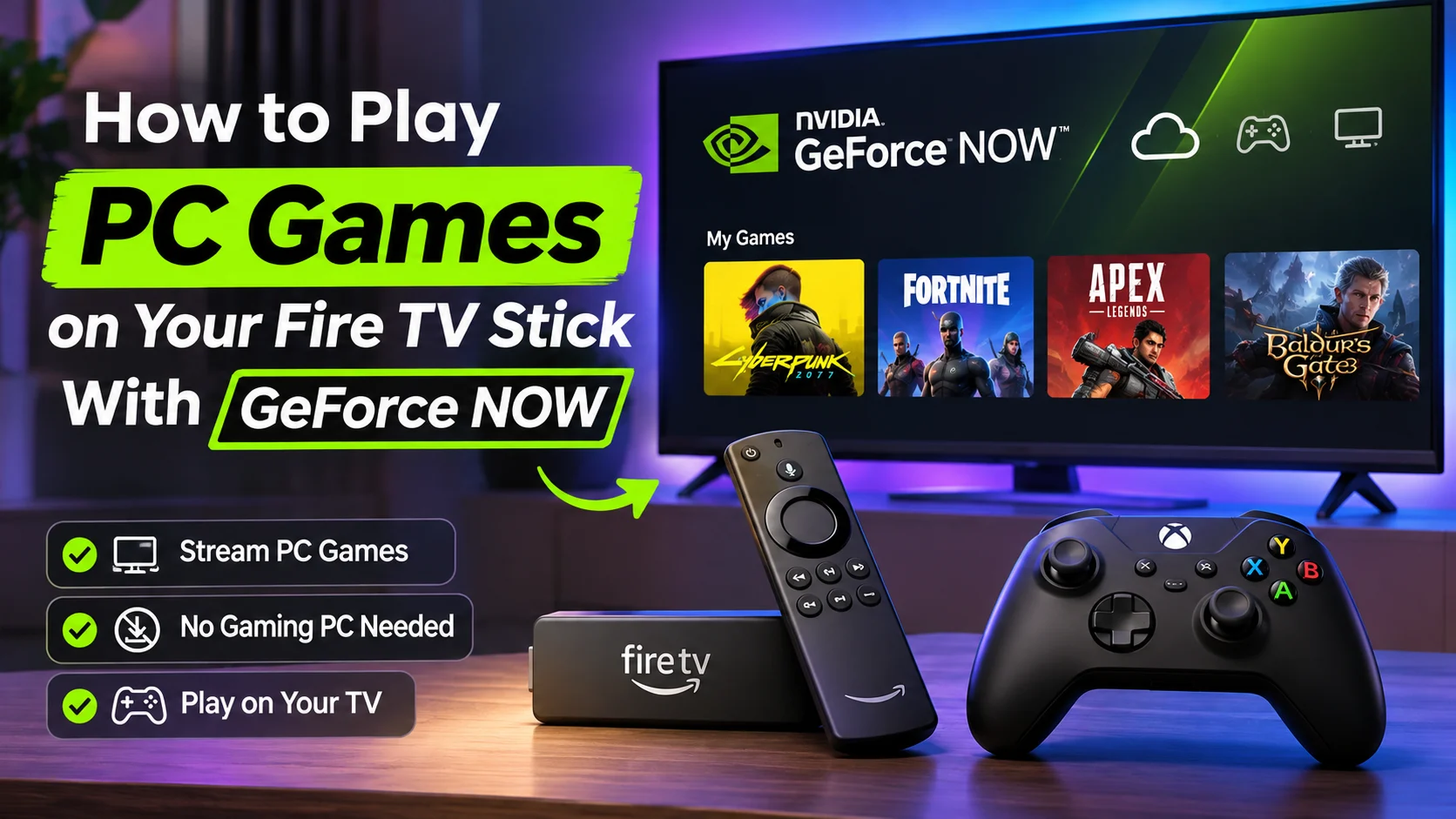
- NVIDIA GeForce NOW lets you play PC games on your TV through an Amazon Fire TV Stick without needing a powerful gaming computer. You just need a compatible Fire TV Stick, a Bluetooth controller, a GeForce NOW account, and access to supported games from digital stores like Steam or Epic Games.
- The service turns your TV into a cloud gaming setup, streaming games from NVIDIA’s servers to your TV. Games are displayed on the TV while your controller sends commands back, making it possible to enjoy high-demand games on inexpensive devices.
Want to play PC games on your television without buying an expensive gaming computer or console? If you own an Amazon Fire TV Stick, NVIDIA GeForce NOW can turn your regular television into a cloud gaming setup.
NVIDIA officially introduced its GeForce NOW app for select Fire TV devices in February 2026. Support expanded further in November 2026, bringing the service to newer Fire TV Sticks running Amazon’s Vega OS.
With GeForce NOW, you can stream supported PC games directly to your television using a compatible Bluetooth controller. The best part is that you don’t need a powerful gaming PC, dedicated graphics card, or local game installation.
However, not every Fire TV Stick supports the service, and you’ll need a reliable internet connection to enjoy smooth gameplay. This guide explains how to install GeForce NOW on Fire TV Stick, connect a controller, access your PC games, and troubleshoot common problems.
What Is NVIDIA GeForce NOW?
GeForce NOW is NVIDIA’s cloud gaming service that allows users to play supported PC games through the internet. Instead of running a game on your own computer, NVIDIA’s remote servers handle the demanding graphics processing and send the gameplay to your device as a video stream.
Your Fire TV Stick displays that stream while your controller sends commands back to the gaming server. This makes it possible to enjoy demanding PC games on relatively inexpensive streaming hardware.
Unlike a traditional game subscription library, GeForce NOW primarily connects to games you already own through supported digital storefronts, including Steam, Epic Games Store, Ubisoft Connect, and Xbox. Some supported free-to-play games are also available.
Not every game in your PC library will work. A title must be supported by GeForce NOW, and you may need to own it or have access through a compatible subscription.
Which Fire TV Sticks Support GeForce NOW in 2026?
Before installing the application, check whether your Fire TV Stick is officially supported. NVIDIA has expanded compatibility significantly throughout 2026, but support still depends on the device model and operating system version.
Officially Supported Fire TV Devices
- Fire TV Stick 4K Select (1st Gen): OS 2.0 or later.
- Fire TV Stick HD (2026): OS 2.0 or later.
- Fire TV Stick 4K (2026): OS 2.0 or later.
- Fire TV Stick 4K Plus (1st Gen): Fire OS 8.1.6.0 or later.
- Fire TV Stick 4K Max (2nd Gen): Fire OS 8.1.6.0 or later.
- Fire TV Stick 4K Max (1st Gen): Fire OS 7.7.1.1 or later.
- Fire TV Stick 4K (2nd Gen): Fire OS 8.1.6.0 or later.
NVIDIA’s November 19, 2026 announcement specifically expanded native GeForce NOW support to Fire TV Stick HD, Fire TV Stick 4K Select, and Fire TV Stick 4K (2026), all running Vega OS.
Older Fire TV models that aren’t on the compatibility list may not be able to install or run the official application reliably.
How to Check Your Fire TV Stick Model
- Turn on your television and open the Fire TV home screen.
- Navigate to Settings.
- Select My Fire TV.
- Open About.
- Check your device name and installed software version.
If an update is available, install it before proceeding. Having the latest supported operating system helps prevent application compatibility problems.
What Do You Need to Play PC Games on Fire TV Stick?
Getting started with GeForce NOW doesn’t require complicated hardware. However, a few essential components are necessary.
- Compatible Fire TV Stick: An officially supported device running the required software.
- NVIDIA account: Required to access GeForce NOW and manage your games.
- GeForce NOW membership: A free or paid membership, depending on availability and your preferences.
- Bluetooth game controller: A compatible controller for playing games.
- Internet connection: At least 15 Mbps for 720p streaming or 25 Mbps for 1080p streaming at 60 FPS.
- Supported PC games: Games available through your connected digital storefront accounts.
NVIDIA recommends a 5 GHz Wi-Fi connection or wired Ethernet and network latency below 80 milliseconds to its data center. A stable connection matters more than having an extremely high download speed.
How to Install GeForce NOW on Fire TV Stick
Installing GeForce NOW is straightforward on officially supported Fire TV devices. You can download the native application directly through Amazon’s app store without using third-party installation tools.
Step 1: Connect Your Fire TV Stick to the Internet
- Open Settings on your Fire TV Stick.
- Select Network.
- Choose your Wi-Fi network.
- Enter your password if required.
- Confirm that your device is connected to the internet.
For the best cloud gaming performance, connect to a 5 GHz Wi-Fi network if available. This generally provides better performance for streaming than a congested 2.4 GHz network.
Step 2: Download the GeForce NOW App
- Return to your Fire TV home screen.
- Open Find or the app search option.
- Type GeForce NOW using the on-screen keyboard.
- Select the official NVIDIA GeForce NOW application.
- Choose Get or Download.
- Allow the installation to finish.
- Select Open to launch the application.
If the application doesn’t appear in search results, verify that your device is supported, update its software, and check whether GeForce NOW is available in your region.
You don’t need to sideload APK files on officially supported Fire TV devices. Installing from Amazon’s app store is safer and makes updates easier.
Step 3: Sign In to Your NVIDIA Account
- Launch the GeForce NOW application.
- Select the sign-in option.
- Follow the instructions displayed on your television.
- If prompted, use your phone or computer to complete the browser-based sign-in process.
- Enter your NVIDIA account credentials.
- Complete any required verification.
- Return to your television once authentication finishes.
If you don’t have an NVIDIA account, create one through the official GeForce NOW website. Your account is used to manage membership access and connect supported game libraries.
How to Connect a Bluetooth Controller to Fire TV Stick
A compatible gaming controller is essential because GeForce NOW on Fire TV is designed for gamepad-based gameplay. Your regular Fire TV remote cannot replace a gaming controller.
Xbox Wireless Controllers and Sony PlayStation DualSense or DualShock 4 controllers are among the supported options. Other Bluetooth controllers may work, although compatibility and button mapping can vary.
Pair an Xbox or PlayStation Controller
- Turn on your Fire TV Stick.
- Open Settings.
- Select Controllers & Bluetooth Devices, or the equivalent controller menu on your device.
- Choose the option to add a compatible Bluetooth game controller.
- Put your controller into pairing mode.
- For an Xbox controller, hold the pairing button until its Xbox light flashes.
- For a PS5 DualSense controller, hold the Create and PS buttons until the light begins flashing.
- Select the controller when it appears on your Fire TV.
- Wait for the connection confirmation.
Once paired, open GeForce NOW and use the controller to navigate the application.
If the controller connects but doesn’t respond inside games, disconnect it, restart the Fire TV Stick, and pair it again. You should also check whether the controller has a firmware update available.
How to Play Steam and Epic Games on Fire TV Stick
After installing GeForce NOW and connecting your controller, the next step is accessing your PC games.
Step 1: Connect Your Gaming Accounts
- Open the GeForce NOW application.
- Navigate to Settings or account connections.
- Look for supported game store connections.
- Connect your Steam, Epic Games, Ubisoft, or Xbox account where integration is available.
- Follow the authentication instructions.
- Return to your GeForce NOW library.
Some stores support library synchronization, while others may require you to select a supported game and sign in when its cloud session launches.
Step 2: Find a Supported PC Game
- Open the GeForce NOW home screen.
- Use the search feature to locate your preferred game.
- Open the game’s information page.
- Check which digital storefront versions are supported.
- Select the store where you own the game.
- Choose Play.
Depending on your membership and server availability, GeForce NOW may place you in a queue before starting a cloud gaming session.
Once connected, the game streams to your television. You can play using your controller without downloading its installation files to your Fire TV Stick.
Can You Play GeForce NOW on Fire TV Stick in 4K?
Although several supported Fire TV devices can display 4K video from streaming services, GeForce NOW currently limits Fire TV cloud gaming streams to 1080p at 60 FPS.
The Fire TV experience also uses standard dynamic range (SDR), H.264 video encoding, and stereo audio.
This means buying a GeForce NOW Ultimate membership won’t automatically unlock 4K game streaming on a Fire TV Stick. NVIDIA offers higher streaming resolutions on certain other supported platforms, but those capabilities don’t apply universally.
For most casual gaming sessions, 1080p at 60 FPS can still provide an enjoyable experience, particularly with a stable internet connection and responsive controller.
How to Fix GeForce NOW Not Working on Fire TV Stick
If GeForce NOW won’t launch, keeps buffering, or fails to recognize your controller, try the following troubleshooting methods.
1. Update Your Fire TV Stick
Outdated firmware can prevent the GeForce NOW application from installing or running correctly.
- Navigate to Settings > My Fire TV > About.
- Select Check for Updates.
- Install any available update.
- Restart your device and open GeForce NOW again.
2. Fix Lagging or Buffering
Cloud gaming requires consistent network performance. Even a fast connection can experience interruptions caused by high latency, interference, or packet loss.
- Connect your Fire TV Stick to 5 GHz Wi-Fi.
- Move the router closer to your television.
- Pause large downloads on other devices.
- Restart your router.
- Use Ethernet through a compatible adapter if wireless interference persists.
- Reduce streaming quality when necessary.
If you’re experiencing frequent freezes, run a network test and check both your download speed and latency. A connection that meets the minimum bandwidth requirement can still perform poorly if it has significant jitter or packet loss.
3. Fix the App Crashing or Freezing
- Open Settings > Applications > Manage Installed Applications, where available.
- Select GeForce NOW.
- Choose Force Stop.
- Select Clear Cache if available.
- Restart the application.
If the problem continues, uninstall and reinstall GeForce NOW. Avoid clearing application data unless necessary, since doing so may require you to sign in again.
4. Fix Games Not Appearing in Your Library
Owning a game on Steam or another storefront doesn’t automatically mean it’s available through GeForce NOW.
Search for the game in GeForce NOW, confirm that the correct store version is supported, and check whether your connected account owns it. Refresh library synchronization if that option is available.
5. Fix GeForce NOW Not Showing in the App Store
First, confirm that your Fire TV model appears on NVIDIA’s supported-device list. Next, update your operating system and restart the device.
Also verify regional availability. The GeForce NOW application and membership options may differ between countries. On unsupported hardware, the native app may remain unavailable even after updating.
Tips to Improve GeForce NOW Gaming Performance
A few simple adjustments can make cloud gaming more enjoyable on your television.
- Prefer 5 GHz Wi-Fi: It can reduce interference and improve streaming consistency.
- Use Ethernet when possible: A compatible wired adapter can provide a more stable connection.
- Enable Game Mode on your television: This reduces additional display processing and can improve controller responsiveness.
- Keep your controller charged: Low battery levels can cause unexpected disconnections.
- Close unused applications: Reducing unnecessary background activity may help device responsiveness.
- Choose an appropriate membership: Paid plans can provide benefits such as improved queue priority and longer sessions, depending on the plan.
Remember that the game’s cloud rendering performance and the video stream delivered to your television are different things. Even if a remote server runs a game at a higher frame rate, the supported Fire TV stream remains capped at 60 FPS.
Frequently Asked Questions
Can I Play PC Games on Fire TV Stick Without a PC?
Yes. GeForce NOW runs supported games on remote gaming servers, so you don’t need a gaming PC at home. You need a compatible Fire TV Stick, a controller, an internet connection, and access to supported games.
Is GeForce NOW Free on Fire TV Stick?
GeForce NOW offers free and paid membership options in supported regions. Free access can involve longer queues, shorter gaming sessions, and other restrictions. Individual games may still need to be purchased separately.
Can I Use a PS5 Controller With GeForce NOW?
Yes. Sony DualSense controllers are supported by GeForce NOW. You can pair a compatible controller with your Fire TV Stick over Bluetooth, although some advanced controller features may not be available.
Can I Install Steam Directly on Fire TV Stick?
No. Fire TV Stick doesn’t function as a Windows gaming PC and cannot natively install regular Windows Steam games. GeForce NOW lets you stream supported Steam titles instead.
Does GeForce NOW Work With Every Fire TV Stick?
No. Official support is limited to particular Fire TV models and operating system versions. Check NVIDIA’s current compatibility list before attempting installation or purchasing a device specifically for cloud gaming.
How Much Internet Speed Do I Need?
NVIDIA specifies at least 15 Mbps for 720p at 60 FPS and 25 Mbps for 1080p at 60 FPS. Low latency and a stable connection are equally important for responsive gameplay.
Final Thoughts
Playing PC games on a Fire TV Stick is much easier now that NVIDIA offers an official GeForce NOW application for compatible Amazon streaming devices. The expansion to newer Vega OS models in November 2026 makes cloud gaming accessible across a wider selection of Fire TV hardware.
Getting started requires only a supported Fire TV Stick, a Bluetooth controller, a GeForce NOW account, and a stable internet connection. Once you’ve connected your game libraries, you can enjoy supported PC titles directly on your television without purchasing a dedicated gaming computer.
Although streaming is currently limited to 1080p at 60 FPS on Fire TV, GeForce NOW remains a practical option for anyone who wants to experience PC gaming on a larger screen without investing in expensive hardware.