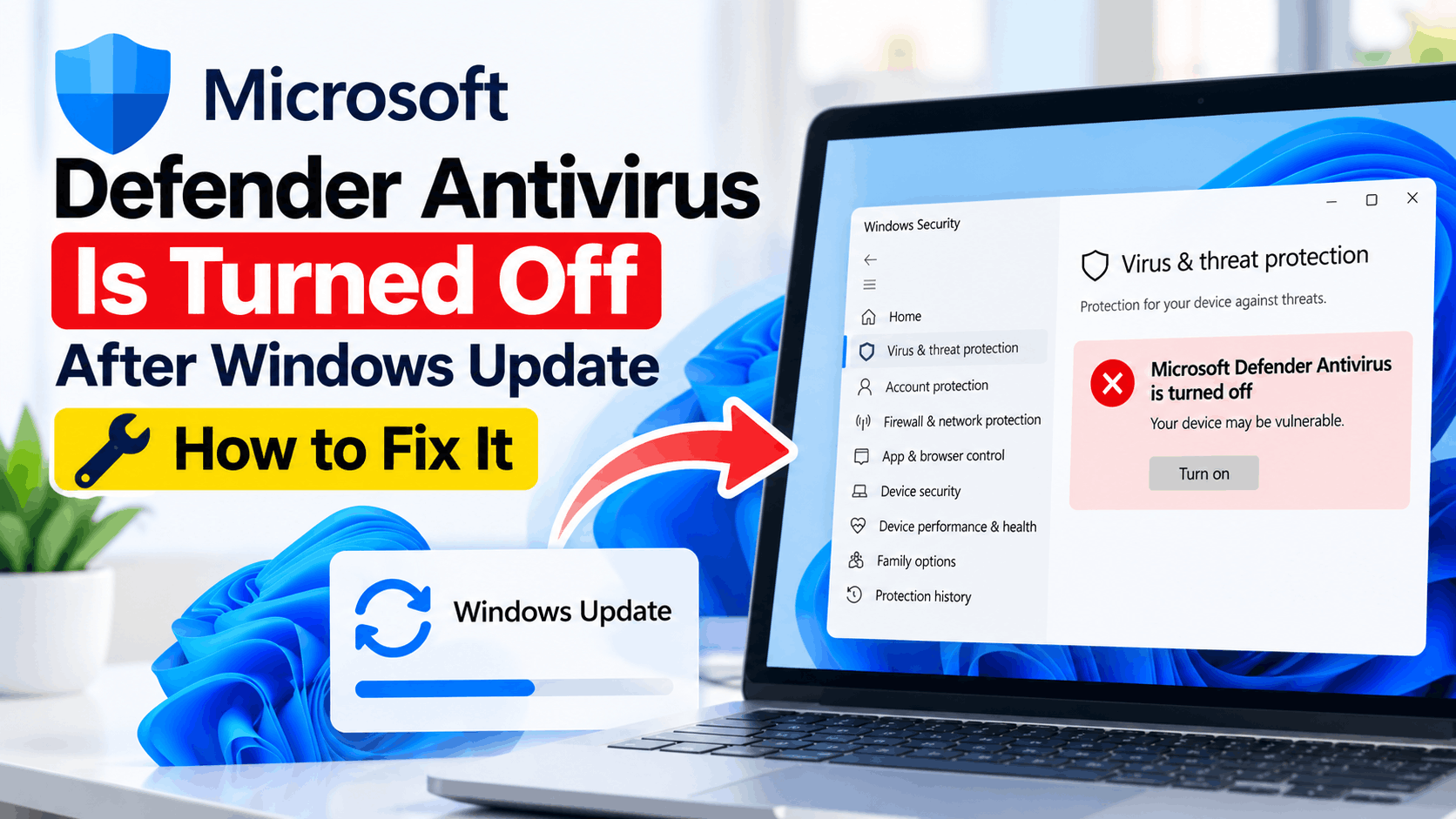
- After a Windows update, you might see a message saying “Microsoft Defender Antivirus is turned off,” but it doesn't always mean your antivirus is actually off. It can be a temporary bug or because another antivirus program is running.
- To check if Defender is truly off, use PowerShell commands to see if crucial protection features are enabled. You should also look for third-party antivirus software that might be interfering.
- If Defender is disabled, try basic fixes like restarting your computer, checking for Windows updates, ensuring that any old antivirus software is fully removed, and diagnosing Windows Security issues through repair or reset actions.
If Windows Security suddenly says “Microsoft Defender Antivirus is turned off” after installing a Windows update, you should not automatically assume that your PC has lost antivirus protection. Recent Windows 11 updates can sometimes leave Windows Security displaying an incorrect or outdated protection status even while the Microsoft Defender engine is still running.
However, the warning can also be genuine. A third-party antivirus program, damaged Windows Security components, disabled Defender services, corrupted system files, or organization policies can prevent Microsoft Defender Antivirus from running normally.
This guide explains how to check whether Microsoft Defender is actually disabled and how to fix the Microsoft Defender Antivirus is turned off after Windows Update problem using safe troubleshooting methods.
Why Does Windows Say Microsoft Defender Antivirus Is Turned Off?
Microsoft Defender Antivirus is built into Windows 11 and Windows 10. Normally, it starts automatically and provides real-time malware protection unless another antivirus product is registered as your primary security provider.
After a Windows update, you might see messages such as “Microsoft Defender Antivirus is turned off”, “Virus protection is turned off”, or “Threat service has stopped”. You may also notice a warning icon over Windows Security.
Common causes include:
- A temporary Windows Security status or notification bug
- A third-party antivirus program taking over real-time protection
- Remnants of previously installed antivirus software
- Windows Security app corruption after an update
- Microsoft Defender services not running correctly
- Corrupted Windows system components
- Group Policy or administrator-controlled security settings
- Pending Windows or Defender security intelligence updates
The important first step is determining whether Defender is genuinely disabled or Windows Security is simply reporting the wrong status.
1. Check Whether Microsoft Defender Is Actually Turned Off
Do this before changing services, policies, or security settings. Windows Security is a management interface, while the underlying Microsoft Defender Antivirus engine can be checked independently.
Right-click Start and open Terminal (Admin) or Windows PowerShell (Admin). Run:
Get-MpComputerStatus | Select AMServiceEnabled,AntivirusEnabled,RealTimeProtectionEnabled
Look at the three results. On a PC where Microsoft Defender is your active antivirus, you would normally expect them to report True.
You can get additional information by running:
Get-MpComputerStatus | Select AMRunningMode
If AMRunningMode reports Normal, Microsoft Defender Antivirus is operating in active mode. This is especially useful when Windows Security claims Defender is turned off but PowerShell reports that the antivirus engine and real-time protection are active.
If Defender reports healthy values but the warning remains, concentrate on repairing Windows Security rather than repeatedly trying to force Defender on.
2. Restart Windows and Check for Pending Updates
A Windows update can require more than one restart, particularly when Windows Security components or Microsoft Defender platform files are being updated. Start with a normal restart rather than shutting down and immediately turning the computer back on.
Open Settings > Windows Update and select Check for updates. Install any remaining cumulative, security, Defender, or servicing updates and restart the PC again.
Then open Windows Security > Virus & threat protection and check the status.
3. Check Which Antivirus Is Protecting Your PC
Microsoft Defender is designed to step aside when a compatible third-party antivirus product is installed and active. Therefore, Defender being disabled is not necessarily an error if Norton, McAfee, Bitdefender, Avast, AVG, ESET, Malwarebytes Premium, or another security suite is providing real-time antivirus protection.
Open Windows Security > Virus & threat protection. Find Who’s protecting me? and select Manage providers.
Check which program appears under Antivirus. If another antivirus is listed and active, Windows may intentionally have Microsoft Defender Antivirus disabled.
Avoid trying to force two real-time antivirus engines to run simultaneously. Multiple real-time security products can create conflicts, performance problems, or unreliable threat detection.
4. Remove Old Third-Party Antivirus Software
This is particularly important if you previously used another antivirus program but thought you had removed it. Security software installs services, drivers, and Windows Security Center registrations that may remain after an incomplete uninstall.
Go to Settings > Apps > Installed apps and search for any antivirus or Internet security product you no longer use. Uninstall it and restart Windows.
If Defender still does not activate, check the antivirus vendor’s website for its official removal or cleanup utility. Products such as Norton, McAfee, Avast, AVG, Bitdefender, and others may provide dedicated cleanup tools because a standard uninstall can occasionally leave security components behind.
After removal, return to Windows Security > Virus & threat protection > Manage providers and confirm that Microsoft Defender is recognized as the antivirus provider.
5. Turn Real-Time Protection Back On
If Microsoft Defender is the active antivirus provider but its real-time protection has been disabled, Windows Security may allow you to restore it directly.
Open Windows Security > Virus & threat protection > Manage settings. Turn Real-time protection on.
While you are there, check that Cloud-delivered protection and Automatic sample submission are enabled. These features help Defender identify newer threats that may not yet be covered by local signatures.
If the switch immediately turns itself off or is unavailable, continue with the checks below rather than repeatedly toggling it.
6. Check the Microsoft Defender Antivirus Service
Microsoft Defender depends on Windows services to operate. A failed update, third-party security application, or damaged configuration can occasionally leave those services in an unexpected state.
Press Windows + R, enter services.msc, and press Enter.
Look for Microsoft Defender Antivirus Service. You can also verify it from an administrator PowerShell window using:
Get-Service WinDefend
If Defender is supposed to be your active antivirus, the service would normally be running.
Do not randomly change the startup types of Defender-related services or attempt to modify protected services through registry hacks. Windows manages several security services automatically, and Tamper Protection deliberately prevents unauthorized changes to important Defender settings.
7. Repair or Reset the Windows Security App
If PowerShell confirms Defender is running but Windows Security still reports “Microsoft Defender Antivirus is turned off”, the Windows Security interface itself may be the problem.
On supported Windows 11 builds, open Settings > Apps > Installed apps and locate Windows Security. Open its advanced options if available.
Try Repair first. Repairing attempts to fix the app without resetting its data. Restart the PC and check Windows Security again.
If Repair does not help and your Windows version provides the option, return to the same page and select Reset. Resetting the Windows Security interface does not mean you are uninstalling the underlying Microsoft Defender Antivirus engine.
8. Repair Corrupted Windows System Files
If the Defender warning started immediately after a failed or interrupted Windows update, damaged system files are another possibility. Windows includes DISM and System File Checker specifically for repairing Windows components.
Open Terminal (Admin) or Command Prompt (Admin) and run:
DISM /Online /Cleanup-Image /RestoreHealth
Allow DISM to finish. It may appear to remain at the same percentage for some time, so avoid closing the window prematurely.
Next, run:
sfc /scannow
System File Checker scans protected Windows files and replaces damaged versions when possible. Restart your computer after both commands complete, even if no corruption is reported.
9. Update Microsoft Defender Security Intelligence
Defender also receives security intelligence and platform updates independently of major Windows feature updates. An outdated or failed security intelligence update can sometimes coincide with protection warnings.
Open Windows Security > Virus & threat protection. Find Virus & threat protection updates or Protection updates, then select Check for updates.
Let Defender download the latest available security intelligence. Once complete, restart Windows and check the antivirus status again.
10. Check Group Policy on Windows Pro or Enterprise
This step mainly applies to Windows Pro, Enterprise, Education, or computers previously managed by an organization. A policy can control Microsoft Defender settings and prevent ordinary Windows Security controls from changing them.
Press Windows + R, enter gpedit.msc, and press Enter.
Navigate through Computer Configuration > Administrative Templates > Windows Components > Microsoft Defender Antivirus.
Review policies that explicitly disable or configure Microsoft Defender. On a personal PC that you manage yourself, unexpected configured policies deserve investigation.
If this is a work or school computer, however, do not change organization-managed security policies. Your IT administrator may intentionally manage Defender, Microsoft Defender for Endpoint, or another endpoint security product.
11. Check for a Windows Security Reporting Bug
This possibility is easy to overlook. A Windows Security notification saying Defender is off does not always mean the underlying antivirus engine is actually disabled.
Run the following again while the warning is visible:
Get-MpComputerStatus | Select AMServiceEnabled,AntivirusEnabled,RealTimeProtectionEnabled,AMRunningMode
If the important protection fields report True and AMRunningMode reports Normal, that strongly suggests the Defender engine is active even though the Windows Security interface or notification is reporting otherwise.
You can also open Task Manager and look for Antimalware Service Executable, whose underlying process is MsMpEng.exe. Microsoft documents this as another way to confirm that Defender Antivirus is running.
In this situation, avoid disabling security features or making aggressive registry modifications simply to remove the notification. Install subsequent Windows updates and report persistent incorrect notifications through Feedback Hub by pressing Windows + F.
12. Run a Microsoft Defender Scan
Once Defender is active again, run a scan to confirm that its scanning engine is functioning normally.
Open Windows Security > Virus & threat protection and select Quick scan. For a more thorough check, select Scan options > Full scan.
If you suspect malware may have disabled or interfered with security software, consider Microsoft Defender Offline scan. It restarts the computer and performs a scan outside the normal Windows environment, which can help detect certain persistent threats.
What If the “Turn On” Button Does Nothing?
If clicking Turn on in Windows Security does nothing, do not assume the button itself is the root problem. First check Manage providers for another antivirus and then verify Defender with Get-MpComputerStatus.
If Defender is already active according to PowerShell, troubleshoot the Windows Security interface. If Defender is genuinely disabled and no other antivirus is installed, repair Windows Security, run DISM and SFC, install pending updates, and check for security policies.
Should You Edit the Registry to Enable Microsoft Defender?
Registry modifications are frequently suggested in older Defender troubleshooting guides, but they should not be the first solution on modern Windows installations. Current Windows security features, including Tamper Protection and organization-managed policies, make many old registry-based Defender fixes ineffective, inappropriate, or potentially disruptive.
Use supported Windows Security settings, antivirus provider checks, PowerShell status commands, DISM, SFC, and policy inspection first. Registry modifications should only be considered when a specific documented configuration requires them and you understand why that value exists.
Additional Tips to Prevent Microsoft Defender Problems
- Keep Windows Update enabled and install security updates regularly.
- Keep Microsoft Defender security intelligence updated.
- Avoid running multiple real-time antivirus products simultaneously.
- Use official antivirus removal tools when switching security products.
- Keep Tamper Protection enabled unless you have a specific administrative reason to disable it.
- Avoid scripts that claim to permanently disable Windows Defender.
- Create a restore point before making advanced security-policy changes.
Frequently Asked Questions
Why did Microsoft Defender turn off after a Windows update?
The warning can appear because another antivirus has become the registered security provider, Windows Security is reporting an incorrect status, a security component was damaged during the update, or Defender is being controlled by policy. Check the actual Defender status with PowerShell before attempting advanced repairs.
How do I know if Microsoft Defender Antivirus is actually running?
Open PowerShell as administrator and run Get-MpComputerStatus. Check values including AMServiceEnabled, AntivirusEnabled, RealTimeProtectionEnabled, and AMRunningMode. When Defender is your active antivirus, the protection values should normally be True and the running mode should normally be Normal.
Why can’t I turn Microsoft Defender back on?
A third-party antivirus may be registered as the primary security provider. Another possibility is that Defender is controlled by an administrator, Group Policy, or endpoint-management software. Check Windows Security > Virus & threat protection > Manage providers before changing anything else.
Does Microsoft Defender automatically turn off when another antivirus is installed?
Yes. On ordinary Windows 10 and Windows 11 PCs, Microsoft Defender Antivirus can automatically move out of active antivirus operation when a compatible non-Microsoft antivirus product is installed and registered. This helps prevent conflicts between multiple real-time antivirus engines.
Will uninstalling another antivirus turn Microsoft Defender back on?
Normally, yes. Windows is designed to reactivate Microsoft Defender Antivirus when the third-party antivirus is removed. If that does not happen, restart Windows and check for leftover antivirus components or registrations.
Can a Windows update break Windows Security without disabling Defender?
Yes, the Windows Security interface or its reported protection status can become inconsistent with the actual Defender engine state. This is why checking Get-MpComputerStatus is more useful than relying only on a notification.
Is Windows 10 still supported?
Standard Windows 10 support ended on October 14, 2025. Eligible systems may have access to Extended Security Updates, but users running unsupported Windows 10 installations should consider moving to a supported Windows version when hardware and software requirements allow.
Final Thoughts
If you see “Microsoft Defender Antivirus is turned off” after a Windows update, first determine whether Defender is genuinely disabled. Checking Get-MpComputerStatus can quickly distinguish an actual protection problem from an incorrect Windows Security notification.
If Defender really is off, check for third-party antivirus software, turn real-time protection back on, install pending updates, repair Windows Security, update Defender security intelligence, and run DISM and SFC. For managed computers, check with your administrator rather than overriding security policies.
Most importantly, do not use random registry modifications or Defender-disabling scripts just to clear the warning. Once Microsoft Defender reports that its antivirus service and real-time protection are active, run a security scan and keep Windows fully updated.