- After installing the Windows 11 update KB5124008 in September 2026, many USB audio devices like headphones and speakers experienced issues, often showing "Code 10" in Device Manager which indicates the device was detected but could not start properly.
- To address these problems, users should first ensure their Windows 11 is up to date with the latest updates like KB5129195, which provides partial fixes. They can also try disconnecting and reconnecting their USB audio devices, using different ports, or uninstalling and reinstalling the device from Device Manager.
- If these steps fail to resolve the issue, users can install the latest drivers from the device manufacturer's official website or switch audio settings to 2-channel stereo. Uninstall KB512
If your USB headphones, DAC, speakers, microphone, or external audio interface suddenly stopped working after installing Windows 11 update KB5124008, the problem may not be with your hardware. Microsoft has confirmed an issue affecting some USB audio devices after the September 2026 Windows security update.
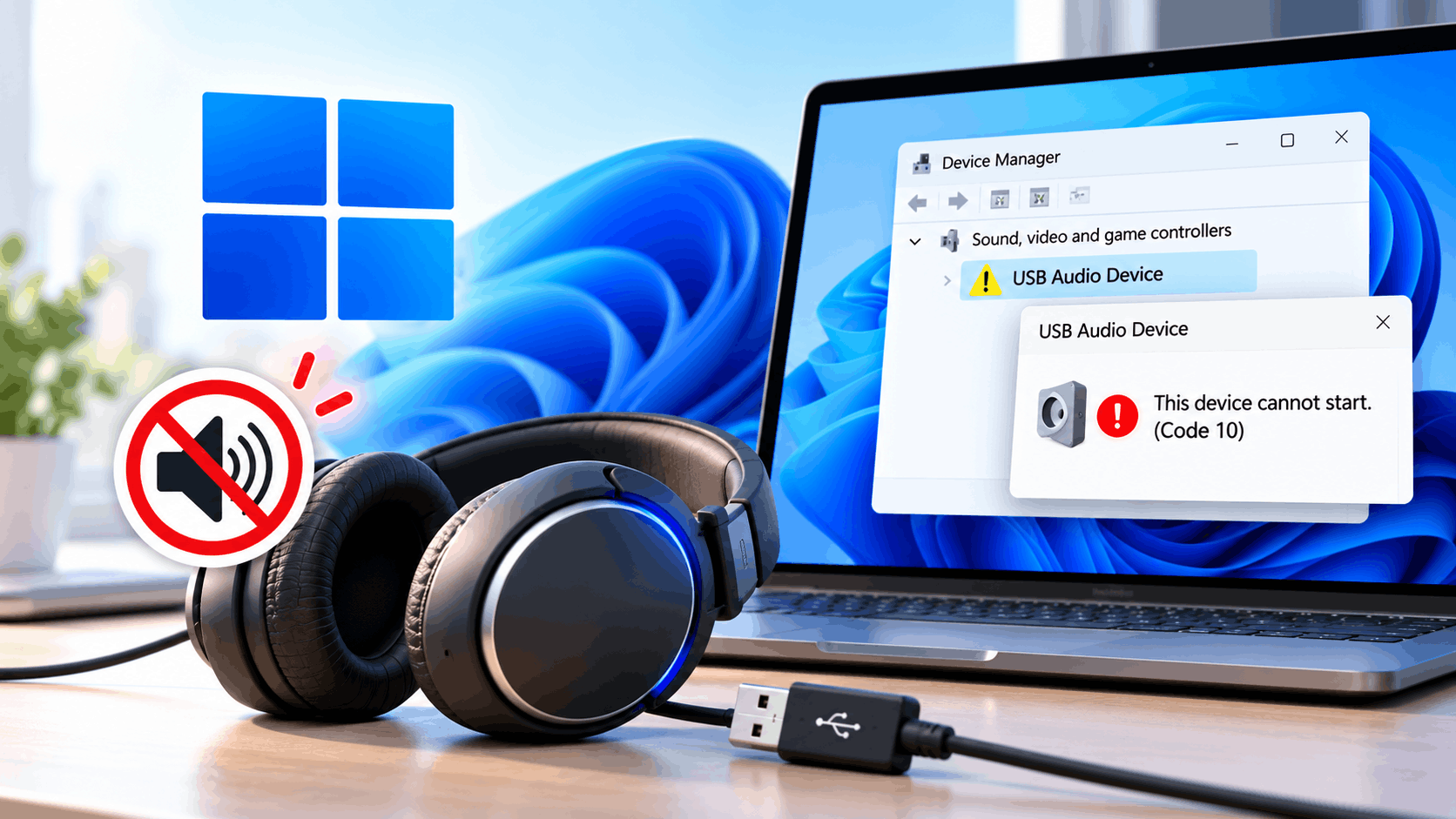
Affected users may see “This device cannot start. (Code 10)” in Device Manager, no sound output, volume stuck at zero, or an audio device that appears connected but refuses to work. The problem mainly affects certain USB Audio Class 1.0 devices.
Microsoft has released a partial fix, but the issue is not considered completely resolved for every affected USB audio device yet. Below are the fixes worth trying, starting with the safest and most effective options.
Why Is USB Audio Not Working After KB5124008?
KB5124008 was released for Windows 11 as a September 2026 security update. After installation, some systems began having trouble starting USB Audio Class 1.0 hardware.
Depending on the device, you might notice one or more of these symptoms:
- USB audio device shows Code 10 in Device Manager.
- Headphones, speakers, DAC, or audio interface produce no sound.
- The device is detected but cannot be selected as an audio output.
- Windows volume remains at zero or cannot be changed.
- Sound settings become unavailable or fail to respond.
- Multichannel, 3D audio, or 8-channel output stops working.
- The device works in stereo mode but fails with surround or multichannel audio.
Code 10 generally means Windows can detect the hardware but the driver or device cannot successfully start. If the problem appeared immediately after KB5124008, this update is an important suspect, especially if the same USB audio device still works on another computer.
1. Install the Latest Windows 11 Updates First
Before uninstalling drivers or changing system settings, check Windows Update again. Microsoft released KB5129195 as an out-of-band update after the original problem was discovered, and later Windows updates include additional fixes.
Open Settings > Windows Update and click Check for updates. Install all available cumulative and quality updates, then restart the computer even if Windows does not explicitly request another restart.
This is particularly important if your USB device stops working only when using 8-channel, 3D audio, or another multichannel configuration. Microsoft says the later update addressed that part of the USB audio problem.
However, the update does not necessarily fix every Code 10 or no-audio case, so continue below if your device still refuses to start.
2. Disconnect and Reconnect the USB Audio Device
After installing updates, completely disconnect the affected USB device. Restart Windows while the device is unplugged, wait until the desktop finishes loading, and then reconnect it.
Also try a different physical USB port. If you are using a desktop PC, preferably connect the device directly to a rear motherboard USB port instead of a front-panel port, docking station, USB extension cable, or external hub.
This forces Windows to enumerate the USB device again and can create a fresh device connection instead of reusing the problematic state stored for the previous USB port.
3. Uninstall the USB Audio Device From Device Manager
If Windows still shows Code 10, reinstalling the device is one of the most useful troubleshooting steps.
Right-click Start and select Device Manager. Expand Sound, video and game controllers. You may also want to check Audio inputs and outputs and Universal Serial Bus controllers.
Find the affected USB audio device, right-click it, and choose Uninstall device. Confirm the removal, disconnect the USB device, and restart Windows.
After Windows starts again, reconnect the device. Windows should detect it and install the appropriate driver again.
This can help when KB5124008 leaves an existing USB audio driver installation in a state where the hardware is visible but the driver cannot initialize correctly.
4. Install the Audio Manufacturer’s Latest Driver
Many USB headsets and basic USB audio adapters use Microsoft’s built-in USB audio driver. Professional DACs and audio interfaces may instead provide their own drivers.
Visit the official support page for your headset, DAC, mixer, microphone, or audio interface and check whether a newer Windows 11 driver or firmware update is available.
Do not download drivers from random third-party driver websites. For audio interfaces in particular, use only the manufacturer’s official driver package.
If you already have the manufacturer’s driver installed, reinstalling the latest version can also help. Disconnect the device first if the manufacturer’s installation instructions recommend doing so, install the driver, restart the PC, and reconnect the hardware.
5. Switch Multichannel Audio to 2-Channel Stereo
This fix is especially relevant if the USB audio device is detected but stops working in 5.1, 7.1, 8-channel, spatial, or 3D audio mode.
Open Settings > System > Sound and select the affected output device. If your device or its control panel provides a channel configuration option, temporarily switch it to 2-channel stereo.
You can also open More sound settings, select the device under Playback, and review its configuration and supported formats.
Some affected users were able to restore audio by using stereo output. Microsoft later released a fix specifically targeting multichannel symptoms, so make sure Windows is fully updated even if this workaround succeeds.
6. Change the Default Audio Format
If the device starts but still produces no sound, an unsupported or problematic format may be involved.
Go to Settings > System > Sound, select your USB audio device, and look for the output format option. Try a common format supported by the device, such as 16-bit or 24-bit stereo at 44.1 kHz or 48 kHz.
Test the device after each change. Avoid selecting very high sample rates unless you specifically need them and know the hardware supports them correctly.
7. Restart Windows Audio Services
If Device Manager no longer reports Code 10 but Windows still has no sound, restarting the audio services may restore the audio endpoint.
Press Windows + R, type services.msc, and press Enter.
Locate Windows Audio and Windows Audio Endpoint Builder. Right-click each service and select Restart.
After restarting the services, disconnect and reconnect your USB audio device and check Settings > System > Sound again.
8. Run the Windows Audio Troubleshooter
Windows 11 now handles most automated audio troubleshooting through the Get Help app.
Open Start, search for Get Help, and search for audio troubleshooting. Allow Windows to run the recommended diagnostics.
This will not necessarily correct the underlying KB5124008 compatibility problem, but it can identify secondary issues such as a disabled audio endpoint, incorrect default device, or service configuration problem.
9. Uninstall KB5124008 Only as a Last Resort
If the USB device worked perfectly before KB5124008 and none of the newer Windows updates or driver fixes work, removing the problematic update may restore the device on some systems.
Go to Settings > Windows Update > Update history > Uninstall updates. Look for KB5124008 and select Uninstall if the option is available.
Restart Windows afterward and test the USB audio device again.
Important: KB5124008 is a security update. Removing security updates can leave Windows without important fixes. Some Windows updates also cannot be removed after they have been superseded by newer cumulative updates. For those reasons, uninstalling the update should be treated as a temporary troubleshooting step rather than the preferred permanent solution.
How to Confirm KB5124008 Is Actually the Cause
Do not assume every USB audio failure is caused by the Windows update. Check a few things before spending time changing drivers.
- The USB audio device worked normally before the September 2026 update.
- The problem started immediately or shortly after Windows Update installed KB5124008.
- Device Manager reports Code 10 or the USB audio endpoint does not start.
- The USB device works correctly on another computer.
- Other USB devices continue working normally on the affected PC.
- Changing the USB cable or port does not permanently fix the issue.
If the device also fails on another computer, the USB cable, power supply, firmware, or audio hardware itself may be faulty.
Common Problems and Fixes
USB Audio Device Shows Code 10
Install the latest Windows updates first, then uninstall the affected device in Device Manager and restart Windows. If the manufacturer offers its own driver, install the latest supported version.
USB Headphones Are Detected but Have No Sound
Open Settings > System > Sound and manually select the USB headphones as your output device. Also check Volume Mixer and make sure the device and application are not muted.
Audio Works in Stereo but Not 7.1 or Multichannel Mode
Temporarily switch the device to two-channel stereo and install all current Windows updates. This symptom was specifically associated with the KB5124008 USB audio issue and has received a later Windows fix.
The USB Audio Device Keeps Disappearing
Connect it directly to another USB port instead of a hub or docking station. Reinstall the device in Device Manager and check the manufacturer’s website for updated firmware or Windows 11 drivers.
Frequently Asked Questions
Does KB5124008 really cause USB audio problems?
Yes. Microsoft has officially acknowledged an issue affecting some USB Audio Class 1.0 devices after the September 2026 Windows security update. Reported symptoms include Code 10, no audio, unavailable sound controls, and problems with multichannel playback.
What does Code 10 mean for a USB audio device?
Code 10 means Windows recognizes the hardware but cannot successfully start the device. This may happen because of a driver, firmware, compatibility, or operating system problem.
Does KB5129195 completely fix the problem?
Not for every affected device. The out-of-band update fixes the reported problem with 8-channel and 3D audio configurations, but Microsoft continues to track other USB Audio Class 1.0 symptoms.
Should I uninstall KB5124008?
Only consider it after installing newer Windows updates and trying the driver-related fixes. Because KB5124008 contains security fixes, permanently staying on an older Windows build is not recommended.
Will reinstalling Windows fix USB Audio Code 10?
A complete Windows reinstall is normally unnecessary. If the problem is caused by the Windows USB audio compatibility issue itself, reinstalling the same affected Windows build may reproduce the problem. Try Windows updates, driver reinstallation, another USB port, stereo mode, and manufacturer drivers first.
Final Thoughts
If your Windows 11 USB audio stopped working after KB5124008 and Device Manager shows Code 10, there is a good chance you are dealing with the USB Audio Class 1.0 issue Microsoft has acknowledged rather than a suddenly failed headset or audio interface.
Start by installing the latest Windows updates because Microsoft has already released a partial fix. Then reconnect the device, try another USB port, reinstall its driver, and test two-channel stereo if you normally use multichannel audio.
Avoid immediately reinstalling Windows or replacing expensive audio equipment. Microsoft is still tracking the remaining USB audio symptoms, so keeping Windows and your device manufacturer’s drivers updated is currently the safest long-term approach.