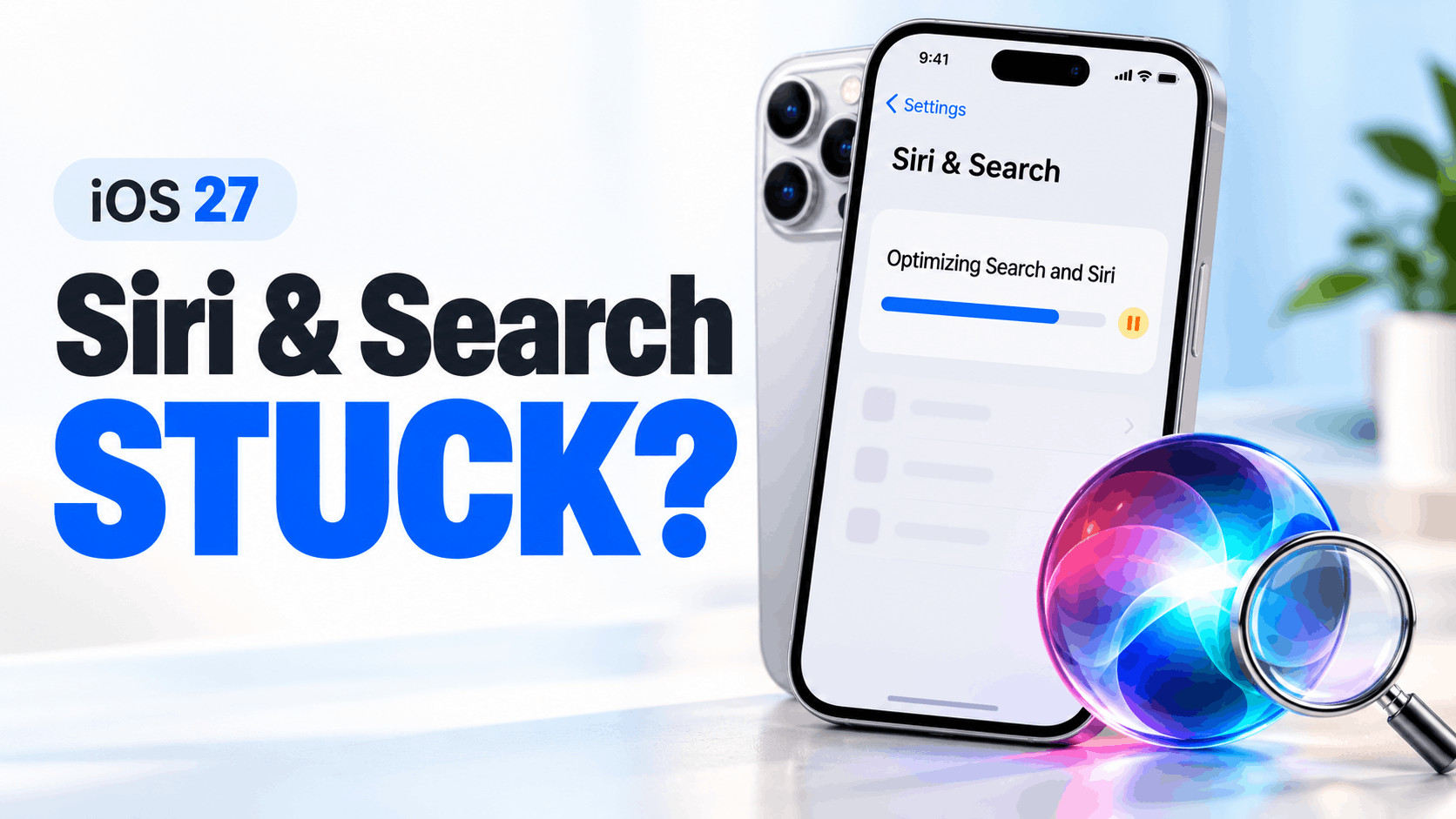
- If your iPhone shows "Optimizing Search and Siri" after updating to iOS 27, it's usually because the device is reorganizing its data, like messages and emails. This can take some time and does not always mean there is a problem if the percentage looks unchanged for a while.
- To attempt fixes, ensure your iPhone is connected to a charger, not in Low Power Mode, and you might want to turn off any unnecessary apps to prevent overheating. You can also free up storage space and restart your device to see if it helps improve search results.
After updating to iOS 27, you might open Settings and notice “Optimizing Search and Siri.” If the percentage barely changes, it is tempting to assume something went wrong with the installation.
Before changing settings, check what actually stopped working. Can you find apps, search for contacts, and ask Siri a simple question? A persistent status message and missing search results need different checks. This guide helps you identify the problem and choose the next step without immediately resetting your iPhone.
What Does “Optimizing Search and Siri” Mean?
The message refers to Spotlight indexing. Your iPhone builds a searchable index of content such as messages, contacts, documents, and email. Siri can use that index too. Indexing happens after updates, during initial setup, and when content changes.
Apple says the process can take hours or days, depending on the amount of data. There is no single completion time for every iPhone. A percentage that looks unchanged during one short check does not establish that indexing has failed.
How to Fix “Optimizing Search and Siri” Stuck After iOS 27
1. Give Your iPhone an Uninterrupted Charging Session
Apple says indexing finishes faster when the device is idle, connected to power, and connected to the internet. Start by giving it those conditions.
- Connect your iPhone to a reliable charger.
- Join a working Wi-Fi network.
- Lock the screen and leave it unused overnight.
- Compare the status and search results the next morning.
Record the starting percentage if one appears. Treat overnight charging as a useful first test, rather than a promise that every phone will finish by morning.
2. Temporarily Turn Off Low Power Mode
Low Power Mode reduces background activity, including email fetching and automatic downloads. Temporarily disabling it while charging is a reasonable troubleshooting step, especially when content still needs to sync.
- Open Settings and select Battery.
- On iPhone 15 and later, open Power Mode.
- Turn off Low Power Mode.
- On earlier models, look for the switch directly under Battery.
This removes some background restrictions, but it is not a confirmed repair for a damaged search index. You can enable Low Power Mode again when you need to conserve battery away from a charger.
3. Check for Excessive Heat
An iPhone can feel warmer after a major software update. However, excessive heat can reduce performance and slow or stop charging, which makes temperature worth checking before another overnight attempt.
- Move the phone away from direct sunlight.
- Stop gaming, navigation, or other demanding activity.
- Place it on an uncovered surface with ventilation.
- If a temperature warning appears, turn it off and let it cool.
Resume charging once the phone returns to a normal temperature. Do not keep running demanding apps to “push” optimization forward. If overheating repeatedly returns during light use, investigate that separately instead of assuming the search banner explains everything.
4. Review Available iPhone Storage
If storage is nearly full, address that before continuing. Open Settings > General > iPhone Storage, wait for the categories to load, and review the recommendations.
- Remove downloaded videos or podcasts you can download again.
- Review large files you no longer need.
- Consider offloading an unused app to retain its documents and data.
- Check the available space again afterward.
Offloading and deleting are different: deleting an app also removes its related local data. Avoid deleting important content just to clear the banner. Apple does not publish a universal free-space target specifically for this message, so treat cleanup as troubleshooting, not a guaranteed fix.
5. Restart Your iPhone Once
If a charging session makes no apparent difference, try one normal restart. This is a basic troubleshooting test; it does not prove that the index was corrupted or rebuild it on command.
- On a Face ID iPhone, hold the side button and either volume button until the power-off slider appears.
- Drag the slider and wait about 30 seconds.
- Hold the side button until the Apple logo appears.
- For an iPhone SE, hold the side button to access the slider.
After restarting, reconnect to Wi-Fi and power. Use the same search examples you tested earlier so you can compare results. Repeated restarts every few minutes make that comparison less useful.
6. Install Available iOS Updates
Check for a newer public release instead of assuming the version you installed is still current. Updates can include bug fixes, although an available update does not necessarily contain a fix for this particular symptom.
- Back up your iPhone using iCloud or a computer.
- Connect it to power and Wi-Fi.
- Open Settings > General > Software Update.
- Install an available update and follow the onscreen instructions.
Read any release information provided, then retest the affected searches afterward. Avoid installing beta software solely to remove an optimization message. If you already use a beta, include that detail when reporting the problem because it changes the troubleshooting context.
7. Check Search Settings for Missing Apps
If one app is missing from results, check its permissions before treating the whole system as stuck. Open Settings > Search, select the app, and review Show App in Search and Show Content in Search.
Enable the options for content you want to find. Apple notes that disabling these options also prevents the new Siri experience from finding personal context from that app. Hidden apps will not appear in Search until you unhide them.
Compare searching inside the app with searching from the Home Screen. For example, search for a distinctive note title in Notes, then try the same title in Spotlight. This comparison helps describe the failure accurately; changing permissions does not guarantee the optimization banner will disappear.
8. Check Siri Setup Separately
If Search works but Siri is unavailable, inspect Siri’s own settings. A waitlist, setup prompt, or download message is separate from the “Optimizing Search and Siri” message.
Apple’s current iOS 27 setup instructions place the new Siri option under Settings > Siri. On eligible devices, follow any setup instructions shown there. Access depends on compatible hardware, supported languages, and an eligible region, and wait times can vary.
Apple Intelligence also requires the device and Siri languages to match a supported language. Changing Siri’s language can make features unavailable until the language downloads. Avoid repeatedly switching languages or toggling features as an indexing shortcut. Note the exact Siri message so you can troubleshoot the right process.
Additional Checks for Search and Battery Problems
Test several kinds of content: an installed app, a contact, and a note with a distinctive title. Write down which searches succeed. If only older email is missing, remember that Search can be limited by how far back an app has synced with iCloud.
For battery drain, open Settings > Battery. An Ongoing iOS Update insight indicates that update-related work is continuing in the background. Apple recommends checking battery life again after a few days because post-update tasks can temporarily affect battery use and temperature.
Also review which apps consume power. A background-heavy app or weak network signal deserves its own investigation. Improving search results and improving battery life are useful observations, but neither should be judged from a single brief check.
When testing a missing item, use a word you know appears in its title or text. Avoid broad terms such as “work” or “photo,” which can produce many unrelated matches. Take a screenshot of the unsuccessful search so you can repeat the same test after changing one setting.
When Should You Contact Apple Support?
Contact Apple Support if essential searches remain broken after several properly configured idle charging sessions, or if the problem seriously affects everyday use. This is a practical escalation point, not an official deadline for indexing.
Prepare your iPhone model, installed iOS version, approximate update time, available storage, and screenshots of the message. Include two or three exact examples of missing results and explain whether those items appear inside their original apps.
This gives support a reproducible problem to investigate. Mention recurring temperature warnings, crashes, or unexpected restarts separately rather than grouping every symptom under “Siri optimization.”
Frequently Asked Questions
Does Restarting Reset the Optimization Percentage?
A normal restart turns the phone off and on. Use it as a troubleshooting test, without expecting it to reset the optimization percentage. Check whether your failed searches improve afterward.
Is Spotlight Uploading My Entire Search Index?
Apple describes the Spotlight index as local and private. It stays on your device and is not shared with Apple or your other devices.
Should I Erase My iPhone to Fix the Message?
Erasing the phone is a disproportionate first step for a status message. Complete the checks above and seek support for persistent functional problems before considering a restore.
Final Thoughts
If “Optimizing Search and Siri” appears stuck after iOS 27, work through the checks in order and record what changes. Focus on whether Search and Siri perform the tasks you need. Clear examples of failed searches are more useful than repeatedly watching the same percentage.