- After updating to iOS 27, Siri AI might not work immediately because activation requires separate setup based on your iPhone model, language, region, and beta enrollment status. To enable Siri AI, you must check device compatibility, language settings, and regional availability.
- Supported iPhones for Siri AI include iPhone 15 Pro, iPhone 15 Pro Max, and newer models; however, standard models like iPhone 15 and older ones don't support Siri AI just with iOS 27. Ensure your iPhone model is supported and properly set up by checking the Siri settings for any "beta" logo indicating Siri AI activation.
- For those experiencing issues, such as Siri not responding to voice commands or missing the beta option, it
You installed iOS 27, opened Siri, and expected a smarter assistant. Instead, Siri still behaves like before, the beta option is missing, or requests fail without a useful explanation.
Updating to iOS 27 does not automatically activate Siri AI. The new assistant has separate setup requirements, and access depends on your iPhone, language, region, and beta enrollment. A missing feature and an assistant that cannot hear you need different troubleshooting.
This guide explains what to check first, how to enable Siri AI, and what to do when an eligible iPhone still cannot use it.
What Is Siri AI in iOS 27?
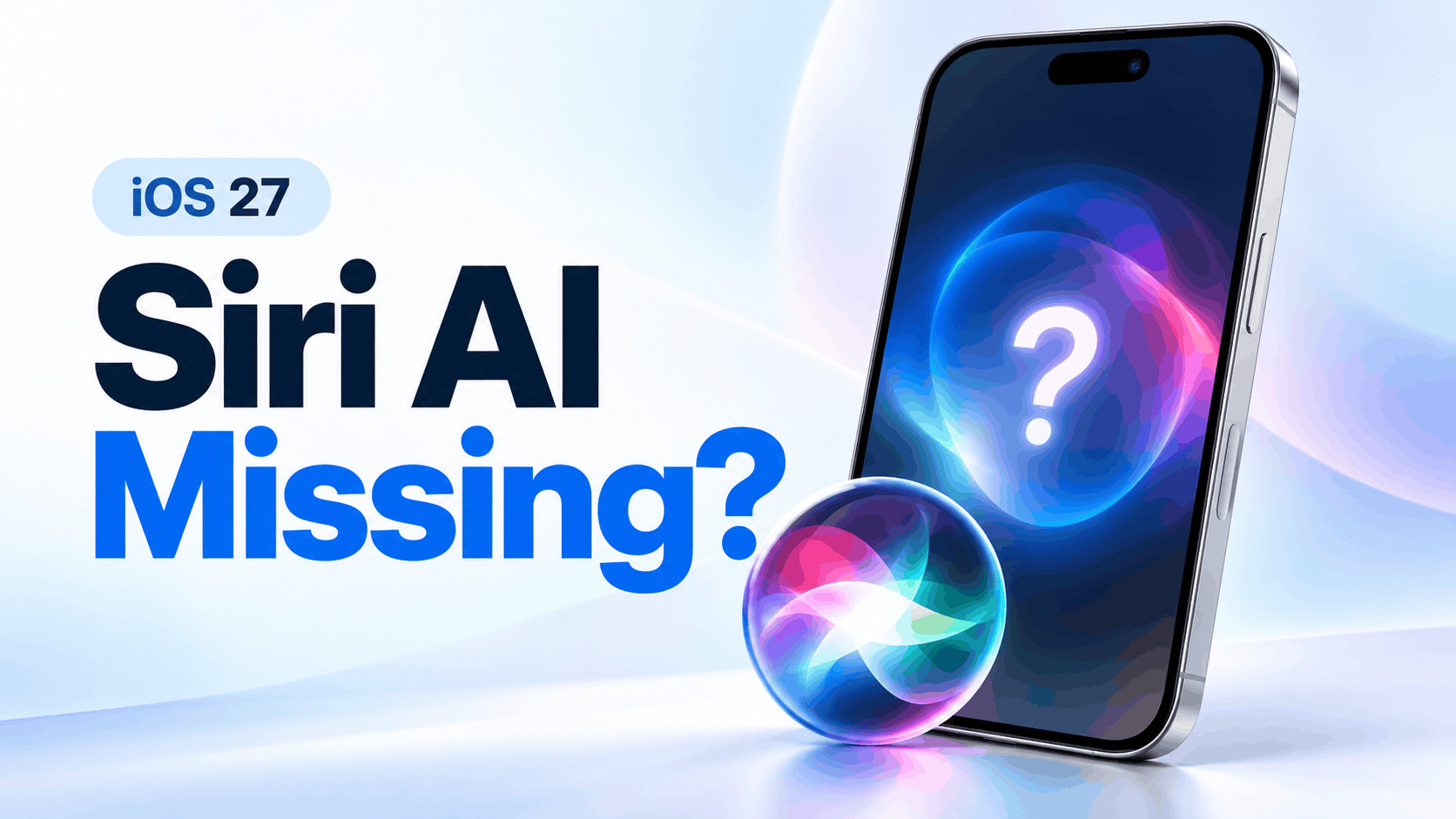
Siri AI is the new beta version of Siri powered by Apple Intelligence. Its capabilities include more natural conversations, understanding personal context, answering questions about your screen, and helping you find information across supported apps.
However, having Apple Intelligence features does not necessarily mean Siri AI is active. You can still have Siri Classic while other intelligence features work.
To identify your version, open Settings > Siri. Apple says the Siri logo in Settings includes the word “beta” when Siri AI is enabled. Check this before assuming that a different animation means the update failed.
How to Fix Siri AI Missing or Not Working After iOS 27
1. Check Whether Your iPhone Supports Siri AI
Start with hardware compatibility. An iPhone can support iOS 27 without meeting the requirements for Siri AI.
Supported iPhones include:
- iPhone 15 Pro and iPhone 15 Pro Max.
- iPhone 16 models and later.
- iPhone Air.
The standard iPhone 15 and iPhone 15 Plus are not supported. Older models such as the iPhone 14 also cannot gain Siri AI simply by installing iOS 27.
Open Settings > General > About and check Model Name. If your phone is unsupported, resetting settings or changing languages will not solve the missing feature. You can continue using the Siri features available on your device.
2. Check Language and Regional Availability
As of October 9, 2026, Apple’s setup guidance lists Siri AI as available in English. Both your iPhone language and Siri language must use the same supported language.
- Open Settings > General > Language & Region.
- If needed, add English and select it as the primary iPhone language.
- Open Settings > Siri > Language and select a matching English option.
After changing languages, allow the required language downloads to finish. Avoid repeatedly switching languages while troubleshooting.
Regional restrictions also matter. Apple currently excludes Siri AI on iPhone in the European Union, and says it will not work when your Apple Account region is mainland China. Availability for other Apple Intelligence features can differ, so working Writing Tools do not prove Siri AI is available.
3. Complete the Separate Siri AI Setup
If your iPhone meets the requirements, check whether you actually enrolled in the beta. Installing iOS 27 alone does not complete this step.
- Open Settings > Siri.
- If Siri is disabled, select Turn On Siri.
- Select Try Siri AI (Beta).
- Follow the prompts to choose a voice, complete voice enrollment, and review privacy settings.
Apple’s setup process adds you to a waitlist. Wait times vary, so completing enrollment does not guarantee immediate access.
If the option is absent, revisit hardware, language, and regional eligibility before trying more disruptive fixes.
4. Separate Waitlist Status From a Stalled Download
A pending waitlist and an incomplete download are different situations. Apple says Siri AI starts downloading automatically after your wait is complete.
If Settings shows that access is pending, there is no published universal waiting time you can use to declare the process broken. Restarting repeatedly will not establish eligibility or guarantee faster admission.
If access has been granted but setup remains incomplete, try this:
- Connect to a reliable Wi-Fi network and plug in your iPhone.
- Check Settings > General > iPhone Storage.
- Free space if storage is nearly full, then revisit Siri settings.
Apple Intelligence uses substantial local storage, with requirements varying by model. These checks address download conditions; they do not bypass the waitlist.
5. Test Siri With a Button and Typed Request
If Siri AI is enabled but does not respond to your voice, test another way of activating it. This helps distinguish a listening problem from a broader failure.
- Open Settings > Siri > Requests.
- Enable Press Side Button for Siri, then activate Siri with the side button.
- Try a simple request, such as setting a short timer.
- Open the Siri app and type a request to compare the results.
If typed requests work but spoken requests fail, focus on voice activation or microphones. If neither works, investigate connectivity, restrictions, or an error displayed onscreen.
On some software versions, equivalent controls appear under Apple Intelligence & Siri or Talk & Type to Siri.
6. Reconfigure Voice Activation and Check Audio
For an assistant that ignores “Siri” or “Hey Siri,” open Settings > Siri > Requests. Turn voice activation off and back on, then repeat voice training if prompted.
If the problem continues, remove any case covering microphone openings and disconnect Bluetooth audio accessories temporarily. Record a Voice Memo, then record short videos with the front and rear cameras, and listen to each recording.
Unclear sound across these tests suggests an audio problem worth investigating. One clear recording does not prove every microphone works.
If Siri displays answers but stays silent, check Settings > Siri > Responses > Prefer Spoken Responses. Also check the speaking volume while Siri responds.
7. Check Connectivity, VPN Settings, and Usage Limits
When Siri opens but cannot complete requests, compare Wi-Fi with mobile data. First confirm that Safari can load a fresh webpage, then repeat the same Siri request on the other connection.
If you use a personal VPN, temporarily disconnect it and test again. Apple notes that some VPN profiles can prevent Siri from being available. For a managed work phone, ask your administrator about restrictions.
Check Apple’s System Status page for reported service problems. A listed outage is a reason to wait before changing device settings.
Also read any usage-limit message carefully. Some server-based Siri AI features have daily limits that can vary. Reaching a limit does not mean your iPhone has lost compatibility, and reinstalling software will not remove that limit.
8. Review Screen Time Restrictions and Install Updates
Screen Time can allow Siri Classic while restricting Siri AI. This is especially relevant if the assistant previously worked or the phone uses parental controls.
- Open Settings > Screen Time > Content & Privacy Restrictions > Siri.
- If restrictions are active, check which Siri version is allowed.
- Allow Siri AI (Beta) if you manage these settings and want beta access.
- Review restrictions on individual Siri capabilities.
This setting does not override device or regional requirements. On a managed device, restrictions may require an administrator’s help.
Finally, open Settings > General > Software Update, install any available stable update, and restart normally. Retest before changing anything else.
Additional Tips Before Resetting Your iPhone
Change one setting at a time and repeat the same request after each change. This makes it easier to identify what helped.
If Siri cannot find a particular email or photo, confirm that the item exists in the relevant app. Include a distinctive name, date, or phrase when testing your request.
Save the exact error wording and note whether voice, typing, or both fail. Avoid erasing your iPhone solely because the beta option is missing. A reset cannot change unsupported hardware, regional availability, or pending admission.
Common Siri AI Problems and What They Mean
- Beta option missing: Check compatibility, matching languages, region, and restrictions.
- Enrollment pending: Waitlist admission is separate from installing iOS.
- Typing works, voice fails: Investigate activation settings and microphone audio.
- Answers appear without speech: Check response preferences and volume.
- Only certain requests fail: Check the specific capability, restriction, or usage-limit message.
Frequently Asked Questions
Why Do I Still Have Siri Classic After Updating?
Siri AI requires separate beta enrollment on an eligible device. You may still be waiting for access, or Screen Time may permit only the classic version.
Can the Standard iPhone 15 Get Siri AI?
No. Apple supports iPhone 15 Pro models, but not the standard iPhone 15 or iPhone 15 Plus. Installing iOS 27 does not change that hardware requirement.
How Long Does the Siri AI Waitlist Take?
Apple says waiting times vary. There is no guaranteed completion time for every account. Check Siri settings for your current status.
When Should I Contact Apple Support?
Contact support if your eligible phone has completed activation but still fails after connectivity, audio, restrictions, and updates are checked. Provide your model, iOS version, languages, and exact error.
Final Thoughts
If Siri AI is missing after iOS 27, check eligibility and beta setup first. If it is enabled but not working, compare typed and spoken requests, then investigate the failing part. This approach gives you a useful diagnosis without unnecessary resets.
ALSO READ: