- If your iPhone loses cellular data after updating to iOS 27, the issue might not be due to the update itself. It could be caused by carrier outages, an inactive data plan, or incorrect settings like APN, especially after an update which might reset custom settings.
- To troubleshoot, start by ensuring cellular data is enabled and the correct app permissions are set. Check for network coverage or carrier updates, and ensure you have chosen the right SIM for mobile data, especially if using Dual SIMs.
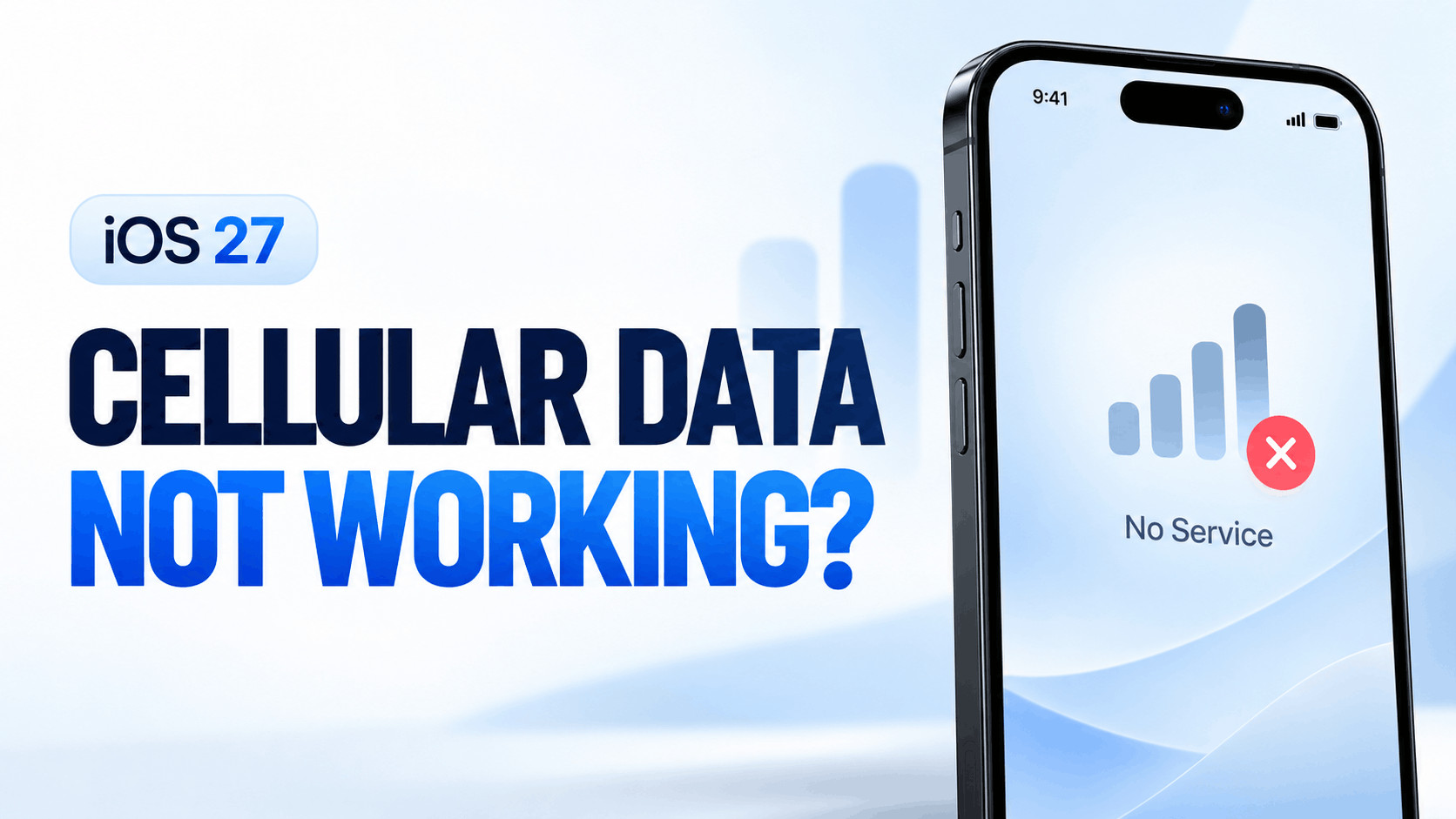
If cellular data stopped working after the iOS 27 update, your iPhone might show 5G or LTE while websites refuse to load. Alternatively, you may see SOS, No Service, or Searching, with calls affected too.
The timing alone does not prove the update caused the problem. Carrier outages, an inactive data plan, incorrect SIM selection, and network settings can produce similar symptoms. These 12 fixes help you narrow down the cause without immediately erasing your iPhone.
Why Is Cellular Data Not Working After iOS 27?
Cellular data connects your iPhone to the internet through your mobile carrier. It needs an active plan, usable coverage, and the correct settings.
One relevant detail: Apple says an iOS update resets manually edited APN settings unless they are supplied through a configuration profile. That can matter if your carrier requires custom settings.
Before troubleshooting, turn off Wi-Fi in Settings and try loading a fresh webpage. Test another app too, then note the pattern:
- Only one app fails: Start with its cellular permission and app updates.
- Calls work, but internet access fails: Prioritize data settings, your allowance, VPN, and APN.
- SOS or No Service appears: Prioritize coverage, carrier status, and SIM activation.
Use a small webpage for each test rather than a large download. Cached messages and previously loaded pages can make a disconnected phone appear online, so request something new each time.
12 Fixes for Cellular Data Not Working After iOS 27
1. Enable Cellular Data and App Permissions
Open Settings > Cellular and turn on Cellular Data. Depending on your region, the menu may be called Mobile Data or Mobile Service.
Scroll to the app list and enable data access for the affected app. An app with cellular access disabled can work on Wi-Fi while appearing broken everywhere else.
Keep Wi-Fi off while testing. If Safari works but another app does not, focus on that app before changing system-wide settings.
2. Toggle Airplane Mode for 15 Seconds
Open Settings, enable Airplane Mode, and leave it on for at least 15 seconds. Turn it off and allow your iPhone time to reconnect.
This is a simple way to attempt a fresh cellular connection. If SOS returns immediately, continue with the carrier and SIM checks below.
3. Restart Your iPhone
For an iPhone with Face ID, hold either volume button and the side button until the power-off slider appears. Drag the slider, wait about 30 seconds, then hold the side button to switch the phone back on.
A restart gives the system another chance to initialize its connections. Once it finishes, test a webpage over mobile data before opening all your usual apps.
4. Check Coverage, Outages, and Your Data Plan
Move somewhere you normally get reliable reception and check your carrier’s service-status information over Wi-Fi. If someone nearby uses the same carrier, ask whether their connection works.
Also check that your account is active and has an available data allowance. Ask the carrier whether data access is restricted or your line needs attention. A phone reset cannot restore an expired plan or repair a carrier outage.
5. Install Any Carrier Settings Update
Carrier settings updates can improve network connectivity and performance. They are separate from iOS updates, so check both.
- Connect your iPhone to Wi-Fi.
- Open Settings > General > About.
- If a carrier update prompt appears, follow its instructions.
If nothing appears, there may be no update waiting. Your carrier can verify whether the version listed beside Carrier is current.
6. Check for a Newer iOS Update
Back up your iPhone, connect it to Wi-Fi and power, then open Settings > General > Software Update. Install the latest public update offered for your device.
As of October 7, 2026, Apple’s iOS 27.0.1 release notes list several bug fixes, but do not list a general cellular-data fix. Updating is still a sensible troubleshooting step, but should not be treated as a guaranteed solution.
7. Select the Correct SIM for Mobile Data
If you use two SIMs, open Settings > Cellular > Cellular Data. Select the line with your active data plan, especially if you recently added a travel eSIM.
Return to Cellular, select that line, and check that Turn On This Line is enabled. Choosing a default number for calls does not automatically mean you selected the same number for data.
If the line is missing entirely, contact your carrier about activation. Avoid deleting the eSIM during routine troubleshooting.
8. Test LTE Instead of 5G
Open Settings > Cellular > Cellular Data Options > Voice & Data and select LTE, if available. With Dual SIM, select the relevant line first.
This test helps determine whether the failure is specific to your 5G connection. If LTE works consistently, use it temporarily and tell your carrier that mobile data fails on 5G.
You can restore 5G Auto afterward. Available options depend on your iPhone, carrier, and region.
9. Temporarily Disable VPN and Network Filters
Open your VPN app and disconnect it, then temporarily disable any network-filtering or security features. Apple notes that software interacting with network connections can block internet access.
Search Settings for VPN or filter if you cannot locate the relevant controls. Retest over cellular after making the change, and update or contact the software provider if the connection returns.
On a work-managed iPhone, ask your administrator before changing required profiles. Do not remove unfamiliar management settings just to test a connection.
10. Check Data Roaming When Traveling
If you are outside your carrier’s usual coverage area, confirm whether your plan requires roaming. When your plan includes it, open the selected line’s Cellular Data Options and enable Data Roaming.
Some travel eSIMs require roaming on their own line. Follow the provider’s instructions, and confirm charges before enabling roaming on your home SIM.
11. Verify APN Settings With Your Carrier
The Access Point Name, or APN, defines the network path used for cellular data. This check is especially relevant if you entered custom APN details before updating iOS.
If your carrier allows access, open Settings > Cellular > Cellular Data Network. Compare the details with your carrier’s current instructions and reenter them only when directed.
A missing APN menu can be normal because some carriers control these settings automatically. Avoid copying random APN values from forums: incorrect entries can break data access or cause additional charges.
12. Reset Network Settings
If the earlier checks fail, save your Wi-Fi passwords and any custom network details before resetting. This clears network settings without deleting your photos, messages, or apps.
- Open Settings > General > Transfer or Reset iPhone.
- Tap Reset > Reset Network Settings.
- Enter your passcode and confirm.
Saved Wi-Fi networks and passwords are removed, along with relevant cellular, VPN, and APN settings. Settings installed by management or configuration profiles may remain, and data roaming may need enabling again.
Choose the option carefully. Delete All eSIMs and Erase All Content and Settings are separate actions you do not need for this step.
Additional Tips and Persistent Problems
Change one setting at a time and repeat the same test so you know what helped. Record your iPhone model, iOS version, carrier, error message, and whether calls work before contacting support.
If a physical SIM is not detected, remove and reinsert it carefully; ask your carrier for a replacement if it is damaged. If Settings displays Cellular Issue detected, connect to Wi-Fi and use the latest Apple Support app to run cellular diagnostics.
When the carrier confirms your account and network are working, contact Apple for further diagnosis. Repeated resets are unlikely to help once you have already ruled out the same settings.
Mobile Data Stops During Phone Calls
With Dual SIM, data can stop during a call on the line that is not designated for cellular data. Check Allow Cellular Data Switching and your carrier’s support for it. Confirm possible charges before enabling switching between plans.
After service returns, test it in another location before declaring the problem solved. Keep a record of which change helped, particularly if the issue returns.
Frequently Asked Questions
Why Does My iPhone Show 5G but Have No Internet?
The 5G icon alone does not confirm successful internet access. Check your data plan, app permissions, VPN, and whether LTE works.
Does Resetting Network Settings Delete My eSIM?
No. Reset Network Settings and Delete All eSIMs are separate options, so confirm the selected action before proceeding.
Can Low Data Mode Stop Mobile Internet Completely?
Low Data Mode reduces data use by pausing automatic updates and background tasks. If your main symptom involves background downloads, try Standard under your line’s Data Mode settings. A complete browsing failure still needs the connection checks above.
Should I Factory Reset to Fix Cellular Data?
Start with these targeted checks. If a full restore becomes necessary, back up your iPhone and follow Apple’s guidance for your specific diagnosis.
Final Thoughts
For cellular data not working after iOS 27, start with permissions, Airplane Mode, and a restart. Then check your carrier, selected SIM, updates, and APN. Save the network reset for later, and seek diagnosis if service still fails.