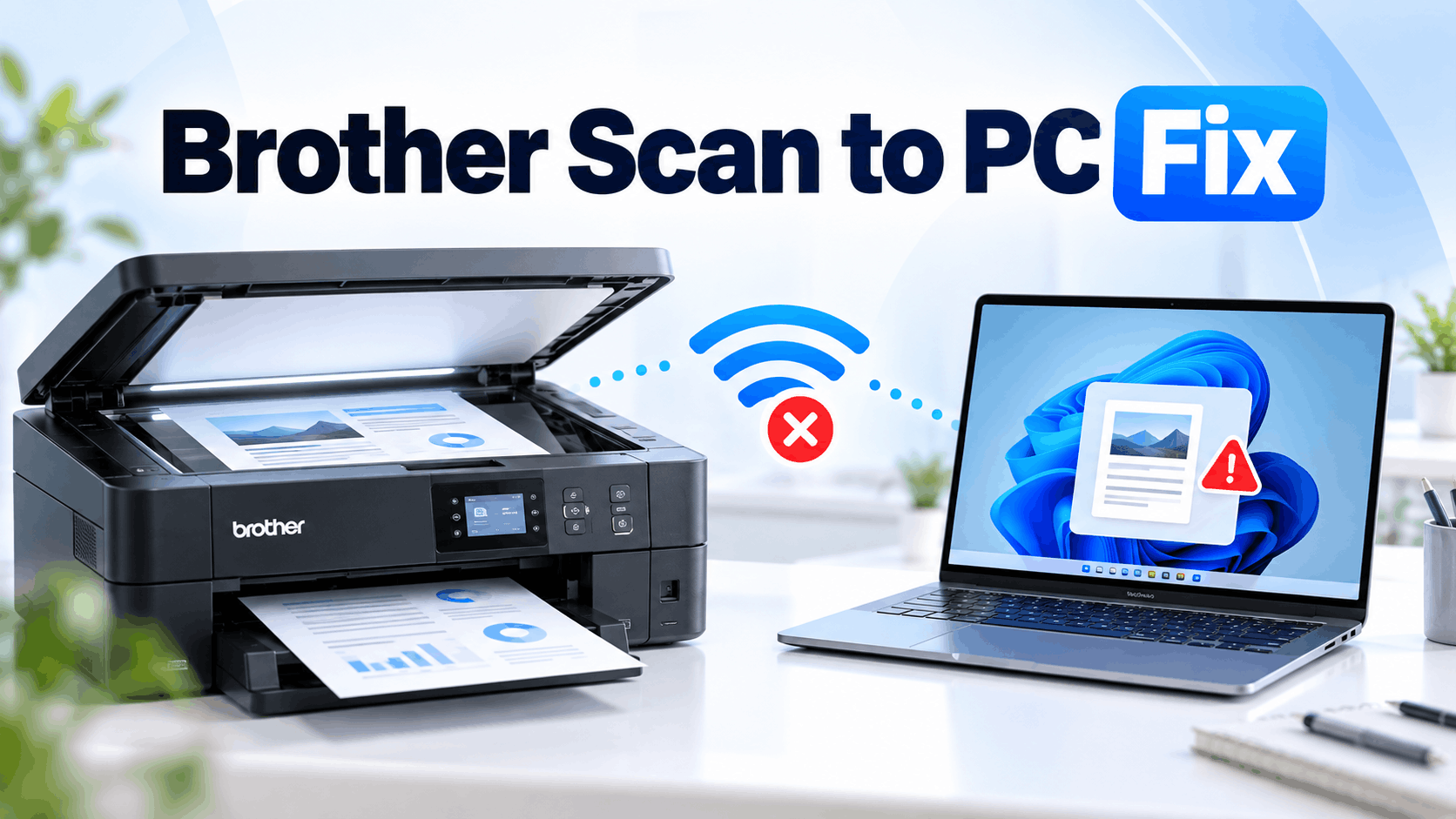
- If your Brother printer prints over Wi-Fi but doesn’t scan to your Windows 11 PC, the problem likely lies in the network scanning setup, not the printer itself. Network scanning relies on different drivers, services, and software than printing does, so one can work while the other fails.
- Check that your computer and Brother printer are on the same network, as guest networks might prevent proper communication. Use Brother iPrint&Scan to test if scanning works through the app, and ensure Windows treats your network as Private for better connectivity.
If your Brother printer prints normally over Wi-Fi but refuses to scan to your Windows 11 PC, the printer itself is probably not the problem. Network scanning uses different drivers, Windows services, firewall rules, and Brother software than ordinary wireless printing, so one feature can work while the other fails.
You may see errors such as “Check Connection,” “No PC Found,” “Cannot Communicate with Scanner,” or your computer may simply disappear from the Scan to PC list. The issue is particularly common after a Windows update, router change, Brother software reinstall, or when Windows changes the Wi-Fi network profile.
This guide explains how to fix Brother Scan to PC not working over Wi-Fi on Windows 11, starting with the easiest solutions before moving to drivers, firewall rules, and network troubleshooting.
Why Brother Scan to PC Stops Working Over Wi-Fi
A Brother multifunction printer can use the same Wi-Fi connection for printing and scanning, but Windows handles those functions differently. This explains the confusing situation where wireless printing works perfectly while scanning says the computer cannot be found.
Common causes include:
- Brother iPrint&Scan cannot detect the printer.
- The Brother scanner driver is missing or corrupted.
- Windows Firewall or third-party security software is blocking network scanning.
- The PC and printer are connected to different or isolated networks.
- Windows has classified your home Wi-Fi as a Public network.
- The printer received a different local IP address from the router.
- Brother background software needed for Scan to PC is not running.
- An old Brother installation is conflicting with the current driver.
Before changing advanced settings, restart the Brother printer, Windows 11 computer, and router. Temporary network discovery problems are surprisingly common and can disappear after all three devices reconnect.
1. Check Whether the Brother Printer and PC Are on the Same Network
Start by confirming that your Brother machine and Windows 11 computer are connected to the same local network. Do not assume they are just because both devices have internet access.
For example, your computer could be connected to a guest Wi-Fi network while the printer is connected to the main network. Many routers intentionally prevent devices on guest networks from communicating with other local devices.
Check the network or WLAN information on your Brother printer and compare the Wi-Fi network name with the network shown under Settings > Network & internet > Wi-Fi in Windows 11.
If you use a mesh Wi-Fi system, 2.4 GHz and 5 GHz devices can normally communicate when they belong to the same LAN. Therefore, simply having the printer on 2.4 GHz and the PC on 5 GHz does not automatically mean scanning will fail. Guest-network isolation, VLAN separation, or wireless client isolation is more important to check.
2. Test Scanning Directly from Brother iPrint&Scan
Next, determine whether the problem affects all network scanning or only the printer’s physical Scan to PC button.
Open Brother iPrint&Scan on Windows 11. Select your Brother machine if prompted, place a document on the scanner, and try scanning directly from the application.
If scanning works from Brother iPrint&Scan but fails when you select Scan > to PC on the printer, your Wi-Fi connection and scanner are basically working. The problem is more likely related to Brother’s push-scanning software, background notification component, or firewall permissions.
If iPrint&Scan cannot find the printer at all, continue with the network and driver fixes below.
3. Change the Windows 11 Wi-Fi Network to Private
Windows 11 treats Public and Private networks differently. On a Public network, Windows applies more restrictive discovery and communication rules because it assumes you may be connected to an untrusted network such as public Wi-Fi.
For a trusted home or office network, check the profile:
- Open Settings.
- Select Network & internet.
- Click Wi-Fi.
- Select your currently connected Wi-Fi network.
- Find Network profile type.
- Select Private network if this is a trusted home or office network.
Restart Brother iPrint&Scan afterward and check whether your scanner appears. Do not set an untrusted public Wi-Fi network to Private merely to make the scanner visible.
4. Turn On Network Discovery in Windows 11
Network Discovery helps Windows identify and communicate with devices on your local network. If it has been disabled, network-connected devices may stop appearing correctly.
Go to Settings > Network & internet > Advanced network settings > Advanced sharing settings.
Under Private networks, make sure Network discovery is enabled. You can then close Settings and restart the Brother software.
This is particularly worth checking if Scan to PC stopped working after a Windows update or after Windows treated an existing Wi-Fi connection as a new network.
5. Check the Brother Printer’s IP Address
Every network-connected Brother printer receives a local IP address, such as 192.168.1.25. If the router assigns a new address but Brother software is still expecting the old device configuration, network scanning can stop working.
You can usually find the current IP address through your Brother machine’s Network or WLAN settings. Depending on the model, you can also print a Network Configuration Report.
Once you have the IP address, open a browser on the Windows 11 PC and enter that address into the address bar. For example, if the printer reports 192.168.1.25, enter that address directly.
If the Brother printer’s web management page opens, the computer can reach the printer across the local network. That strongly suggests the remaining problem is with Brother software, the scanner driver, or Windows security rather than Wi-Fi connectivity itself.
If the address does not respond, reconnect the printer to Wi-Fi and check your router for device isolation or guest-network settings.
6. Allow Brother Software Through Windows Firewall
Firewall blocking is one of the most important causes to investigate when Brother wireless printing works but network scanning does not. Scanning requires incoming and outgoing network communication that may be treated differently from printing.
Open Windows Security > Firewall & network protection > Allow an app through firewall and check for installed Brother components.
Depending on your Brother model and software generation, relevant programs can include:
- Brother iPrint&Scan.exe
- iPSNotifier.exe
- ControlCenter Launcher
- BRCTRLCNTR.EXE
Allow the applicable Brother applications on your trusted Private network.
Brother’s current troubleshooting guidance also identifies UDP port 54925 for network scanning. Brother documentation for affected models additionally recommends checking UDP ports 137 and 161 when network communication problems continue.
If you use Norton, McAfee, Bitdefender, Avast, or another security suite with its own firewall, Windows Firewall settings may not be enough. Check that application’s firewall rules as well.
Use Firewall Disabling Only as a Test
You can temporarily disable the active firewall on a trusted network to determine whether it is causing the problem. If scanning immediately starts working, turn the firewall back on and correct the Brother application or port permissions.
Do not leave the firewall permanently disabled. The test is useful for diagnosis, not as a long-term solution.
7. Check the Brother Scanner Driver
Windows may have enough software installed to print to a Brother device without having the complete Brother scanning environment installed correctly. This often happens when Windows automatically discovers and installs the printer.
Open Brother iPrint&Scan and check whether the correct Brother scanner is available. If the application cannot find a scanner, download the current Windows 11 package for your exact model from Brother Support.
When Brother provides a Full Driver & Software Package for your model, it is generally preferable when troubleshooting missing Brother features because it installs the components intended for that specific machine.
Do not download a driver for a similarly named model. Brother often has multiple printers with very similar model numbers, and the wrong package may install without providing the expected network-scanning functionality.
8. Update or Reinstall Brother iPrint&Scan
If your drivers appear correct, update Brother iPrint&Scan. Brother recommends using the latest available version when troubleshooting scanning through the application.
If an update does not help, remove Brother iPrint&Scan, restart Windows, and reinstall the current version supported by your printer.
After reinstalling, allow any Windows security prompts requesting network access. Rejecting one of these prompts can prevent the application from communicating with your Brother scanner.
9. Fix “No PC Found” When Using the Printer’s Scan Button
There is an important distinction between scanning from the computer and initiating a scan from the Brother printer.
If iPrint&Scan works on Windows but the Brother printer says No PC Found, Check Connection, or does not display your computer’s name, focus on the push-scan components.
First, leave Brother iPrint&Scan installed and confirm that Brother-related background applications have permission through the firewall. Current Brother documentation specifically lists Brother iPrint&Scan and iPSNotifier.exe for supported Windows configurations, while some older product families use ControlCenter components.
Restart Windows after changing these permissions. Then reopen Brother software and test the printer’s Scan button again.
10. Restart Brother and Windows Services
If scanning worked previously and suddenly disappeared, restarting the computer is preferable to immediately reinstalling everything. A Brother background process or Windows scanning service may simply have failed to initialize correctly.
You can also press Windows + R, type services.msc, and press Enter. Look for Windows Image Acquisition (WIA).
If WIA is stopped, start it. If it is already running, restarting the service can help with Windows scanning problems. Be aware that Brother’s own software uses additional components, so WIA alone will not fix every network Scan to PC problem.
11. Reserve the Brother Printer’s IP Address
If the problem keeps returning every few days or after restarting your router, the printer may be receiving a different IP address through DHCP.
A good long-term solution is to create a DHCP reservation for the Brother printer in your router. This tells the router to keep assigning the same local IP address to that device.
The exact procedure depends on your router. Look for settings named DHCP Reservation, Address Reservation, Static Lease, or similar.
Using a router-side reservation is usually easier to manage than manually entering arbitrary static network information into the printer. Make sure the reserved address does not conflict with another device.
12. Completely Reinstall the Brother Software
If nothing above works, a clean Brother software reinstall is worth trying. This is especially useful if the issue appeared after upgrading Windows, replacing the router, or migrating the printer from USB to Wi-Fi.
Remove the existing Brother software associated with your printer, restart Windows 11, and download the current software for the exact model from Brother’s official support site.
During setup, select the appropriate Wireless Network Connection or network option rather than USB if prompted. Keep the printer powered on and connected to the same local network during device detection.
Once installation finishes, test scanning from Brother iPrint&Scan first. Only after that works should you test Scan to PC from the printer’s control panel.
Common Brother Scan to PC Problems and Fixes
Brother Printer Can Print but Cannot Scan Over Wi-Fi
This usually means basic network connectivity exists. Concentrate on Brother iPrint&Scan, the scanner driver, firewall permissions, and Brother’s network-scanning components rather than repeatedly reconnecting the printer to Wi-Fi.
Brother Scanner Says “Check Connection”
Confirm that both devices are on the same LAN, test the printer’s IP address from your browser, and verify firewall access. If the printer’s web page is reachable but scanning fails, reinstalling the correct Brother scanner software is a logical next step.
Computer Name Does Not Appear on Brother Printer
If scanning initiated from Windows works but your PC does not appear on the printer display, the problem is probably associated with push scanning or PC registration rather than the scanner hardware. Check Brother background applications and their firewall permissions, then reinstall the current Brother software if necessary.
Brother iPrint&Scan Cannot Find the Machine
Check the Wi-Fi network, Private network profile, printer IP address, firewall, and scanner driver. Also make sure a VPN or security application is not interfering with local network communication.
Additional Tips to Keep Brother Wi-Fi Scanning Reliable
- Keep the Brother printer firmware and Windows-compatible software reasonably current.
- Use a DHCP reservation if the printer frequently changes IP addresses.
- Avoid connecting the printer to an isolated guest Wi-Fi network.
- Allow Brother applications only on trusted network profiles where possible.
- Do not permanently disable Windows Firewall to fix scanning.
- After replacing your router, reconnect and reinstall the Brother network configuration if necessary.
- If you use a VPN, disconnect it briefly as a troubleshooting test because some VPN configurations restrict local LAN access.
Frequently Asked Questions
Why can my Brother printer print but not scan on Windows 11?
Printing and scanning rely on different software components and network communication. Your printer can therefore remain available for Wi-Fi printing while the Brother scanner driver, iPrint&Scan, firewall rule, or push-scanning component is not working.
Which port does Brother network scanning use?
Brother identifies UDP port 54925 for network scanning on affected Windows models. Its troubleshooting documentation also recommends checking UDP ports 137 and 161 if network communication problems remain. Requirements can vary by model, so use the support documentation for your specific Brother machine.
Why does my Brother printer say “No PC Found”?
If scanning from Brother iPrint&Scan works, but the printer cannot find your computer, check the Brother background software and firewall permissions needed for scans initiated from the printer.
Do the Brother printer and PC need to be on the same Wi-Fi?
They generally need to be reachable on the same local network for normal network scanning. Devices connected to isolated guest networks or separate VLANs may have internet access but still be prevented from communicating with each other.
Should I disable Windows Firewall to make Brother Scan to PC work?
No. Temporarily disabling it can help confirm whether the firewall is responsible, but it should be turned back on afterward. The proper solution is to allow the necessary Brother applications and network communication.
Final Thoughts
When Brother Scan to PC is not working over Wi-Fi on Windows 11, start by testing Brother iPrint&Scan and confirming that the PC and printer can communicate on the local network. If wireless printing already works, immediately investigate the scanner driver, Brother software, Windows network profile, and firewall instead of repeatedly resetting Wi-Fi.
For many Windows 11 systems, correcting firewall permissions or reinstalling the latest Brother software restores network scanning. If the problem repeatedly returns after router restarts, reserving the Brother printer’s IP address can also make the setup more reliable.
The key is to identify whether the failure affects all network scanning or only scans initiated from the printer’s Scan button. Once you make that distinction, troubleshooting Brother Scan to PC becomes much faster and avoids unnecessary printer resets.