- After updating to One UI 8.5, some Samsung Galaxy phones show a "Camera Failed" warning, with issues like the camera app not opening, a black screen on the rear camera, or the flashlight being unavailable. These may appear as hardware failures, but are often caused by software errors.
- Samsung advises trying various fixes, such as restarting the phone, resetting the Camera settings, clearing the cache, updating the software, or entering Safe Mode to check for interfering third-party apps, before considering a factory reset or hardware repair. These methods aim to solve software-related camera issues without losing personal data.
If your Samsung Galaxy phone started showing “Warning: Camera Failed” after installing the One UI 8.5 update, you are not alone. Some Galaxy users have reported the Camera app refusing to open, the rear camera displaying a black screen, or both the camera and flashlight suddenly becoming unavailable after updating.
The timing can make it look like the camera hardware has failed, but that is not always the case. Samsung’s own troubleshooting guidance says camera launch problems can be caused by temporary software errors, and reports from One UI 8.5 users show cases where certain camera functions still work even though the normal Camera app fails.
Before considering a factory reset or hardware repair, work through the fixes below in order. Most of them are safe and will not delete your photos or videos.
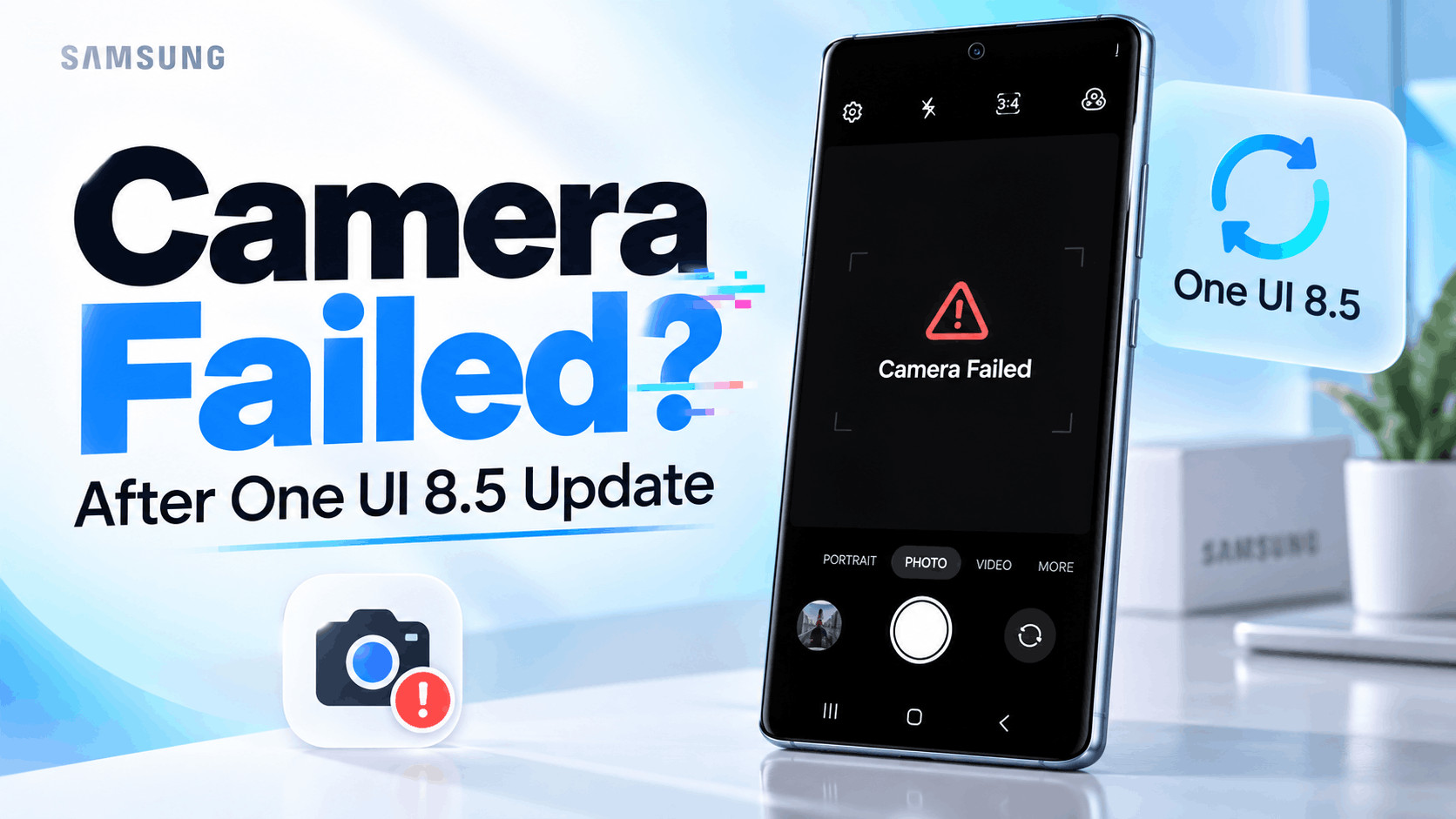
Why Does Samsung Show “Camera Failed” After One UI 8.5?
The Samsung Camera app is connected to several Android and One UI system components. When a major firmware update changes those components, old cached data or incompatible settings can occasionally prevent the camera service from initializing correctly.
After One UI 8.5, the problem may appear as:
- “Warning: Camera Failed” immediately after opening Camera
- Camera app closing automatically
- Black camera preview
- Rear camera not working while the selfie camera works
- Flashlight being unavailable at the same time
- Camera freezing when switching lenses
- Camera working in some modes but not regular Photo mode
- Third-party apps such as WhatsApp or Instagram being unable to access the camera
One UI 8.5 also introduced changes to Samsung’s camera software. For example, Samsung changed how modes including Night, Single Take, and Dual Rec are accessed on supported devices. Because the camera software itself has changed, resetting old Camera configuration after an upgrade is particularly worthwhile.
Do not assume that every Camera Failed message after One UI 8.5 is caused by the update, however. A damaged camera module can produce similar symptoms. The troubleshooting process below helps separate a software problem from a possible hardware failure.
1. Restart Your Samsung Galaxy Phone
Start with a normal restart even if you have already restarted the phone once during the One UI installation. Android may have completed additional app optimization and configuration after the first boot.
Swipe down twice to open Quick Settings, tap the Power icon, choose Restart, and allow the phone to boot completely. Wait about a minute after reaching the lock screen before opening Camera again.
If the phone is frozen or the Camera Failed message keeps appearing, perform a forced restart:
- Press and hold the Side button + Volume Down button together.
- Keep holding them for approximately 7 seconds.
- Release the buttons when the Samsung logo appears.
This does not erase your data. It simply forces Android and its background hardware services to start again.
2. Reset the Samsung Camera Settings
A One UI update can leave an older Camera configuration that does not behave correctly with the updated app. Samsung specifically recommends resetting Camera settings when dealing with Camera Failed errors.
Open:
Camera > Settings > Reset settings > Reset
If the Camera app stays open long enough to access its settings, try this before clearing all Camera app data.
Your photos and videos are not removed. Features such as shooting preferences, resolution choices, grid lines, and other customized Camera settings may return to their defaults.
3. Clear the Camera App Cache
If resetting Camera settings does not help, clear its temporary cache. Cached files created under the previous One UI version may no longer work properly with the updated camera components.
Go to:
Settings > Apps > Camera > Storage > Clear cache
Now close Settings and try Camera again.
Clearing the cache is one of the safest troubleshooting methods because it does not erase your photographs, videos, or personal files.
4. Clear Samsung Camera App Data
This is one of the most important fixes for a Samsung Camera Failed error after One UI 8.5. Samsung currently recommends clearing Camera app data when a Galaxy camera cannot be opened.
Navigate to:
Settings > Apps > Camera > Storage > Clear data > Delete
Restart the phone afterward and open Camera.
Despite the wording, clearing Camera app data does not delete the photos and videos stored in your Gallery. It removes the Camera application’s settings and locally stored configuration so the app can create a fresh configuration.
You will need to configure your preferred Camera settings again afterward.
5. Check for a New One UI 8.5 Update or Samsung Hotfix
If the camera stopped working immediately after a system update, check whether Samsung has already released another firmware build containing fixes.
Go to:
Settings > Software update > Download and install
Install any available update, restart the phone, and test Camera again.
This step is especially important with newly released firmware. Problems discovered after a major One UI rollout can sometimes be corrected through subsequent maintenance updates instead of requiring users to reset their phones.
You should also open the Galaxy Store and update Samsung apps. Then check Google Play for pending app updates.
6. Update Camera Assistant and Good Lock Modules
If you use Samsung Camera Assistant, Good Lock, or other Samsung customization modules, update them after installing One UI 8.5.
Camera Assistant can directly change how Samsung’s Camera application behaves. One UI 8.5 also integrates some camera-mode controls with Camera Assistant on supported Galaxy models, making an outdated version worth checking.
Open Galaxy Store and install all available updates. If Camera Assistant was installed before the One UI upgrade and the problem continues, temporarily disable customized Camera Assistant options and test the stock Camera app again.
7. Test the Camera Through Samsung Members
Before assuming the camera sensor has physically failed, use Samsung’s built-in diagnostic system.
Open:
Samsung Members > Support > Phone diagnostics > Camera
The exact wording can differ slightly depending on your Galaxy model and Samsung Members version.
Run the Camera test and review the result. Samsung recommends this diagnostic when the Camera app cannot be launched.
If the diagnostic successfully communicates with the camera while the normal Camera app continues to show Camera Failed, that provides useful evidence that the problem may be related to software rather than a completely dead camera module.
8. Boot the Galaxy Phone Into Safe Mode
Third-party apps can access the camera, microphone, flash, overlays, accessibility services, and other resources used by Samsung Camera. An incompatible app may therefore cause problems after a major One UI upgrade.
Safe Mode temporarily disables most downloaded applications while leaving essential Samsung and Android components running.
To enter Safe Mode on current Samsung Galaxy devices:
- Open the power menu.
- Touch and hold Power off.
- Tap Safe mode.
- Wait for the phone to restart.
- Open Samsung Camera and test it.
If the camera suddenly works in Safe Mode, the One UI 8.5 firmware itself may not be the direct cause. A third-party application is likely interfering with the camera.
Restart normally and remove recently installed or updated applications, especially camera utilities, QR scanners, screen recorders, social media camera tools, filters, flashlight utilities, or applications with unusual accessibility or camera permissions.
9. Check Whether Another App Is Using the Camera
Android protects camera access, so another application holding the camera service can sometimes stop Camera from opening correctly.
Close all recent apps first. Pay particular attention to apps such as:
- Snapchat
- Google Meet
- Microsoft Teams
- Zoom
- QR scanner applications
- Video recording or security applications
Restarting the device normally releases a stuck camera session, which is another reason the first fix should not be skipped.
10. Check Camera Permissions
Permission settings can also be worth checking after a major Android or One UI update, particularly if the camera works in Samsung Camera but fails inside another app.
Open:
Settings > Security and privacy > Permission manager > Camera
Review which apps have permission to use the camera.
If WhatsApp, Instagram, Snapchat, or another application displays a black screen while Samsung Camera works normally, grant camera permission to that specific app rather than resetting the entire phone.
11. Reset App Preferences
If several system apps began behaving incorrectly after One UI 8.5, resetting app preferences can restore disabled components and default application behavior without deleting your documents or photos.
Go to:
Settings > Apps > three-dot menu > Reset app preferences
Confirm the reset, restart the device, and test Camera.
This may restore disabled apps, notification settings, default apps, background restrictions, and certain permission-related preferences. You may need to configure some app defaults again afterward.
12. Check Whether Only One Camera Lens Is Failing
Pay attention to exactly where the Camera Failed message occurs. Open different camera functions if the application allows you to access them.
For example, check whether:
- The selfie camera works but the rear camera fails
- 0.6x works but 1x does not
- Video works but Photo mode fails
- Portrait works but standard Camera fails
- The flashlight also stops functioning
If only a specific physical lens consistently fails across the Samsung Camera app, Samsung Members diagnostics, and other camera applications, hardware becomes a stronger possibility.
However, do not diagnose a broken sensor based solely on one mode failing immediately after an update. Samsung’s camera software coordinates multiple sensors, stabilization components, image-processing services, and shooting modes.
13. Send an Error Report Through Samsung Members
If Camera Failed began specifically after installing One UI 8.5 and the earlier fixes do not resolve it, send Samsung an error report with system logs.
Open Samsung Members > Support > Send feedback > Error reports, select the appropriate category, describe when the failure started, and send the report with system logs attached when offered.
Mention useful details such as:
- Your exact Galaxy model
- Current One UI version
- Software build number
- Whether the front camera works
- Whether the rear camera works
- Whether the flashlight works
- Whether Samsung Members Camera diagnostics pass
- Whether Camera works in Safe Mode
Those details are far more useful than simply reporting that the camera is broken.
14. Consider a Factory Reset Only as a Last Software Fix
A factory reset should not be the first recommendation for Samsung Camera Failed after One UI 8.5. It deletes installed applications, accounts, settings, and locally stored data and requires substantial setup afterward.
Consider it only if the problem persists after clearing Camera data, updating the firmware, testing Safe Mode, checking diagnostics, and trying the other software fixes.
Before resetting, create a complete backup using Samsung Smart Switch, Samsung Cloud where available, Google backup, or another trusted backup method.
You can then find the reset option under:
Settings > General management > Reset > Factory data reset
If the camera still fails on a freshly reset phone before installing third-party applications, hardware inspection becomes much more reasonable.
When Should You Visit a Samsung Service Center?
Contact Samsung support or an authorized service center if none of the software fixes work and the camera also fails Samsung’s diagnostics.
Hardware inspection is particularly sensible if the problem appeared after the phone was dropped, exposed to liquid, overheated, repaired previously, or suffered physical damage around the camera housing.
You should also consider service if multiple apps cannot access the same camera lens even after a factory reset.
If the problem appeared immediately after One UI 8.5 and diagnostics suggest the hardware is functional, reporting the issue to Samsung and checking for another firmware update may make more sense than immediately paying for a camera replacement.
Additional Tips for One UI 8.5 Camera Problems
- Do not install random Camera APK files. Samsung Camera is deeply integrated with One UI, and incompatible APKs can create additional problems.
- Avoid unofficial downgrade guides. Firmware downgrades can fail because of bootloader revisions and may cause data loss.
- Keep enough free storage. Extremely low storage can cause apps and video recording to behave unpredictably.
- Update Galaxy Store apps. Samsung system applications can receive updates separately from the main One UI firmware.
- Test before factory resetting. Samsung Members diagnostics and Safe Mode provide valuable information without deleting your data.
Frequently Asked Questions
Why did my Samsung camera stop working after One UI 8.5?
The update may not necessarily have damaged the camera. A Camera Failed warning can result from corrupted Camera app data, an incompatible configuration, another application interfering with camera access, or a temporary One UI camera-service problem. Hardware failure is also possible, so diagnostics should be used if basic fixes fail.
Does clearing Samsung Camera data delete my photos?
No. Clearing the Camera application’s data resets Camera settings and configuration, but it does not delete the photos and videos stored in your Gallery. Samsung specifically recommends clearing Camera app data as a troubleshooting step when Camera will not open.
Why is my Samsung flashlight not working after the Camera Failed error?
The camera and flashlight use related hardware and system services. If Android believes the camera hardware is busy or the camera service has failed, the flashlight may temporarily become unavailable as well. Restarting the phone and clearing Camera data are good first steps.
Why does my selfie camera work but the rear camera says Camera Failed?
Different camera sensors can behave independently. A software problem may prevent One UI from initializing a particular rear sensor correctly, but a malfunctioning camera module can produce similar symptoms. Run Samsung Members Camera diagnostics before assuming that the rear camera needs replacement.
Should I factory reset my phone to fix Camera Failed?
Not immediately. Restart the phone, reset Camera settings, clear Camera cache and data, install available updates, test Safe Mode, and run Samsung Members diagnostics first. Factory reset should be one of the final software troubleshooting steps.
Is Camera Failed a known One UI 8.5 problem?
Reports from Galaxy users have appeared after One UI 8.5, including users describing rear-camera failures or Camera Failed warnings after updating. That does not mean every Camera Failed error is caused by One UI 8.5 or that every supported Galaxy device is affected. Treat the update as a possible trigger rather than automatically assuming it is the sole cause.
Final Thoughts
If you started seeing Samsung Camera Failed after the One UI 8.5 update, avoid jumping straight to a factory reset or camera replacement. Begin by restarting the phone, resetting Camera settings, clearing the Camera cache and data, updating One UI and Samsung apps, and running the Camera diagnostic through Samsung Members.
Safe Mode is especially useful because it can reveal whether another application is interfering with the camera. If Samsung Members can access the camera successfully while the normal Camera app cannot, continue focusing on software troubleshooting and report the issue to Samsung with logs.
If the camera fails diagnostics as well, continues failing after a clean factory reset, or shows symptoms unrelated to the One UI update, an authorized Samsung service center should inspect the hardware. Working through the fixes in this order gives you the best chance of resolving the One UI 8.5 Camera Failed problem without unnecessarily erasing your phone or replacing perfectly functional camera hardware.