- iPhone 17 Pro users may experience signal and connectivity problems due to several reasons such as software glitches, eSIM profile corruption, or interference from phone cases. These issues are not always signs of hardware failure.
- To fix these problems on your iPhone 17 Pro, follow simple steps like toggling Airplane Mode, force restarting your phone, or resetting network settings. These methods can help resolve issues like dropped calls and slow data speeds.
- If simple fixes do not work and you've checked with your carrier, the issue may be a hardware defect. In this case, contact Apple Support or visit an Apple Store for further diagnosis and possible replacement.
The iPhone 17 Pro is a marvel of modern engineering, boasting the blazing fast A19 Pro chip, a stunning ProMotion XDR display, and next-generation satellite capabilities. It is designed to be the ultimate communication tool, keeping you connected in more places than ever before. However, even the most advanced hardware is nothing more than a paperweight if it cannot hold a stable cellular or Wi-Fi connection.
There is nothing more frustrating than buying a flagship device only to watch your signal bars drop to zero in the middle of an important call or have your data stall while loading a map. If you are searching for this article, you are likely facing the frustrating issue of severe signal and connectivity issues on iPhone 17 Pro and are worried that your expensive new device has a hardware defect. You might be experiencing dropped calls, slow 5G speeds, or the dreaded “SOS Only” status bar.
This article will help you by guiding you through comprehensive, step-by-step troubleshooting methods to identify the root cause of the problem. Whether it is a simple case of a corrupted eSIM profile, a software bug in the latest iOS update, or interference from a case, we will show you how to fix it at home without needing technical expertise. By following this guide, you can restore your connection reliability and get back to using your iPhone 17 Pro as intended.
Why Signal and Connectivity Issues Occur on iPhone 17 Pro
If you don’t know why your iPhone 17 Pro is losing signal, you can follow this article’s steps. We have discussed reasons for the connectivity issues on iPhone 17 Pro in this article.
Understanding the “why” is the first step to solving the problem. The iPhone 17 Pro utilizes a new modem architecture designed to handle high-frequency 5G and emerging 6G bands. While powerful, this complexity can sometimes lead to “handshake” errors between the phone and the cell tower.
There are several reasons why you might face this issue. It is not always a hardware failure. In many cases, it is simply a configuration error or a software glitch.
- Modem Firmware Glitches: The software that controls the cellular radio (the modem) is separate from the main iOS. Sometimes, this firmware can crash or get stuck in a loop, preventing the phone from locking onto a signal tower.
- eSIM Profile Corruption: With the iPhone 17 Pro being eSIM-only in many regions, the digital profile provided by your carrier can sometimes become corrupted during an update or transfer, leading to authentication failures with the network.
- 5G Auto-Switching: The iPhone 17 Pro tries to save battery by aggressively switching between 5G, 5G UC/UW, and LTE. In areas with spotty coverage, the phone can get stuck in “limbo” between two bands, resulting in zero data flow.
- Physical Obstruction: While the titanium frame is radio-transparent, certain third-party cases—especially those with metal accents, magnetic plates, or thick carbon fiber—can shield the antenna bands, causing significant signal degradation.
- Carrier Settings Updates: If your carrier has updated their tower protocols but your phone hasn’t received the latest Carrier Settings Update file, your device may struggle to connect to the optimized frequencies.
How to Fix Connectivity Issues on iPhone 17 Pro
You can fix the iPhone 17 Pro connectivity issues using simple troubleshooting methods at home. To fix the signal drops, follow the steps given below-
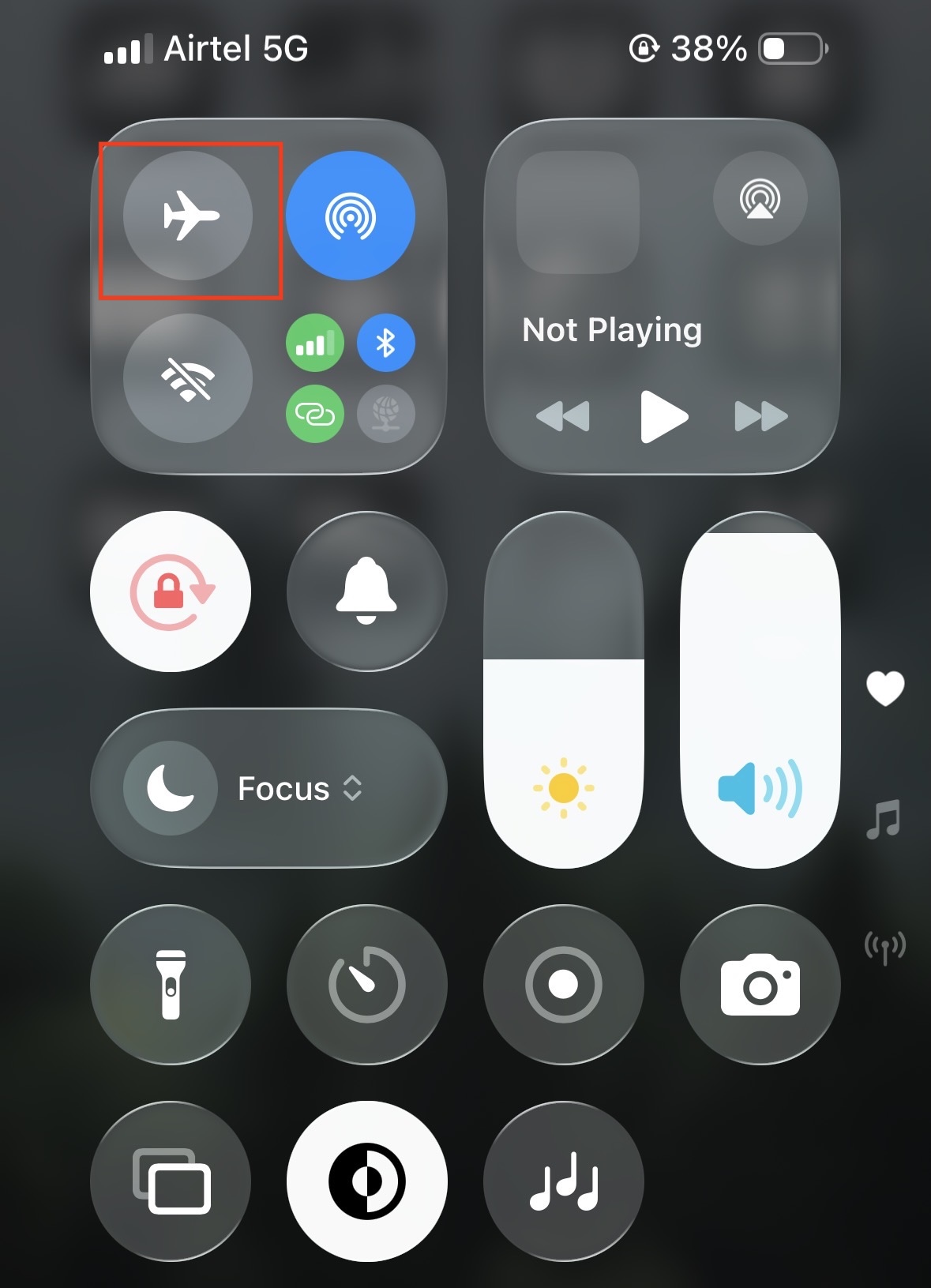
1. Toggle Airplane Mode (The Soft Reset)
The quickest way to force your iPhone to search for a better signal tower is to restart the cellular radios. This clears the temporary cache of nearby towers and forces a fresh handshake. To perform this soft reset, follow the steps given below-
- Swipe down from the top-right corner of the screen to open the Control Center.
- Tap the Airplane icon so it turns orange.

- Wait for at least 30 seconds. This wait time is crucial to ensure the modem fully powers down.
- Tap the icon again to turn it off.
- Watch the signal bars in the top left as the phone cycles through “Searching…” and locks onto the strongest available signal.
2. Force Restart Your iPhone 17 Pro
If a simple toggle didn’t work, the issue might be a system-level process that has crashed in the background. A force restart cuts power to the A19 chip and forces a clean reload of the iOS and modem firmware. To force restart your iPhone, follow the steps given below-
- Press and quickly release the Volume Up button.
- Press and quickly release the Volume Down button.
- Press and hold the Side button (Power button) on the right side of the device.
- Keep holding the button—ignore the “Slide to Power Off” slider—until the screen goes black and the Apple logo appears.
- Release the button and let the phone boot up, then check your signal strength once the lock screen appears.
3. Reset Network Settings
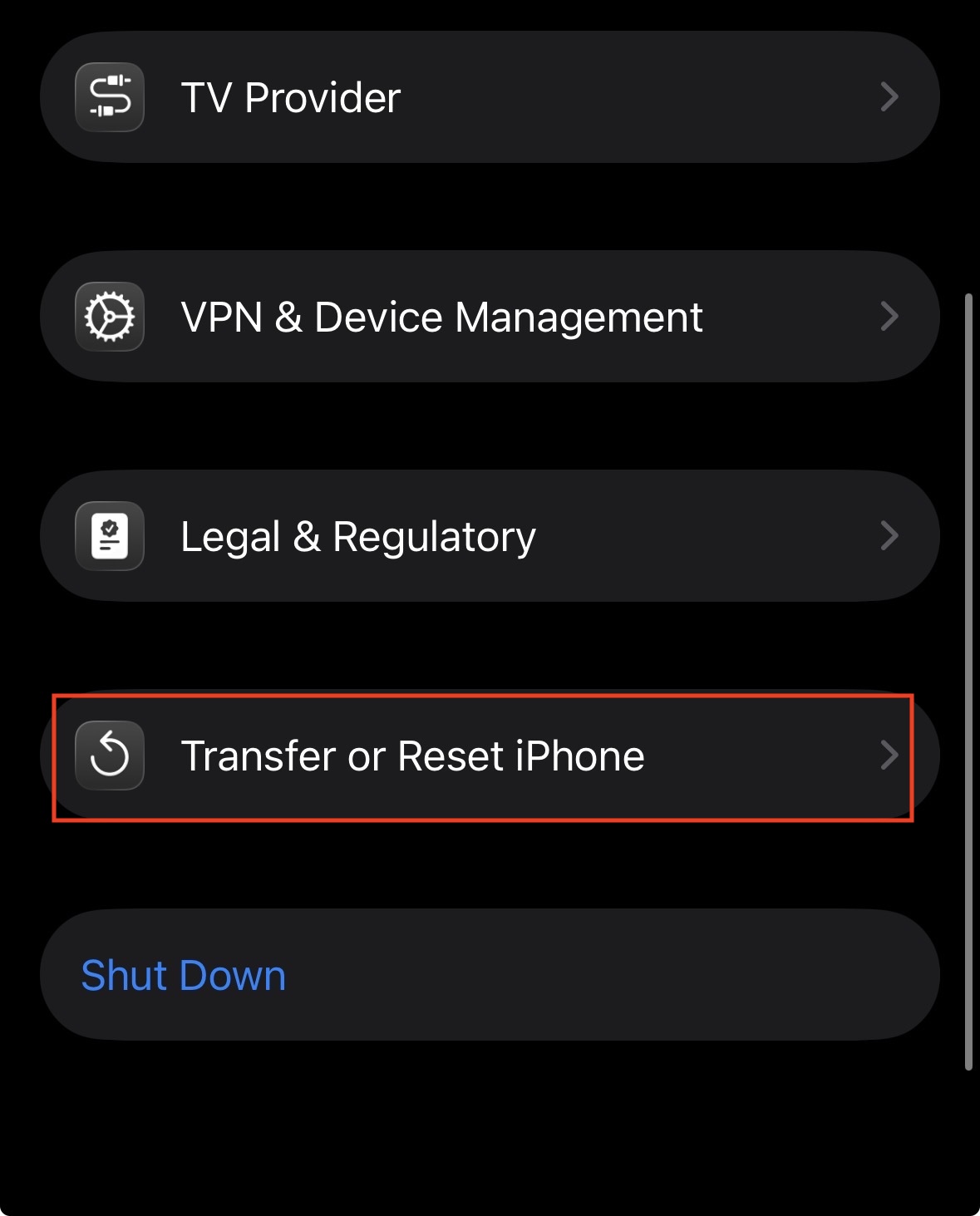
This is the “nuclear option” for connectivity issues. It does not delete your photos or apps, but it will erase all saved Wi-Fi passwords, Bluetooth connections, and VPN configurations. It resets the cellular settings to their factory defaults. To reset network settings, follow the steps given below-
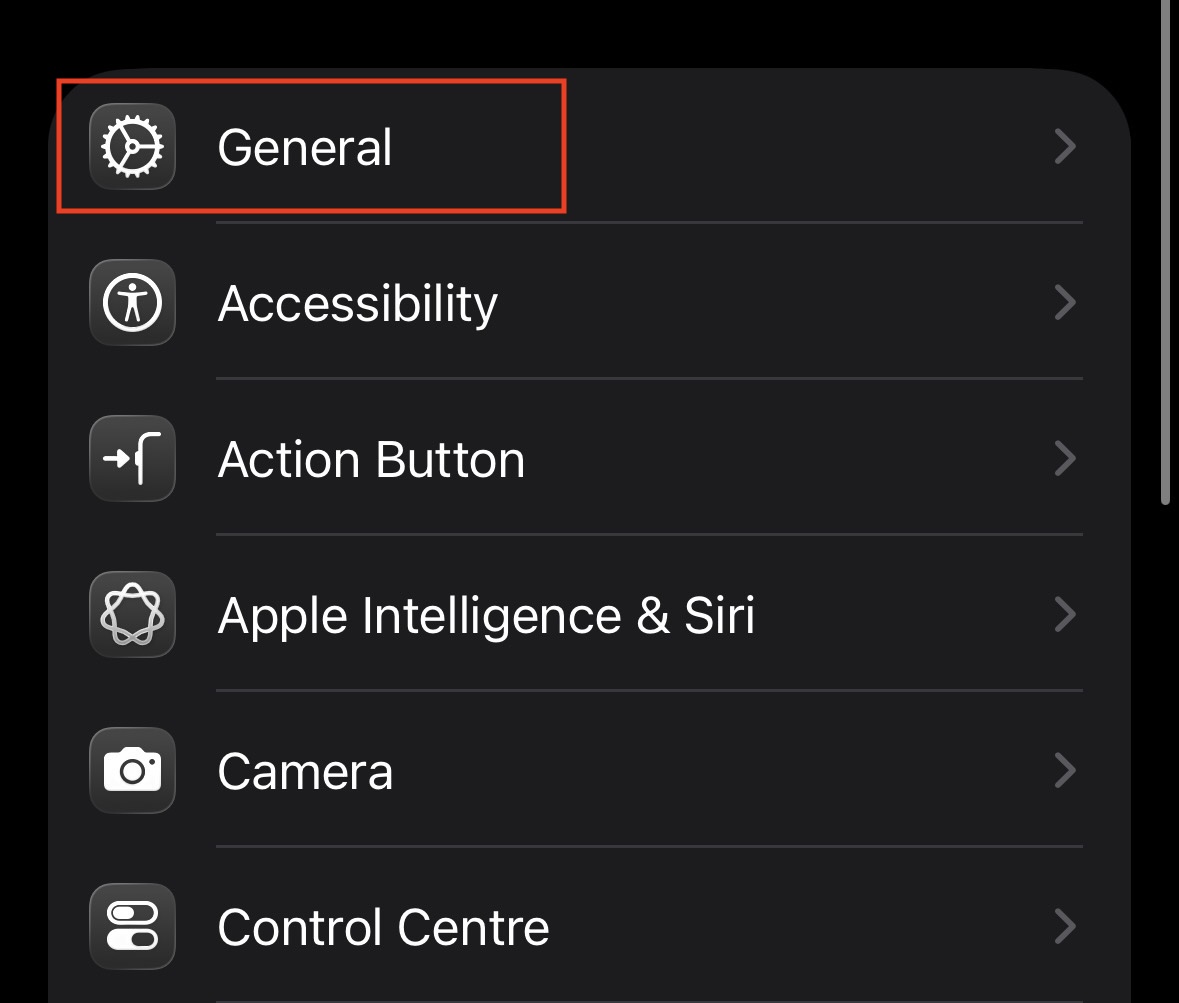
- Launch the Settings app on your iPhone.
- Tap on General.

- Scroll to the bottom and tap Transfer or Reset iPhone.

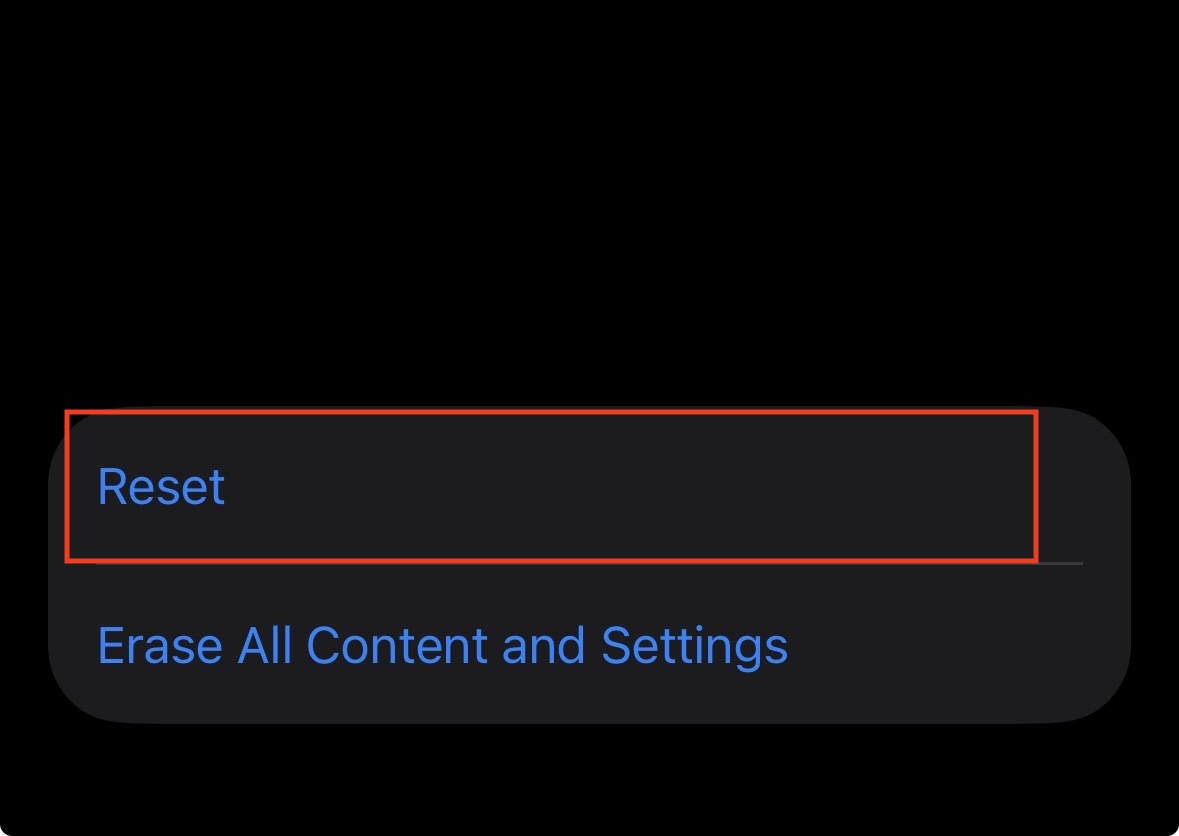
- Select Reset from the popup menu.

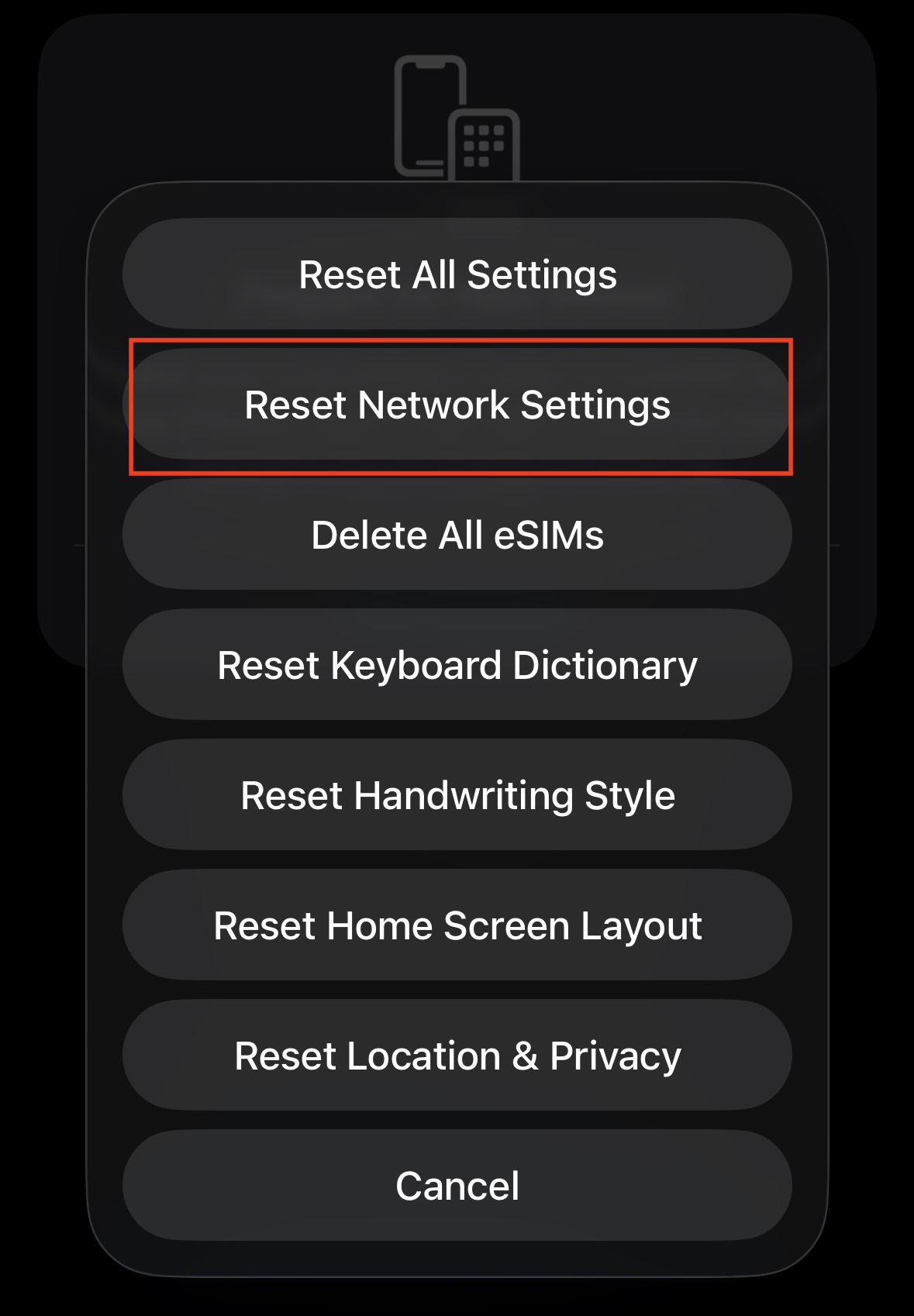
- Tap Reset Network Settings.

- Enter your passcode to confirm the action. The phone will restart with factory-default connection settings.
4. Update Carrier Settings
Carriers frequently push small updates to help your phone talk to their towers better. These updates usually happen automatically, but sometimes they get stuck. To manually force a carrier update check, follow the steps given below-
- Ensure you are connected to a Wi-Fi network (since your cellular data might be broken).
- Go to Settings and tap on General.
- Tap on About.
- Stay on this screen for about 15-30 seconds without touching anything.
- If an update is available, a pop-up will appear saying “Carrier Settings Update.” Tap Update.
5. Toggle 5G Standalone (Voice & Data)
Sometimes the issue is not the signal strength, but the specific 5G protocol your carrier is using. Disabling “5G Standalone” or switching to LTE can stabilize a connection in areas with poor 5G implementation. To adjust cellular data options, follow the steps given below-
- Go to Settings and select Cellular.
- Tap on your primary phone number (SIM/eSIM).
- Tap on Voice & Data.
- Switch the setting from 5G Auto to LTE.
- Use the phone on LTE for a few minutes. If the connection becomes stable, the issue is with your carrier’s 5G coverage, and you can switch back later when you move locations.
6. Refresh Your eSIM Line
On the iPhone 17 Pro, the eSIM is the lifeline of your connection. Toggling the specific line off and on can force the phone to re-authenticate your subscription with the carrier. To refresh your eSIM, follow the steps given below-
- Go to Settings and select Cellular.
- Tap on the SIM label for your line (e.g., “Primary” or “Personal”).
- Locate the switch labeled Turn On This Line and toggle it Off.
- Wait for about 10 seconds.
- Toggle the switch back On and watch as the phone re-registers with the network.
7. Check for Physical Interference
It is easy to overlook the physical environment. The iPhone 17 Pro uses a complex array of antennas located around the frame. To check for interference, follow the steps given below-
- Remove any case you are currently using, especially if it is made of aluminum, metal, or has a magnetic wallet attached.
- Walk outside or to a window to clear obstructions like concrete and steel.
- Inspect the sides of your iPhone 17 Pro to ensure the antenna bands are clean and free of metallic stickers or debris.
Final Words
By doing so, you can fix the connectivity issues on your iPhone 17 Pro. Following the steps mentioned in this article, you will be able to resolve the issue of severe signal drops and no service for most users. From a simple Airplane Mode toggle to a complete Network Settings reset, these solutions cover the software glitches that typically plague new hardware.
However, if you have tried every step in this guide, including resetting network settings and contacting your carrier to verify your account status, and the phone still refuses to hold a signal, it is highly likely that there is a hardware defect with the internal modem or antenna assembly. In that case, you will need to contact Apple Support or visit an Apple Store to have the device diagnostics run for a potential replacement.
ALSO READ:
- iPhone Not Charging? Fix a Faulty Charging Port in 7 Simple Steps
- Parental Controls Keep Resetting on iPhone or iPad? How to Stop It Permanently
- How to Convert Photo to PDF on iPhone or iPad 2026
- Top 8 Ways to Fix WhatsApp Stuck on Connecting on iPhone 2026
- How to Make iPhone Vibrate on Silent Mode 2026