- In iOS 26, enabling Reduce Motion or Low Power Mode can disable album art animations on the iPhone lock screen. Turning these off restores dynamic visuals instantly.
- Outdated apps, custom lock screen widgets, or live wallpapers can interfere with the animation engine. Always keep iOS and your music apps updated, and test with a default lock screen setup.
- If the music album art still isn’t animating after updates and restarts, performing a “Reset All Settings” in iOS 26 or doing a clean restore often fixes hidden configuration conflicts.
When iOS 26 rolls out and offers new visual enhancements, one user expectation often goes unmet: the music album art not animating on the iPhone lock screen. For audiophiles and casual listeners alike, that subtle motion of album art adds polish and delight. But when that animation stops working, the experience feels unfinished. This guide dissects precisely why music album art fails to animate on iPhone lock screen iOS 26 and provides concrete, expert-level solutions to restore full functionality.
Common Problems with Music Album Art Not Animating (iOS 26)
Here are the main reasons music album art not animating on iPhone lock screen iOS 26 often occurs. Each problem requires a different fix.
1. Disabled Motion Settings or Reduced Motion Enabled
iOS includes an accessibility setting called Reduce Motion, which, when enabled, limits system animations to reduce motion sickness. If this setting is turned on, the OS may suppress the motion of album art on the lock screen.
- Symptom: No transitions, no parallax, just static cover art.
- Check: Go to Settings → Accessibility → Motion and see if “Reduce Motion” is toggled on.
2. Low Power Mode or Battery Constraints
When Low Power Mode is enabled, iOS may disable or tone down visual flourishes to conserve energy. The lock screen animations (including moving album art) are sometimes lowered in priority.
- Symptom: Animation works when plugged in or with high battery, but not when battery is low.
- Check: Look in Settings → Battery for Low Power Mode status.
3. App-Specific Issues (Music or Third-Party Player)
If you’re using Apple Music or a third-party streaming app (e.g. Spotify, Tidal), certain apps may override system controls or fail to supply the proper metadata pipeline. In iOS 26, the system expects the app to supply high-res artwork metadata and animation cues. If the app is outdated, incompatible, or suppressing the animation (due to battery or performance settings), the effect will not show.
- Symptom: Works for Apple’s built-in Music app, but not for the third-party one (or vice versa).
- Check: Test using Apple Music and a third-party app to see which fails.
4. Lock Screen Widgets or Lock Screen Configuration Conflicts
iOS allows you to customize the lock screen with widgets, custom wallpapers, and focus modes. In some configurations, especially with conflicting wallpaper motion settings or lock screen themes, the system might suppress the animated album art to preserve aesthetic consistency or reduce visual clutter.
- Symptom: Changing wallpaper or lock screen style disables animation broadly.
- Check: Try switching to a default lock screen without custom widgets or motion wallpaper to test.
5. iOS 26 Bugs or Firmware Glitches
Whenever a major OS update rolls out, some features have bugs. In iOS 26, there may be known issues related to media rendering, lock screen transitions, or GPU drivers that interfere with album art animation.
- Symptom: Animation used to work before update but now fails entirely for all apps.
- Check: Search Apple forums or release notes for known issues. Confirm software version and check for updates or patches.
6. Hardware Limitations or Performance Mode
On older iPhone models or ones in degraded hardware states (e.g., battery health severely reduced), iOS may disable fancy animations to maintain responsiveness. If your device is under heavy load or performance throttled, the lock screen might opt for static images.
- Symptom: Only older devices or devices under heavy CPU load show no animation.
- Check: Look at performance metrics (CPU, memory) or battery health in Settings.
Music Album Art Not Animating on iPhone Lock Screen? (iOS 26 Fix)
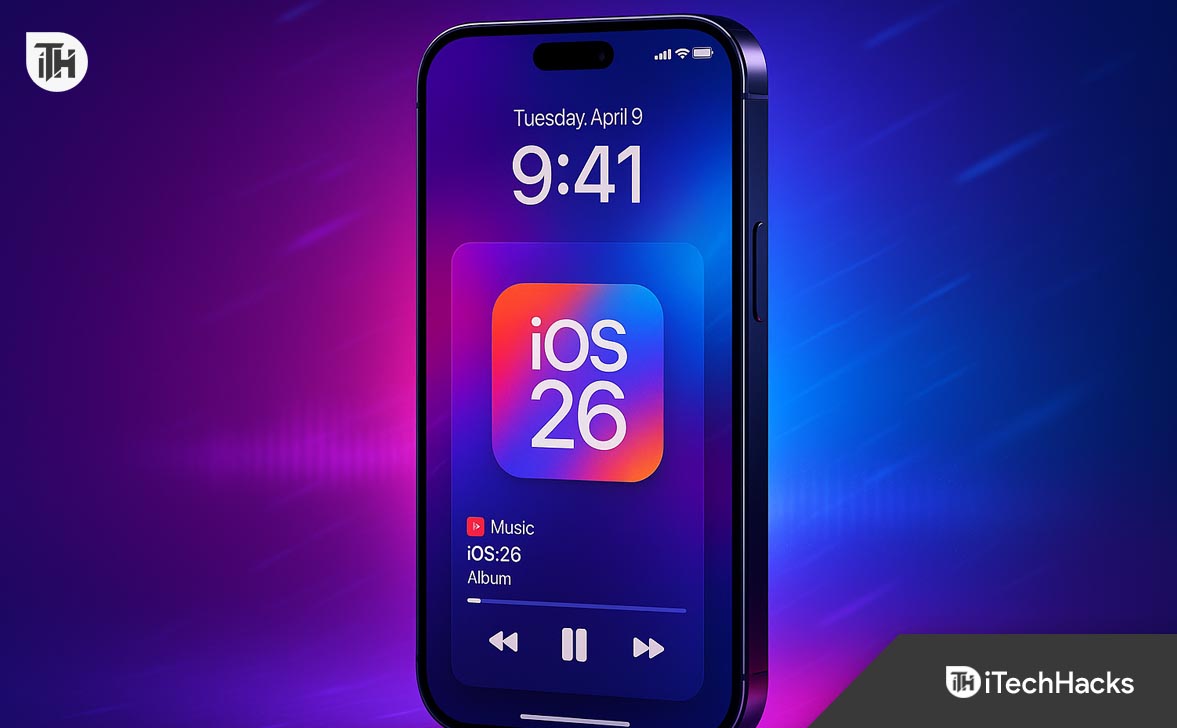
Use these verified, practical steps in order. After each step, lock your iPhone and start playback to check whether Music Album Art Not Animating is resolved on iOS 26.
Step 1: Turn Off “Reduce Motion” and Related Animation Limits
- Go to Settings → Accessibility → Motion.
- Turn Reduce Motion Off.
- Turn Auto-Play Message Effects On and Prefer Cross-Fade Transitions Off.
- Return to the Lock Screen and test with Apple Music.
Reduce Motion suppresses system animations. If it’s enabled, Music Album Art Not Animating on iOS 26 is expected behavior.
Step 2: Disable Low Power Mode and Check Battery Health
- Open Settings → Battery.
- Toggle Low Power Mode Off.
- Tap Battery Health & Charging and confirm Battery Health is acceptable (ideally above ~80%).
iOS 26 prioritizes battery life in Low Power Mode and may scale back lock-screen animations. Poor battery health can trigger background throttling, which also limits visuals.
Step 3: Force-Quit the Player, Reopen, and Reboot Once
- Swipe up from the bottom (or double-press Home on older models), swipe away the Music app (or Spotify/Tidal), then reopen.
- Press and hold Power + Volume (or Power alone on Home-button devices) → slide to power off → wait 30 seconds → power on.
Why it matters: A clean relaunch flushes a stale Now Playing session that can cause Music Album Art Not Animating even on a healthy iOS 26 install.
Step 4: Update iOS and Your Music Apps
- Settings → General → Software Update → install the latest iOS 26.x patch.
- Open App Store → Profile → update Apple Music, Spotify, Tidal, YouTube Music, etc.
Minor iOS 26 point releases often contain media pipeline fixes. Streaming apps must match those changes to deliver animated artwork to the Lock Screen.
Step 5: Test With Apple Music (to Isolate Third-Party Issues)
- Play any local or Apple Music track in the Music app.
- Lock the phone and observe the artwork.
- If animation works here but not in Spotify/Tidal, the issue is app-specific.
What to do next (third-party apps):
- Clear cache in the app’s settings (if available).
- Log out/in, then test again.
- Reinstall the app.
- Ensure Background App Refresh is On: Settings → General → Background App Refresh.
Third-party players must properly publish high-res artwork and metadata to the iOS 26 Now Playing engine. If they don’t, the Lock Screen will show static art.
Step 6: Simplify Your Lock Screen (Widgets, Wallpaper, Focus)
- Go to Settings → Wallpaper → pick a default static wallpaper (avoid Live/Depth effects for testing).
- Long-press the Lock Screen → tap Customize → remove widgets temporarily.
- Check Settings → Focus and test with Focus Off (some Focus setups alter Lock Screen behavior).
Complex Lock Screen layouts, certain motion wallpapers, or Focus-linked Lock Screens can inadvertently suppress Now Playing animations, resulting in Music Album Art Not Animating on iOS 26.
Step 7: Verify Always-On Display and Display Zoom
- Settings → Display & Brightness → Always On Display → toggle On (then test) and Off (test again).
- Under Display & Brightness → Display Zoom, set View to Standard (avoid Zoomed while testing).
On supported devices, Always-On can alter how the Lock Screen compositor prioritizes frames. Display Zoom modifies layout metrics and can impact animation layers.
Step 8: Confirm Media & Notifications Permissions
- For third-party players, open Settings → (App Name).
- Ensure Media & Apple Music (if shown), Notifications, and Background App Refresh are On.
If the app can’t publish Now Playing updates or run in the background, iOS 26 may only show a static thumbnail.
Step 9: Reset Network Settings (If Casting/AirPlay Is Involved)
- Settings → General → Transfer or Reset iPhone → Reset → Reset Network Settings.
- Reconnect Wi-Fi and test again.
When streaming via AirPlay or certain Bluetooth stacks, broken session handshakes can freeze the Now Playing view. Fresh network stacks on iOS 26 often resolve it.
Step 10: Clear System Hiccups With “Reset All Settings”
- Settings → General → Transfer or Reset iPhone → Reset → Reset All Settings.
- This resets settings (Wi-Fi, wallpapers, Face ID/Passcode preferences, etc.) but preserves data.
- Reapply only what you need, then test animations immediately.
Corrupted preferences are a classic cause of Music Album Art Not Animating on iOS 26. This non-destructive reset clears hidden conflicts without erasing content.
Step 11: Try a Clean Reinstall (Backup → Restore)
- Back up to iCloud or a computer.
- Use Finder/iTunes to Restore iPhone (or perform a DFU restore if you’re comfortable).
- After setup, test before installing third-party apps.
- If animations work on stock iOS 26, install apps gradually to find the culprit.
A clean system confirms whether the issue was OS-level or caused by an app/configuration you re-added.
Step 12: Hardware & Thermal Checks (When Symptoms Are Intermittent)
- If the device feels hot, pause charging and heavy background tasks; retest when cool.
- Check Settings → Battery → Battery Health & Charging for signs of performance management.
- If animations vanish only under load/heat, you’re hitting thermal throttling; reduce live activities and close demanding apps during playback.
To keep the interface responsive, iOS 26 may drop non-essential animations when the CPU/GPU is constrained.
Step 13: Escalate With Repro Steps and Logs (If Still Unresolved)
- Document: device model, iOS 26 build, player(s) affected, exact steps, and screenshots or a short video.
- Contact the app developer (for third-party players) with your repro notes.
- Report to Apple via Feedback Assistant or Support.
Detailed reproduction paths help engineers diagnose compositor or MediaRemote/AVFoundation regressions that cause Music Album Art Not Animating.
FAQs
Why did the music album art animation stop working right after updating to iOS 26?
Updating to a newer OS like iOS 26 can reset certain settings such as motion and performance preferences. It may toggle Reduce Motion or introduce bugs in the media-to-lock-screen pipeline. You must recheck settings, update apps, and possibly reset media caches.
Can third-party music apps prevent album art from animating on the lock screen?
Yes. If a third-party app doesn’t implement proper metadata protocols or omits animation cues, the system may default to static cover art. Testing with Apple Music can help isolate whether the app is at fault.
Does enabling Low Power Mode always disable lock screen animations?
Not always, but Low Power Mode may aggressively curtail nonessential animations, including album art motion. If you observe animation suppression under low battery, Low Power Mode is a likely culprit.
After resetting all settings, the problem still persists—what next?
Proceed with a full backup and DFU restore of iOS 26. That gives you a clean system baseline. If the issue remains, it may be a system-level bug or hardware constraint.
What iPhone models are more likely to experience album art animation issues on iOS 26?
Older iPhone models (e.g. iPhone X, XR, 11) or devices with degraded battery health may experience animation suppression due to performance limits. In such cases, Apple may throttle visual effects to maintain fluid UI.
Conclusion
To fix music album art not animating on iPhone lock screen iOS 26, systematically work through enabling motion settings, disabling energy-saving modes, updating iOS and apps, resetting lock screen configurations, and ultimately restoring the device if needed. Animation suppression often stems from Reduce Motion, Low Power Mode, or app metadata problems. For persistent cases, advanced steps like logs diagnosis or a clean DFU restore can isolate hidden faults. By staying current with system updates, using high-quality artwork, and testing after changes, you can maintain full lock screen album art animation in iOS 26.
ALSO READ:
- Auto Rotate Not Working on iOS 26? 10 Proven Ways to Fix It Fast
- iPhone 17 Pro Max Camera Blurry After iOS 26 Update? Full Step-by-Step Fix for Sharp Photos
- Can’t Make Outgoing Calls After iOS 26 Update? Fix iPhone Call Failed Errors
- Fix No Sound for Text Messages, Keyboard & Emails After iOS 26
- iPhone 17 Data Transfer Failed? Fix “Unable to Complete Data Transfer” in iOS 26
- How to Use iOS 26 Battery Settings to Fix Excess iPhone Drain