- After updating to iOS 26, many users find their Xbox app on iPhone or iPad is not working properly, causing problems like app crashes, voice chat failure, and remote play lag. This is due to changes in microphone, network, and system settings in the new iOS version.
- To fix these issues, ensure both the Xbox app and iOS are updated to the latest versions. Recheck and enable permissions for microphone, network, and background app refresh. If problems continue, clear the app cache by reinstalling the Xbox app and rejoin party chats or remote sessions.
The moment you update your iPhone or iPad to iOS 26 and discover that your Xbox app is broken, it can disrupt party chat, remote play, and essential features. This issue is becoming common: users report that the Xbox app either crashes, behaves inconsistently, or fails to handle voice chat properly after the iOS 26 update. In this guide you will find comprehensive, step-by-step instructions to diagnose and fix the Xbox app issues arising after upgrading to iOS 26.
Understanding the Xbox App Issue After iOS 26
The Xbox app is deeply integrated with iOS system frameworks for network communication, microphone access, Bluetooth controllers, and background processing. When Apple releases a major update like iOS 26, new permission models, background-activity changes, or driver updates can break these integrations temporarily.
Common side effects include:
- Party chat microphone stops transmitting after other users talk.
- Remote play stutters or disconnects mid-session.
- Controller buttons register incorrectly (like B triggering iPad navigation instead of in-game action).
- The app crashes when connecting to your console or loading a friend list.
These aren’t random bugs—they’re caused by small incompatibilities between iOS 26 system changes and the Xbox app’s older internal API calls. Fortunately, you can fix most of them with proper reconfiguration and cleanup.
Common Symptoms When the Xbox App Breaks on iOS 26
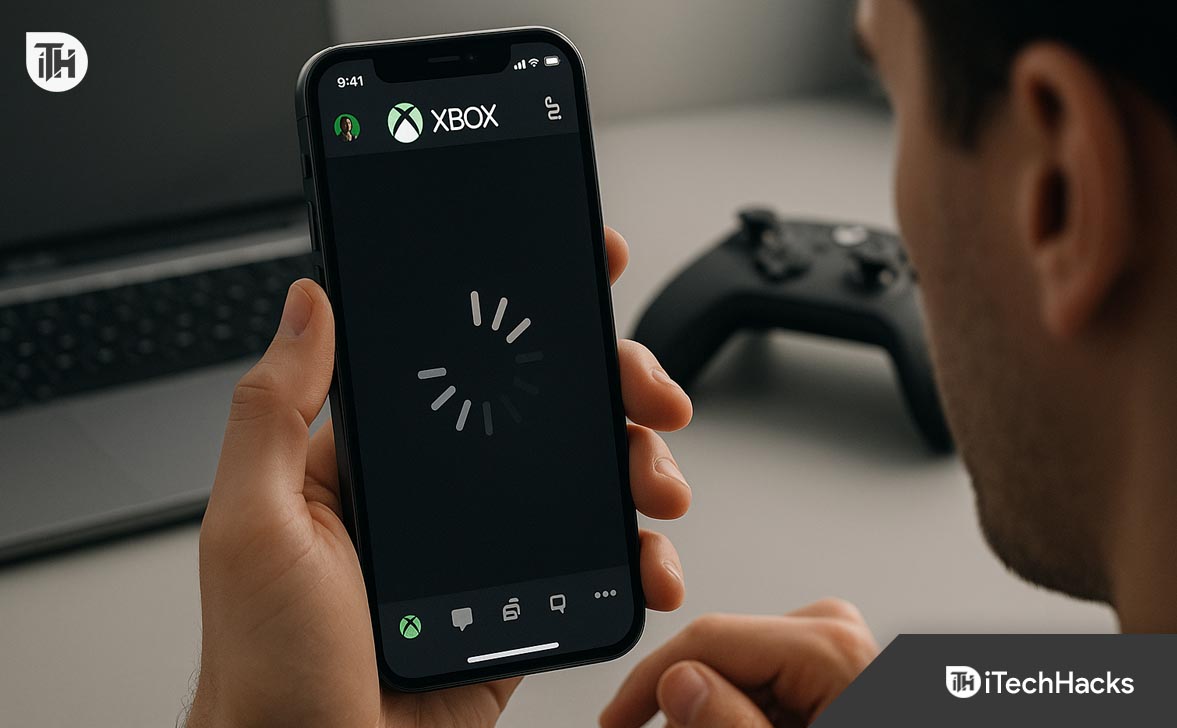
1. Voice Chat Fails or Cuts Out
The most widespread problem is party chat malfunction. You can speak initially, but once another person talks, your microphone input is lost until you rejoin the session. This happens because iOS 26 modified how apps maintain microphone focus during background audio events.
2. Controller Input Problems
Some users find that their Xbox or MFi controller buttons behave incorrectly. For example:
- The B button minimizes the app.
- Analog sticks fail to register movements.
- The controller disconnects during gameplay.
This often relates to new Bluetooth input routing rules in iOS 26.
3. Remote Play Lag or Disconnects
Remote play streams may freeze or disconnect even on stable Wi-Fi. iOS 26 introduces enhanced background network management that sometimes limits the app’s sustained data flow when running long sessions.
4. App Freezes or Randomly Closes
If the Xbox app crashes when opening friends or connecting to your console, cached app data may conflict with the updated OS frameworks. Clearing and reinstalling usually resolves this.
Xbox App Broken on iOS 26? Here’s How to Fix It
If your Xbox app is broken after the iOS 26 update, follow these step-by-step methods carefully.
Step 1: Update Both iOS 26 and the Xbox App to the Latest Versions
The first and most crucial step is ensuring you’re running the latest stable version of iOS 26 and the latest Xbox app update. Compatibility patches are often released soon after a major iOS rollout.
Here’s how to do it:
- Open Settings → General → Software Update on your iPhone or iPad.
- If an incremental version like iOS 26.0.1 or iOS 26.1 is available, install it immediately. These smaller patches usually fix compatibility bugs affecting third-party apps like Xbox.
- Next, open the App Store, tap your profile icon, and scroll to check if an update for the Xbox app is listed.
- Tap Update and allow the installation to complete.
- Restart your device once the update finishes — this clears cached memory and reloads background processes.
Each iOS point update refines background APIs and microphone frameworks that directly affect how the Xbox app communicates with your console and voice chat servers. Running the newest versions ensures both platforms operate on matching standards.
Step 2: Recheck Microphone, Camera, and Network Permissions
One of the biggest reasons the Xbox app stops working on iOS 26 is permission resets after the update. Apple frequently refreshes app-level privacy settings during major upgrades.
- Go to Settings → Privacy & Security → Microphone.
- Make sure the toggle for Xbox is turned ON. If it’s off, the app cannot access your mic for party chat.
- Next, navigate to Settings → Privacy & Security → Local Network and enable Xbox here as well.
- (Optional) If you use in-app recording or screenshots, also verify permissions under Camera and Photos.
- Reopen the Xbox app and rejoin a party chat. Speak and verify your voice transmits correctly.
If your voice cuts out only after other players speak, the app may be losing foreground mic focus. Re-toggling the permission and relaunching the app typically resolves it.
Step 3: Reinstall the Xbox App to Clear Corrupted Data
Sometimes, older cached data from the previous iOS version conflicts with the new system environment, causing the Xbox app to crash or misbehave.
- Long-press the Xbox app icon on your home screen.
- Tap Remove App → Delete App.
- Reboot your iPhone or iPad.
- Reinstall the Xbox app from the App Store.
- Sign in again using your Microsoft account credentials.
A fresh install wipes outdated files, re-creates required directories for iOS 26, and downloads any newly optimized assets. It’s one of the simplest yet most effective ways to fix Xbox app crashes, freezes, and party chat failures.
Step 4: Reset Party Chat and Audio Settings
If your microphone works initially but goes silent after someone else speaks, the Xbox app’s audio session may be conflicting with iOS 26’s new voice processing behavior.
- Open the Xbox app and join a party.
- Tap the microphone icon and toggle mute/unmute twice.
- Leave the party, rejoin, and start talking again.
- If others still can’t hear you, switch to a different network or test with a wired headset.
In some cases, enabling Push-to-Talk mode (if available in your party settings) helps maintain stable microphone focus throughout the session.
Step 5: Test With a Wired and Wireless Headset
Bluetooth audio routing under iOS 26 has changed significantly, especially for multi-app audio sharing. If the Xbox app’s voice chat cuts off or echo appears, test with both wired and wireless devices.
- Connect wired earphones using a 3.5mm or Lightning connector.
- Rejoin a party and test if your voice is clear.
- Then disconnect and pair AirPods or another Bluetooth headset.
- If issues return only with Bluetooth, the problem lies with the Bluetooth stack, not the app.
Go to Settings → Bluetooth, turn it off, wait 10 seconds, and turn it back on. Then re-pair your headset. This forces iOS to rebuild audio session mappings, fixing most iOS 26 Xbox app mic bugs.
Step 6: Reset Network Settings for Remote Play and Party Stability
If you can’t connect to your Xbox console or experience lag during Remote Play, resetting network settings can help eliminate background DNS conflicts introduced during the iOS upgrade.
- Go to Settings → General → Transfer or Reset iPhone → Reset → Reset Network Settings.
- Confirm and wait for your device to reboot.
- Reconnect to your Wi-Fi and reopen the Xbox app.
Resetting network settings flushes cached IP configurations and refreshes Wi-Fi authentication keys — both critical for maintaining low-latency connections to Xbox servers and avoiding frequent disconnects on iOS 26.
Step 7: Relink Your Xbox Console
After a major iOS upgrade, the app-console handshake might fail silently due to updated security tokens.
- On your Xbox console, go to Settings → Devices & Connections → Remote Features.
- Uncheck “Enable remote features,” wait a few seconds, then re-enable it.
- On your iPhone or iPad, open the Xbox app → My Library → Consoles.
- Tap Add a Console, enter the on-screen pairing code from your Xbox, and complete setup.
The app and console reconnect under the latest security certificates and network routing rules in iOS 26, preventing unexpected remote play failures.
Step 8: Sign Out and Back In to Refresh Tokens
Authentication tokens cached from earlier iOS versions might cause app instability after upgrading.
- Open the Xbox app, tap your profile icon, and choose Sign Out.
- Force-close the app (swipe it away from the app switcher).
- Reopen the app and sign in again with your Microsoft account.
This clears expired tokens and syncs new authorization keys required for Xbox Live connectivity on iOS 26.
Step 9: Enable Background App Refresh for Xbox
iOS 26 introduced stricter background process management for battery optimization. If Background App Refresh is disabled, it can suspend live party connections.
- Open Settings → General → Background App Refresh.
- Locate Xbox and ensure the toggle is ON.
- Also, go to Settings → Battery → Xbox and allow Background Activity.
This ensures uninterrupted party chat audio, remote streaming, and notification syncing even when the Xbox app runs in the background.
Step 10: Reset All Settings (Last Resort)
If all other methods fail, iOS may have deeper configuration conflicts post-update. You can perform a full settings reset without deleting data.
- Go to Settings → General → Transfer or Reset iPhone → Reset → Reset All Settings.
- Enter your passcode and confirm.
- After reboot, reinstall the Xbox app from the App Store.
This resets system preferences like Wi-Fi, permissions, and Bluetooth pairings but preserves your personal files. It’s often the ultimate fix for persistent Xbox app malfunctions on iOS 26.
Step 11: Report the Issue to Microsoft Support
If you’ve tried everything and the Xbox app is still broken after iOS 26, submit an official report.
- Open the Xbox app → Settings → Help → Report a Problem.
- Describe the exact symptoms (e.g., “mic cuts off after other users speak” or “remote play disconnects”).
- Include your device model, iOS version, and Xbox app version.
Your report helps Microsoft identify widespread bugs and issue compatibility updates faster.
Step 12: Keep Auto Updates Enabled for Future Fixes
Once your Xbox app starts working again, turn on automatic app updates to stay ahead of future compatibility problems:
- Open Settings → App Store.
- Under Automatic Downloads, enable App Updates.
This ensures you always receive Microsoft’s latest bug fixes for Xbox app iOS 26 issues as soon as they’re released.
FAQs
Why did my Xbox app stop working after iOS 26?
The update altered microphone and network permissions that the Xbox app relies on. Re-granting permissions and reinstalling the app typically fixes it.
My voice works until another player speaks. How can I fix that?
This is a known bug caused by new microphone focus logic in iOS 26. Updating to the latest Xbox app and toggling mic access permissions usually resolves it.
Can I fix Xbox remote play lag on iOS 26?
Yes. Reset network settings, use a 5 GHz Wi-Fi connection, and ensure background app refresh is enabled. This minimizes latency and disconnects.
The app keeps crashing—should I downgrade iOS?
Downgrading isn’t recommended unless you have a pre-update backup. Most users recover functionality by reinstalling the app and updating to iOS 26.1.
Is Microsoft working on an official fix?
Yes. Microsoft regularly pushes patches for iOS compatibility. Keep automatic updates enabled to receive the next release promptly.
Conclusion
The Xbox app breaking after the iOS 26 update is primarily a compatibility issue caused by Apple’s updated audio, network, and permission frameworks. By methodically updating both iOS and the Xbox app, resetting permissions, reinstalling cleanly, and fine-tuning system settings, most users can restore normal operation.
Always maintain updated software, avoid beta releases on your main device, and keep alternative audio setups handy. With these precautions, your Xbox app on iOS 26 will remain stable, ensuring smooth voice chat, controller input, and remote gaming sessions.
ALSO READ:
- iPhone 17 Pro Max Camera Blurry After iOS 26 Update? Full Step-by-Step Fix for Sharp Photos
- Can’t Make Outgoing Calls After iOS 26 Update? Fix iPhone Call Failed Errors
- Fix Music Album Art Not Animating on iPhone Lock Screen iOS 26
- iOS 26 Notifications Hard to Read or Missing? Try These Fixes
- How to Clear Safari History on iOS 26 Without Losing Data
- How to Accept Shared Album Invite on iPhone (iOS 18 & 26)