- The iOS 26 update can cause outgoing call failures due to carrier setting mismatches, eSIM activation issues, or corrupted network configurations.
- Fixing iOS 26 call failed errors usually involves updating carrier settings, resetting network preferences, and disabling VoLTE or Wi-Fi calling temporarily.
- Installing the latest iOS 26.1 patch or re-provisioning your SIM/eSIM through your carrier often resolves persistent “Call Failed” issues across all iPhone models.
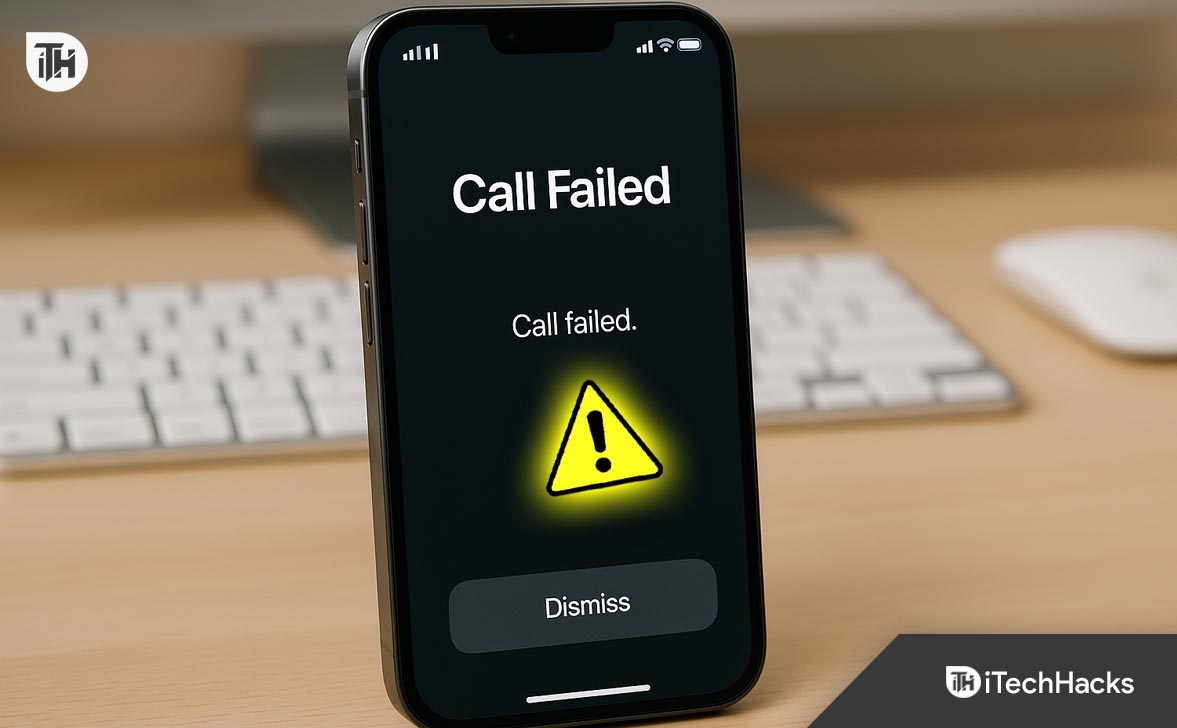
Many users have reported that after installing the iOS 26 update, their iPhones suddenly can’t make outgoing calls. The issue often appears as a “Call Failed” message or an inability to connect calls despite having full network bars. This has become one of the most common post-update issues, affecting users across multiple carriers and models, including the iPhone 13, 14, 15, and even the latest iPhone 17 series.
If you’re experiencing iOS 26 call failed problems or find that your device refuses to initiate calls altogether, this guide provides a comprehensive, expert-level breakdown of causes and working fixes that actually resolve the issue.
Understanding the iOS 26 Calling Issue
The iOS 26 update introduced several background optimizations for connectivity, Wi-Fi calling, and network authentication. However, these improvements also brought compatibility conflicts with certain carriers and network configurations.
When users can’t make outgoing calls after iOS 26, the problem generally lies in one of the following areas:
- Carrier settings not updated or mismatched
- Corrupted network configuration or SIM registration issue
- Bugs in iOS 26’s cellular framework
- VoLTE, Wi-Fi calling, or FaceTime interference
- eSIM activation errors after update
Understanding these underlying factors helps in applying precise solutions rather than generic resets.
Common Symptoms of iOS 26 Call Failed Issues
When the iOS 26 call failed issue appears, users typically experience:
- Outgoing calls instantly ending with “Call Failed”
- No sound or immediate disconnection when dialing
- Calls working on FaceTime or WhatsApp, but not via the carrier network
- Incoming calls working fine, but not outgoing
- SIM showing “No Service” intermittently after the update
These symptoms confirm a deeper issue with iOS 26’s network or SIM management.
Step-by-Step Fixes for iOS 26 Call Failed or Outgoing Call Problems
If you can’t make outgoing calls after the iOS 26 update, or your iPhone keeps showing the “Call Failed” message, follow these step-by-step troubleshooting methods. Each fix below addresses a specific cause — from carrier configuration issues to corrupted network settings introduced in iOS 26.
1. Update Your Carrier Settings (Most Common Fix for iOS 26 Call Failed Issue)
When Apple releases a major update like iOS 26, carriers also push new settings to maintain compatibility. If you skip this update, your iPhone may fail to register properly with the cellular network.
- Go to Settings → General → About.
- Wait a few seconds — if a popup says “Carrier Settings Update Available,” tap Update.
- Restart your iPhone to apply the configuration changes.
- Try placing an outgoing call again.
Carrier updates contain vital changes for VoLTE, 5G, and Wi-Fi Calling integration under iOS 26. Without these, the system may show Call Failed when trying to initiate a call.
2. Turn Airplane Mode On and Off to Refresh Network Registration
After updating to iOS 26, your iPhone may lose proper network registration or get stuck in a temporary network state. The easiest way to refresh this connection is by toggling Airplane Mode.
- Swipe down from the top-right corner to open Control Center.
- Tap the Airplane icon to enable Airplane Mode.
- Wait for 20–30 seconds.
- Tap again to disable it and allow the phone to reconnect.
- Make a test call to check if the iOS 26 call failed error is gone.
Doing this forces the iPhone to disconnect and re-register with your carrier’s towers, clearing any temporary call routing glitches caused by iOS 26.
3. Reinsert or Reactivate SIM / eSIM (Fixes SIM Registration Problems in iOS 26)
In several reported cases, the iOS 26 update caused SIM profiles — especially eSIMs — to partially deactivate. This prevents the system from authenticating calls even if data works fine.
For Physical SIM Users:
- Power off your iPhone.
- Use the SIM ejector tool to remove your SIM card.
- Inspect for dust or damage; gently clean if needed.
- Reinsert the SIM properly and restart your device.
- Try making an outgoing call again.
For eSIM Users:
- Go to Settings → Cellular → eSIM Settings.
- Toggle Turn Off This Line, wait 10 seconds, then turn it back on.
- If you still can’t make calls, delete and re-add the eSIM using your carrier QR code or carrier app.
After iOS 26, many users reported partial SIM profile corruption, and reactivation helps rebuild the correct network identity needed for calls.
4. Reset Network Settings (Fixes Corrupted Network Configurations After iOS 26)
If you’ve tried everything above and still face iOS 26 call failed issues, a network reset often resolves deep connectivity bugs.
- Open Settings → General → Transfer or Reset iPhone → Reset.
- Choose Reset Network Settings.
- Enter your passcode when prompted.
- Tap Confirm and wait for the device to restart automatically.
This removes all saved Wi-Fi networks, VPNs, Bluetooth connections, and carrier preferences, allowing your iPhone to rebuild them under the new iOS 26 environment.
After reboot, try connecting to your carrier and make a call.
5. Disable VoLTE and Wi-Fi Calling Temporarily (Avoid Network Conflicts)
Some carriers haven’t fully synchronized their VoLTE or Wi-Fi Calling protocols with iOS 26 yet. Turning them off temporarily can stop the call failed error.
Steps to disable:
- Go to Settings → Cellular → Cellular Data Options → Voice & Data.
- Turn VoLTE off.
- Then open Settings → Phone → Wi-Fi Calling and toggle it off.
- Restart your iPhone and make a call using the standard voice network.
VoLTE and Wi-Fi Calling use IP-based routing. If iOS 26 mismanages these routes, the call can drop before connection. Disabling them forces your iPhone to use traditional 4G/3G voice channels, ensuring reliability.
6. Manually Update Carrier Profile via iTunes or Finder
If you’re using an international SIM or an older carrier profile, you might need to manually update the settings via a computer. This ensures your iPhone uses the most recent configuration supported by iOS 26.
- Connect your iPhone to a computer with iTunes (Windows) or Finder (macOS).
- Wait until the device is detected.
- If a prompt appears saying “A carrier update is available,” click Update Settings.
- Once updated, disconnect and reboot your iPhone.
Note: This method helps when the over-the-air update fails to install automatically after iOS 26.
7. Turn Off Silence Unknown Callers and Focus Modes
Certain iOS privacy and focus features can mistakenly block outgoing calls or cause network delay.
- Go to Settings → Phone → Silence Unknown Callers and ensure it’s turned off.
- Then, go to Settings → Focus → Do Not Disturb, and disable any automation that could interfere with calls.
- Also check Settings → Screen Time → Communication Limits to ensure calling isn’t restricted.
After iOS 26, some Focus profiles automatically re-enabled old restrictions from previous iOS versions, unintentionally causing call blocking.
8. Check for Minor iOS 26.0.1 or iOS 26.1 Patch Update
Apple quickly releases minor bug-fix updates after major rollouts. These patches often fix iOS 26 call failed bugs affecting specific carriers.
- Open Settings → General → Software Update.
- If iOS 26.0.1 or iOS 26.1 is available, tap Download and Install.
- Allow the update to complete, then restart your phone.
Apple continuously adjusts the radio firmware and cellular stack after user reports. Installing the latest build ensures you benefit from those fixes.
9. Reset All Settings (Full Device Configuration Refresh)
If calls still fail even after resetting network settings, you may need a broader system refresh. This won’t delete your data but will reset all preferences.
- Go to Settings → General → Transfer or Reset iPhone → Reset → Reset All Settings.
- Enter your passcode.
- Wait for the device to restart.
This process resets permissions, privacy settings, and background system flags that may conflict with carrier configurations after iOS 26.
After reset:
- Reconnect Wi-Fi
- Re-enable your SIM/eSIM
- Test outgoing calls immediately
10. Contact Your Carrier for Re-Provisioning
If none of the local fixes resolve the iOS 26 call failed problem, contact your mobile carrier. The issue may be on their side — especially if the SIM hasn’t been properly provisioned for iOS 26’s new communication stack.
- Re-provision your SIM or eSIM profile.
- Refresh your IMEI and ICCID in their database.
- Re-send your APN and IMS configurations.
If you’re using an eSIM, request a fresh QR code activation. This often restores full calling and messaging functionality immediately.
11. Perform a Full Backup and Reinstall iOS 26
As a last resort, if you suspect the update was corrupted during installation, a clean reinstall can fix it.
- Back up your iPhone via iCloud or Finder/iTunes.
- Download the latest iOS 26 firmware (IPS file) from Apple’s official site.
- Connect your iPhone to the computer and open Finder or iTunes.
- Choose Restore iPhone, then select the firmware file.
- Once the reinstall completes, restore your backup and test outgoing calls.
It clears all system-level corruption introduced during the initial iOS 26 update and rebuilds your modem and network frameworks from scratch.
Bonus Tip: Test Calls in Safe Mode or Without Third-Party Dialer Apps
If you use any third-party call recording or blocking apps, disable or uninstall them. These apps can conflict with iOS 26’s new call handling APIs, causing failed calls or frozen dial screens.
To enter Safe Mode (for advanced users):
- Power off your iPhone.
- Hold Volume Up + Power Button until you see the Apple logo.
- This starts your device in diagnostic mode without extra extensions.
- Make a call test — if it works, a third-party app is responsible.
FAQs
1. Why can’t I make calls after updating to iOS 26?
The iOS 26 update can reset or corrupt network configurations, affecting SIM registration or carrier authentication. Updating carrier settings or resetting the network often resolves the issue.
2. What does “Call Failed” mean on iPhone after iOS 26?
It means the phone failed to connect to your carrier’s network due to software or SIM communication errors. Resetting network settings or disabling VoLTE can fix it.
3. Will resetting network settings delete my data?
No. It only erases saved Wi-Fi passwords, VPNs, and network preferences. Your photos, messages, and apps remain intact.
4. Is the iOS 26.1 update safe to install?
Yes. iOS 26.1 includes bug fixes and carrier optimizations for issues like iOS 26 call failed and dropped calls. Installing it is recommended.
5. How to know if my carrier supports iOS 26 fully?
Check your carrier’s website or support app. If your device shows “Carrier Settings Version 56.0 or higher,” it’s compatible with iOS 26.
Conclusion
If your iPhone can’t make outgoing calls after the iOS 26 update, the root cause is almost always tied to carrier configuration mismatches or post-update bugs in iOS 26’s network handling. Start with basic steps like updating carrier settings, toggling Airplane Mode, or resetting network settings. For persistent issues, disable VoLTE/Wi-Fi calling or contact your carrier to re-provision your SIM.
Apple’s upcoming iOS 26.1 patch is expected to address these network inconsistencies, but applying the fixes above ensures your device stays functional and reliable in the meantime.
ALSO READ:
- Fix No Sound for Text Messages, Keyboard & Emails After iOS 26
- iPhone 17 Data Transfer Failed? Fix “Unable to Complete Data Transfer” in iOS 26
- How to Use iOS 26 Battery Settings to Fix Excess iPhone Drain
- iOS 26 Notifications Hard to Read or Missing? Try These Fixes
- How to Clear Safari History on iOS 26 Without Losing Data