- Keep both iPhones updated to the latest iOS 26 and use a stable Wi-Fi or wired connection to prevent the “Unable to Complete Data Transfer” error on iPhone 17.
- If wireless transfer fails, restore from iCloud or an encrypted Finder/iTunes backup to complete data migration without issues.
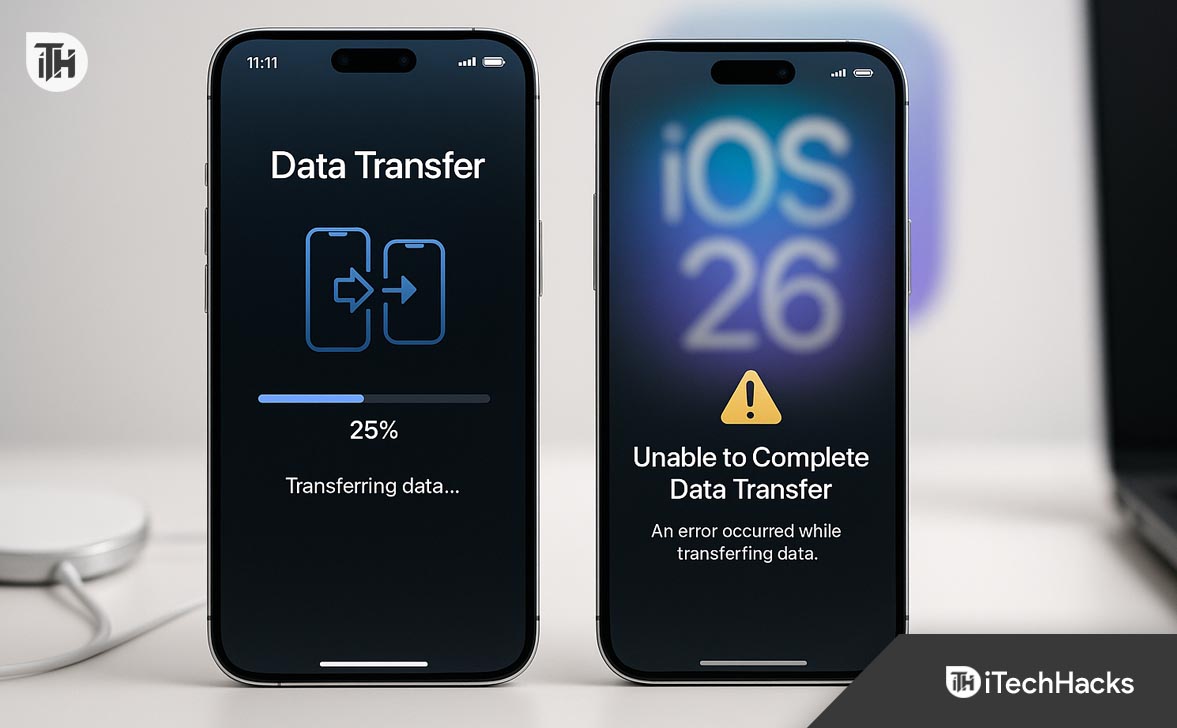
If you’re setting up a new iPhone 17 and see the message “Unable to Complete Data Transfer” during setup or Quick Start, you’re not alone—this is a widespread issue, especially with devices running iOS 26. The error typically appears while migrating data from an older iPhone, iCloud, or a Mac/PC backup.
This issue can prevent the new iPhone from restoring apps, messages, photos, and settings correctly. In 2025, Apple’s latest iOS 26 introduces enhanced security and migration protocols, which can conflict with older backups or unstable connections. Fortunately, the problem is fixable through tested methods used by Apple technicians and advanced users.
In this guide, you’ll learn exactly what causes the “Unable to Complete Data Transfer” issue on iPhone 17, how to fix it step-by-step, and how to ensure smooth migration in future setups.
Understanding the “Unable to Complete Data Transfer” Issue in iOS 26
The data transfer process on iOS 26 is designed to migrate everything—from contacts and photos to apps and settings—either wirelessly or via cable. However, on iPhone 17, some users encounter failures midway, with messages like:
- “Unable to Complete Data Transfer”
- “Transfer could not be completed”
- “Something went wrong during setup”
This typically means one of the following:
- iOS version mismatch between old and new device
- Unstable Wi-Fi or Bluetooth connection
- Corrupted backup
- Insufficient storage or outdated apps
- Interrupted power supply or system processes
Before diving into fixes, it’s essential to understand the transfer methods iOS 26 supports.
Common Causes of Data Transfer Failures on iPhone 17
1. Outdated iOS Versions
If the old iPhone runs an older build (e.g., iOS 25.x) and the iPhone 17 has iOS 26, compatibility issues may occur.
2. Weak or Dropped Wi-Fi Connection
During Quick Start, any interruption in the local Wi-Fi or peer-to-peer network can break the migration.
3. Corrupt iCloud or Local Backup
If the backup file contains incomplete or invalid data, iOS 26 refuses to restore it.
4. Low Battery or Interrupted Power
Unplugging either phone or allowing one to power off mid-transfer halts the process.
5. Storage Limitations
If the target iPhone has less available space than the source data size, migration will fail.
6. Security Settings and Passcode Conflicts
Enabled profiles, MDMs, or encrypted backups without matching credentials can prevent restoration.
Step-by-Step Fixes for “Unable to Complete Data Transfer” on iPhone 17 (iOS 26)
When your iPhone 17 displays the error “Unable to Complete Data Transfer”, it means the migration process between your old and new iPhone was interrupted or failed. This problem is common in iOS 26, especially when using Quick Start or iCloud Restore. The following step-by-step fixes will help you identify the exact cause and complete your data transfer successfully.
Update Both iPhones to the Latest Version of iOS 26
iPhones running different iOS builds (e.g., iOS 25.6 on the old device and iOS 26.0 on the new one) often face compatibility issues during transfer. Apple’s latest firmware includes migration stability improvements.
- On both devices, go to Settings → General → Software Update.
- Wait for iOS 26 or later build (like 26.0.1) to appear.
- Tap Download and Install.
- Once both devices are updated, restart them and retry the transfer.
Keeping both devices on the same iOS 26 build ensures compatibility and eliminates most transfer errors on iPhone 17.
Use a Strong, Stable Wi-Fi Connection (or Prefer Wired Transfer)
Most transfers fail due to unstable or congested Wi-Fi networks, especially when using Quick Start wireless migration.
- Ensure both iPhones are connected to the same Wi-Fi and placed side by side.
- Plug both into power sources to prevent battery drain.
- Turn off Low Power Mode from Settings → Battery.
- Keep both screens unlocked and active during transfer.
For faster and more stable migration, use a USB-C to Lightning cable (or USB-C to USB-C on new models) for wired transfer. This bypasses Wi-Fi entirely and reduces risk of disconnection.
Reset Network Settings to Clear Conflicts
If your Wi-Fi drops or devices fail to connect, network settings may be corrupt.
- On both devices, go to Settings → General → Transfer or Reset iPhone.
- Tap Reset → Reset Network Settings.
- Reconnect to your Wi-Fi network.
- Try the transfer again.
This clears saved Wi-Fi networks, VPNs, and Bluetooth connections that may interfere with iPhone 17’s iOS 26 data migration.
Check Available Storage on iPhone 17
If your old phone has 200GB of data but your new iPhone 17 only has 128GB of free space, transfer will fail.
- On the old iPhone, check Settings → General → iPhone Storage.
- On iPhone 17, check available storage in the same section.
- Delete unnecessary apps or media on the old phone before backup or migration.
Use iCloud Optimize Storage to reduce local space usage before attempting again.
Try iCloud Backup Restore Instead of Quick Start
If Quick Start repeatedly fails, restore from a verified iCloud backup instead.
- On old iPhone, go to Settings → [your name] → iCloud → iCloud Backup.
- Tap Back Up Now and wait for completion.
- On iPhone 17, reset it (Settings → General → Erase All Content and Settings).
- During setup, select Restore from iCloud Backup.
- Sign in with your Apple ID and pick the most recent backup.
iCloud restore ensures complete data migration for iPhone 17 on iOS 26, including messages, photos, and settings.
Use Finder or iTunes for Encrypted Backup Restore
When iCloud or Quick Start fail, use your Mac or PC.
- Connect old iPhone to Mac/PC.
- Open Finder (macOS Catalina or later) or iTunes (Windows/macOS Mojave).
- Select your device and check Encrypt Local Backup.
- Click Back Up Now.
- Once done, connect iPhone 17 and click Restore Backup.
- Choose the recent backup and wait for transfer.
It transfers saved passwords, Health data, and app settings—essential for a seamless setup on iOS 26.
Disable VPNs, Profiles, and Restrictions
MDM or VPN profiles can block migration tasks.
- Go to Settings → General → VPN & Device Management.
- Remove any listed profiles.
- Turn off VPNs under Settings → VPN.
- Disable Content & Privacy Restrictions from Screen Time.
Now restart both devices and retry the migration.
Ensure Continuous Power Supply
iPhone 17 or the source phone may pause the transfer if battery is low.
- Connect both iPhones to original chargers.
- Keep the screens awake and unlocked.
- Avoid switching apps during migration.
Power interruptions are one of the most overlooked causes of the “Unable to Complete Data Transfer” error on iOS 26.
Factory Reset and Retry Setup Cleanly
If all else fails, start fresh.
- On iPhone 17, go to Settings → General → Transfer or Reset iPhone.
- Tap Erase All Content and Settings.
- After restart, select your transfer method again (iCloud, Finder, or Quick Start).
This clears any partial data left from failed attempts.
Contact Apple Support or Visit Service Center
If the “Unable to Complete Data Transfer” error persists despite trying all methods:
- Visit Apple Support
- Book an appointment at an Apple Store or Authorized Service Provider
- Provide details (method used, backup size, error message screenshot)
Technicians can analyze iOS 26 system logs and suggest advanced repair or device replacement if needed.
Preventive Measures for Future Transfers
- Keep devices fully charged and plugged in.
- Update iOS regularly to avoid version mismatch.
- Maintain recent iCloud backups.
- Avoid using beta versions during migration.
- Use encrypted backups to ensure all data moves safely.
- Always verify storage before purchase (especially base models like 128GB).
Conclusion
The “Unable to Complete Data Transfer” issue on iPhone 17 running iOS 26 is frustrating but solvable with proper preparation. Most failures arise from outdated iOS, unstable connections, or corrupted backups. Start by updating both devices, ensuring stable Wi-Fi or using a wired connection, and verifying backup integrity.
For complex cases, a clean restore via encrypted Mac/PC backup offers the most reliable result. By following these expert-tested steps, you can complete your migration successfully and enjoy a fully restored iPhone 17 experience without missing data or settings.
ALSO READ:
- How to Use iOS 26 Battery Settings to Fix Excess iPhone Drain
- How to Clear Safari History on iOS 26 Without Losing Data
- iOS 26 Notifications Hard to Read or Missing? Try These Fixes
- Call Screening on iPhone (iOS 26): Enable, Disable & Fix Common Issues
- Apple CarPlay Not Working After iOS 26? Fix Connectivity, Crashes & Pairing Issues Fast
- How to Fix iOS 26 Stuck on Black Screen: Step-by-Step Guide